
Which optimization does your PDF need?
To optimize a PDF means changing the file so it does one job better: travel by email, show up in a search, print on a black-only printer or just open. Start from what's going wrong with the file today, and the right tool follows from that.
Every tool on this page is free. None of them needs an account or adds a watermark.
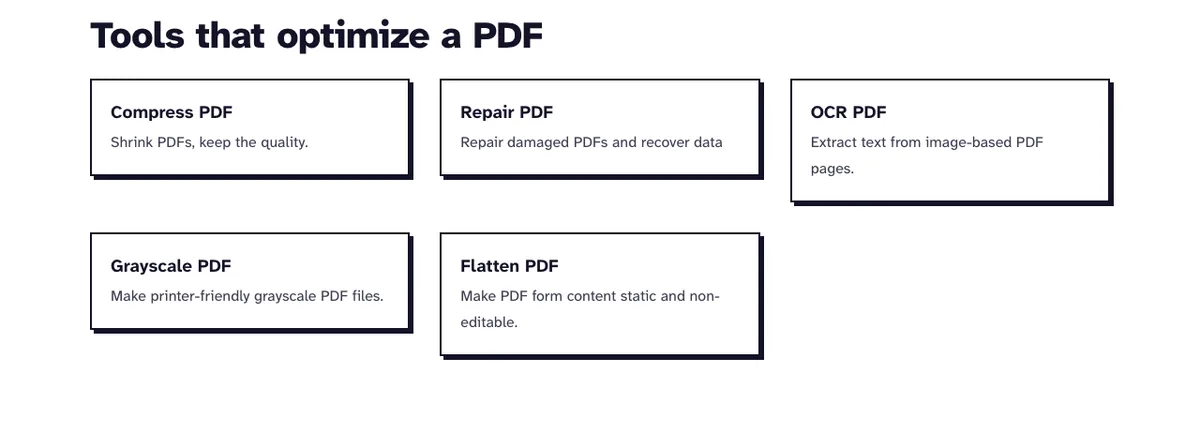
Choose an Optimize ToolWhich tool for which problem
Each tool changes the file in its own way. Pick by the problem you've got, and read the last column before you run anything on your only copy.
| The problem | Tool | What changes in the file |
|---|---|---|
| Too big to email or upload | Compress PDF | Images get stored again at 200, 110 to 150, or 72 dpi; text stays text |
| Search finds nothing in a scan | OCR PDF | Every page turns into a 300 dpi image, with the recognized text as an invisible layer over it |
| The PDF won't open | Repair PDF | A new file gets written from the pages that can still be read |
| Printing on a black-only printer | Grayscale PDF | Colors turn into shades of gray; text stays selectable |
| Form entries or comments have to stay fixed | Flatten PDF | Fields, comments and stamps get drawn into the page |
OCR and Compress: which one first
We ran our one-page scan test file (15.6 KB, a 144 dpi image of the words SEARCHABLE SCAN 2024) through both orders on 22 October 2026. OCR PDF redraws every page at 300 dpi with the Tesseract engine, so whatever Compress did beforehand gets thrown away.
| Order | Result | Text found by search |
|---|---|---|
| OCR PDF only | 29.0 KB, 300 dpi image | Yes |
| Compress (Recommended), then OCR PDF | 29.0 KB, byte for byte the same size as OCR only | Yes |
| OCR PDF, then Compress Light | 46.3 KB, 200 dpi image | Yes |
| OCR PDF, then Compress Recommended | 31.4 KB, 150 dpi image | Yes |
| OCR PDF, then Compress Max | 14.6 KB, 72 dpi image | Yes |
Run OCR first. Compress afterwards, and only if the size matters: on a file this small, Light and Recommended actually made the OCR copy bigger, and only Max made it smaller (the invisible text layer stayed searchable at every level).
Is Grayscale worth adding before Compress?
Our 12-page, 3.1 MB file of color screenshots answers that. Grayscale alone gets it to 1.6 MB, but it does the most good as a first step before Compress.
| Steps | Recommended | Max |
|---|---|---|
| Compress only | 382.2 KB | 172.3 KB |
| Grayscale PDF, then Compress | 320.8 KB | 120.2 KB |
Grayscale first saved another 16 percent at Recommended and 30 percent at Max. We'd add it when the recipient prints in black and white anyway. Skip it when color carries meaning, like charts or highlighted text.
What each tool keeps and what it drops
Compress PDF keeps comments, highlights and stamps as separate annotations. Fill-in form fields don't survive it, though: in our test the form came back with the typed entries still visible and no fields left to edit.
We also built a file with a title, three bookmarks, an internal and an external link, a CSV attachment, page thumbnails and hidden JavaScript, then compressed it. The output kept the title, the bookmarks, both links and the attachment, and dropped the thumbnails, the JavaScript and the XMP metadata. Bookmarks and links are safe, then, but an attached file travels along inside the result, which you'll want to know before you share it.
Since Compress already fixes the form entries, flatten first only when the comments have to stay put. OCR PDF swaps text pages for pictures too: a shop-issued PDF of 1.2 KB came back at 19.1 KB without its real text, and its links were gone.
Repair PDF uses Ghostscript and can't bring back a page whose data is missing. Keep the original until the repaired copy looks right.
The order to run several tools in
Repair a broken file first, because the other tools need a PDF they can read. Then run OCR, flatten or grayscale, and compress last, so the final size is the one you actually send.
Compress, OCR, Flatten, Grayscale and Repair all stop at a PDF that needs a password to open. So add a password with our PDF security tools only after the last step. If you want to store the result for the long term, convert it to PDF/A with our PDF conversion tools at the very end.
Frequently Asked Questions about Optimizing a PDF
What does it mean to optimize a PDF?
It means changing the file for a purpose: smaller for email, searchable for an archive, gray for printing or flat so entries stay fixed. Each purpose is a different change, which is why each one has its own tool.
Should I compress a scan before I run OCR on it?
No. OCR PDF redraws every page at 300 dpi, so in our test the result came out the same size whether the scan was compressed first or not.
Does the optimized file open faster over the web (Fast Web View)?
No. We ran qpdf on a compressed file and it reported the output isn't linearized, so a browser still downloads the whole file before it shows page one. The file's smaller, and that's what makes email and uploads quicker.
Are my files kept after I optimize them?
No. These tools run on our server, and uploaded files get deleted within two hours.
Can I optimize a password-protected PDF?
Not while it asks for a password when you open it. If you know the password, remove it with the Unlock PDF tool in our PDF security tools, then add it back after the last step.