
Edit PDF Online: Change the Text, Add Images, Links and Notes
Edit PDF files in your browser: click a line to change its words, or add text, pictures, links, highlights, white-out and check marks anywhere on a page. The old words get removed from the file, not just covered, and nothing's uploaded until you save.
// how it works
How to edit a PDF
- 01Upload the PDF you'd like to edit.
- 02Click a line to change its text, or pick a tool and click or drag on a page.
- 03Move, resize or remove what you added, and undo any step.
- 04Click Save PDF and download the edited file.
// why pdf-file
What the PDF editor does
- Change existing textClick a line and type. The old words come out of the file, and the new ones get the closest matching font.
- Add text and picturesPut new text in any size and color, or a PNG or JPEG picture, anywhere on a page.
- Links, highlights and marksTurn an area into a link, highlight text, draw rectangles and add check or cross marks.
- White-outCover part of a page with a white box. If confidential text has to go for good, use Redact PDF instead.
- Edited in your browserYou make every change on screen. The PDF only gets uploaded when you click Save PDF.
- Deleted within two hoursWe delete your upload and the edited file from our server within two hours.
More ways to edit a PDF
- PDF ViewerOpen, search and print a PDF without uploading it.
- Add Image to PDFOverlay one PNG or JPEG image on a selected PDF page
- Add WatermarkOverlay centered text on every PDF page with adjustable rotation and opacity.
- Add StampChoose PDF pages and place a readable text stamp on those pages only.
- Crop PDFChange the visible and printable margins on every PDF page. Cropped objects are hidden, not securely erased.
- Resize PDFFit every page onto A4, Letter or another paper size.
- Remove WatermarkRemove a watermark from a known region. It does not remove watermarks in general.
- Change PDF BackgroundRestyle PDF pages with one of 7 preset color themes.
- PDF Dark ModeRender PDF pages with a dark background while preserving readability.
- Edit PDF MetadataView and edit PDF title, author, subject, keywords, creator, and producer metadata.
- Fill PDF FormFill text fields, checkboxes, dropdowns, radio buttons, and option lists in standard AcroForm PDFs.
- Auto Fill PDFFill interactive PDF forms with exact field-name mapping from JSON or CSV.
How to edit a PDF online
A PDF is built to look the same on every screen, which is also what makes it hard to change. Most free editors only let you put new things on top of a page. This one also changes the words that are already there.
Click a line, type the new text and save. It's free, you don't need an account, and it doesn't add a watermark.
Edit a PDF NowHow to edit a PDF
- Click Upload PDF and pick the file you want to edit.
- Click a line to change its text, or pick a tool and click or drag on a page.
- Move, resize or remove what you added, and undo any step.
- Click Save PDF and download the edited file.
How changing existing text works
With Edit text selected, every line on a page becomes clickable. Type over it and press Enter, and the line shows the new words straight away.
When you save, MuPDF deletes the old characters of each changed line from the file, so nobody can copy or find them any more. The new text goes on the same baseline, in the same size and color.
You get the closest font we have. Arial and Helvetica become Liberation Sans, Times becomes Liberation Serif, and Calibri, Georgia, Verdana and other common fonts are matched by name, while a line in a rare font changes to a similar-looking one.
Is the old text really gone after an edit?
Yes. The old characters of a changed line are taken out of the page, not hidden under the new ones. We checked with a test invoice set in Helvetica Bold, Times, Courier and Helvetica, changing four lines, for example "due within thirty days" to "due within ten days".
After saving, pdftotext and MuPDF both came up empty when we searched the extracted text for the old words. In a second test the replaced line's string was gone from the raw page content too. Only the lines you change get cleaned, though, so a name that also turns up elsewhere in the file is still there (for that, use Redact PDF).
What a longer line or another font does
A longer replacement stays on one line and grows to the right. Nothing wraps, and the next line doesn't move: in our test a 98 character line in 9 point Helvetica ended 420.7 points from the left edge, and with 137 characters it ended at 555.3 points on the same baseline. At 173 characters it ran past the edge of the A4 page at 595.28 points, and the last words were simply cut off.
Bold stays bold: Helvetica Bold became Liberation Sans Bold, Times became Liberation Serif and Courier became Liberation Mono. With Helvetica, Helvetica Bold and Courier the stand-in kept the letter widths, so unchanged words stayed within 0.05 points of where they were ("below" ended at 420.68 points before the edit and 420.72 after). The fonts get embedded in the file, which added about 23 KB to our 1.1 KB test invoice.
So keep a replacement about as long as the words it replaces, and change a paragraph line by line. A line that mixes fonts, say one word in bold, is split into separate parts you edit one by one.
Add text, pictures, links and marks
Add text puts a new text box where you click, in any size and color. Image places a PNG or JPEG picture. Rectangle, Highlight, Check mark and Cross mark do what their names say.
Link turns an area into a clickable web or email address. Anything you add can be dragged somewhere else, resized at its corner or removed, and Undo steps back through your changes.
White-out is not redaction
White-out covers part of a page with a white box, but the text underneath stays in the file and anyone can copy it. That's fine for a typo. For a name or number that has to go, use Redact PDF.
Which edit tool for which job
The editor is for one-off changes. The tools below repeat one change across pages or change the whole page, and each one leaves something different in the file.
| Job | Tool | What the output keeps or changes |
|---|---|---|
| A note or label in one spot | Edit PDF, Add text | Any size and color; drawn into the page when you save |
| APPROVED or PAID on chosen pages | Add Stamp | Red box only, six edge positions; Remove Watermark doesn't take it off |
| The same word on every page | Add Watermark | Gray, centered, four angles; tagged as a watermark, so Remove Watermark takes it off again |
| A logo or signature image | Add Image to PDF | One PNG or JPEG on one page per run, at exact coordinates in points |
| Wide white margins | Crop PDF | A smaller visible page; what you cut stays in the file, as our test of whether cropping removes content shows |
| A different paper size | Resize PDF | Every page scaled onto A4, Letter or another sheet; text stays text and links keep working |
| A dark copy for night reading | PDF Dark Mode | Colors inverted, photos look like negatives; pages become pictures, so you can't select the text any more |
| A dark copy of a text-only file | Change PDF Background | Only the dark marks survive in the theme colors, photos are dropped; pages become pictures too |
| A form with fields | Fill Out PDF Form | Values typed into the real fields; PDF Auto Fill does the same from a JSON file when you need many copies |
| A form without fields | Edit PDF, Add text | Text placed over the blank lines, since a flat form has nothing to fill in |
Edit tools that work best in a chain
A filled form to a clean copy, in four tools
We ran our six-field test form through four tools in October 2026, one page the whole way. Fill Out PDF Form took it from 7,056 to 14,393 bytes, and Add Stamp with APPROVED at bottom right took it to 18,553 bytes.
Flatten PDF then turned all six fields into plain page content at 12,612 bytes, but it also wrote GPL Ghostscript into the producer field. Edit PDF Metadata with every field left empty came last and cleared it, at 12,363 bytes, while the name, e-mail address and APPROVED still came out as text.
So clean the metadata last, because any tool that rewrites the file can set the producer again. The stamp can go before or after flattening. Add Stamp draws into the page and never touches the fields.
Crop, then resize back to A4
Crop PDF leaves a smaller sheet, and Resize PDF scales that visible area back onto A4 or Letter. In our test the cut strip (a line with an account number) no longer showed up in a text extraction after the resize, yet its characters were still in the page content.
Rotate turned pages before either step, since Crop PDF reads the rotation saved in the file. Our guide on cropping rotated pages shows what happens if you don't.
Text you cannot edit
A scanned page is a picture, so there are no lines to click. Cover the mistake with White-out and type the correction with Add text. If the PDF needs a password, unlock it first with Unlock PDF, one of our security tools.
What happened when we tested Edit PDF
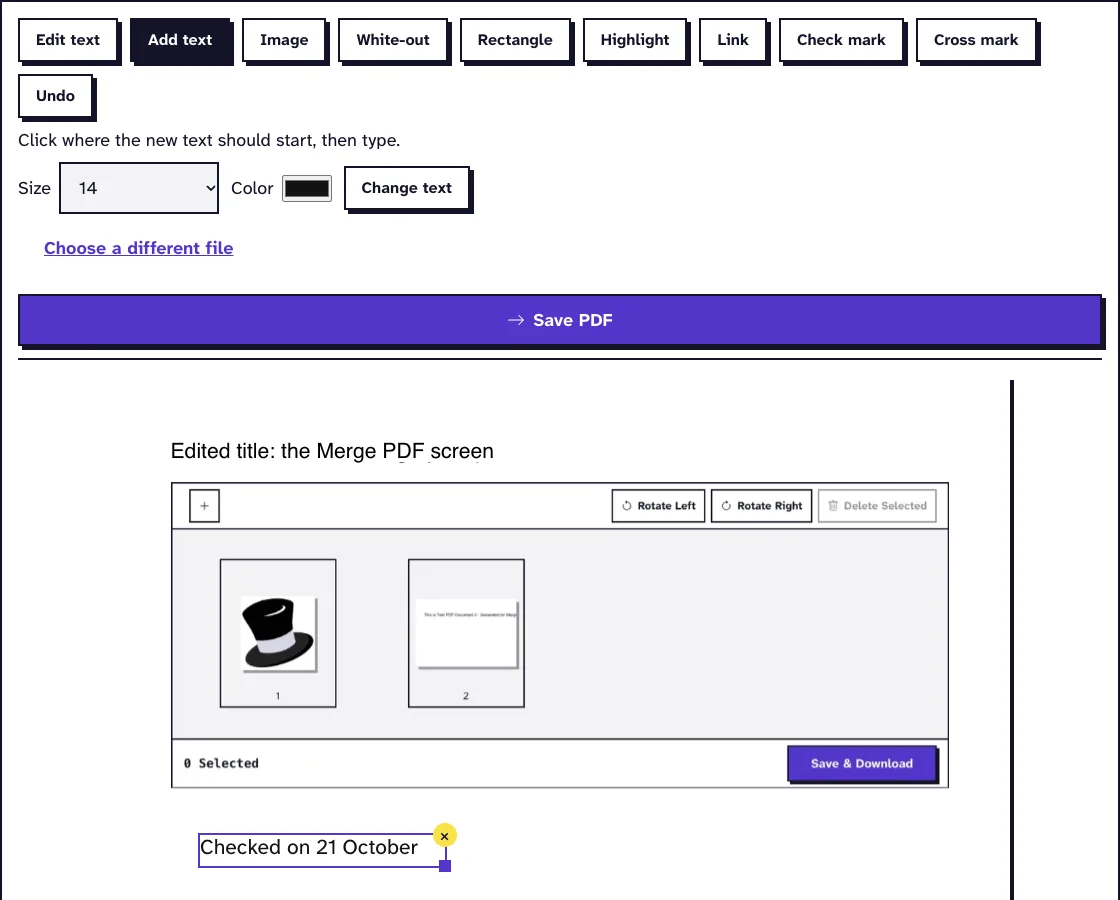
We uploaded sample-screenshots.pdf, a 12-page test file of 3.1 MB, with the first line of page 1 changed from "Screenshot 1 of 12: merge-pdf-options" to "Edited title: the Merge PDF screen" and the note "Checked on 21 October" added. The tool returned sample-screenshots_Edited.pdf, 3.1 MB with 12 pages, 0.2 seconds after we pressed Save PDF on our local test server.
Tested in October 2026.
Frequently Asked Questions about Editing a PDF
Can I edit the text in a PDF without Acrobat?
Yes. Click the line in this editor, type the new text and save. All you need is a browser.
Will the new text use the same font?
It uses the closest font we have, in the same size and color. Common fonts like Arial, Times, Calibri and Georgia get matched closely.
Is my PDF uploaded while I edit?
No. You edit on screen, and the PDF is uploaded once, when you click Save PDF. It's deleted from our server within two hours.
Does the editor add a watermark?
No. The saved PDF has only your changes in it.
Loved PDF-File.com? Spread the word!
Help us keep these tools free: Share with your friends!