
How to pick the right tool for your PDF pages
Most page jobs come down to four kinds: changing the order, joining or splitting files, keeping or dropping single pages, and fixing how pages look or are numbered. There's a tool for each one here, so you open the one that does exactly your job.
They're all free. No account, no watermark.
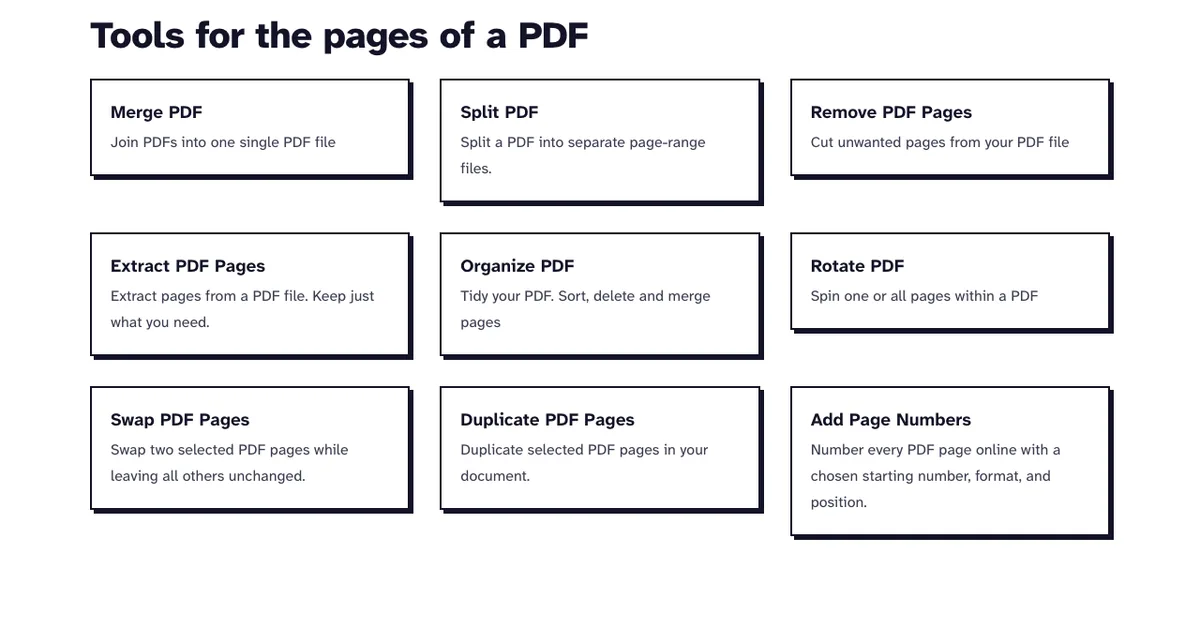
Choose a Page ToolWhich Page Tool for Which Job
| Your job | Tool | Where it runs |
|---|---|---|
| Move many pages, or mix pages of several files | Organize PDF Pages or Merge PDF | Your browser |
| Exchange two pages and keep everything else | Swap PDF Pages | Our server |
| Repeat a page, such as a form sheet | Duplicate PDF Pages | Our server |
| Insert blank pages or a second PDF | Add Pages to PDF | Our server |
| Cut one file into several | Split PDF | Our server |
| Drop a few pages | Remove PDF Pages | Your browser |
| Keep a few pages as a new file | Extract PDF Pages | Our server |
| Turn sideways pages | Rotate PDF Pages | Your browser |
| Number pages, or number a set of files in one count | Add Page Numbers or Bates Numbering | Our server |
| Print a folded booklet, handouts or a poster | PDF Booklet, Pages per Sheet or PDF Poster | Our server |
| Change the words on a page | Edit PDF | Our server |
The browser tools use pdf-lib and never send your file to us. The server tools delete both the upload and the result within two hours.
If you searched for a way to edit PDF pages because one line of text is wrong, the page tools won't help: none of them changes words. Edit PDF does. In our October 2026 test it replaced the first line of page 1 of a 12-page file and saved the file in 0.2 seconds.
What Each Tool Keeps in the Saved PDF
We made a 5-page test PDF with a document title, two bookmarks and a filled-in form field on page 1. Then we ran it through every page tool in October 2026 and opened each result. They fell into four groups.
| Tools | Title and bookmarks | Filled form field |
|---|---|---|
| Swap, Duplicate, Add Pages, Add Page Numbers, Bates Numbering | Kept | Still fillable |
| Merge, Organize, Remove, Rotate, Split | Lost | Value still shows, but the field can no longer be filled |
| Extract PDF Pages | Kept, even the bookmark of a page we left out | Value printed onto the page, no longer a field |
| Pages per Sheet, PDF Booklet, PDF Poster | Lost | Gone: the typed value did not appear on the sheet |
The first group edits the loaded file in place, so anything that belongs to the whole document stays put. The second copies pages into a new PDF. The third rewrites the file with Ghostscript.
So if a form has to stay fillable and only two pages are in the wrong spot, use Swap PDF Pages and leave the organizer alone. Making a booklet or handout from a filled form? Flatten it first, because after Flatten PDF our test field's value did show up in the booklet.
Workflow: Replace One Page
No tool swaps in a page from another file in one step. Two tools do it in under a second, though: in October 2026 we replaced page 3 of our 5-page test file with a one-page resume PDF.
- Remove PDF Pages with page 3 selected gave 4 pages.
- Add Pages to PDF with that file, the resume as the second PDF and the position after page 2 gave 5 pages in the order 1, 2, resume, 4, 5, in 0.03 seconds on our test server.
The new page kept its own A4 size and both of its links. The catch is that Remove PDF Pages runs in the browser, so the title and bookmarks were gone and the form field couldn't be filled anymore (just as the table above predicts). For a fillable form, you're better off fixing the source file.
PDFs That Restrict Editing
Some PDFs open without a password but still restrict changes or printing. Merge, Organize, Remove and Rotate refuse those, since they run in the browser and can't save them.
Every server tool took our restricted test file and handed back a copy without the restrictions. A PDF that needs a password just to open is another matter: all of them refuse it until you remove the password.
Workflow: A Cover Page Without a Number
Add Page Numbers labels every page, cover included, so an unnumbered cover takes three extra steps. We ran them on sample-screenshots.pdf, a 12-page file of 3.1 MB.
- Extract PDF Pages with page 1 selected gave the cover alone: 1 page, 76.6 KB.
- Remove PDF Pages with page 1 selected gave the body: 11 pages, 2.90 MB.
- Add Page Numbers on the body with starting number 2 labeled its pages 2 to 12.
- Merge PDF with the cover first and the numbered body second gave 12 pages of 3.02 MB, with no number on the cover and 2 on the next page.
Workflow: A Numbered Booklet
Number the pages first, then make the booklet. When we numbered the 12-page file first, each half of the 6 booklet sides kept its own page number, so the first side read 12 and 1.
Do it the other way round and the numbers come out wrong for readers. When we made the booklet first and numbered it afterwards, Add Page Numbers saw 6 sheet sides and printed 1 to 6, one number per side, which only suits a print shop's sheet check.
Frequently Asked Questions about Editing PDF Pages
How do I delete one page from a PDF?
Open Remove PDF Pages, click the page you want gone and save. Your download has every other page, still in its original order.
Can I reorder pages and remove some in one go?
Yes. In Organize PDF Pages you can drag, rotate and delete pages in the same session, then save one file.
Does editing pages lower the quality of a PDF?
No. Most of these tools copy pages into the new file as they are, because a PDF page is a self-contained object that can move between files unchanged. Extract PDF Pages rebuilds the file with Ghostscript instead, and the text stays selectable.
Why does a tool refuse my PDF?
A PDF that asks for a password can't be edited until the password is removed. Know the password? Take it off with Unlock PDF first, then open the page tool again.