
Print PDF as Poster: Enlarge a Page Across Several Sheets
Print a PDF as a poster on an ordinary printer: each page is enlarged to 2, 3, 4 or 5 sheets wide and cut into tiles of Letter or A4 paper. The tiles overlap by 10 mm and say which row and column they belong to, so you can trim and tape them together.
// how it works
How to print a PDF as a poster
- 01Upload the PDF with the page you want as a poster.
- 02Click Choose Options.
- 03Pick how many sheets wide the poster should be, and the paper size.
- 04Click Make Poster, print the tiles at actual size, then trim and tape them.
// why pdf-file
What the poster tool does
- 2 to 5 sheets wideYou pick the width, and the height follows the page's own proportions.
- 10 mm overlapNeighbouring tiles share a 10 mm strip, so you trim one edge and glue or tape it over the next.
- Labelled tilesEach tile says its page, row and column in the margin.
- Every page a posterA PDF with several pages gives you one poster per page, one after the other.
- Free, no accountYou won't need to sign up, you can use it as often as you want, and there's no watermark.
- Deleted within two hoursYour upload and the tiles are deleted from our server within two hours. Nothing is shared.
How to print a large poster from a PDF at home
A poster, a large chart or a floor plan rarely fits on the paper your printer takes. You can still print it at a large size by splitting each page into tiles that you tape together.
This tool blows up every page of your PDF and cuts it into Letter or A4 tiles, with a shared strip to glue along. It’s free, and you don’t need an account.
Make a Poster NowHow to print a PDF as a poster
- Click Upload PDF and pick the file with the page you want as a poster.
- Click Choose Options.
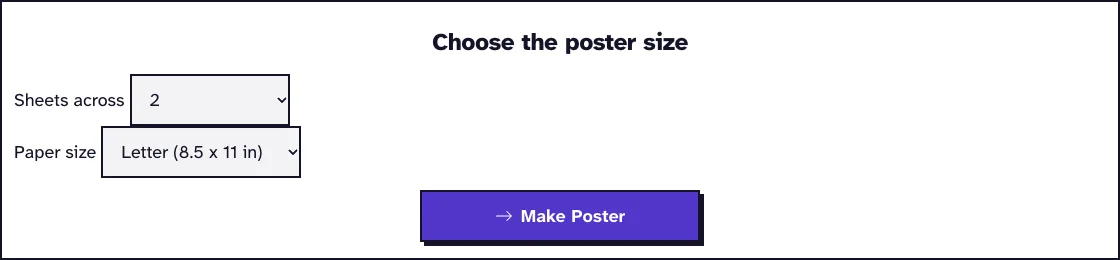
- Pick how many sheets wide the poster should be, and the paper size.
- Click Make Poster, print the tiles at actual size, then trim and tape them.
How big the poster gets
You choose the width: 2, 3, 4 or 5 sheets across. The height follows the page’s own proportions, and the tool adds as many rows as the page needs.
A Letter page 2 sheets wide comes out at about 15 by 20 inches on four sheets. Sheets turn the same way as the page, so a landscape page prints on landscape sheets.
How to put the tiles together
Every tile names its page, its number, its row and its column in the bottom margin, so laying them out in order is easy. Neighbouring tiles share a 10 mm strip of the picture.
Trim the white margin off one side of each pair, lay the trimmed edge over the shared strip of its neighbour and tape or glue it from the back. Go row by row, then join the rows.
A quarter inch stays free around each tile, because most printers can’t print right to the edge of the paper. Pick the paper size that’s actually in your printer.
Poster sizes for each width
The finished size depends on the page and the paper. Here are the sizes for a portrait page printed on paper of its own size, once the shared strips overlap.
| Sheets across | Sheets in all | Letter page on Letter | A4 page on A4 |
|---|---|---|---|
| 2 | 4 | 15.6 x 20.2 in | 38 x 54 cm |
| 3 | 9 | 23.2 x 30.0 in | 57 x 81 cm |
| 4 | 16 | 30.8 x 39.9 in | 76 x 107 cm |
| 5 | 25 | 38.4 x 49.7 in | 95 x 134 cm |
Getting close to a set size such as 24 x 36 inches
There’s no box for a size in inches or centimetres. You pick the width in sheets and the height follows your page, so for a 24 x 36 inch design (a 2:3 page), 3 sheets across on Letter paper gets closest, at about 23.2 x 34.8 inches.
We turned a 2:3 test page into posters in October 2026. Three sheets across came out as 12 tiles in 4 rows on Letter and on A4, and four across as 20 tiles in 5 rows, which is about 30.8 x 46.2 inches on Letter.
| 2:3 page, sheets across | Tiles | On Letter | On A4 |
|---|---|---|---|
| 3 | 12 | 23.2 x 34.8 in | 57 x 86 cm |
| 4 | 20 | 30.8 x 46.2 in | 76 x 114 cm |
Those sizes come from the tool’s layout: every tile adds the sheet width minus a quarter inch at each edge, less the 10 mm strip it shares with its neighbour. If you need an exact 24 x 36 print on one sheet, go to a print shop with a large format printer.
Reprinting one tile
You can. Every tile is its own page in the poster file, so print just the one that tore or jammed: in the print dialog, set the pages to that tile’s page number and print at actual size.
For a one-page poster, the tile number is the page number. Our 3 sheets across run of a square test page gave 9 pages, and page 5 carried the label Page 1, tile 5 of 9 (row 2, column 2), the middle tile.
When your PDF has several pages, each page’s tiles come after the previous page’s tiles. Add the tile number to the number of tiles before it: with 9 tiles per page, tile 2 of page 2 is page 11 of the file.
Tips for a sharp poster
Print at 100 percent or actual size, never fit to page, or the shared strips won’t line up. Vector content such as text, charts and plans stays sharp at any size.
Photos and scans get enlarged along with the page, so a small image can look soft on a big poster. To fit a page onto standard paper instead, use Resize PDF; to print several pages small instead of one page big, use Pages per Sheet, and to keep only the page you need first, use Extract PDF Pages.
What happened when we tested PDF Poster
We uploaded test1.pdf, a 1-page test file of 4.9 KB, and chose 2 sheets across on Letter paper. The tool returned test1_Poster.pdf, 7.0 KB with 4 tiles, 0.1 seconds after we pressed the button on our local test server.
Tested in October 2026.

Frequently Asked Questions about Printing a PDF as a Poster
Can I print a poster on a normal home printer?
Yes, that’s what the tiles are for. Each one is an ordinary Letter or A4 sheet that you join to the others.
What happens to a PDF with several pages?
Every page becomes its own poster, one after the other in the same file, and each tile says which page it belongs to.
Why don't my tiles line up?
The print dialog most likely scaled them. Print again at actual size or 100 percent.
Is my file kept?
No. The upload and the tiles are deleted from our server within two hours.
Loved PDF-File.com? Spread the word!
Help us keep these tools free: Share with your friends!