
Organize PDF Pages: Reorder, Rotate and Delete Pages in Your Browser
Organize PDF pages in your browser: drag pages into a new order, rotate or delete them, and add pages from other PDFs. The file never leaves your device, so there is nothing to upload and no sign-up.
// how it works
How to Organize PDF Pages in 4 Steps
- 01Select your PDF(s) or drag & drop them here to start.
- 02Drag pages, or use Move earlier and Move later, to set the order you want.
- 03Click the + button to add more. Rotate or delete pages as needed.
- 04Click 'Save & Download' to get your organized PDF.
// why pdf-file
Organize PDF pages features and limits
- Free, No Sign-UpOur 5-page test file was saved in under a tenth of a second, right in the browser.
- Fast OrganizingAdd pages from several PDFs of up to 25 MB each, at no cost and without an account.
- Total ControlReorder, rotate, or delete pages for your final PDF.
- Secure & PrivateAll work stays in your browser. No files are sent out.
- Simple for EveryoneYou need no tech skills. The tool is clear and easy.
- Works EverywhereUse any browser on desktop or mobile devices.
Organize PDF Pages: Controls, Limits and Our Test
A scanned report with pages out of order or a contract with a stray blank page is quick to fix once you can see every page at a glance. PDF-File.com's Organize PDF tool shows each page as a thumbnail, so you can reorder, rotate and delete pages and then save a new PDF.
The work happens in your browser with the pdf-lib library, so your PDF is never uploaded to our server. You can also add more PDFs and mix their pages into one document.
Organize Your PDF Pages NowHow to organize PDF pages online
- Click the upload area and choose one or more PDFs of up to 25 MB each, or drag them onto the page.
- Drag the page thumbnails into the order you want, or use each page's Move earlier and Move later buttons.
- Rotate or delete pages, and click + to add pages from another PDF.
- Click Save & Download to save the organized PDF to your device.
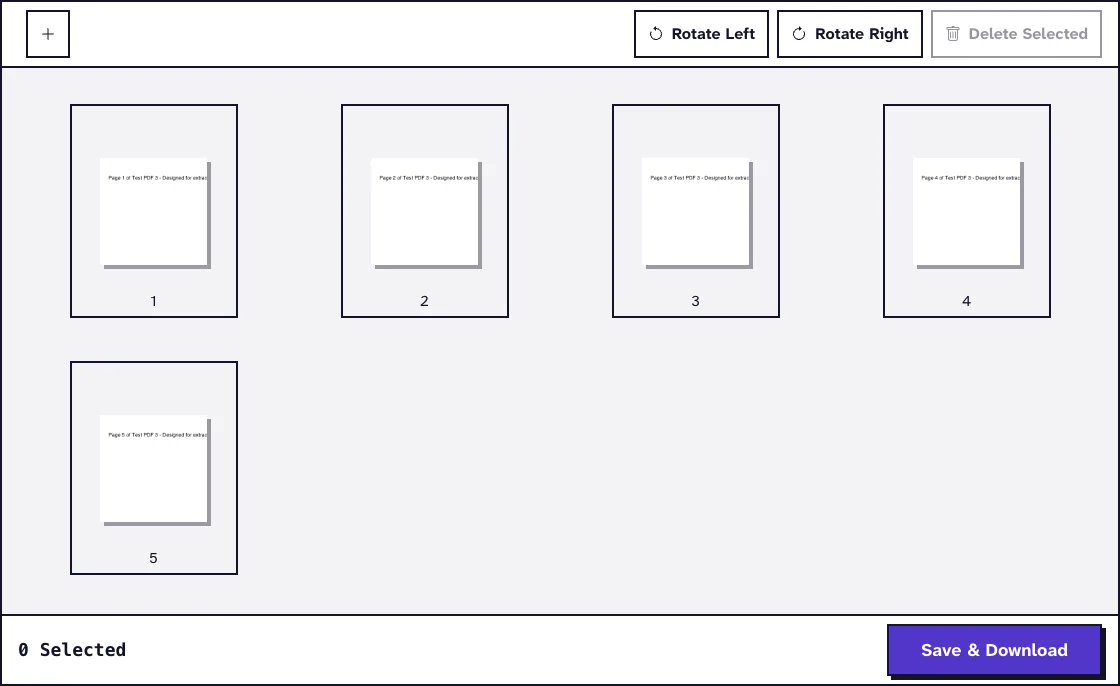
Nothing is changed until you click Save & Download, and your original file stays as it is. The tool has no undo button, so if you make a mistake, reload the page and open the PDF again.
Which page controls does the organizer have?
Reorder pages by dragging or with buttons
Drag a thumbnail to a new place; a line shows where it will land, and dragging also works with touch on a phone or tablet. The Move earlier and Move later buttons shift a page one place at a time, which helps when dragging is awkward and is the kind of non-dragging alternative WCAG 2.2 asks for.
Rotate and delete pages
Each page has its own rotate and delete buttons. To change several pages at once, select them by drawing a box around them or by holding Ctrl (Cmd on a Mac) while you click, then use Rotate Left, Rotate Right or Delete Selected.
Zoom in on a page
Open a larger preview of any page to check its content before you move or delete it. The preview has its own rotate and delete buttons.
What happened when we tested Organize PDF
We loaded our small test file test3.pdf (2.0 KB, 5 pages) and moved page 5 to the front by pressing its Move earlier button four times, giving the order 5, 1, 2, 3, 4. The saved PDF was 2.0 KB and 5 pages, and saving took less than a tenth of a second. Tested in October 2026.

Can you combine several PDFs while you reorder pages?
Yes. Select several PDFs at the start, or click + later, and every page from every file joins the same thumbnail grid. Drag pages from one file in between the pages of another, then save them all as one PDF.
If you only want to join whole files in order, Merge PDF is faster. To pull a few pages out into their own file, use Extract PDF Pages, and to copy a page within the document, use Duplicate PDF Pages.
Tips for sorting pages in a long PDF
Zoom in on pages whose thumbnails look alike, such as the start of each chapter, before you move them. Fix the big blocks first, then fine-tune single pages with Move earlier and Move later.
For a very long file, split the PDF into chapters, organize each part and merge them again. If a page only needs turning, Rotate PDF does that on its own, and Remove PDF Pages is the shortcut when you only need to delete pages.
What changes in the saved PDF?
The tool copies each page into a new PDF with pdf-lib's copyPages, so text, images and vector graphics are not re-rendered or compressed. In our test the file size stayed at 2.0 KB.
Parts that belong to the whole document rather than to a page, such as bookmarks, are not carried over to the new file. Keep the original if you need them.
Reorder, Rotate and Delete Your PDF PagesFrequently Asked Questions about Organizing PDF Pages
Is my PDF uploaded when I organize it?
No. The PDF is opened, rearranged and saved in your browser, so it never reaches our server.
Is there a limit to how many pages I can organize?
There is no page limit in the tool, only a 25 MB cap per file. Very long documents can make your browser slower, because every page gets a thumbnail.
Can I undo a change?
No. There is no undo button, but nothing is saved until you click Save & Download, so you can reload the page and start again at any time.
Can I reorder pages without dragging?
Yes. Every page has Move earlier and Move later buttons that shift it one place at a time.
Can I save my progress and continue later?
No. Nothing is stored, so finish the arrangement in one session and load the saved PDF again if you need more changes.
Does organizing reduce the quality of my pages?
No. Pages are copied as they are, without re-rendering, so text stays sharp and selectable.
Loved PDF-File.com? Spread the word!
Help us keep these tools free: Share with your friends!