
Word to PDF: Convert DOC and DOCX Files Online
This Word to PDF converter turns DOC and DOCX files into PDF on our server with LibreOffice, which has the common Office fonts such as Calibri, Cambria, Arial and Times New Roman installed. Upload several documents at once, up to 25 MB each, and download one PDF or a ZIP of all of them.
// how it works
Convert Word to PDF Online in 4 Quick Steps
- 01Select your Word files or drag & drop them here.
- 02Add more docs or remove ones you don’t need.
- 03Click 'Convert to PDF' and wait a few seconds.
- 04Download your PDF right away.
// why pdf-file
Word to PDF Features and Limits
- Fast ConversionIt turns Word docs into PDFs almost instantly.
- Unlimited & FreeConvert as many documents as you need, free, up to 25 MB each.
- Batch & High QualityProcess several files at once and keep clear output.
- Secure & PrivateFiles are deleted from our server automatically within two hours.
- Easy for EveryoneAnyone can do it: the steps are simple and clear.
- Works EverywhereUse any browser on desktop or mobile devices.
Turn your Word Document into a PDF File
Converting Word to PDF fixes your document's layout so it looks the same for everyone who opens it, on any computer or phone, without Word. It is what most job portals, schools and offices expect for resumes, reports, contracts and applications.
This converter runs LibreOffice Writer on our server and accepts DOC and DOCX files up to 25 MB each. You can convert several documents at once, without an account and without a watermark.
Convert Word to PDF for FreeHow to convert Word to PDF online
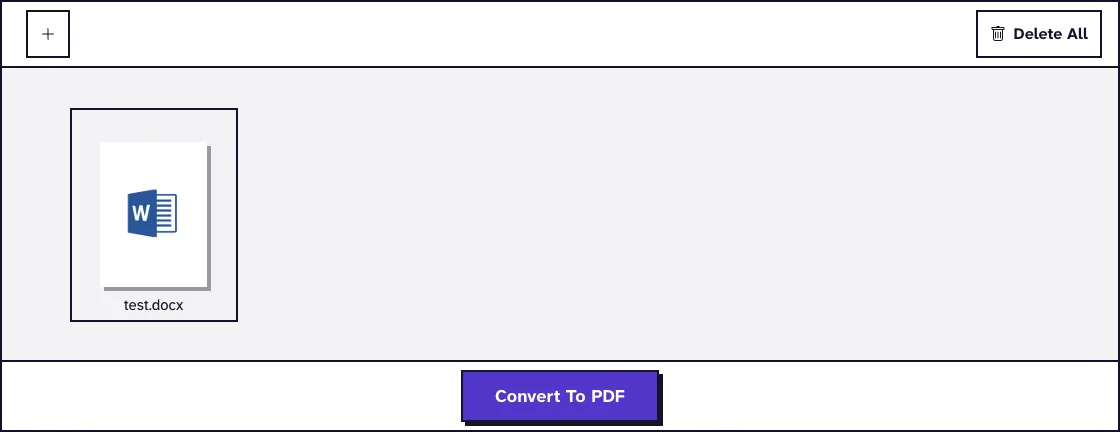
- Click Choose Files or drag DOC or DOCX files onto the page. Each file can be up to 25 MB.
- Add more documents or remove the ones you do not need.
- Click Convert To PDF and wait while the files upload and convert.
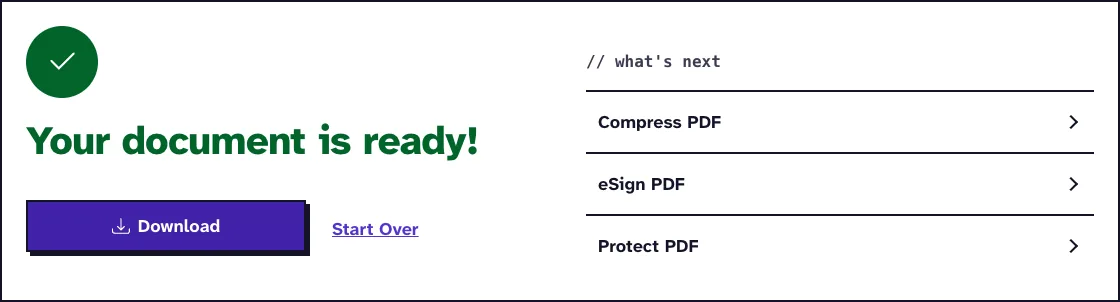
- Download your PDF. Several documents come back together in one ZIP.
How the conversion keeps your layout
LibreOffice reads the page size, margins, headers, footers, tables and pictures stored in your Word file and lays the pages out from them. The text stays real text in the PDF, so it can be searched and copied.
Fonts matter most. The server has the common Office fonts installed, among them Calibri, Cambria, Arial, Times New Roman, Georgia and Verdana, and replaces any font it does not have with a similar one.
A replaced font can push a line or a page break to a different place. If that happens, read why fonts and formatting change in Word to PDF, and see headers, footers and page breaks in Word to PDF for layout problems.
Tracked changes and comments can end up in the PDF, depending on how the document was saved. Accept or reject the changes in Word before you convert, and see hyperlinks and tracked changes in Word to PDF for the details.
What happened when we tested Word to PDF
We used test.docx, a small one-page test document of 25.7 KB. The tool returned test_WORDToPDF.pdf, 18.2 KB, with 1 page, 1.3 seconds after we clicked Convert To PDF on our local test server.
There are no options to set, so the file was converted as uploaded. Tested in October 2026.
Which Word files you can convert
The tool accepts DOC files from Word 97 to 2003 and DOCX files from later versions. Each file is checked before conversion, and one that is damaged or only renamed to .docx is refused with a message.
Save a macro document (DOCM) as DOCX first. Use RTF to PDF for rich text files and ODT to PDF for LibreOffice documents, and remove the password from a protected document in Word before you upload it.
Our guide to the DOC and DOCX file size limit explains what to do with a document over 25 MB. Usually it is the pictures, and compressing them in Word brings the file down.
You can convert many documents in one go, and each becomes its own PDF; see converting multiple Word documents to PDF at once. To get one PDF from several documents, use Merge Word to PDF.
Saving as PDF in Word itself
If Word is installed, you can save the PDF there without uploading anything. Microsoft's guide to saving or converting to PDF in Office desktop apps uses File, Save a Copy or Save As, and PDF as the file type.
Word's own options include bookmarks made from your headings, tags for screen readers and a PDF/A archive version. Our converter has no options, so use Word when you need those settings, and our tool when Word is not at hand.
To edit the text again later, turn the PDF back into a document with PDF to Word. If the PDF is too large to send, shrink it with Compress PDF.
Frequently Asked Questions about Word to PDF
Can I convert both DOC and DOCX files?
Yes. Both formats are accepted, and you can mix them in one batch.
Why does my PDF use a different font?
The font in your document is not installed on our server, so a similar font was used. Choose a common font, or save the PDF in Word on your own computer.
Can I convert a password-protected Word document?
No. Remove the password in Word, save the document, and upload it again.
Is the text in the PDF searchable?
Yes. The text stays text, so you can search, select and copy it.
Does the converter add a watermark?
No. The PDF shows only your document.
How long do you keep my documents?
Uploaded documents and the PDFs are deleted automatically within two hours.
Convert Your Word Document to PDF NowLoved PDF-File.com? Spread the word!
Help us keep these tools free: Share with your friends!