
TIFF to PDF Converter: Turn TIFF Scans Into One Lossless PDF
Convert TIFF to PDF for free: upload one or more TIFF files, put them in order and download one PDF with every page of a multi-page TIFF. Pages go in without lossy compression, and your files leave our server as soon as the PDF is sent back.
// how it works
How to Convert TIFF to PDF in 8 Steps
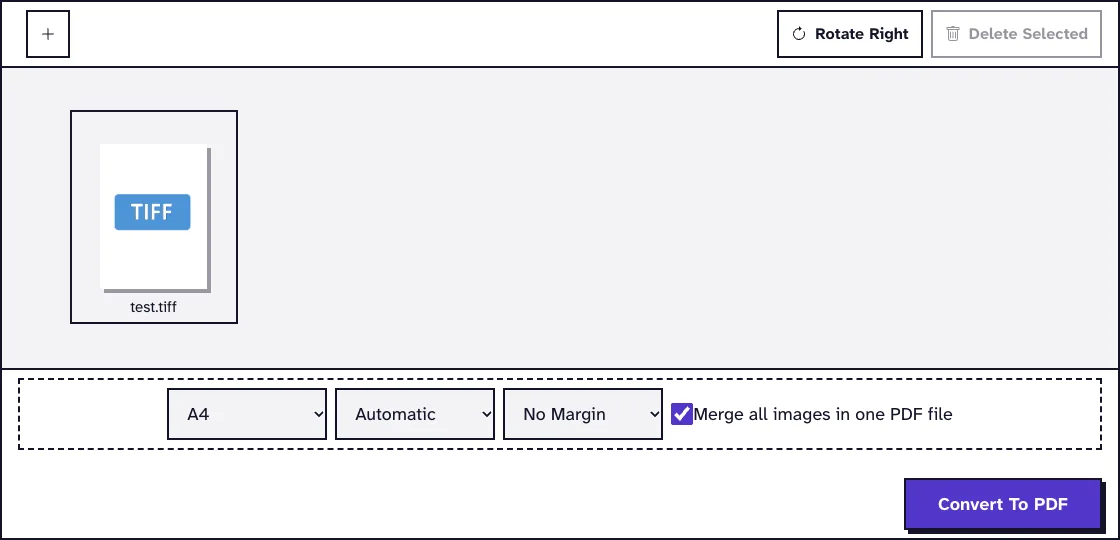
- 01Pick your TIFF images, or drag & drop them here.
- 02Drag the images into the order you want.
- 03Select images and click Rotate Right to turn them, or Delete Selected to drop them.
- 04Pick the page size, orientation and margin. If you've selected images, the choice only applies to those.
- 05Want one PDF? Leave 'Merge all images in one PDF file' checked.
- 06For separate PDFs, uncheck that option.
- 07When you’re ready, click Convert To PDF.
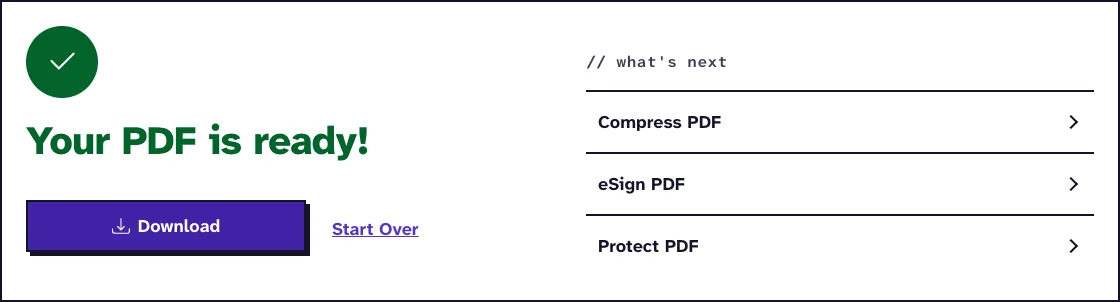
- 08Click Download to save your PDF, or a ZIP of separate PDFs.
// why pdf-file
What the TIFF to PDF Converter Does
- FastOur small test TIFF was a PDF 0.2 seconds after we clicked convert.
- Unlimited & FreeConvert as many TIFFs as you like, up to 25 MB each, for free.
- Page by Page ControlReorder, rotate and adjust the layout before you convert.
- Secure & PrivateWe delete each TIFF and its PDF from our server as soon as the PDF is sent back to you.
- Easy for EveryoneYou don’t need any tech skills. Upload the TIFF and you're most of the way there.
- Works EverywhereIt runs in any browser on PC, Mac, Android or iOS.
Converting TIFF to PDF: Pages, Quality and Layout
TIFF is what a lot of scanners, fax services and archives hand you, and many phone apps and upload forms can't open it. A PDF of the same pages opens almost anywhere, and it keeps every page of the scan together in one file.
This converter puts each TIFF page on its own PDF page, with no lossy compression. You can combine several TIFF files, reorder and rotate them, and pick the page size before you convert.
Convert Your TIFF Files to PDFHow to convert TIFF to PDF
- Click Choose Files, or drag one or more TIFF files (up to 25 MB each) onto the upload area.
- Drag the thumbnails into the order you want, and rotate any that came in sideways.
- Choose the page size, orientation and margin.
- Leave Merge all images in one PDF file ticked for one PDF, or untick it to get one PDF per image.
- Click Convert To PDF and download the result.
What a TIFF file is and why PDF is easier to share
The Library of Congress describes TIFF as a tag-based format for raster images that can hold a sequence of images in one file. Some TIFF variants are the usual master files for scanned images.
Chrome, Firefox and Edge won't display TIFF at all, and plenty of phone apps and upload forms reject it. A PDF opens in every browser and PDF reader, which makes it the easier way to send a scan.
Multi-page TIFFs and several files in one PDF
Every page of a multi-page TIFF becomes a PDF page, in the order it's stored in the file. In October 2026 we converted a 1.5 MB TIFF with 10 pages in six paper sizes, from A6 to Legal. The PDF had all 10 pages, and pdfimages showed each page image at its full pixel size, from 591 by 874 to 1275 by 2100 pixels.
With the default A4 page size, every page lands on an A4 sheet: the Legal page gets shrunk, the A6 page drawn larger, and the two wide pages got landscape A4. If you want each paper size kept, pick Fit to Content. That run gave us Letter, Legal, A5, B5 and A6 pages at their own sizes.
With several files, the PDF follows the order of the thumbnails, so look at it before you convert. When we picked a 13.2 MB, a 1.5 MB and a 10.7 KB TIFF in one go, the thumbnails showed up smallest first (each one is added when the browser finishes reading it). Drag a thumbnail or use its Move earlier and Move later buttons to fix the order.
Untick the merge option and you get one PDF per TIFF instead; several PDFs download together in one ZIP. Our guide on how to combine multiple TIFF files into one PDF walks through a whole stack of scans.
Page size, orientation and margins
A4 and Letter put the image inside the margin and scale it to fit the page. Automatic orientation turns the page to landscape when the image is wider than tall, and Fit to Content makes the page as big as the image itself. A TIFF that stores its resolution keeps its real size, so a 300 dpi scan of an A4 sheet becomes an A4 page; one without a resolution gets one point per pixel.
Margins are No Margin, Small Margin (20 points) or Big Margin (40 points). If you've selected some images, a setting changes only those.
Image quality and file size
Each TIFF page is decoded and embedded as a lossless PNG image, so you don't lose detail and you won't see JPEG artifacts. The pixel count stays the same; on A4 or Letter a small image is just drawn larger. The one exception is a fax scanned with fewer dots per inch down the page than across it: its height gets stretched to square pixels, so the page keeps the shape of the paper original.
For color and gray scans the PDF came out smaller than the TIFF in every run we did, because PNG packs these pages tighter than the LZW compression scanners often use. These are renders of the same A4 page, converted in October 2026 with the defaults:
| TIFF | TIFF size | PDF size | After Compress PDF, Recommended |
|---|---|---|---|
| 300 dpi color, LZW | 971.5 KB | 230.3 KB | not run |
| 300 dpi color with scanner grain, LZW | 13.2 MB | 2.7 MB | 50.4 KB |
| 600 dpi gray, LZW | 1.2 MB | 266.7 KB | 40.1 KB |
| 300 dpi black and white, CCITT G4 | 75.7 KB | 64.5 KB | not run |
Where a PDF does grow is on a black-and-white page that's almost empty. Gray and black-and-white pages are both stored as 8-bit RGB images, so a black-and-white page takes three bytes per pixel where the TIFF used one bit. A one-page fax went from 856 B to 19.6 KB.
For grainy color scans, Compress PDF is worth it: it cut the 2.7 MB page to 50.4 KB, a 130 dpi JPEG on which screen text was still readable. It doesn't always help, though. On the clean 10-page file it raised 258.1 KB to 373.9 KB, so keep whichever file is smaller.
PNG has no CMYK colour space, so a CMYK print TIFF comes out as RGB after the PNG step. When we converted a 400 by 300 pixel CMYK TIFF in October 2026, the PDF held a 400 by 300 pixel RGB image. If a print shop needs the CMYK values, send them the original TIFF.
Printing in black and white? Grayscale PDF in our PDF optimization tools turns the result gray. To go the other way, our tools that convert from PDF include PDF to TIFF, which renders PDF pages as TIFF images.
Scans, faxes and searchable text
Fax services often send multi-page TIFFs in black and white, and those convert like any other TIFF. See convert fax TIFF to PDF for the fax-specific bits.
The PDF holds pictures of the pages, so you can't search or copy its text yet. Our TIFF to searchable PDF guide shows how to add a text layer with OCR.
Each TIFF and its PDF are deleted from our server as soon as the PDF is sent back to your browser. We don't keep anything for later.
What happened when we tested TIFF to PDF
We converted test.tiff, a tiny 10.7 KB test image of 199 by 47 pixels, with the defaults: A4, Automatic orientation, No Margin and merge ticked. We got a 5.9 KB PDF with 1 page, ready 0.2 seconds after we clicked Convert To PDF on our local test server.
Since the image is wider than tall, Automatic orientation gave us a landscape A4 page. Tested in October 2026.
Frequently Asked Questions about TIFF to PDF conversion
Does converting TIFF to PDF lose quality?
No. Each page goes in as a lossless PNG image with all its pixels.
Can I convert a multi-page TIFF to PDF?
Yes. Every page of the TIFF becomes a page of the PDF, in the order it's stored.
Can I combine several TIFF files into one PDF?
Yes. Upload them together, drag them into order and leave Merge all images in one PDF file ticked.
Can I edit the text in the PDF after converting from TIFF?
Not directly, since the pages are images. Run the PDF through OCR first so its text becomes searchable.
Loved PDF-File.com? Spread the word!
Help us keep these tools free: Share with your friends!