
Excel to PDF: Convert XLS and XLSX Spreadsheets Online
This Excel to PDF converter turns XLS and XLSX workbooks into PDF pages with LibreOffice Calc, using the print areas and page setup saved in each file. Convert several workbooks at once, up to 25 MB each, with no sign-up and no watermark.
// how it works
Convert Excel to PDF Online in 4 Easy Steps
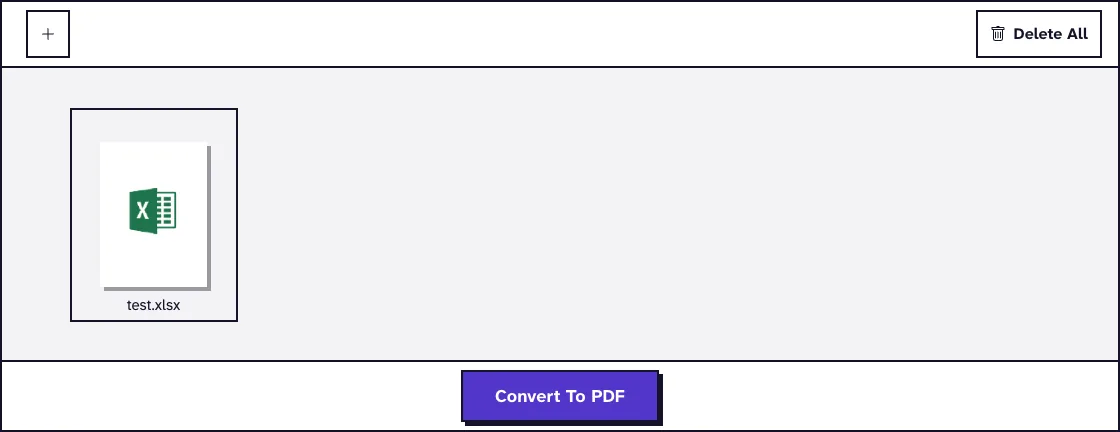
- 01Select your XLS or XLSX workbooks or drag them here.
- 02Add or remove files as you need.
- 03Click 'Convert To PDF' to start.
- 04Download your PDF, or a ZIP when you converted several workbooks.
// why pdf-file
Excel to PDF Features and Limits
- FastThe converter works in seconds so you save time.
- Unlimited & FreeConvert as many workbooks as you need, free, up to 25 MB each.
- High-Quality OutputGet clear, sharp PDFs from one or many files.
- Secure & PrivateFiles travel over HTTPS and are deleted automatically within two hours.
- Easy for EveryoneYou need no tech skills. The tool is clear and simple.
- Works EverywhereUse any browser on any device to convert files.
How Excel Sheets Become PDF Pages
Converting Excel to PDF gives you a spreadsheet that anyone can open, print or attach without Excel, and that nobody can change by accident. This converter runs LibreOffice Calc on our server, so the PDF follows the page setup stored in your workbook: paper size, orientation, scaling, margins, headers and footers.
Upload XLS or XLSX files up to 25 MB each. You need no account, and nothing is added to your pages.
Convert Excel to PDF for FreeHow to convert Excel to PDF online
- Click Choose Files or drag XLS or XLSX workbooks onto the page. Each file can be up to 25 MB.
- Add more workbooks or remove the ones you do not need.
- Click Convert To PDF and wait while the files upload and convert.
- Download your PDF. When you converted several workbooks, they come back together in one ZIP.
How Excel sheets are laid out in the PDF
Each sheet starts on a new page, so a workbook with three sheets gives you at least three pages. A sheet that does not fit on one page continues on the next, in the order set in the workbook's page setup.
Print areas decide how much of a sheet is exported. According to the LibreOffice Calc help on using print ranges, sheets in Excel files that have no print range are exported in full, and a sheet with a print range exports only that range. Read whether Excel to PDF exports all sheets or just one for the details.
Set a print area before you upload
To export only part of a sheet, select the cells in Excel and choose Page Layout, Print Area, Set Print Area, then save the workbook. The PDF will hold just that range.
Keep wide tables from being cut off
Columns that do not fit the page width move to extra pages. In Excel, set Page Layout, Orientation to Landscape, or set Width to 1 page in the Scale to Fit group, and save before you convert. Our guide to fixing Excel to PDF cutting off columns walks through both.
Get rid of blank pages
Blank pages usually come from formatting or stray content far below or to the right of your data. Press Ctrl+End in Excel to see where the sheet really ends, delete the empty rows and columns after your data, and see fixing blank extra pages in Excel to PDF for more causes.
What happened when we tested Excel to PDF
We used test.xlsx, a small test workbook of 5.7 KB with two sheets and no options to set. The tool returned test_EXCELToPDF.pdf, 36.8 KB, with 2 pages.
The download arrived 0.8 seconds after we clicked Convert To PDF, on our local test server. Tested in October 2026.
What carries over from Excel to PDF
Cell values, number formats, borders, fills, charts and images appear in the PDF as they would on a printed page. A formula shows its result, because a PDF stores what the cell displays, not the formula behind it.
The server has the common Office fonts installed, such as Calibri, Cambria, Arial and Times New Roman. A font it does not have is replaced with a similar one, which can change how text fits in the cells.
Only XLS and XLSX files are accepted. Save a macro workbook (XLSM) or a binary workbook (XLSB) as XLSX first, and use ODS to PDF for LibreOffice spreadsheets or CSV to PDF for plain data files.
A workbook that needs a password to open cannot be converted. Remove the password in Excel, save the file, and upload it again.
Converting many workbooks at once
You can upload several workbooks in one go, and each becomes its own PDF. See converting multiple Excel files to PDF at once for a tidy way to name and order them.
To get one PDF from several workbooks, use Merge Excel to PDF instead. If a workbook is over the limit, our guide to the XLS and XLSX file size limit explains what to trim, and Compress PDF can shrink a PDF with many pictures afterwards.
Frequently Asked Questions about Excel to PDF
Does Excel to PDF convert every sheet?
Yes, for sheets without a print area: each one is exported in full and starts on a new page. A sheet with a print area exports only that range.
Can I convert XLSM or XLSB files?
No. The tool accepts XLS and XLSX only, so save the workbook as XLSX in Excel first.
Will my formulas be visible in the PDF?
No. The PDF shows the values the formulas produce, so keep the workbook if someone needs the formulas. To get a table from a PDF back into a spreadsheet, use PDF to Excel.
Why are some columns on a separate page?
The sheet is wider than the paper. Switch to landscape or scale the sheet to one page wide in Excel, then convert again.
Does the PDF get a watermark?
No. The converter adds nothing to your pages.
How long do you keep my workbooks?
Uploaded workbooks and the PDFs made from them are deleted automatically within two hours.
Turn Your Spreadsheet into a PDF NowLoved PDF-File.com? Spread the word!
Help us keep these tools free: Share with your friends!