
Extract PDF Pages into a New PDF
Extract PDF pages into a new file: take all odd pages, all even pages or only the pages you click in the preview. Your original PDF stays unchanged, and you need no account.
// how it works
How to Extract PDF Pages in 5 Steps
- 01Choose your PDF or drag and drop it here to start.
- 02Pick Odd, Even or Specific pages.
- 03For odd or even pages, click 'Extract Pages' and it starts at once.
- 04For specific pages, click the pages you want and hit 'Extract Pages'.
- 05Download the PDF with only those pages.
// why pdf-file
Extract PDF Pages Features and Limits
- Fast ExtractionIt pulls out just the pages you need into a new PDF.
- Free, No Sign-UpExtract pages from one PDF of up to 25 MB per run, with no account and no cost.
- Precise ControlExtract odd, even, or chosen pages for a custom PDF.
- Secure & PrivateWe process your files on our server and delete them automatically within two hours.
- Simple for EveryoneYou need no tech skills. The tool is easy to use.
- Works on Any DeviceUse any browser on PC, tablet, or phone to extract pages.
Extract PDF Pages: Options, Limits and a Real Test
Extract PDF pages when you need part of a document as its own file: the signed pages of a contract, one chapter of a report or every second page of a scan. This tool copies the pages you choose into a new PDF and leaves the original file unchanged. You can take all odd pages, all even pages or exactly the pages you click.
Extract pages from your PDF nowHow to extract pages from a PDF
- Upload one PDF of up to 25 MB.
- Choose Extract All Odd Pages, Extract All Even Pages or Extract Specific Pages.
- For odd or even pages, click Extract Pages and the new PDF is built straight away.
- For specific pages, continue to the page previews, click the pages you want to keep and then click Extract Pages.
- Download the new PDF.
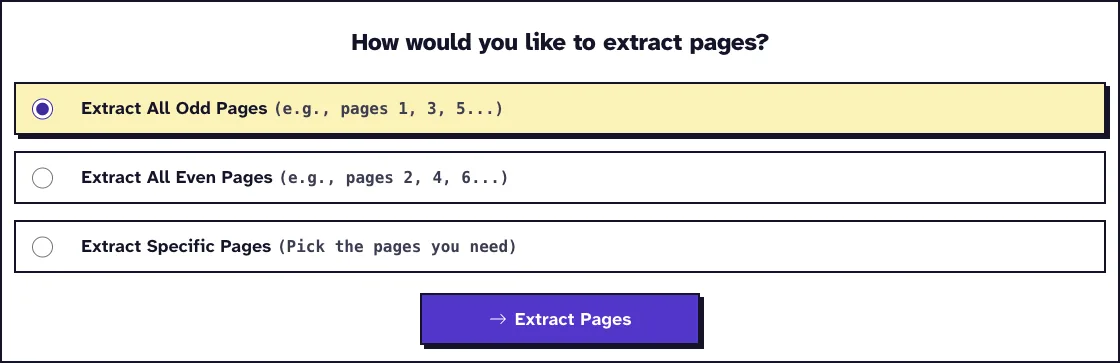
Odd pages, even pages or specific pages
Odd and even extraction is useful for scans made on a single-sided scanner, where the fronts and backs of the sheets end up in two batches. It also helps when you only want the right-hand or left-hand pages of a book layout.
Extract Specific Pages shows a preview of every page. Click each page you want; on a computer you can also drag a box around several pages at once. The selected pages go into the new PDF in their original order.
What the extracted PDF contains
The tool hands your choice to Ghostscript's -sPageList option, which accepts the keywords odd and even or a list of page numbers. Ghostscript then writes those pages into a new PDF, so text stays text and you can still select and search it.
Because the file is rewritten, check the document properties if its title, author or bookmarks matter to you. The page content itself is what the tool is built to keep.
What happened when we tested Extract PDF Pages
We uploaded our small test file test3.pdf (2.0 KB, 5 pages) and chose Extract All Odd Pages. The download, test3_ExtractPages.pdf, was 3.4 KB and had 3 pages: pages 1, 3 and 5 of the original. Tested in October 2026.
Extract, split or remove pages: which tool fits?
Extracting gives you one new PDF with only the pages you chose. If you want every page or every range as a separate file, use Split PDF instead. If it is easier to name the pages you do not want, use Remove PDF Pages.
To combine pages extracted from several documents, put the results together with Merge PDF. To turn the chosen pages into images rather than a PDF, use PDF to JPG.
Protected and scanned PDFs
A PDF that needs a password to open cannot be read by the tool. If you are allowed to open it, remove the password first with Unlock PDF, then extract the pages.
Scanned PDFs work like any other PDF. Page extraction does not need a text layer, so no OCR is involved.
Limits and privacy
The tool takes one PDF of up to 25 MB per run. The file is processed on our server and deleted automatically within two hours.
If the extracted file is still too large to email, shrink it with Compress PDF.
Frequently Asked Questions about extracting PDF pages
Can I extract only certain pages from a PDF?
Yes. Choose Extract Specific Pages, click the pages you want in the preview and click Extract Pages.
Can I extract all odd or all even pages at once?
Yes. Choose Extract All Odd Pages or Extract All Even Pages and the new PDF is built without any page selection.
Does extracting pages change my original PDF?
No. You download a new PDF, and the file on your device stays as it was.
Can I extract pages from a password-protected PDF?
Only after it is unlocked. A PDF that needs a password to open must have the password removed first, for example with Unlock PDF, if you have the right to do so.
Can I extract pages from several PDFs at once?
No. The tool takes one PDF per run. Extract the pages from each file in turn and merge the results if you need one document.
Loved PDF-File.com? Spread the word!
Help us keep these tools free: Share with your friends!