
Password Protect a PDF With AES-256 Encryption
Password protect a PDF in three steps: upload it, type a password twice, and download a copy that asks for that password before it opens. qpdf encrypts the file with 256-bit AES, and anyone who knows the password can open, print and edit it.
// how it works
Password Protect Your PDF Online in 3 Simple Steps
- 01Select your PDF or drag & drop it here.
- 02Set a password, confirm it, then click 'Protect PDF'.
- 03Your file is locked and encrypted right away.
// why pdf-file
Password protect PDF: what the tool does
- Fast & Strong ProtectionIt encrypts your PDF with a password in seconds.
- Free, No AccountProtect PDFs of up to 25 MB free of charge, without signing up.
- Keep PDFs ConfidentialLock files to stop anyone from opening them without the password.
- Secure & Private EncryptionYour password goes to qpdf for this one file and is not kept in the job record. Files are deleted automatically within two hours.
- Easy for EveryoneAnyone can do it: the steps are clear and simple.
- Works EverywhereUse any browser on desktop or mobile to protect PDFs.
Add a Password to Your PDF Files: Encryption Made Easy
Tax records, contracts and medical letters often travel as PDFs, and a PDF can carry its own lock. When you password protect a PDF, the file is encrypted, and a reader shows nothing until someone types the password. You choose the password here, and qpdf encrypts the file on our server.
Password Protect Your PDF in SecondsHow to password protect a PDF online
One PDF at a time, up to 25 MB.
- Choose the PDF you want to lock, or drag it into the upload area.
- Type a password, then type it again in Confirm Password.
- Click Protect PDF.
- Download the protected copy and open it once to check that it asks for the password.
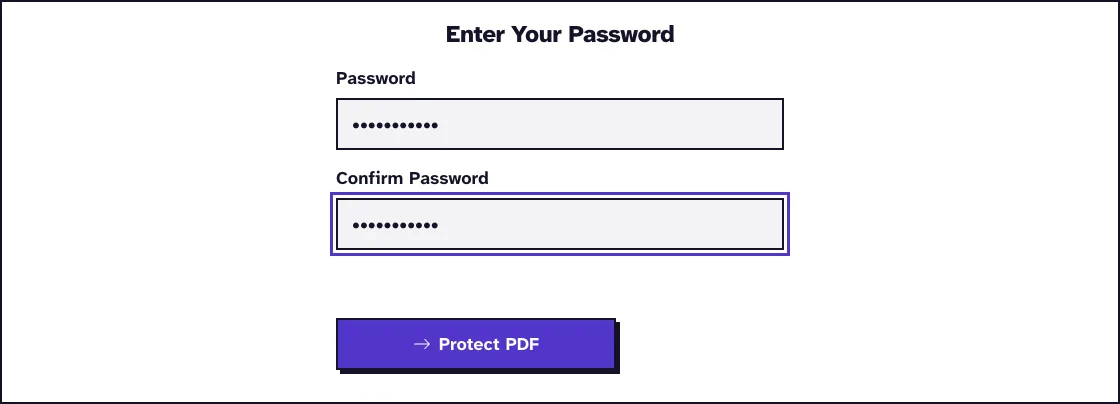
Keep an unprotected copy somewhere safe until you are sure you have the password stored. Nobody, including us, can open the file without it.
What the PDF password protects, and what it doesn't
A PDF can have two passwords. The user password is needed to open the file; the owner password lets someone change or override restrictions, as the qpdf documentation explains.
This tool sets both to the same password and adds no print, copy or edit restrictions. Without the password nobody can open the file, and anyone who has it can do everything with it.
If you want to share a file that people can read but not change, that needs separate passwords and restriction settings, which this tool does not offer. Our guide to the PDF owner password and user password explains the difference.
AES-256 encryption and PDF reader compatibility
The file is encrypted with 256-bit keys of the Advanced Encryption Standard, the cipher NIST established in 2001. qpdf's documentation recommends 256-bit encryption unless you have a strong reason to use a weaker one.
The same documentation notes that 256-bit encryption needs a reader that supports PDF 1.7 with extension level 8. Current readers handle it; a very old one may not open the file at all.
If a recipient can't open it, ask them to update their reader rather than lowering the protection. Our guide on password protected PDF compatibility with PDF readers covers the checks to run before you send.
Choosing a strong password and sharing it safely
Encryption is only as strong as the password. A long passphrase of several unrelated words is harder to guess than a short word with a number on the end.
Never send the password in the same email as the file. Our guide to password protecting a PDF before emailing it shows how to share the password through a second channel.
Store the password in a password manager. There is no recovery, because we don't keep the password, as our guide on forgetting the password you set on a PDF explains.
Protecting several PDFs with the same password
The tool locks one file per run, so repeat the steps for each PDF and type the same password every time. Our guide on protecting multiple PDFs with the same password shows how to keep track of the batch.
If the files belong together anyway, combine them first with Merge PDF and protect the merged file once. Compress a large PDF with our PDF compressor before you protect it, because the compressor cannot open a locked file.
Changing or removing the password later
To remove the password, open Unlock PDF, enter the current password and download an unlocked copy. To change it, remove the old password that way and protect the copy again with the new one.
A PDF that already needs a password to open can't be protected again here. Remove that password first, then add the new one.
What happened when we tested Protect PDF
We protected test1.pdf, a small one-page test file of 4.9 KB, with a test password typed into Password and Confirm Password. Processing took 0.1 seconds on our test server.
The download, test1_ProtectPDF.pdf, had one page and was 5.8 KB. Tested in October 2026.
Your password goes to qpdf for this one file and is not kept in the job record. The upload and the protected copy are deleted automatically within two hours.
Add A Password To Your PDF Files In Just A Few Clicks!Frequently Asked Questions about protected PDFs
Can protected PDFs be cracked?
AES-256 itself is not the weak point; the password is. A long, unique passphrase makes guessing it impractical, while a short common word can be found quickly.
Can I stop people from printing or copying the PDF?
Not with this tool. It sets one password that opens the file with full rights, and it adds no print or copy restrictions.
What happens if I forget the password?
The file can't be recovered. We don't keep the password, so open your unprotected original and protect it again.
Can I protect several PDFs at once?
No. The tool protects one file per run. Repeat it for each file, or merge the files first and protect the result.
Is it safe to protect a PDF online?
The file travels to our server over HTTPS, is encrypted with qpdf, and is deleted automatically within two hours. For material you may not upload anywhere, use encryption software on your own computer instead.
Will the protected PDF open on a phone?
Yes, in most current PDF readers on phones and tablets. The reader asks for the password before it shows the pages.
Loved PDF-File.com? Spread the word!
Help us keep these tools free: Share with your friends!