
PDF to Word: Convert PDF Text into an Editable DOCX File
Convert PDF to Word online: upload one or more PDFs and download editable DOCX files that open in Microsoft Word or LibreOffice Writer. The converter carries over the text a PDF already contains, so scanned pages need OCR first.
// how it works
Convert PDF to Word Online in 4 Quick Steps
- 01Select your PDF or drag & drop it here.
- 02Add or remove PDFs in the list.
- 03Click 'Convert to Word' and wait while each PDF is converted.
- 04Download your Word file. Several PDFs arrive as DOCX files in one ZIP.
// why pdf-file
PDF to Word features and limits
- Editable TextThe PDF's text is grouped into words, lines and paragraphs you can edit in Word.
- Free, No Sign-UpConvert PDFs of up to 25 MB each at no cost and without an account.
- Batch Convert & Editable OutputConvert one or multiple PDFs into editable Word files at once.
- Secure & PrivateFiles travel over HTTPS and are deleted from our server automatically within two hours.
- Easy for EveryoneYou don't need any skills to use the tool.
- Works EverywhereUse any browser on desktop or mobile devices.
PDF to Word: What Converts, What Doesn't and Our Test
A PDF keeps its layout fixed, which is exactly what makes it awkward to edit. Converting the PDF to Word gives you a DOCX file whose text you can change, restyle and reuse in Microsoft Word, LibreOffice Writer or Google Docs.
PDF-File.com converts the text a PDF already contains on our server with Ghostscript. It does not run text recognition, so a scanned PDF needs OCR first, and complex layouts need a check after conversion.
Convert PDF to Word Online for FreeHow to convert PDF to Word online
- Click the upload area and choose one or more PDFs of up to 25 MB each, or drag them onto the page.
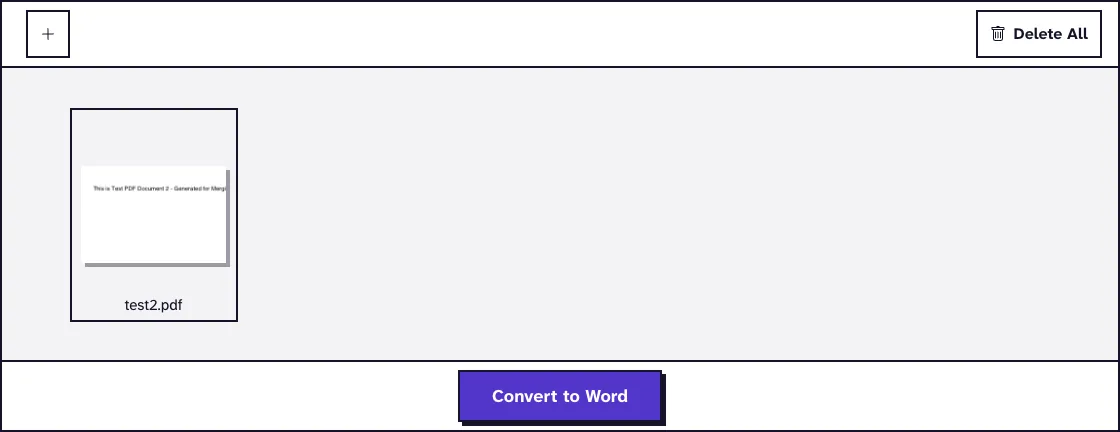
- Click + to add more PDFs, or remove a file you don't want to convert.
- Click Convert to Word and wait while each PDF is converted.
- Download the DOCX file. Several PDFs arrive as separate DOCX files in one ZIP.
How does the PDF to Word conversion work?
Our server passes the PDF to Ghostscript's docxwrite device, which writes the text of the original document into a DOCX file. It uses heuristics to group the characters into words, lines and paragraphs, and puts rotated text into text boxes.
DOCX is the Office Open XML format used by Word, so the file opens in any current word processor. A PDF that only restricts printing or copying is converted after the restriction is removed; one that needs a password to open is turned away.
What carries over to the Word file, and what doesn't?
Text from digital PDFs
PDFs exported from Word, Google Docs or another program hold real text, and that text carries over so you can edit it. Simple documents such as letters, résumés and reports give the cleanest results.
Layout, tables and images
Ghostscript's documentation describes the DOCX as holding the text of the original, and admits its heuristics cannot always recover the full document structure. Check tables, columns, images and charts against the PDF, and rebuild what is missing.
Scanned PDFs
A scanned page is a picture of text, so there is nothing for the converter to pick up. Run the scan through OCR PDF first, then convert the result to Word.
Password-protected PDFs
If the PDF asks for a password when you open it, remove that password with Unlock PDF first. You need to know the password to do that, and our guide on removing a PDF password to edit and re-protect the file covers the round trip.
What happened when we tested PDF to Word
We converted our small test file test2.pdf (909 B, 1 page, one line of text) with no options to choose. The Word file, test2_PDFToWORD.docx, was 9.8 KB. Tested in October 2026.
Most of those 9.8 KB are the parts every DOCX carries, such as its styles and theme, rather than the one line of text.

How to tidy the converted Word document
Open the PDF next to the DOCX and compare headings, lists and page breaks. Apply Word's heading styles to the titles, because converted text usually arrives as plain paragraphs.
If a font from the PDF is not installed on your computer, Word shows a substitute and line lengths can change. Pick a standard font for the whole document to even this out.
Applying for jobs? Our guide on converting a résumé PDF to Word for ATS covers the layout details that applicant tracking systems care about.
Other ways to turn a PDF into an editable document
Recent versions of Microsoft Word can open a PDF directly and convert it, which works well for simple text documents on your own computer. If you prefer LibreOffice, our PDF to ODT converter creates a Writer document, and PDF to Text gives you the plain text only.
To get several PDFs into one Word file, combine them first with Merge PDF and convert the merged file. When your edits are done, our Word to PDF converter turns the document back into a PDF.
Make Your PDF Editable in WordFrequently Asked Questions about PDF to Word Conversion
What are the file size limits?
Each PDF can be up to 25 MB, and you can convert several in one go.
Does the converter do OCR on scanned PDFs?
No. It carries over text the PDF already contains, so run scanned files through OCR PDF first.
Will my formatting and images stay intact?
Text and paragraphs come through, but complex layouts, tables and images may not. Compare the DOCX with the PDF before you rely on it.
Can I convert a password-protected PDF?
Only after you remove the open password with Unlock PDF. PDFs that just restrict printing or copying convert directly.
Are my documents secure during conversion?
Your files upload over HTTPS, and our server deletes them automatically within two hours.
Does the converter work with all languages?
It carries over the characters a digital PDF already stores, so accented letters and non-Latin scripts come through when the PDF holds them as text.
Loved PDF-File.com? Spread the word!
Help us keep these tools free: Share with your friends!