
To convert a resume PDF to Word for an ATS, first look for the original document you exported the PDF from, and use a converter such as PDF to Word only when that source is gone. Convert only when the recruiter or the application form asks for a Word file, then check the DOCX line by line, because conversion rebuilds the layout from the PDF.
A DOCX is not automatically better for applicant tracking systems. Send the format the employer asks for, and keep your PDF as the reference copy.
Should I convert my resume from PDF to Word for an ATS?
Only when the recruiter or the application asks for a Word file. ATS behavior varies by vendor and employer setup, so converting a resume that was accepted as a PDF gives no guaranteed advantage.
Convert the Resume to DOCXPDF or Word Resume for an ATS: Send the Format Requested
If a recruiter explicitly asks for a .docx file, provide that format. Do not convert just because someone claims every applicant tracking system needs Word.
ATS behavior depends on the vendor, the employer’s configuration and the parsing pipeline. There is no universal rule that a DOCX ranks or parses better than a PDF with real text.
Confirm What the Recruiter Wants
“Please send Word” may mean the recruiter needs an editable copy for a house style, a DOCX for a client portal or a file that can take comments. Ask briefly when the purpose is unclear, and ask whether they also want the PDF.
Look for the Original Editable Resume First
The best DOCX is the document you exported the PDF from. Search your computer, email attachments, version history and cloud folders before converting.
If the source is in Google Docs or another editor, download or export it as DOCX directly. Compare its print view with the PDF and update only the facts you intend to change.
Why Conversion Is Reconstruction
Microsoft’s guide to opening PDFs in Word explains that Word converts a copy of the PDF and tries to match its layout, but the result might not look exactly like the PDF. It also says that conversion works best with files that are mostly text.
How to Convert a Resume PDF to Word
- Keep the original PDF as the record copy and work from a duplicate.
- Open the PDF to Word tool, click Choose Files and select the resume PDF. Files can be up to 25 MB.
- Click Convert to Word. The file is uploaded to our server, converted there and deleted automatically within two hours.
- Download the DOCX and open it in Microsoft Word or LibreOffice.
- Compare it with the PDF line by line: dates, employer names, job titles, bullets, links, headers and page breaks.
- Fix the layout without rewriting facts, save the file as DOCX and reopen it once before you send it.
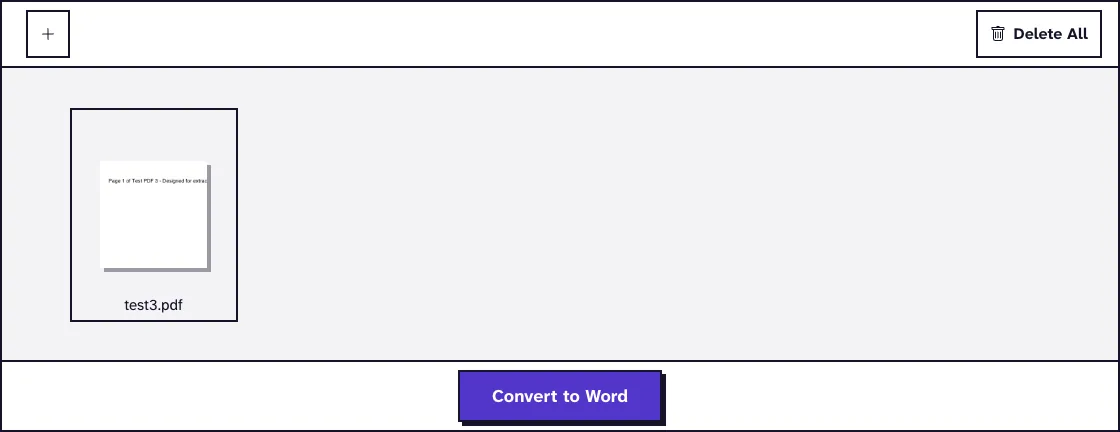
PDF to Word uses the docxwrite device of Ghostscript. The Ghostscript documentation for docxwrite says it creates a DOCX containing the text of the original document, and that its heuristics for grouping words, lines and paragraphs may not recover all of the original structure.
Only the text reaches the DOCX: a headshot, logo or other picture does not come across, and rotated text is placed in text boxes.
Scanned Resumes Need OCR First
PDF to Word reads the text stored in the PDF and does not run OCR. A scanned or photographed resume therefore converts to a DOCX with little or no text, so run it through OCR PDF, which reads English text, before converting, and check every line afterwards.
Repair the DOCX Without Changing the Resume
Turn on formatting marks and inspect paragraph breaks, tabs, spaces, section breaks, tables, headers and footers. Replace alignment built from repeated spaces with real tabs, paragraphs or a simple table.
Keep dates, titles, employers, education and qualifications identical to the approved resume. If you are also revising content, make those edits on purpose and check each one.
Watch Two-Column Designs
Converters can read across columns in the wrong order or split a sidebar into separate boxes. If the recruiter asked for a plain editable version, rebuild the layout as a single column and compare every moved fact with the PDF.
Put the Contact Line in the Body
Some systems treat headers and footers differently from body text. If your name, phone number or email ended up only in a header or a text box, place it as ordinary text near the top.
Test the Reading Order Like an ATS Would
Select all the text in the DOCX and paste it into a plain-text editor. Your name and contact details should come first, then each section in a sensible order, with every date next to the right employer.
This check is rough and does not simulate every ATS. It does catch scrambled columns, text that vanished into images and bullets that turned into stray symbols.
No converter can promise an ATS score or ranking. The realistic goal is a valid DOCX with selectable text and a reading order that matches your resume.
Proof and Send the Word Resume
Use a simple file name such as Firstname-Lastname-Resume.docx. Reopen the saved file, run a spelling check without accepting changes to proper nouns and click every link.
Remove stray tracked changes and comments before sending. Make sure the file really is a DOCX and not a PDF renamed with a .docx extension.
Send it through the channel the recruiter named and keep both formats. If a portal accepts PDF but rejects its size, use the guide to compressing a PDF for a job application, and if you must send everything as one file, see the guide to combining resumes into one PDF.
Privacy When You Convert a Resume
A resume holds your contact details and work history, and PDF to Word uploads it to our server for conversion. Use the tool only when that fits your comfort level and any confidentiality duties toward former employers or clients.
Leave ID numbers, birth dates and confidential client names out of the resume in the first place. If you later need a PDF of the edited DOCX, Word to PDF turns it back into one.
Frequently Asked Questions about converting a resume PDF to Word for ATS
Does every ATS prefer DOCX?
No. Requirements vary, so use DOCX when the recruiter or the application specifically asks for it.
Will the converted DOCX look exactly like the PDF?
Not necessarily. Conversion rebuilds an editable structure from the PDF, so designed layouts usually need cleanup, and images do not come across.
Can I convert a scanned resume to Word?
Not directly, because PDF to Word does not run OCR. Add a text layer with OCR PDF first, or retype the resume from the scan.
How can I test the reading order?
Paste the DOCX text into a plain-text editor and read the sequence, then fix the structure where the order is wrong.
Should I send the PDF too?
Only if the recruiter asks for it or agrees. Follow the stated submission instructions.