
To compress a PDF for a job application, read the size limit printed next to the upload field, then run your resume through Compress PDF at the lightest level that gets it under that limit. Afterwards, check that your name, dates, bullets and links still look right before you upload.
Compress only when the file is actually over the limit. Size is one cause of a failed upload among several, and compression cannot fix a wrong file type, an expired session or a file name the portal refuses.
Compress an Application PDFRead the Employer’s File Rules First
Look at the label, help text and error message attached to each upload field. Note the accepted formats, the maximum size and whether the form has separate fields for a resume, cover letter, transcript or portfolio.
Use the rules shown on this employer’s form for this vacancy, even when the portal looks like one you have used before. A limit you saw on another posting may not apply.
Diagnose the Upload Error Before You Compress
Save the exact error message or take a screenshot of it. “File too large” calls for compression, “unsupported type” calls for the requested format, and a generic failure may be a network or session problem.
Check that the file name ends in .pdf and has no double extension. If the form asks for DOCX, send DOCX instead, as explained in the guide to converting a resume PDF to Word for ATS.
How to Compress a PDF for a Job Application
- Keep your editable resume and the original PDF, and make a clearly named copy to compress.
- Open the Compress PDF tool, click Choose Files and select the copy, then click Choose Compression.
- Choose Light when the file is only slightly over the limit, or keep Recommended for a bigger cut, and click Compress PDF.
- Compare the after size on the results screen with the limit printed by the employer, then download the file.
- If it is still too large, click Start Over and run the original with Max compression, or shrink the images in your source document and export it again.
- Open the downloaded file and run the resume checks below before you upload it.
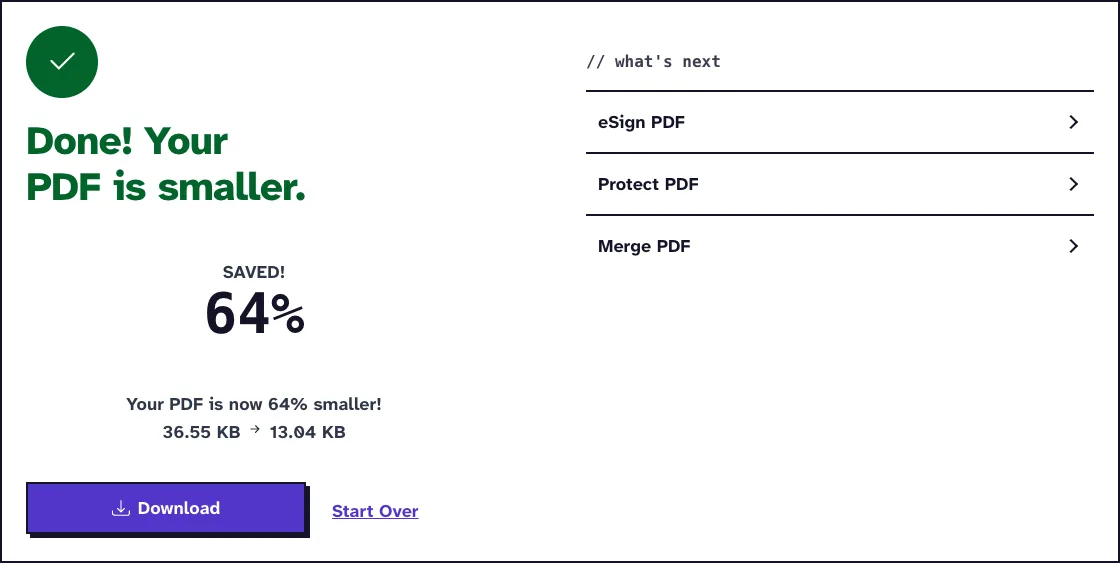
No setting targets an exact size; the saving depends on the images in the file. On the 3.1 MB, 12-page screenshot sample we use for testing, Light gave 1.24 MB and Recommended gave 379.2 KB.
Keep test copies out of the folder you upload from. Names such as resume-light-test.pdf help while you compare, but the file you send should have one clear name.
Keep Your Resume Readable for Recruiters and ATS
Recruiters scan a resume fast, so small defects cost a lot. Check your name and contact line, employer names, job titles, dates, bullet symbols, accented letters and the thinnest type at 100 percent zoom.
Compression Does Not Fix ATS Parsing
A smaller file is not easier for an applicant tracking system to read. Search for a phrase in the downloaded PDF and try to select a line of text.
If no text can be selected, the resume is one large image and compression will not give it text back. Export it again from your word processor with live text, or run it through OCR PDF, which reads English text, to add a text layer and then check the result.
Click your email address, portfolio, LinkedIn profile and any project links. Do not turn a well-structured resume into screenshots to save space, because images weigh more than text and cannot be searched.
Fix Large Images in the Source Document
A one- or two-page text resume rarely needs heavy compression. If yours is several megabytes, look for a headshot, logo, background texture or portfolio thumbnail in the source and resize or remove it there.
If you only have the DOCX, Word to PDF creates a fresh PDF from it. A fresh export from the source usually keeps cleaner type than compressing an already compressed copy.
Portfolios, Transcripts and Certificates
A design portfolio, writing sample, scanned transcript or certificate behaves differently from a resume. Check captions and work samples on several pages of a portfolio, and grades, seals and signatures on scans.
Follow the form’s structure. If it has one field for a resume and another for a cover letter, submit two files, and combine them only when the employer asks for one PDF, as the guide to combining resumes into one PDF describes.
Never remove transcript pages, certificate backs or required instructions to pass a size limit. If a required scan cannot fit legibly, ask the contact on the posting whether several parts or another delivery route are allowed.
Check the Upload in the Application Portal
Before you upload, close the viewer and reopen the exact file you plan to send. Check the page count, page order, orientation and file name, and leave some margin below the limit, because portals count megabytes in different ways.
If your resume lives in Google Drive, download the approved PDF before you select it in the portal. Google’s Drive help on downloading a file shows how, and notes that the owner of a shared file can turn off downloading.
After you select the file, wait until the portal shows its name or a preview. Review the whole application before you submit, and keep the confirmation email or reference number with the files you sent.
Protect Your Personal Information
Compress PDF uploads the file when you click Compress PDF, processes it on our server and deletes it automatically within two hours. Use it only when that fits your own comfort level and any rules for the document.
Leave government ID numbers, birth dates and bank details out of an application file. Use a plain file name such as First-Last-Resume.pdf unless the employer asks for another format, since file names appear in recruiter downloads and notifications.
For a very small attachment cap, the guide to compressing a PDF to 500KB gives a stricter workflow. For a more common multi-megabyte limit, the guide to compressing a PDF under 5MB keeps more quality.
Frequently Asked Questions about compressing a PDF for a job application
Do Workday, Greenhouse and Lever share one file size limit?
Treat those names as examples of application systems only. Follow the format and size the employer prints on the specific application form.
Will compressing my resume improve ATS parsing?
No. Compression only changes the file size; live text, a clear structure and a clean export decide whether the content is read correctly.
Should I combine my resume and cover letter?
Only if the employer asks for one document or offers a single upload field. Where separate fields exist, put each document in its own field.
What should I do after the portal says the upload worked?
Confirm the file name and status, open any preview, review the application before the final submit and keep the confirmation.
Why is my text-only resume still too large?
It may hide a high-resolution image, embedded font data or an inefficient export. Return to the source, remove the heavy assets and create a fresh PDF before trying a stronger level.