
To compress a PDF under 5MB, upload it to Compress PDF, keep the Recommended level and read the new size on the results screen. If the file is still over 5MB, start again from the original with Max compression and check that the small text is still readable.
The saving depends on what the PDF contains. On our 3.1 MB test file, a 12-page PDF of our own app screenshots, Light compression gave 1.24 MB, Recommended gave 379.2 KB and Max gave 169.31 KB.
Compress Your PDFHow to Compress a PDF Under 5MB
- Keep the original and work on a copy, so you can always start again from full quality.
- Open the Compress PDF tool, click Choose Files and pick the copy. Each file can be up to 25 MB.
- Turn sideways pages with Rotate Right if needed, then click Choose Compression.
- Leave Recommended selected for the first try, or pick Light if the file is only slightly over 5MB.
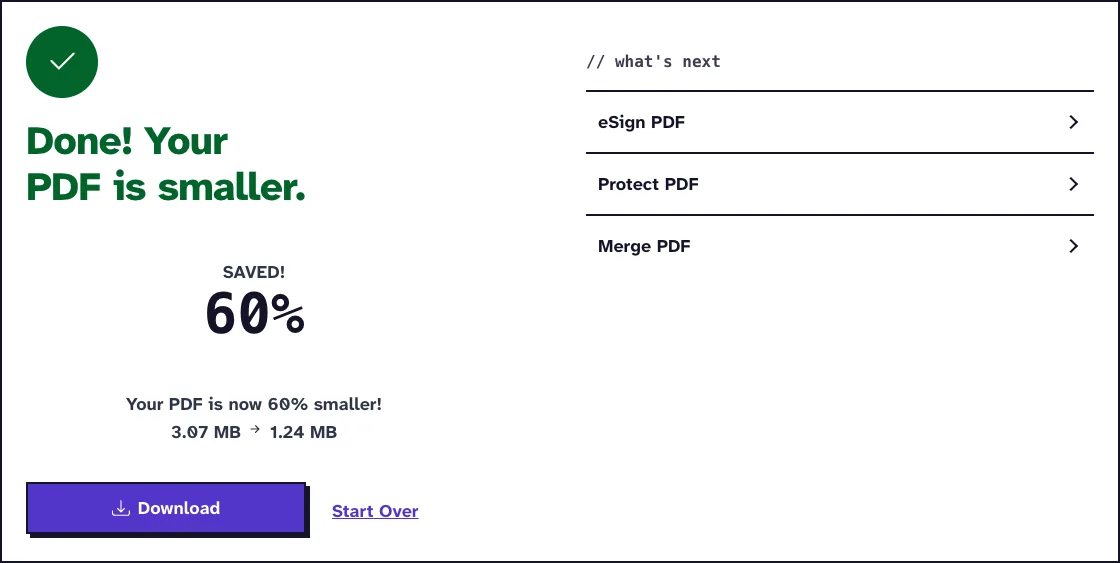
- Click Compress PDF. The results screen shows the size before and after, for example 3.07 MB → 1.24 MB.
- Download the file. If it is still too large, click Start Over and run the original again with Max compression instead of compressing the first result a second time.
- Open the downloaded PDF, page through it and zoom into the smallest text before you upload it anywhere.
The options screen also shows a new estimated size next to each level. Treat it as a rough hint only: for the same sample it estimated about 1 MB at Recommended, while the real result was 379.2 KB.
Nothing is uploaded until you click Compress PDF. The file is then compressed on our server and deleted automatically within two hours.
Light, Recommended or Max Compression
Compress PDF runs Ghostscript, the open-source PDF engine, with one of its standard presets. Light uses the prepress preset and lowers images to at most 200 dpi, Recommended uses the ebook preset with 110 to 150 dpi depending on the file size, and Max uses the screen preset with 72 dpi.
The Ghostscript documentation describes the screen preset as low-resolution output and the ebook preset as medium-resolution output. In practice, the lower the resolution, the more fine detail in photos and scans is lost.
Pick the First Level From the Size Gap
Compare the current size with 5MB before you choose. A 6MB report needs to lose about a sixth of its size, so Light or Recommended is usually enough. A 20MB scan has to lose three quarters, which points to Recommended or Max and a closer look at the result.
Do not chase a much smaller file than the limit asks for. A sharp 4MB copy is better than a blurry 900KB copy when the rule only says under 5MB.
Files Over the 25 MB Upload Cap
Compress PDF accepts files up to 25 MB each. For a larger PDF, cut it into parts with Split PDF using page ranges, compress each part, and join the parts again with Merge PDF if the recipient wants one file.
Why 5MB on Screen Is Not Always 5MB
Systems count megabytes in two ways. According to Wikipedia’s entry on the megabyte, one megabyte is one million bytes, while a common older usage counts 1,048,576 bytes, now called a mebibyte.
Our results screen counts 1 MB as 1,048,576 bytes. A portal that means 5,000,000 bytes therefore stops at about 4.77 MB as our screen shows it, so aim for 4.5 MB or less.
If the portal publishes an exact byte limit, compare it with the byte count your computer shows, under Get Info on a Mac or Properties in Windows. On a Chromebook, the guide to compressing a PDF on a Chromebook shows where to find the size.
Fix a PDF That Is Still Over 5MB
When Max still misses the limit, find out what makes the file heavy. Photos placed at full camera resolution, color scans of plain text and duplicate pages are the usual causes.
If you have the source document, shrink oversized photos there and export a new PDF. For scanned text where color carries no meaning, rescan in grayscale, which stores far less data per page than full color.
Remove a page only when the recipient does not need it, such as an accidental blank scan. Exhibits, signature pages and instructions stay in, and a file that must remain one record should not be split just to pass a check.
Password-Protected PDFs
A PDF that asks for a password when you open it cannot be compressed until the password is removed with Unlock PDF. A file that only restricts printing or copying is compressed as it is.
Fillable Forms
Compression turns form fields into fixed page content, so fill in the form before you compress it. Keep the fillable original if anyone still needs to type into it.
Check the Compressed PDF Before You Upload It
Open the downloaded file from your Downloads folder, not the tab that may still show the original. Confirm the page count, page order and orientation, then zoom into footnotes, signatures, stamps and table rules.
Search for a phrase you know is in the document and click a link or two. If something is missing or blurred, go back to the original and use a lighter level.
When the limit is far below 5MB, the guide to compressing a PDF to 500KB covers the tighter workflow. For a resume or cover letter, the job application compression guide adds checks for names, dates and links, and court filers should read the court e-filing compression guide first.
Frequently Asked Questions about compressing a PDF under 5MB
Can Compress PDF guarantee a result under 5MB?
No setting targets an exact size. The saving depends on how much image data the PDF holds, so read the size on the results screen and try a stronger level from the original if needed.
Why was a file shown as 5.0MB rejected?
The portal may count a megabyte as 1,000,000 bytes, or the number on screen may be rounded. Produce a file clearly below the limit, such as 4.5 MB.
Will compressing a PDF delete any pages?
Compression keeps every page. Still compare the page count and order with the original before you upload the smaller copy.
Is it safe to compress the same PDF twice?
It works, but each lossy pass can add damage to images. Go back to the original and choose a stronger level instead.
Which level should I start with?
Start with Recommended, the default. Use Light when the file is only slightly over 5MB and Max when it must lose most of its size.