
To compress a PDF for court e-filing, start with the court’s current size limit and scanning rules, then compress a copy of the filing once and check every page of the result. Courts set different limits, so a size that one electronic filing system accepts can be too large for another.
PDF-File compresses the copy on its server, so use it only when the document and your office’s policies allow online processing. Keep the original scan untouched until the court has accepted the filing.
Compress a Filing CopyRead the Court’s Filing Rules First
There is no single PDF limit for every court. A federal district court, a state court, an appeals court and an administrative tribunal may each set their own maximum file size and technical rules, and the main document and its attachments can have different limits.
Check the court website, the local rules, any standing orders and the instructions inside the filing portal for your case. This guide covers document preparation, not legal advice, so follow the court or clerk where a rule affects procedure.
Look Beyond the Megabyte Limit
The rules may also cover page size, searchable text, color, bookmarks, security settings, signatures and file names. Some systems reject encrypted PDFs, and some set a limit per document as well as a total for the whole submission.
A portal may display MB while enforcing a limit in bytes, so leave clear room below the number. A 20-page photo exhibit can be far larger than a 100-page text brief.
Court E-Filing Size Limits Compared
These three official pages were checked on October 16, 2026, and show why you cannot borrow a limit from another court. Each applies only to the named court and may change.
The CM/ECF FAQ of the United States Court of Federal Claims sets a limit of 200 MB per PDF. It tells filers to try making the PDF smaller first and, if it is still too big, to split it into parts that each stay under 200 MB and attach them to the filing. It also asks for the PDF to be flattened before upload, which Flatten PDF does.
The CM/ECF FAQ of the Court of Appeals for the Third Circuit allows 50 MB for an individual PDF and several PDFs on one event. For scanned appendix material it asks for black and white at 300 DPI/PPI with OCR applied, and it requires documents created by the filer to be in PDF text format.
The ECF User Manual of the Bankruptcy Court for the Northern District of California names 35MB as the maximum uploaded PDF and 300dpi for scanned documents. Its attachments section sets a much smaller cap of 3 MB, and it tells filers to view the PDF before sending it to make sure it appears in its entirety.
| Court | Size limit | Scanning rule |
|---|---|---|
| Court of Federal Claims | 200 MB per PDF; split larger files | Not stated on the FAQ |
| Third Circuit Court of Appeals | 50 MB per PDF; several PDFs per event | Black and white, 300 DPI, OCR for appendices |
| Bankruptcy Court, Northern District of California | 35MB per PDF; 3 MB for attachments | 300dpi |
Before each filing, check the current local rule, technical guide and filing event yourself. Save the URL and the date you checked it with your filing notes.
Prepare a Smaller Source Scan
The best moment to control size is at the scanner. Crop empty margins, straighten tilted sheets, remove blank backs and do not scan a letter page on an oversized canvas.
For ordinary black text, grayscale or black and white is much smaller than full color. Use color only where it carries meaning, such as highlighting, colored annotations, photos, maps, seals or evidence.
Choose the resolution the court asks for and test it on the hardest page to read. Footnotes, faint handwriting, stamps and exhibit labels must survive at normal reading size and when zoomed in.
Compression Lowers Image Resolution
Every Compress PDF level lowers the resolution of images: Light to at most 200 dpi, Recommended to 110 to 150 dpi and Max to 72 dpi. If the court asks for 300 dpi scans, check whether a compressed copy is still acceptable, or reduce size at the scanner with black and white or grayscale instead.
Keep the Capture Separate From the Filing Copy
Keep the original capture as the record copy. Do cropping, OCR, redaction, assembly and compression on separately named working files, so you can always start again from a clean source.
How to Compress a PDF for Court E-Filing
- Copy the prepared PDF and note its size, page count and the filing event it is for.
- Open the Compress PDF tool, click Choose Files and select the copy. Each file can be up to 25 MB.
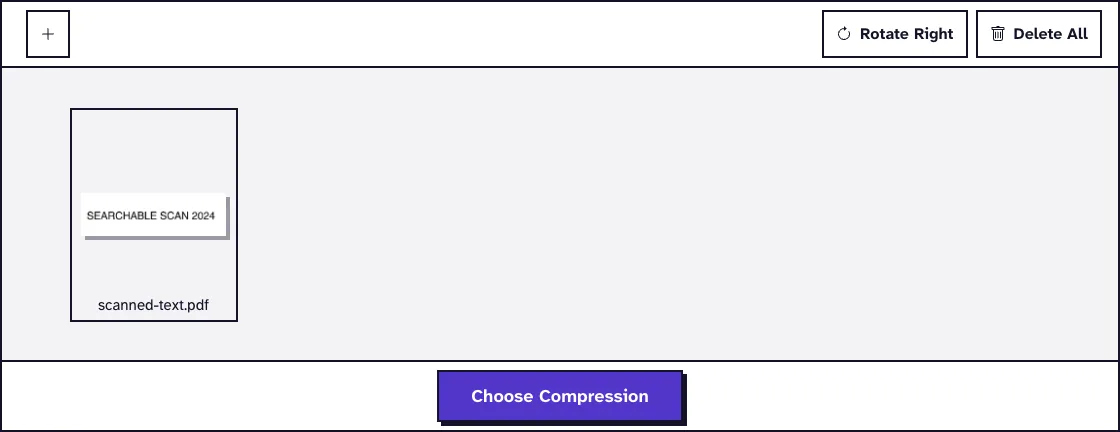
- Fix sideways scans with Rotate Right, then click Choose Compression and pick a level; Light keeps the most detail.
- Click Compress PDF. The file uploads to our server at this point and is deleted automatically within two hours.
- Compare the after size on the results screen with the court’s limit, then download the file under a new name.
- Open the downloaded file and compare it with the source. If it is still too large, start again from the source with a stronger level instead of compressing the compressed copy.
Color scans and photos usually offer the biggest savings, because their pixel data can be resampled. PDFs exported from a word processor are often compact already, so they may shrink very little.
Protect Legally Important Details
Check every page at a useful zoom, especially signatures, initials, notary blocks, dates, handwritten notes, seals, photos and fine lines in diagrams. Confirm that no page is missing, duplicated, upside down or cropped, and look closely at each boundary between the main document and an exhibit.
Compression does not add OCR. If the court requires searchable text, run the scan through OCR PDF first, which reads English text, and then search for several distinctive phrases across different pages.
A black box drawn over text is not necessarily a secure redaction. Apply and verify redactions with an approved process before compression.
Forms, Links and Bookmarks
Compression turns fillable form fields into fixed page content, so complete any court form before you compress it. Click a sample of links and bookmarks if the filing depends on them.
Digital Signatures and PDF/A
Changing a PDF after it was signed can invalidate a cryptographic signature, and compression writes a new file. If a signature or an archival format such as PDF/A is required, follow the court’s order of operations and validate the final file with suitable software.
Split Exhibits and Attachments
Compression is only one way to meet a portal limit. If the rules allow separate attachments, divide the packet at exhibit boundaries with Split PDF page ranges rather than in the middle of a document.
Keep exhibit labels, page numbers and any required index, and use file names that keep the parts in order. A short private list of each file name, description, page range and size helps if the clerk asks questions.
Some filings must stay one document, so do not split just because it is convenient. If you need to join exhibits before compressing, the merge and compress workflow keeps a clean merged copy to come back to, and email evidence can be prepared with the guide to exporting emails to PDF for legal discovery.
Check and Submit the Result
Run a short filing check: correct case and event, permitted format, compliant file name, size below the limit, expected page count, readable details and working search where required. Then upload the exact file you checked and review any preview the portal shows.
Save the notice or receipt with the submitted file. If the portal rejects it, capture the exact error and tell a size problem apart from an encryption, file name or session error.
When the rules or your office do not allow online processing, the guide to compressing a PDF without uploading lists offline methods. For general size targets, see the guide to compressing a PDF under 5MB.
Frequently Asked Questions about compressing a PDF for court e-filing
What scan resolution should I use for court e-filing?
Use the resolution the court states. Two of the courts above ask for 300 DPI scans, so check whether compression, which lowers image resolution, is acceptable for your filing.
Can I make every exhibit grayscale?
Only when color has no evidentiary or explanatory value and the court allows it.
Does compression make a scanned filing searchable?
No. A scan needs OCR to gain a searchable text layer, and the recognized text should be checked for errors.
Can I split exhibits to meet a file size limit?
Only when the rules allow or require it. Divide at logical boundaries and keep labels, page numbers, file names and order.