
To merge and compress PDFs online, combine the files in their final order with Merge PDF, check the merged download, then run that one file through Compress PDF once. Merging happens in your browser with no upload, while compression uploads the merged file to our server, so check that both steps are allowed for your documents.
Merging first gives you one clean baseline to return to if a strong compression level damages a page. It also tells you the real combined size before you decide how hard to compress.
Start by Merging PDFsMerge and Compress PDFs Online: Why Merging Comes First
Merge first when the result must be one ordered document. You can then measure the actual combined size and apply one consistent compression level to every page.
Compressing each source on its own can leave image quality uneven across the packet. It also wastes effort on pages you later remove.
When to Compress a Source First
Both tools accept files up to 25 MB each. If the merged file would be larger than that, compress the biggest sources first and merge the smaller copies, or cut the packet into parts with Split PDF.
The same applies when one heavy scan dominates the packet. Shrinking that one file, or rescanning it, can keep the rest of the pages at full quality.
Prepare a Clean Source Set
Remove duplicates, fix orientation and decide the final order before you start. Name the files with number prefixes so the sequence is visible at a glance.
Fill in and save any fillable forms first, because compression turns form fields into fixed page content. Neither merging nor compression repairs a broken source.
Step 1: Merge the PDFs in Your Browser
- Put the source PDFs in one working folder and keep the untouched originals elsewhere.
- Open the Merge PDF tool, click Choose Files and select the PDFs.
- Every page appears as a thumbnail. Drag pages into order, rotate sideways pages and delete accidental blanks.
- Click Save & Download. The merged file downloads as
MergedPDF.pdf. - Open it, count the pages, check each boundary between source documents and note the file size.
Merge PDF builds the file with the pdf-lib library, whose documentation for the copyPages method describes copying pages from a source document into another document. The pages keep their content, so merging is not a way to shrink a packet.
Treat this merged download as your baseline. If a page is missing or rotated, fix the merge from the original files, because compression should never hide an assembly mistake.
Step 2: Compress the Merged PDF Once
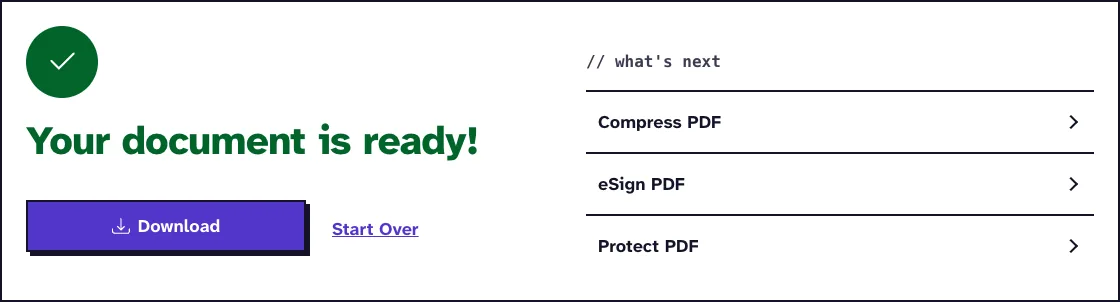
- Open the Compress PDF tool, for example from the what’s next list, and choose your merged file with Choose Files.
- Click Choose Compression and keep Recommended for the first attempt.
- Click Compress PDF. The file uploads to our server at this point and is deleted automatically within two hours.
- Read the before and after size on the results screen, download the file and inspect the pages most likely to suffer.
- If you need a stronger level, start again from the merged baseline, not from the compressed copy.
Compress PDF runs Ghostscript with the prepress, ebook or screen preset for Light, Recommended and Max, which the Ghostscript documentation describes. On our 3.1 MB test file, a 12-page PDF of app screenshots, the three levels gave 1.24 MB, 379.2 KB and 169.31 KB.
What Each Step Changes
Merging copies existing pages into a new file. Compression lowers image resolution, Light to at most 200 dpi and Max to 72 dpi, and rewrites the file’s internal structure.
Compare the Sources, the Merged File and the Compressed Copy
Keep the sources, the merged baseline and the compressed copy until the recipient accepts the file. Compare page count, order, the first and last pages, every boundary, small text, photos and signatures.
Before compressing, mark a few test pages: the smallest body text, a photo, a shaded chart, a signature and a detailed scan. Checking only the cover can make a strong level look safe while an exhibit near the end has become hard to read.
When a packet has OCR text behind scanned pages, search for words from the start, middle and end after compressing. A page can look intact while its hidden text layer has changed.
Meet a Recipient Limit Without Guesswork
Pick the lightest level that clears the limit with some room to spare and passes your page checks. The smallest file is not automatically the best one.
If the packet must be under 5MB, follow the guide to compressing a PDF under 5MB. For exhibits that go to a court portal, read the court e-filing compression guide, which explains why compressed scans may fall below a required resolution.
Tax and closing packets have their own order and checks, described in the guide to merging PDF documents for a tax return and the guide to merging PDFs for a real estate closing. If policy allows the browser step but forbids the upload, stop after merging and use one of the offline methods in the guide to compressing a PDF without uploading.
Write down the input files in order and the level you used for the accepted copy. That small record makes a corrected packet easy to rebuild from the original sources.
Frequently Asked Questions about merging and compressing PDFs online
Should I merge or compress first?
Usually merge first, check the combined file, then compress that one file once. Compress single sources first only when the merged file would exceed the 25 MB upload cap.
Does merging make a PDF smaller?
Not reliably. Merging copies the pages as they are, so plan a separate compression step when size matters.
Which step uploads my files?
Only compression. Merge PDF works in your browser, while Compress PDF uploads the merged file to our server and deletes it automatically within two hours.
Can compression guarantee the portal limit?
No level targets an exact size. Read the size on the results screen and start again from the merged baseline with a stronger level if needed.
Which version should I keep?
Keep the sources and the merged baseline, plus the compressed copy you delivered, with its delivery confirmation.