
To compress a PDF without uploading it, use software that runs on your own computer, such as Preview on a Mac, the PDF export in LibreOffice or the free command-line program Ghostscript. PDF-File’s Compress PDF uploads the file to our server, so it is the wrong choice when a document must never leave your device.
Some PDF-File tools never upload anything. Merge PDF, Rotate PDF Pages, Remove PDF Pages and Organize PDF Pages run entirely in your browser, as the guide to rotating PDF pages without uploading explains.
Can I compress a PDF without uploading it anywhere?
Yes, with software that processes the file on your device and does not sync it to a cloud service. Preview, LibreOffice and Ghostscript all work offline once installed.
Use Online Compression When Policy AllowsWhat No Upload Has to Mean for You
“No upload” can be a preference or a hard rule. You may simply not want to send a personal document to a website, or you may be bound by a client agreement, health data rules, a litigation hold or an employer security standard.
Under a strict rule, local processing also has to avoid folders synced by services such as Google Drive, OneDrive or iCloud, plus automatic backups and crash reports. Turning off Wi-Fi is not enough on its own, because an app can queue a sync until the connection returns.
A Browser Tool Is Not Automatically Local
Words such as online, browser-based and no installation say nothing about where processing happens. Some web apps work on your device and others send the file to a server.
Look for a clear statement of where files are processed, and confirm it against what the app actually does when the risk is high. When policy forbids any transmission, a vague claim is not enough.
How to Compress a PDF Without Uploading It
On a Mac, Preview has a built-in filter for this. These are the steps from Apple’s Preview guide to reducing the size of a PDF:
- Copy the original PDF into a local folder that is not synced to the cloud, and note its size and page count.
- Open the copy in Preview.
- Choose File > Export.
- In the Quartz Filter pop-up menu, choose Reduce File Size.
- Click Save, using a new file name so the original stays untouched.
- Compare the size and quality of the new file, and go back to the original if text or images became hard to read.
The same Export dialog also offers checkboxes such as Optimize images for screen and Save images as JPEG. Try one change at a time so you can tell which one caused any damage.
LibreOffice and Ghostscript on Any Computer
On Windows, Linux or a Mac, two free programs work offline. LibreOffice suits documents you created yourself, and Ghostscript suits finished PDFs.
LibreOffice PDF Export
When you export a document to PDF from LibreOffice, the Images options in the export dialog control file size. The LibreOffice help on PDF export describes JPEG compression with a quality level and a setting that resamples images to a lower number of pixels per inch.
Ghostscript, the Engine Behind Our Compressor
Compress PDF on our server runs Ghostscript, and you can run the same program yourself. A command such as gs -sDEVICE=pdfwrite -dPDFSETTINGS=/ebook -o smaller.pdf original.pdf uses the ebook preset that our Recommended level is built on.
Use the screen preset for a smaller file with lower image quality, or prepress to keep more detail. The Ghostscript documentation on PDF output lists these presets, and in a regulated setting someone qualified should test and record the exact command.
Avoid Unknown Offline Utilities
Do not trade an upload risk for an untrusted program. Install software only from its official publisher or your company’s software catalog, and check that it is approved for sensitive files.
Re-Export From the Source Document
If you created the document, rebuilding the PDF from the source is often cleaner than shrinking the finished file. Resize large photos before you insert them, crop unused pixels and remove hidden slides or comments.
Word, LibreOffice and presentation software can all export a smaller PDF on your device. Check links, accessibility tags and fonts in the result, because each program treats them differently.
For a scan, adjust the scanner settings before you scan hundreds of pages. Grayscale is usually smaller than full color for ordinary text, but keep color wherever it carries meaning.
Check That the File Stayed on Your Device
For higher-risk work, verify the setup technically rather than trusting a description. An administrator can watch outbound connections, apply firewall rules or run the program in a controlled environment.
Check the output folder, the temporary file location, recent-file lists, backup agents and crash reporting. Deleting a file later does not undo a transmission that already happened.
For an air-gapped or regulated process, follow the approved procedure for devices, storage and deletion. If no approved compressor exists, ask the data owner or security team rather than moving the document to a personal device.
When the Online Compressor Is Fine
When online processing is allowed, the PDF-File Compress PDF tool is the quickest route. Choosing the file only loads it into the page; the upload starts when you click Compress PDF.
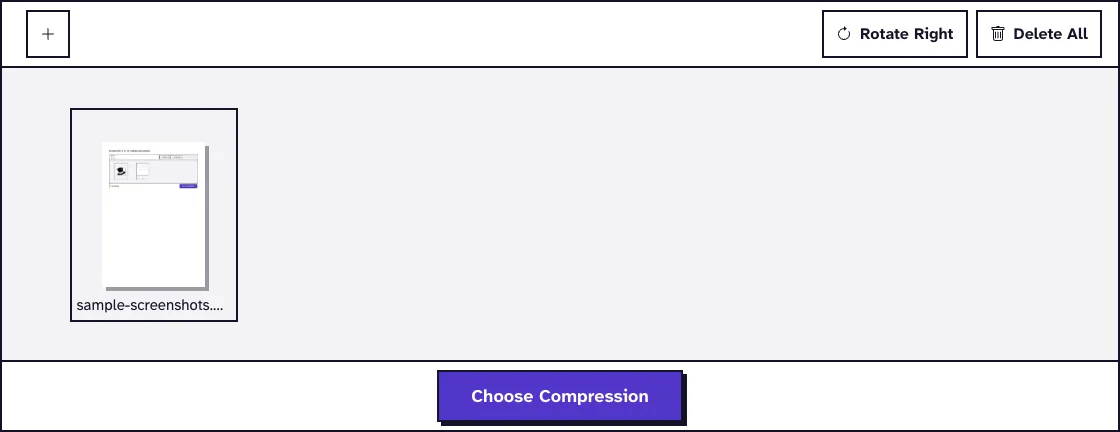
The file travels over HTTPS, is compressed with Ghostscript on our server and is deleted automatically within two hours. It is not encrypted while it sits on the server, which is one more reason to keep governed documents offline.
On a Chromebook, where installing desktop software is often restricted, see the guide to compressing a PDF on a Chromebook. For a portal size limit, the guide to compressing a PDF under 5MB shows how to measure and retry.
If your packet has to be merged before it is compressed, the merge and compress workflow shows where the browser step ends and the upload begins. Court filers and taxpayers should also read the court e-filing compression guide or the guide to merging PDF documents for a tax return.
Inspect the Compressed PDF
Open the result from local storage and confirm its size and page count. Then review the content most likely to suffer: fine print, handwriting, signatures, photos, thin chart lines and colored annotations.
Test search, bookmarks, links and form fields if they need to keep working. Compression is not OCR, and changing a signed PDF may invalidate a digital signature.
Use the smaller file only when it passed both tests: it stayed inside the approved boundary, and it still does its job. Keep the original for as long as policy requires.
Frequently Asked Questions about compressing a PDF without uploading
Does PDF-File compress PDFs on my device?
No. Compress PDF uploads the file when you click Compress PDF, compresses it on our server and deletes it automatically within two hours.
Is every desktop PDF program offline?
Not always. Installed software may use cloud processing, telemetry, backup or sync features, so check the specific product and its settings.
Can I compress a PDF by exporting it from Word?
Yes, if you have the source document. Resize large images first, export the PDF on your computer and check its links, fonts and layout.
Is switching off Wi-Fi enough?
Not always. Software may queue data for later, and strict policies may require network controls, approved storage or an air-gapped device.