
To merge PDFs for a real estate closing, first find out which packet you are building and which checklist controls it, then combine the approved files in that order with Merge PDF and check every signature page and exhibit. A buyer’s reference set, a lender upload and a title company package can each need different documents and versions.
Merge PDF runs in your browser, so closing documents are not uploaded to our server. This guide helps you assemble and check a requested packet; it does not decide legal sufficiency, recording eligibility or signature validity.
How do I merge PDFs for a real estate closing packet?
Get the current document list from the lender, title company, settlement agent or attorney, put the approved files in that order and combine them in Merge PDF. Then check every document boundary, signature page and exhibit in the merged file.
Assemble a Closing PDFIdentify the Packet and Its Checklist
Use the current list from the settlement agent, lender, title company, attorney or recorder as your checklist. For each document, note its source, whether it is a draft or a signed copy, its expected page count, any exhibits and where it has to go.
The checklist is a quality record and makes no legal judgment. It helps you spot a missing rider or signature page before a clean-looking merged file hides the gap.
For buyers in the United States, the Consumer Financial Protection Bureau’s Closing Disclosure page explains that lenders must provide the Closing Disclosure three business days before the scheduled closing. That page covers one form only; state rules, the loan type and your professionals decide what else the packet holds.
Separate Documents by Status Before You Order Them
A draft deed, an executed deed and a recorded deed can look nearly identical as thumbnails. Keep drafts, signed copies, recorded instruments and corrected versions in separate folders.
Never label an unrecorded copy as recorded, and do not let an old draft slip into a signed set. The packet name and cover page should state only the status the documents actually have.
Scan Closing Documents Without Losing Details
Capture full page edges, recording margins, signatures, initials, seals, notary blocks, handwritten corrections, exhibit labels and legal descriptions. Check the back of each page for endorsements or recording information.
Scan in color when ink color, stamps or annotations carry meaning. Cropping a page to look tidy can cut off details a title reviewer needs, and grayscale can turn a faint seal into a smudge.
Check phone scans for skew, glare, curved pages and missing corners, and fix them before assembly. The guide to converting scanned real estate documents to PDF covers the scanning step in more detail.
Keep Large-Format Exhibits at Their Own Size
Surveys, plats, floor plans and legal-description exhibits are sometimes larger than a letter page. Merge PDF keeps each page’s own size, so a mixed packet stays mixed unless you change the source.
If a portal wants plans as a separate upload, note that on your checklist instead of shrinking the exhibit until it is unreadable.
How to Merge PDFs for a Real Estate Closing
- Copy the approved delivery set into a working folder. Do not change the authoritative originals or certified copies.
- Match every file to the checklist, confirm its status and add a number prefix for the order the recipient requested.
- Open the Merge PDF tool, click Choose Files and select the approved PDFs. Each file can be up to 25 MB.
- Every page appears as a thumbnail. Drag pages into order, and rotate or delete a page only where the responsible professional approved it.
- Click Save & Download and rename
MergedPDF.pdfwith the property reference, the packet status and the date. - Open the saved file and check every document boundary, page count, continuation page, rider and exhibit.
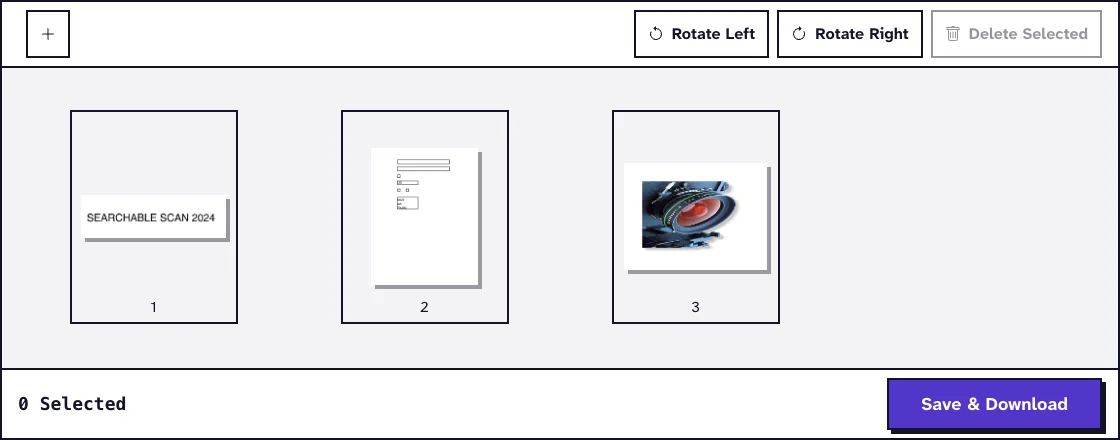
A page that looks blank may hold a faint recording mark or note that only shows when zoomed in. Check the pages on either side and the source file before you leave it out.
A signature page is not always the last page of a document, because riders and legal descriptions often follow the signature block. Give the last page of each source the same attention as the first.
Check Signatures, Riders and Exhibits
Check the merged file against the checklist, line by line. Confirm party names, the property address, loan or parcel numbers, document titles, page counts, signature pages, initials, notary blocks, riders and legal-description continuations.
At each document boundary, watch for a duplicated first page next to a missing last page, a sign that something went wrong during assembly. Flag anything inconsistent for the responsible professional instead of editing the content yourself.
Digital Signatures and Protected Files
Merge PDF writes a new file from copied pages, so do not expect a digital signature from a source file to validate in the merged copy. Keep digitally signed documents as separate files unless your settlement professional says a merged copy is fine.
Merge PDF also refuses password-protected files, including files that open normally but restrict changes. Ask for an authorized copy rather than working around the restriction.
Keep Wire Instructions Out of General Packets
Bank statements, identification, loan records and wire instructions may need tighter handling than other transaction documents. Include only what is on the checklist, use the secure workspace named for it and confirm any wire instructions through a contact you already know, never only through the PDF itself.
Deliver an Identifiable Closing Version
Upload the packet to the named matter or workspace and save the receipt. State whether it is a draft review set, an executed copy, a recorded set or a corrected packet, and say whether it replaces an earlier delivery.
Keep the individual source files next to the exact merged copy you delivered. A payoff correction or missing exhibit can then be fixed by rebuilding from known good documents instead of pulling pages out of an old combined PDF.
If the recipient sets an upload size limit, keep the full-quality packet and compress a copy with the merge and compress workflow, then recheck seals, small legal text and survey measurements. Compression uploads the copy to our server, which deletes it automatically within two hours.
When closing records are later needed for a tax return, take only the requested statements, as the guide to merging PDF documents for a tax return suggests. For a specific size target, see the guide to compressing a PDF under 5MB.
Frequently Asked Questions about Merging PDFs for a Real Estate Closing
What order should a closing packet follow?
Use the order supplied by the lender, settlement agent, title company, attorney, recorder or other responsible recipient.
Are my closing documents uploaded when I merge them?
No. The closing documents are joined inside your browser, so none of them is uploaded to our server.
Can digitally signed PDFs be merged?
The pages can be merged, but the merged copy is a new file and the signature should not be expected to validate. Ask the responsible professional before merging signed documents.
Should a recorded deed replace the executed copy?
Follow the packet instructions. Keep each document’s status clear, and never silently swap one version for another in a set you already delivered.
Can I throw away the source scans after merging?
No. The merged file is a convenience copy, so keep the sources and every delivered version as your closing and records process requires.