
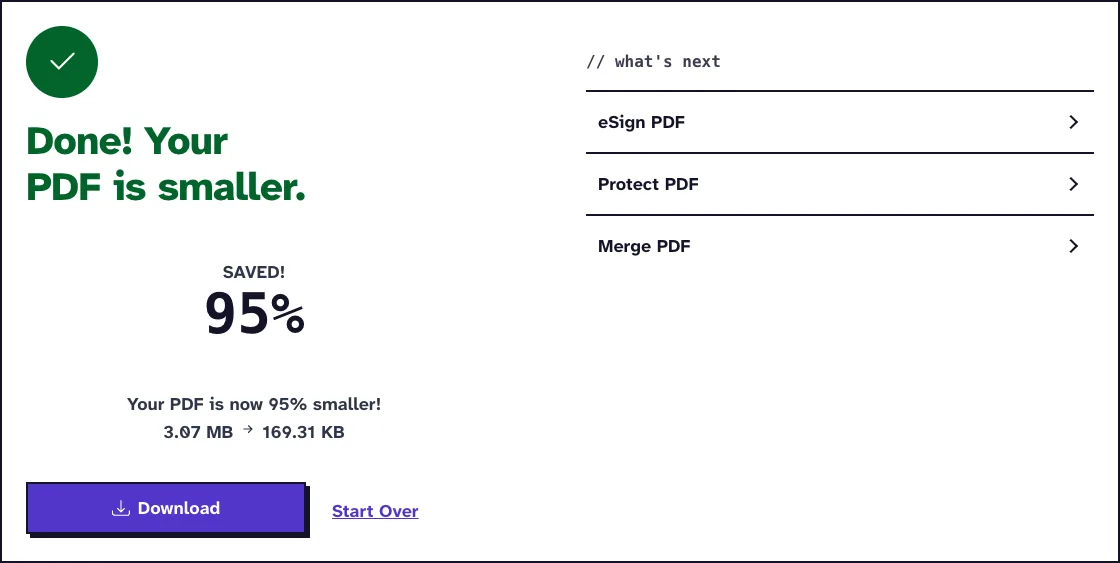
To compress a PDF to 500KB, upload it to Compress PDF, pick Recommended or Max compression and read the new size on the results screen. In our test, Max took a 3.1 MB file, a 12-page PDF of our own app screenshots, down to 169.31 KB, and Recommended took it to 379.2 KB.
There is no 500KB preset, so the result depends on the file. A short document with a few photos often fits, while a long color scan may not reach 500KB and stay readable.
Compress Your PDFHow to Compress a PDF to 500KB
- Keep the original and work on a copy, so every new attempt can start from full quality.
- Note the current size. A file just over 500KB needs a different plan from a 20MB photo scan.
- Open the Compress PDF tool, click Choose Files and select the copy, then click Choose Compression.
- Pick Recommended when the file needs a modest cut and Max when most of its data must go, then click Compress PDF.
- Read the before and after sizes on the results screen and download the file.
- If it is still over the cap, click Start Over and change the source document or scan rather than compressing the compressed copy again.
- Open every page of the final file and zoom into the smallest text before you send it.
The options screen shows a new estimated size next to each level, but read it as a rough hint. For the same sample it estimated about 787 KB at Max, while the real result was 169.31 KB.
The file is uploaded when you click Compress PDF, compressed on our server and deleted automatically within two hours. Each file can be up to 25 MB.
Measured Results for Each Compression Level
Compress PDF runs Ghostscript with one of three presets. The Ghostscript documentation describes the screen preset behind Max as low-resolution output and the ebook preset behind Recommended as medium-resolution output.
| Level | Ghostscript preset | Image resolution | Our 3.1 MB sample became |
|---|---|---|---|
| Light | prepress | at most 200 dpi | 1.24 MB |
| Recommended | ebook | 130 dpi for this file size | 379.2 KB |
| Max | screen | 72 dpi | 169.31 KB |
Recommended picks between 110 and 150 dpi depending on the size of the upload, which is why the table names the value used for this sample. The sample consists of screenshots with large flat areas, so your own file will shrink by a different amount.
Is 500KB Realistic for Your PDF?
Work out the cut as a percentage first. A 700KB document must lose about 29 percent, while a 5MB document must lose about 90 percent.
Large cuts are easiest when the PDF holds big photos or color scans. They are hardest when a PDF exported from a word processor is already mostly text, vector shapes and subset fonts.
Allow for KB and KiB
According to Wikipedia’s kilobyte entry, the SI prefix kilo means 1000, while kilobyte has traditionally also meant 1024 bytes, now called a kibibyte. Our results screen uses 1024 bytes per KB.
A portal that means 500,000 bytes therefore stops at 488.28 KB as our screen shows it. Aim for 450 KB or less, because a result at 499 KB on one screen can fail on another.
Divide the Budget by the Page Count
Five hundred kilobytes over two text pages is generous. The same allowance over fifty scanned pages leaves about 10 KB per page, and fine print or handwriting usually breaks down before the file gets there.
Reduce the Source, Not Just the PDF
If you made the document in Word, Google Docs or presentation software, fix it there. Resize photos to the size they appear on the page, delete decorative backgrounds and export a fresh PDF.
Avoid turning pages into JPEG images as a shortcut. It removes selectable text and can make type harder to read while still missing the target.
For paper documents, rescan from the originals if you can. Scan ordinary black text in grayscale, crop wide margins and choose a resolution for reading, not for enlargement.
Remove Only Material That Is Truly Optional
Delete accidental blank pages or duplicates with Remove PDF Pages, which works in your browser. Never drop required pages to satisfy a counter.
A PDF that needs a password to open must be unlocked before it can be compressed. Fillable form fields become fixed page content during compression, so fill in a form first.
Check the Details Most Likely to Fail
View the result at 100 percent and zoom further where the document has small marks. On ID or license copies, check numbers, photos, stamps and signatures, and on invoices check decimals and account references.
Confirm that all pages are present, upright and in order. Search for a phrase you know, click any link the recipient needs and reopen the file from your Downloads folder so you are not looking at a cached preview.
Write down the level, the size and the first visible defect for each attempt. Max may pass the cap while blurring a seal, and the written record helps you pick the clearest copy that still fits.
What to Do When 500KB Is Impossible
Stop when the next cut would erase information the reader needs. Ask whether the cap applies per file or to the whole submission, and whether several labeled parts are accepted.
If parts are allowed, Split PDF can cut the document by page ranges before you compress each part. A file that passes the size check but cannot be read still fails the recipient.
If your real limit is looser, the guide to compressing a PDF under 5MB keeps more detail. For a resume or application form, follow the job application compression checks, and if you are joining several files first, use the merge and compress workflow.
Frequently Asked Questions about compressing a PDF to 500KB
Can every PDF be reduced to 500KB?
No. Long scans, photo-heavy documents and files that are already optimized may not reach 500KB while staying readable.
Is 500KB exactly the same as 0.5MB?
In decimal units, yes. Our results screen counts 1024 bytes per KB, so 500,000 bytes shows as 488.28 KB.
Why did Max compression barely reduce my PDF?
Its images may already be compressed, or most of the file may be text, vector graphics and fonts. Change the source rather than processing the output again.
Should I lower the scan resolution to reach 500KB?
Only as far as text, signatures and stamps stay clear. Rescan from paper and compare the result at normal size and zoomed in.