
Add Pages to PDF: Insert Blank Pages or a Second PDF
Add pages to a PDF without rebuilding it: insert 1 to 100 blank pages, or every page of a second PDF, at the start, at the end or after any page. Blank pages take the size of the page before them.
// how it works
How to add pages to a PDF
- 01Upload the PDF you want to add pages to.
- 02Click Choose Options.
- 03Choose blank pages or a second PDF, and pick where the new pages go.
- 04Click Add Pages and download the result.
// why pdf-file
What Add Pages to PDF does
- Blank pages or a whole PDFInsert 1 to 100 empty pages, or every page of another PDF.
- Any positionThe new pages go at the start, at the end or after the page number you type.
- Matching sizeBlank pages copy the size and orientation of the page before them.
- Original pages untouchedYour existing pages get copied as they are, in their order.
- Free, no accountNo sign-up, no limit on how often you use it, and no watermark on the result.
- Deleted within two hoursWe delete your upload and the result from our server within two hours. Nothing gets shared.
How to insert pages into a PDF
Sometimes a PDF is missing a page: a signature page, a blank page before a new chapter or an extra form. You’d usually have to rebuild the file to fix that; here you insert the pages into the PDF you already have.
The tool adds blank pages, or every page of a second PDF, wherever you choose. It’s free, and you don’t need an account.
Add Pages NowHow to add pages to a PDF
- Click Upload PDF and pick the file you want to add pages to.
- Click Choose Options.
- Choose blank pages or pages from another PDF, then pick where they go.
- Click Add Pages and download the result.
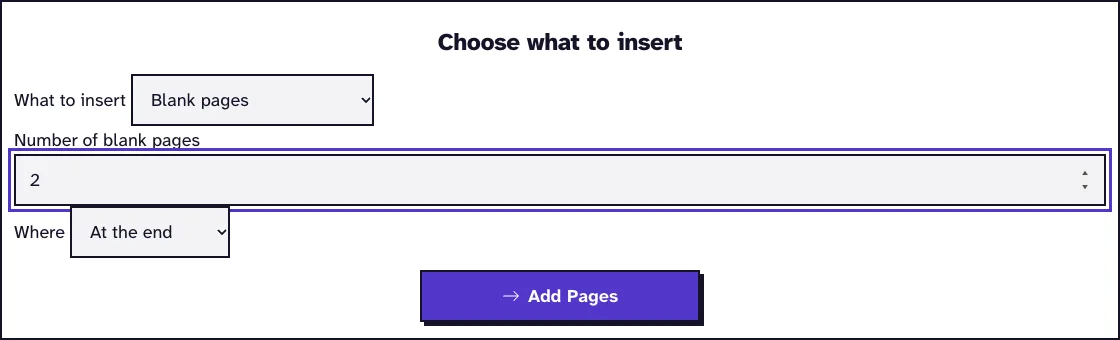
Insert blank pages
Choose Blank pages and type how many you need, from 1 to 100. Then pick At the start, At the end or After a page, and type the page number.
Each blank page copies the size and orientation of the page before it, so a landscape spread gets a landscape blank page. At the start, the blank pages take the size of page 1.
Blank pages come in handy before chapters in a document printed double-sided, so that each chapter starts on a right-hand page.
Insert pages from another PDF
Choose Pages from another PDF and pick the second file. All of its pages go in at the position you choose, in their own order, and they keep their own size.
If you’re combining whole files in a set order, Merge PDF gets you there faster. To move single pages around after inserting, use Organize PDF Pages.
Make chapters start on a right-hand page
In a document printed on both sides, odd page numbers fall on the right. When a chapter would start on an even page, one blank page in front of it pushes it over to the right-hand side.
Insert the blank pages from the back of the file to the front, one chapter at a time. Every insertion shifts the page numbers after it, so working backwards keeps the numbers you noted down correct.
Want to insert just one page from another PDF? Save that page on its own first with Extract PDF Pages, then insert the result here.
What changes in your PDF
Only the new pages get added. Your existing pages stay as they are, with their text, links and form fields, and the file on your device isn’t touched.
A PDF that needs a password to open has to be unlocked first with Unlock PDF. The upload and the result are deleted from our server within two hours, and since a PDF stores each page as its own object, pages can go in without the others changing.
Do bookmarks and links still point at the right pages?
Yes. We inserted 2 blank pages after page 1 of a 12-page test file with three chapter bookmarks and a contents list on page 1.
The chapter 2 bookmark and its contents link moved with their page from page 5 to page 7, and chapter 3 from page 9 to page 11. The title stayed as well, so there was nothing to fix afterwards.
Replace one page with a scanned or signed version
There’s no replace button, so replacing a page takes two tools: insert the new page here, then delete the old one with Remove PDF Pages. In October 2026 we replaced page 5 of the 12-page test file with the first page of a 3-page scan.
The scanned page had to be a PDF of its own first, so we pulled it out of the scan with Extract PDF Pages (168.5 KB). Add Pages put it after page 5, which made 13 pages, and removing the old page 5 left 12 pages in the right order, 169.6 KB in all.
The last step is where it costs you something: Remove PDF Pages drops the bookmarks and the document title, and the contents links on page 1 stopped working. If your file relies on those, keep the original for reference and check the new copy before you send it.
What happened when we tested Add Pages to PDF
We uploaded sample-screenshots.pdf, a 12-page test file of 3.1 MB, and added 2 blank pages at the end. The tool returned sample-screenshots_AddedPages.pdf, 3.1 MB with 14 pages, 0.1 seconds after we pressed the button on our local test server.
Tested in October 2026.

Frequently Asked Questions about Adding Pages to a PDF
How do I add a blank page to a PDF?
Choose Blank pages, leave the number at 1, pick where it goes and click Add Pages.
Can I add pages from an image?
Not directly. Turn the image into a PDF with JPG to PDF first, then insert that PDF here.
Can I insert pages in several places at once?
One run inserts at one position. To add pages somewhere else, run the tool again on the result.
Will the inserted pages match the size of my PDF?
Blank pages will. Pages from another PDF keep their own size.
Loved PDF-File.com? Spread the word!
Help us keep these tools free: Share with your friends!