
How to Scan Documents on iPhone With Files or Notes
Your iPhone has a scanner built in, in Files and Notes. Here's which one to use, how to get a clean scan, and what to do after it.

Here's how to scan documents on iPhone: open the Files app, tap the More button (three dots), tap Scan Documents, hold the camera over the page and save. You need no extra app, and Notes has the same scanner if you'd rather keep the scan inside a note.
Use Files when you want a scan you can find, send or upload. Use Notes when the scan belongs with other notes on the same subject. If a form needs a PDF and you want to be sure of the file type, photograph the page and use our HEIC to PDF tool.
How to Scan a Document in the iPhone Files App
These steps follow Apple's page on how to scan documents on your iPhone or iPad.
- Open Files and tap the More button.
- Tap Scan Documents.
- Hold the document in the camera view. In iOS 26 you can also choose the flash or an image filter here.
- In Auto mode the page scans itself. To do it by hand, tap the Shutter button or press a Volume button, adjust the corners, and tap Keep Scan.
- Scan more pages, or tap Done.
- Choose a location and tap Save.
That's your scan. Rename it right away, since the default name won't help you find it later.
How to Scan a Document in iPhone Notes
- Open Notes and select or create a note.
- Tap the Attachment button (the paperclip), then Scan Documents.
- Hold the document in view. It scans by itself in Auto mode, or use the Shutter button and tap Keep Scan.
- Tap Done, or add more pages first.
The scan stays in the note.
Do You Need a Scanner App on iPhone?
For forms, receipts and letters, no. Files and Notes have the scanner built in, and for the occasional scan we'd stay with Files, since nothing leaves your phone unless you send it.
How to Get a Cleaner iPhone Scan
- Surface: use a dark, matte table under a white page. A glossy surface throws reflections into the shot.
- Light: even room light beats the flash on shiny paper, which can leave a bright spot.
- Corners: drag them to the page edge if the scanner misjudged. It's much easier than fixing it after, though our guide on how to straighten a scanned PDF helps when you've missed one.
Where Is the Filter Setting in the iPhone Scanner?
It's on the scanning screen, before you capture the page. Apple's iPhone User Guide says to adjust settings such as Flash or Filter while the page is in view, and its steps for Notes and Files list that option for iOS 26.
What Compress PDF Does to a Big iPhone Scan
Start with Recommended: it took our 4.0 MB test scan down to 128 KB, still three pages, and the smallest line stayed easy to read. If a portal limit or a bounced email brought you here, try that level first.
In November 2026 we generated a phone-style scan of a three-page letter to test this: 3024 by 4032 pixels, cream paper, slight blur.
| Level | Size | Pixels per page after | 9 pt line at 100 percent |
|---|---|---|---|
| Original | 4.0 MB | 3024 by 4032 | Sharp |
| Light | 1.1 MB | 1653 by 2204 | Sharp |
| Recommended | 128 KB | 1074 by 1433 | Readable, a little soft |
| Max | 49 KB | 595 by 793 | Readable, but fuzzy |
Keep Light for anything you'll print or zoom into, and only go to Max when a limit forces you.
If you'd rather not upload the file, AirDrop it to your Mac and follow our steps for how to reduce PDF size on a Mac. Otherwise use Compress PDF in Safari.
How to Make an iPhone Scan Searchable
Open the scan and try to select a word. If you can't, it has no text layer, and OCR PDF can add one to a PDF in Safari with no account. It reads English only, up to 25 MB per file.
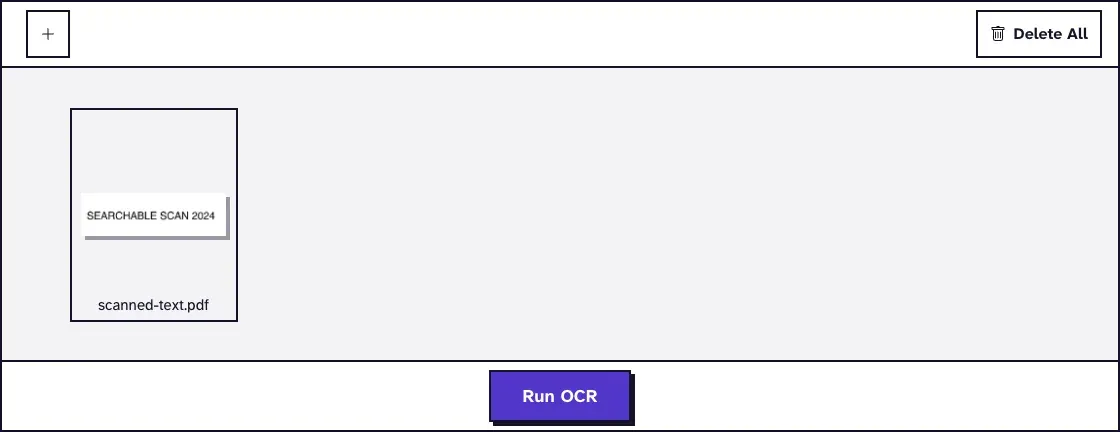
For more on when this helps, see our guide to making PDFs searchable. Uploads get deleted within two hours, but think twice about an ID or a medical letter.
OCR First, Then Compress
Run OCR PDF before Compress PDF. With that scan, OCR then Recommended gave a 144 KB PDF where a search found every word of our test sentence.
OCR rebuilds each page as a 300 dpi image, so the file grows first (4.0 MB to 15.5 MB here), and Compress PDF takes 25 MB at most. At six pages OCR gave us 30.9 MB, which Compress PDF refused, while Light, then OCR, then Recommended turned 10 pages into a searchable 578 KB.
A 20-page scan of ours (26.7 MB) was over that cap, so split a long scan into parts first. Afterwards, search for a word to check the text is there.
How to Sign or Send the Scan From Your iPhone
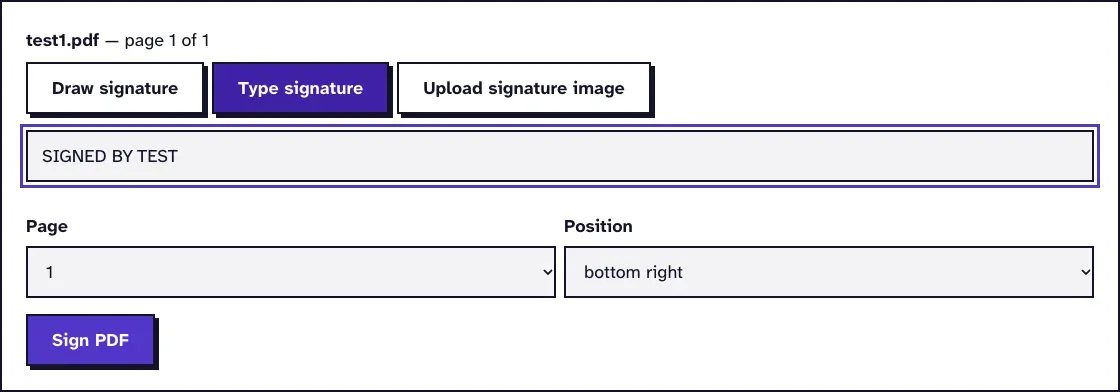
To sign a scanned form, use Sign PDF in Safari, which draws, types or uploads a signature and works on your device without sending the file to our server.
To send it, tap Share in Files and pick Mail or Messages. And if a friend needs these steps on the other kind of phone, here's our guide to scanning documents on Android.
Frequently Asked Questions about How to Scan Documents on iPhone
Where do iPhone scans get saved?
In Files, they go to the location you pick when you tap Save. In Notes, they stay inside the note.
Can I scan multiple pages into one document on iPhone?
Yes. Keep scanning before you tap Done, and the pages go into one document.