
Adobe Acrobat Password Protect PDF Steps: Pro, Online and What Free Reader Can't Do
Paid Acrobat sets open passwords and print or copy limits, Adobe's web tool sets a password only, and free Reader sets neither.

To password protect a PDF in Adobe Acrobat, open it in the paid desktop app and, going by Adobe's own steps, choose Tools, Protect, Encrypt, then Encrypt with Password. Free Acrobat Reader doesn't list password protection among its features.
If you don't pay for Acrobat, you've got Adobe's web tool or our free Protect PDF. This post sticks to the Acrobat side: our guide to adding a password on Windows, Mac or iPhone covers the other routes.
Which Adobe Acrobat Version Can Password Protect a PDF?
| Feature | Acrobat Reader (free) | Adobe's online tool | Acrobat Pro (paid) |
|---|---|---|---|
| Open password | No | Yes | Yes |
| Print, copy and edit limits | No | No | Yes |
| Encryption options | No | No | Yes |
| Many files in one run | No | No | Yes, with Action Wizard |
That's from Adobe's security, online tool and plan pages, as we read them in November 2026. The plan page also lists "Password-protect files" under Acrobat Standard.
How to Password Protect a PDF in Adobe Acrobat Pro
These steps come from Adobe's guide to encrypting a PDF for email, and they're for the desktop app.
- On the top toolbar, click Tools, then Protect, Encrypt and Encrypt with Password.
- Check Require a password to open the document, and type the password.
- Pick a compatibility level from the drop-down. Adobe says it needs to match the receiver's version of Acrobat.
- Choose an encryption level. Adobe calls Encrypt all document contents the most common.
- Click OK, retype the password and click OK again.
Then save the file, close it and open it again to check that it asks.
How to Password Protect Many PDFs at Once in Acrobat
Use Action Wizard, which takes Acrobat Pro. Adobe's Learn page has the tip "Use the Action Wizard to password protect multiple PDF files", and its plan page lists "Action Wizard (in Acrobat Pro)" for running tasks on multiple PDFs at once.
Those two pages don't list the clicks, so start from Action Wizard in your copy of Pro. Without Pro, you're doing one file at a time: Adobe's online tool asks you to select a file, and our Protect PDF took one file per run when we checked its upload box in November 2026.
What Acrobat's Print, Copy and Edit Limits Do
Adobe says Acrobat can restrict editing, modifying, printing or copying, and its online tool page puts those permission controls in Acrobat Pro. They're weaker than an open password.
Adobe's own password article says that with only those limits set "it's relatively easy for a malicious actor to remove the restrictions". The PDF article on Wikipedia adds that most free and open source readers ignore them. To stop changes, read how to lock a PDF from editing.
How to Use Adobe's Online Password Tool
Adobe's web tool takes a password and nothing else, so there are no permissions to set. These are the steps on its page.
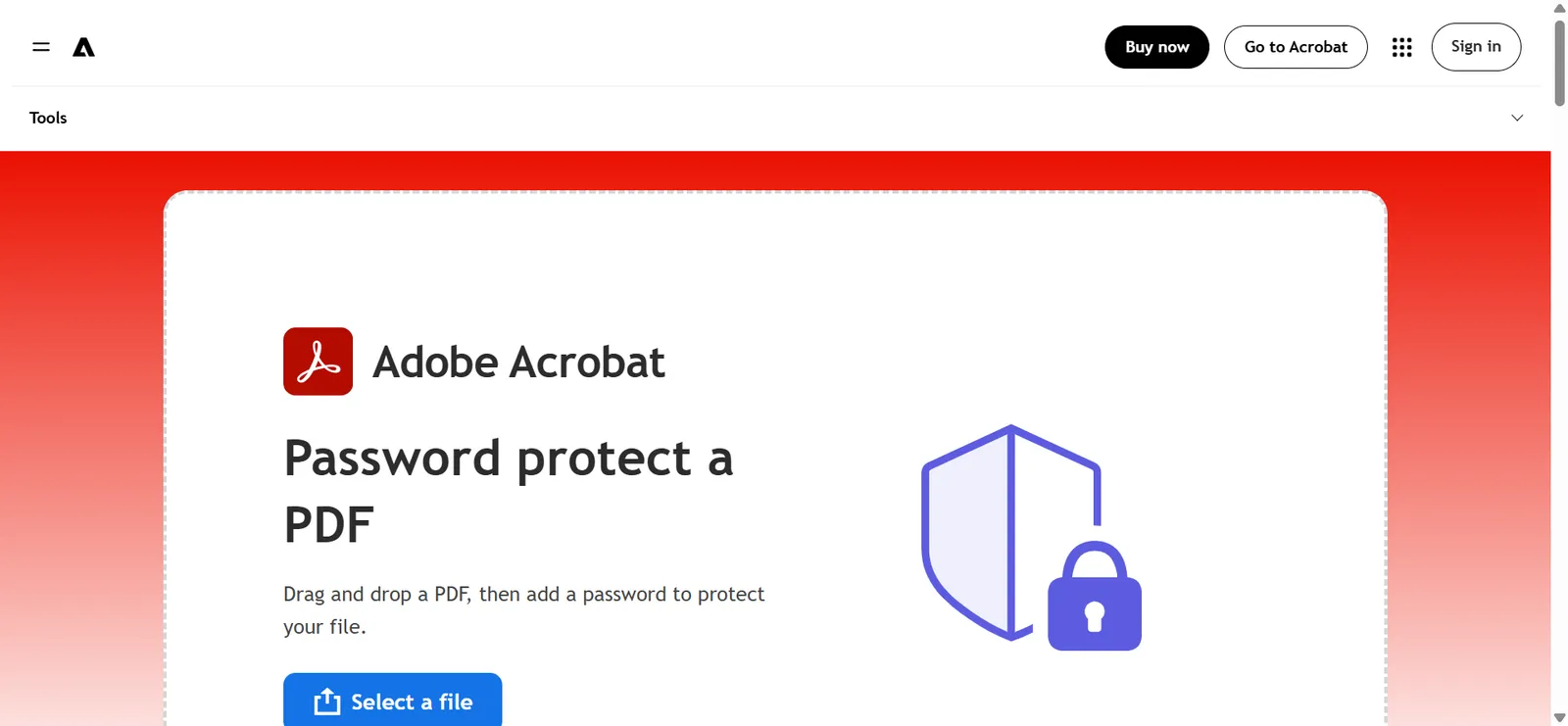
- Open Adobe's Password protect a PDF page and click Select a file, or drag a PDF onto it.
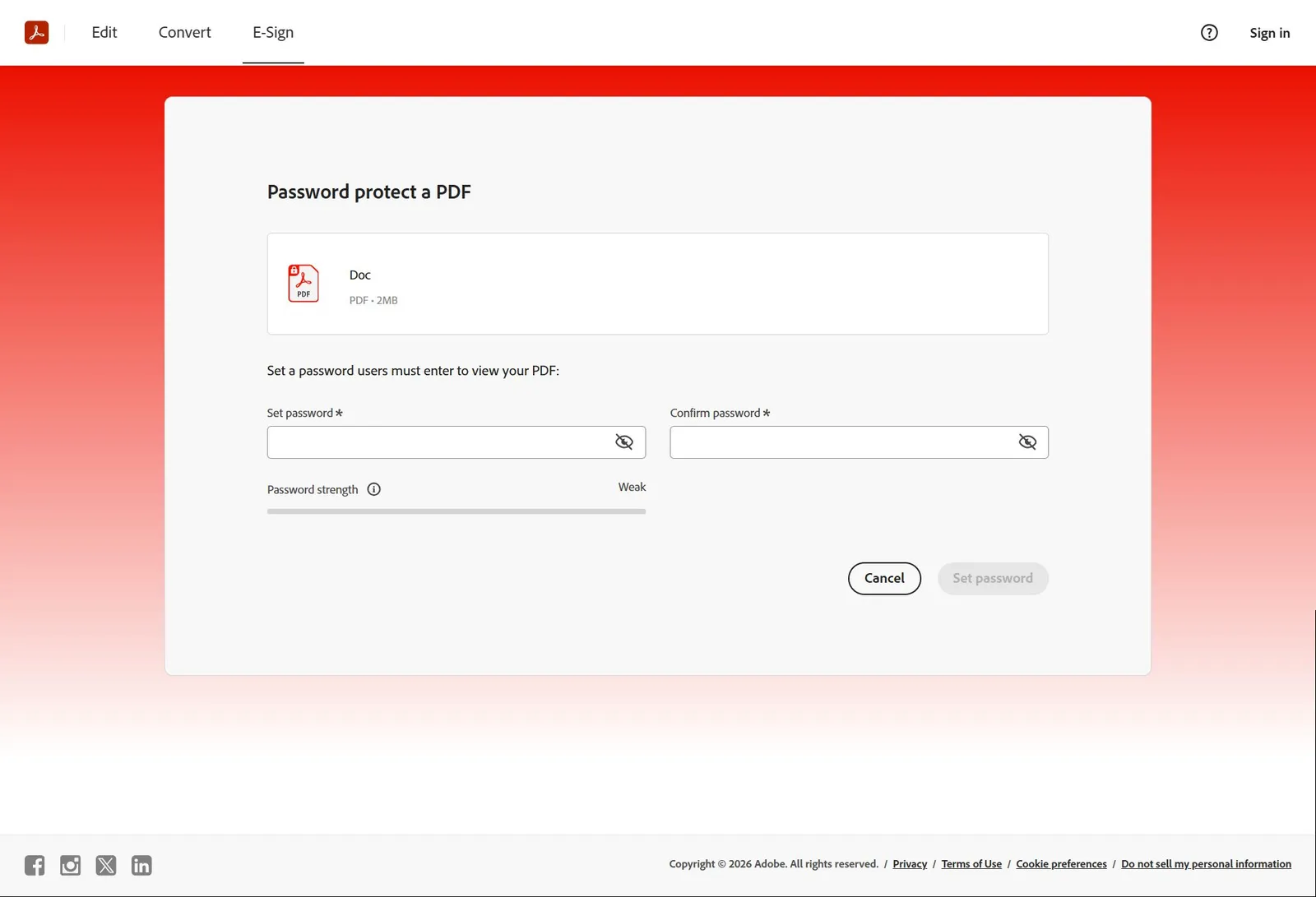
- Type the password, then type it again to confirm.
- Click Set password.
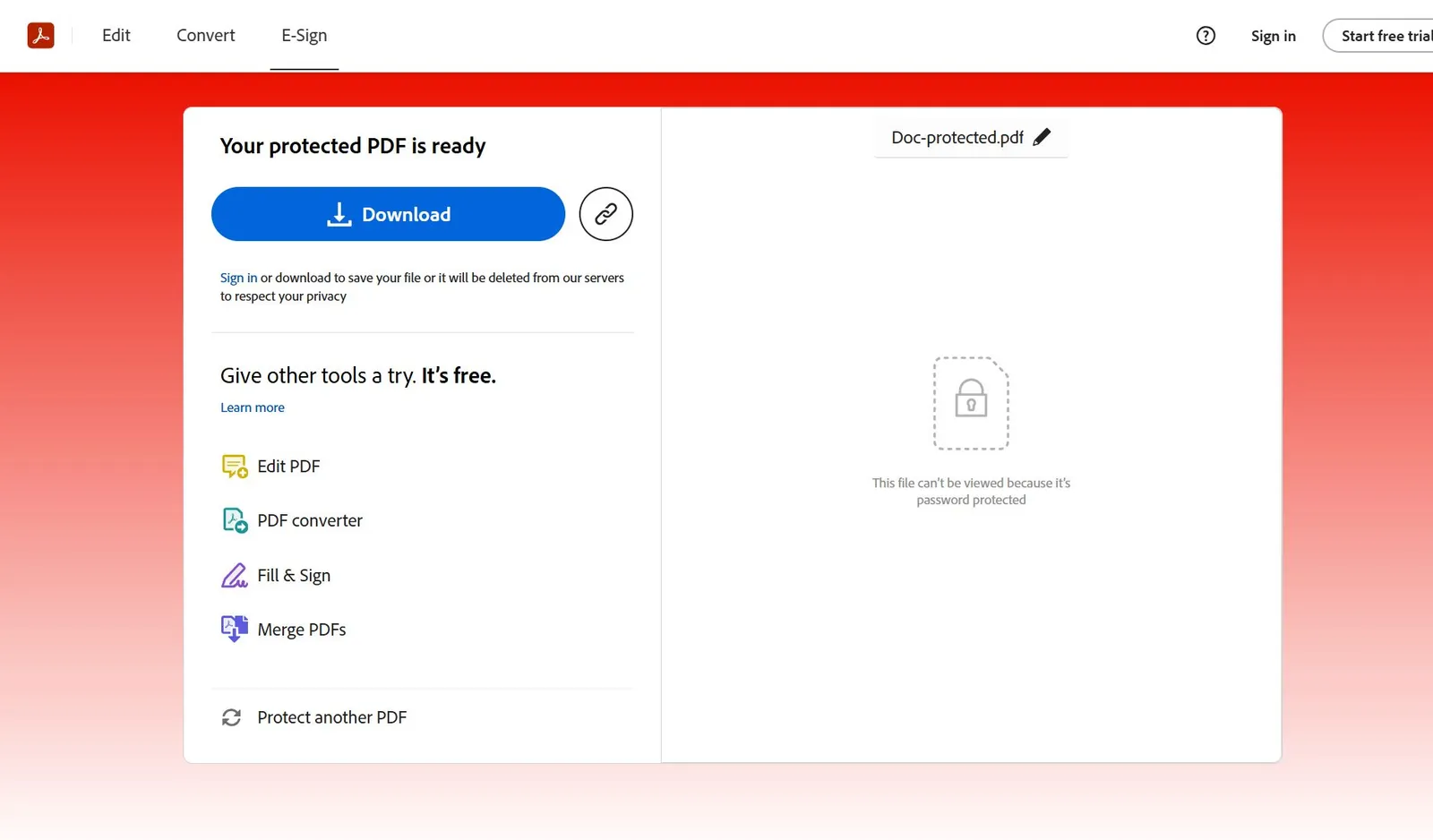
- Download the protected copy, or sign in to share it.
The Free Route: Password Protect a PDF Without Acrobat
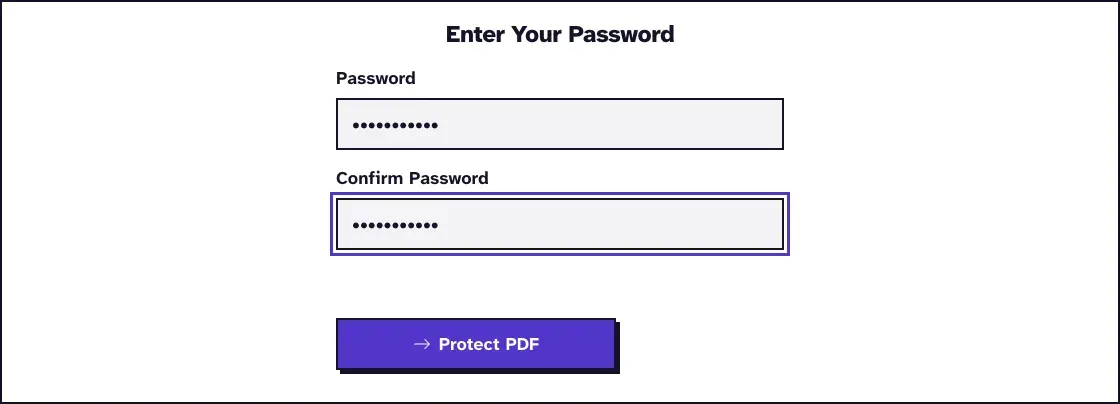
For a plain open password, you don't need Adobe. Upload the file to Protect PDF, type the password twice, and download the copy, with no account.
We protected a 5.0 KB test file in November 2026, in Chrome on a Mac, and got a 5.9 KB copy. Inspected with qpdf, it was AES-256 (revision 6), and Poppler, MuPDF and Ghostscript refused it without the password.
It does less than Acrobat, and you should know that up front. It sets one password that opens the file with full rights and adds no print or copy limits, so if you need those, Acrobat is the right tool. Our guide to locking an editable PDF covers what that leaves open.
What to Do Before You Send the Protected PDF
Finish the document first, because signing and most other tools won't open a locked file. Sign it with Sign PDF or in Acrobat, then protect it.
Don't put the password in the same email as the file. Send it by text or call, and pick a long one. Adobe's article recommends at least 12 characters, and our post on PDF password security shows how quickly short ones fall.
Frequently Asked Questions about Adobe Acrobat Password Protect PDF
Can I password protect a PDF in the free Adobe Reader?
No. Adobe lists viewing, printing, sharing and commenting for free Reader. Adding a password takes paid Acrobat, Adobe's online tool or another tool.
How do I remove a password in Acrobat?
Adobe's steps for Acrobat Pro are to open the file, then choose Tools, then Protect, then Encrypt, then Remove Security. If you don't have Acrobat, Unlock PDF does it with the password you know.
What if I forget the password I set in Acrobat?
Adobe says you can only remove a password if you know the current one. Keep it in a password manager, and keep an unprotected original until you're sure it's stored.
Which encryption level should I pick in Acrobat?
One the person you're sending to can open: Adobe says the compatibility level needs to match the receiver's version of Acrobat, and names 128-bit and 256-bit AES as common types. Our guide to AES-256 compatibility lists what to check.