Compress PDF in Adobe Acrobat: Quick Route and PDF Optimizer Steps
Acrobat has a quick route and a detailed one. Here's when to use each, and what to do if you don't have Acrobat at all.
To compress PDF in Adobe Acrobat, open the file in the desktop app and choose All tools, then Compress a PDF. If you need control over image resolution, use PDF Optimizer instead, and if you don't have paid Acrobat, Compress PDF does the job free in a browser.
Where Is Reduce File Size in Acrobat Now?
Try All tools first, then Save as Other, because Adobe Acrobat's help pages list both as we read them in November 2026, and neither uses the name Reduce File Size.
| You want | Route on Adobe's pages | Adobe page last updated |
|---|---|---|
| A quick reduction | All tools, then Compress a PDF, then Single file or Multiple files, then Save | April 2026 |
| A quick reduction | Windows: Menu, then Save as Other, then Reduced Size PDF. Mac: File, then Save as Other, then Reduced Size PDF | October 2026 |
| Your own settings | All tools, then Compress a PDF, then Advanced Optimization | April 2026 |
| Your own settings | Windows: Menu, then Save as Other, then Optimized PDF. Mac: File, then Save as Other, then Optimized PDF | October 2026 |
Don't worry if a plain File, then Reduce File Size isn't on your menu. If the detailed route is missing, check your plan: Adobe says optimization is only in Acrobat Pro, Premium and Studio on the desktop.
Which Acrobat Compression Tool Should You Use?
| Tool | You need | Use it when |
|---|---|---|
| Compress a PDF or Reduced Size PDF | Desktop Acrobat | You want a smaller file and don't care how |
| PDF Optimizer | Acrobat Pro, Premium or Studio | The quick route blurred your charts, or the file's still too big |
| Adobe's online compressor | A browser | You don't have the desktop app |
| Our Compress PDF | A browser | You want it free with no account |
Start with the quick route. It's quick, and you've lost nothing if it isn't enough, as long as you save under a new name.
How to Use Acrobat's Quick Route
- Open the PDF in Acrobat.
- Choose All tools, then Compress a PDF, then Single file. Or take the Save as Other route from the table above and pick Reduced Size PDF.
- If a Make compatible with menu appears, pick a version everyone who uses the PDF can open, and click OK.
- Save under a new name, so you keep the original.
How to Compress a PDF With PDF Optimizer Settings
PDF Optimizer is for when you want to decide what gets shrunk. Open it with either route for your own settings in the table above. Adobe warns that picking an older version in Make compatible with may limit compression features.
Its settings page also lists a box called Optimize images only if there is a reduction in size, which pauses optimization when a setting would increase the size.
- Click Audit space usage. It shows how much of the file is images, fonts and everything else, so you know where to work.
- Open the Images panel and lower the resolution for color, grayscale and monochrome images.
- Open the Fonts panel if the audit shows fonts taking up lots of space, and unembed only what you're sure readers will have.
- Open Discard Objects and Discard User Data to remove things like hidden layers, comments and search indexes you don't need.
- Click OK and save under a new name.
Pictures are often where the space goes, so start in the Images panel. Our guide to what an optimized PDF is explains where file size comes from, if the audit numbers don't mean much to you.
A word on those Discard options: they can remove form actions, comments or layers someone wanted. Check the copy before you delete the original.
How to Use Adobe's Online Compressor
Adobe has a web version, which uploads your file to their servers.
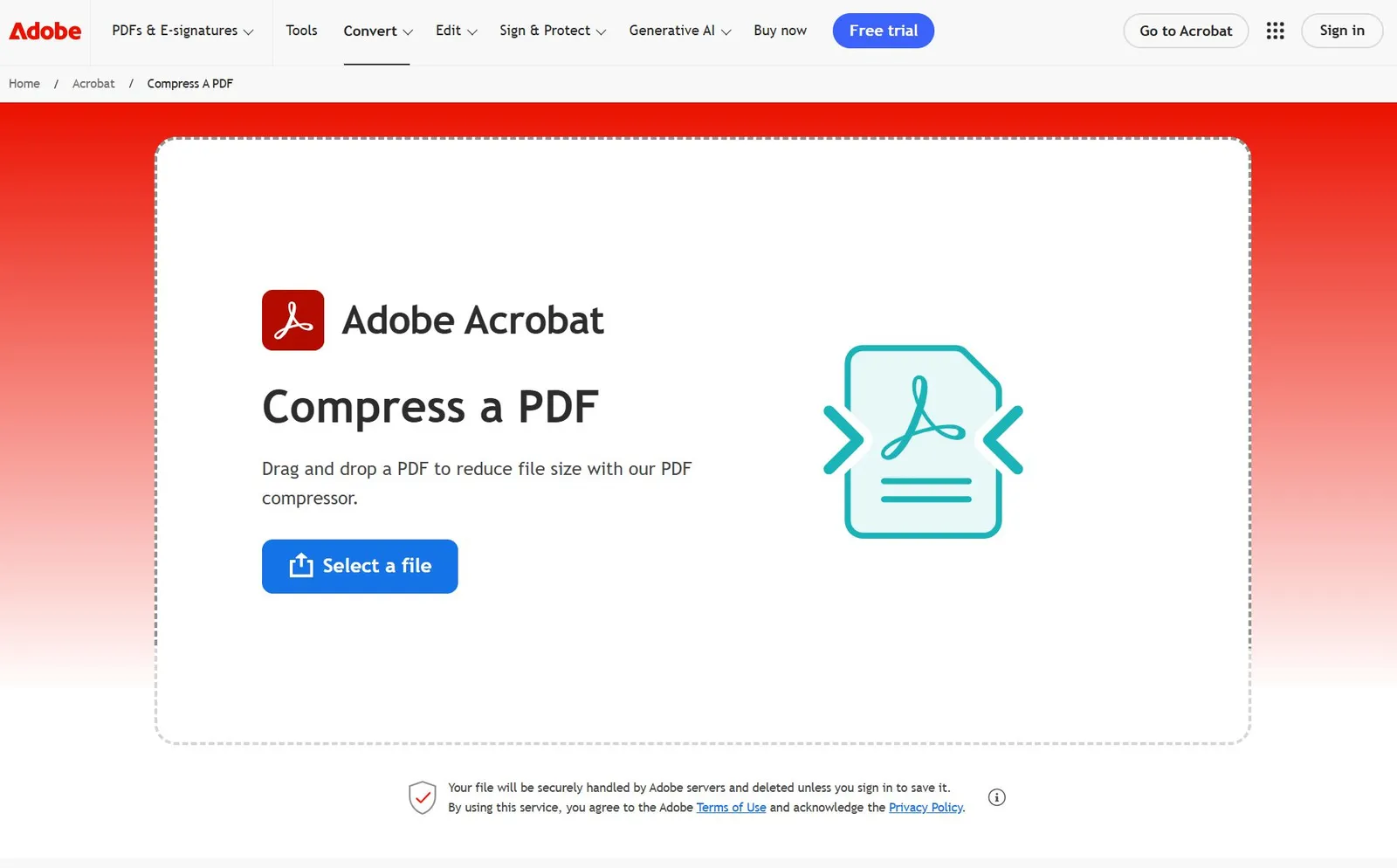
- Go to Adobe's Compress a PDF page and click Select a file.
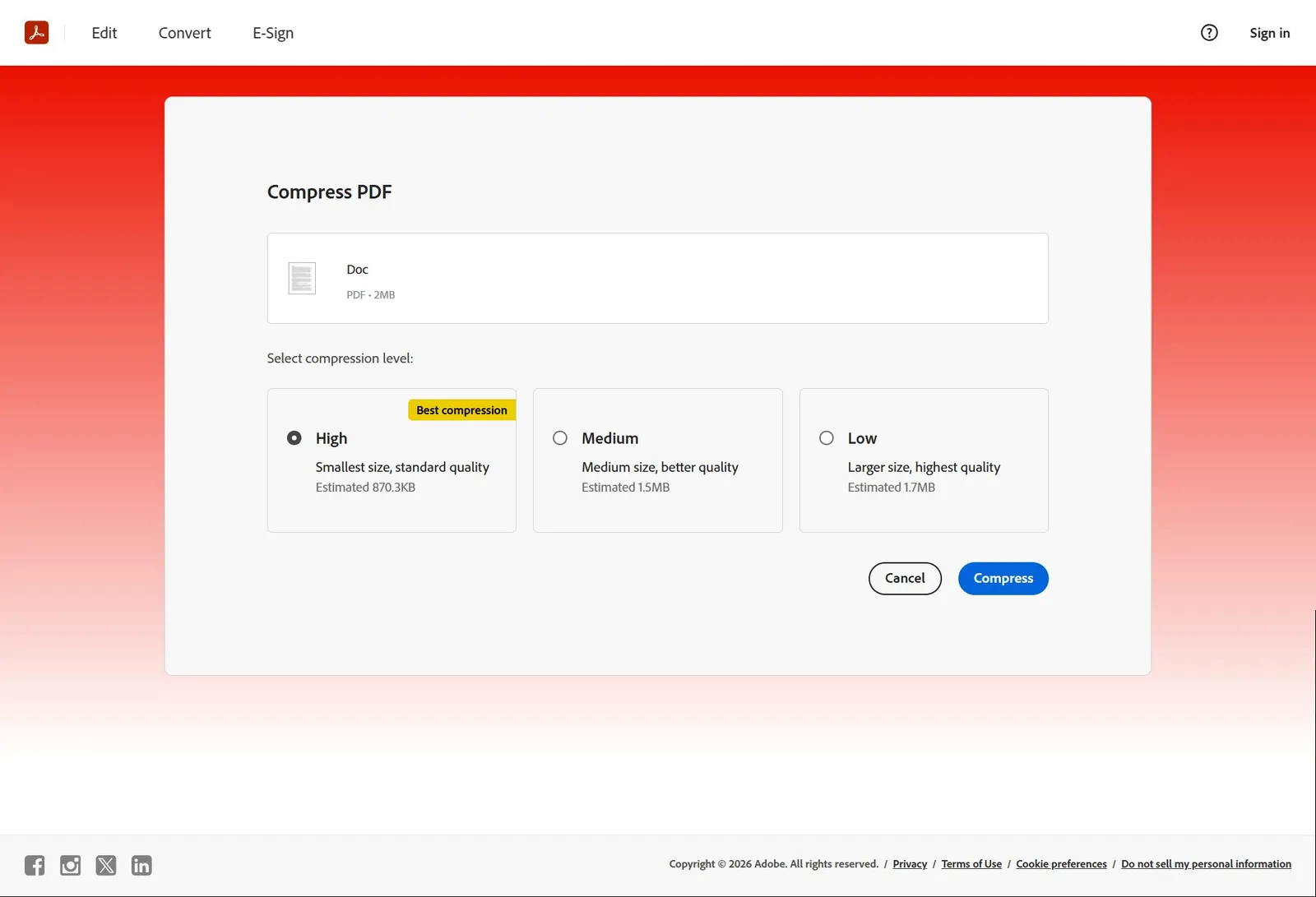
- Pick High, Medium or Low compression. High makes the smallest file and Low keeps the most quality.
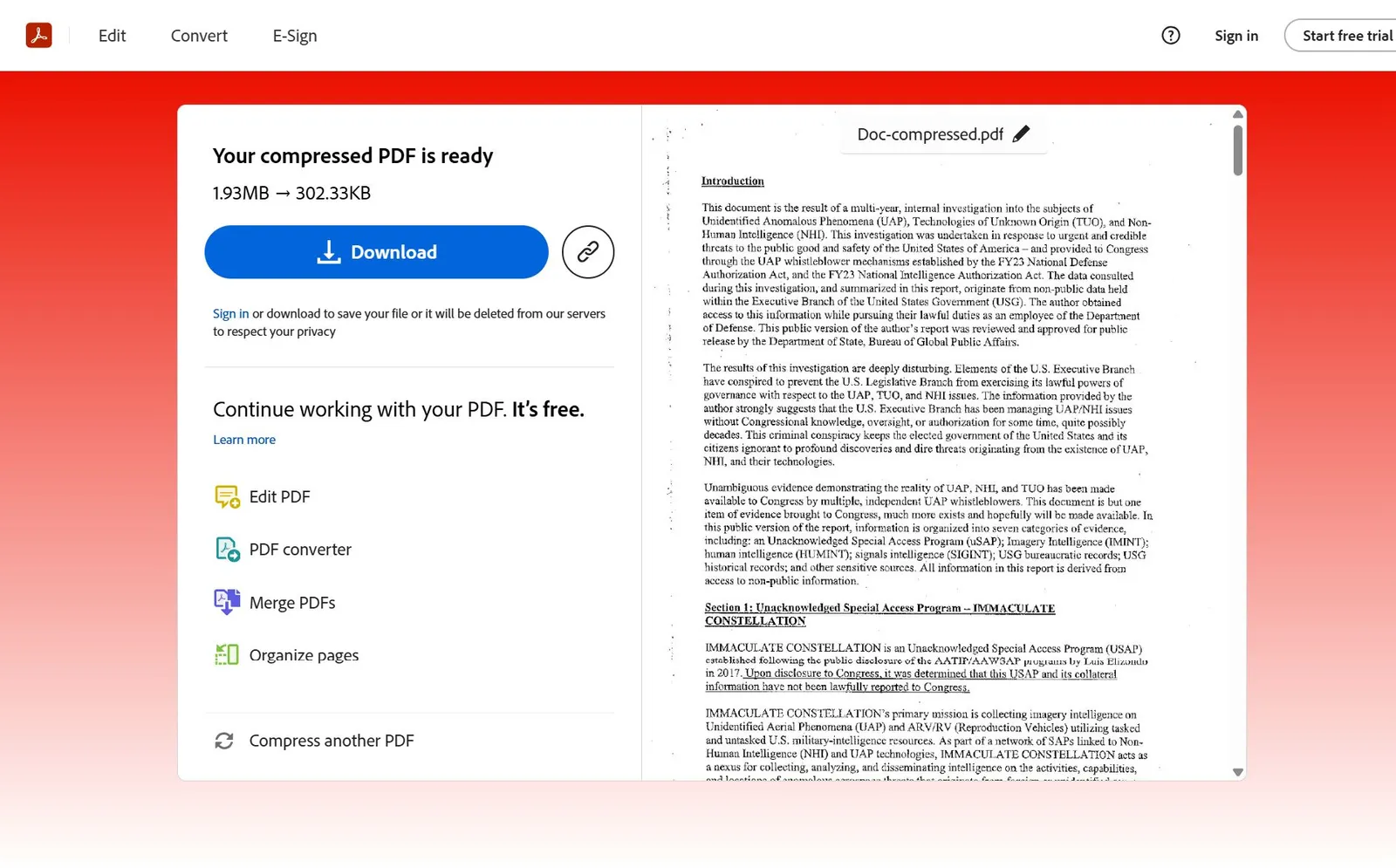
- Click Compress, then Download when it's done.
The Free Route: Compress PDF Without Acrobat
If you're only after a smaller file, you don't need a subscription. Compress PDF gives you three levels, and you don't make an account or get anything stamped on your pages.
- Upload one or more PDFs, each up to 25 MB, and click Choose Compression.
- Pick Light, Recommended or Max. Each shows an estimated size, which is only a rough guide.
- Click Compress PDF and download the result.
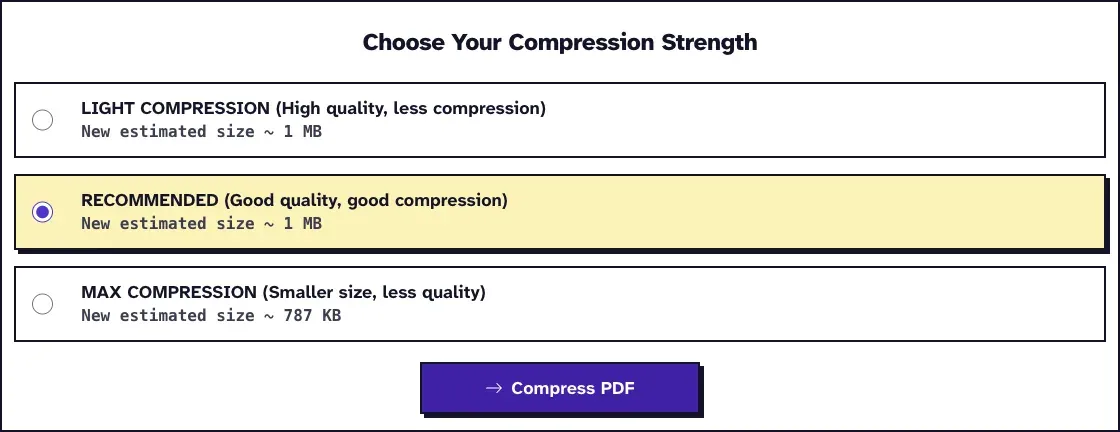
We ran a 12-page, 3.2 MB PDF of screenshots through Recommended in October 2026 and got 388 KB, still 12 pages. The screen had guessed about 1 MB, so don't give up on it because of the estimate. The result screen counts in units of 1,024, which is why it shows 3.07 MB and 379.23 KB.
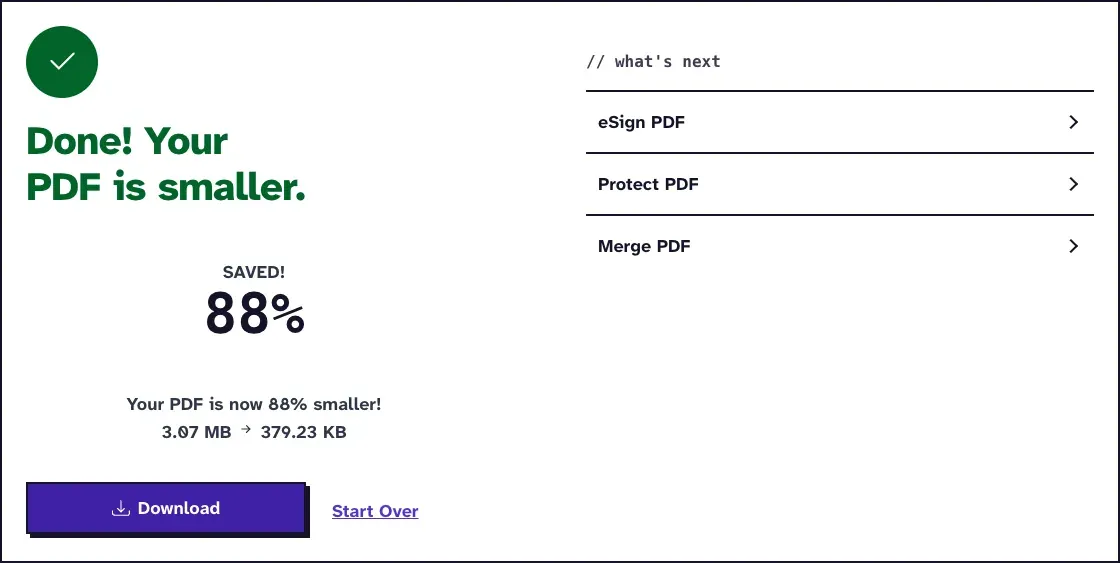
Acrobat lets you tune resolution per image type and works on your own computer, while ours is three levels and your file goes to our server, where it's deleted within two hours. For a confidential file, use Acrobat or read how to compress a PDF without uploading it.
Why Your PDF Is Still Too Big After Acrobat
- It's mostly text. Text-only PDFs are small already, so there are few bytes left to remove, even if the percentage looks large.
- You need a set size. For a mail limit, see our guide to target sizes for email attachments. For an upload form, see getting a PDF under 5 MB.
- It's a color scan and color doesn't matter. Use Grayscale PDF, then Compress PDF. Grayscale alone made our test scans bigger (4.0 MB to 4.6 MB), and the two together beat compressing alone (108 KB against 128 KB).
Frequently Asked Questions about Compress PDF in Adobe Acrobat
Which Acrobat plans have PDF Optimizer?
Adobe lists Acrobat Pro, Premium and Studio on the desktop. Without one of those, use Adobe's online tool or another compressor.
What's the difference between Compress a PDF and PDF Optimizer?
The quick route (Compress a PDF or Reduced Size PDF) applies Acrobat's own choices in one step. PDF Optimizer lets you set image resolution and choose what gets removed.
What resolution should I use in PDF Optimizer?
It depends on where the file's going. As a reference, our own Compress PDF scales images to 72 dpi at Max, 110 to 150 dpi at Recommended and 200 dpi at Light, so those are sensible ranges for upload limits, screen reading and printing.
Does compressing in Acrobat reduce quality?
Lowering image resolution does, for pictures only. Text and vector drawings stay sharp, since they aren't pictures.