Optimized PDF: What It Means and How to Make Your PDF Smaller and Searchable
Where a PDF's weight comes from, what compression and Fast Web View change, and which fixes are worth your time.

An optimized PDF is a PDF that's been changed to do one job better: usually to be smaller, sometimes to open faster in a browser or to be found by search. For most people that means compressing the images inside it, which you can do for free in Compress PDF.
There's no single "optimized" setting. You pick the fix that matches the problem you have with the file.
What Makes an Optimized PDF Different From a Normal One
A PDF straight out of a scanner, a phone or a design program often holds more than it needs to show on screen. Optimizing removes or shrinks that extra data.
- Smaller images: pictures stored at a lower resolution and with stronger JPEG compression.
- Font subsets: only the characters the document uses are embedded, not the whole font.
- Less baggage: thumbnails, scripts and duplicate objects left out.
- Fast Web View: the file rearranged so a viewer that fetches by byte range can show page one early.
- Real text: a scan with a text layer, so you can search and copy it.
Which of these you need depends on what's wrong today. Our Optimize PDF page sorts the tools by problem. In Acrobat Pro, PDF Optimizer lets you pick the image, font and discard settings yourself, as our guide to compressing a PDF in Acrobat shows.
Where a PDF's File Size Comes From
Usually images, at least in our test file. When we measured the parts of a 12-page, 3.2 MB file of screenshots in October 2026, the images made up 99.8% of the data.
Text-only PDFs are a different story: with no pictures in them, there's much less to shrink.
How to Make an Optimized PDF Online for Free
Compress PDF stores the images again at a lower resolution: about 200 dpi at Light, 110 to 150 dpi at Recommended and 72 dpi at Max. Text stays text.
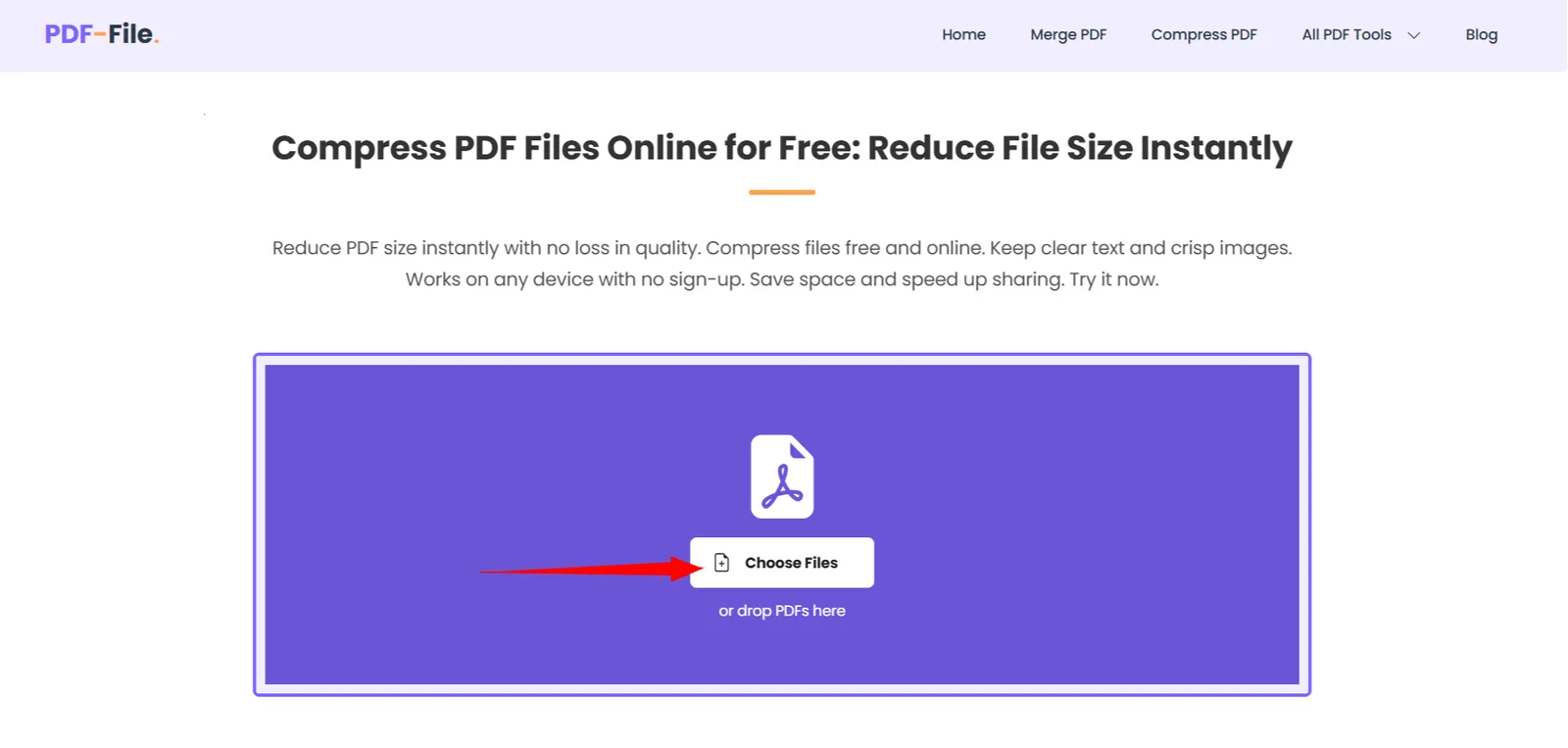
- Open Compress PDF and drag your file onto the page, or click Choose Files.
- Pick a level. Recommended is the default and the one we'd start with.
- Click Compress PDF.
- Check the saving on the results screen, then click Download.
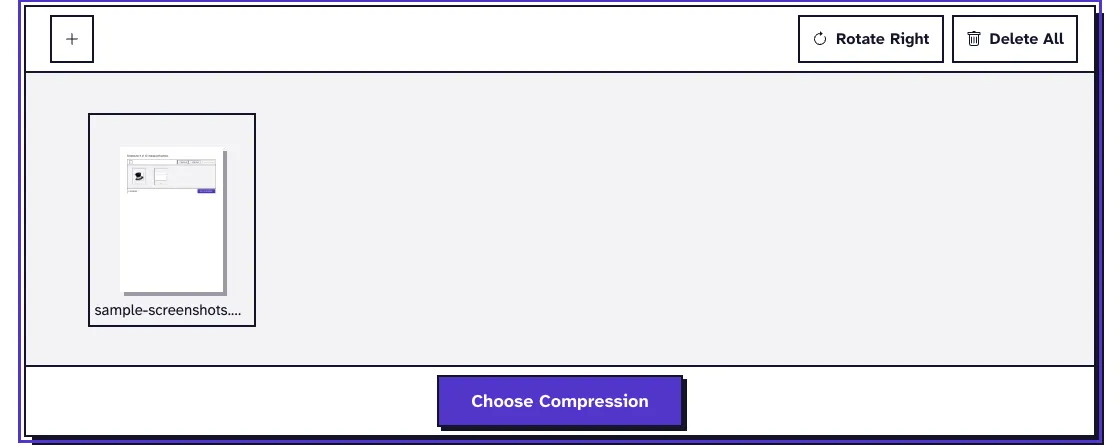
In November 2026 our 3.2 MB screenshot file came out at 391.4 KB at Recommended, still 12 pages. A text-only book of 27.8 KB came out at 15.4 KB at Recommended, with all 314 words still searchable.
At Light it wouldn't shrink, so the page said "This level could not make your PDF smaller. A stronger level may." and offered the original back.
Uploads and results are deleted automatically within two hours, and you don't need an account.
What Compression Keeps and What It Drops
We built a small test file with a title, bookmarks, links, an attachment, a page thumbnail and document JavaScript, then compressed it. The bookmarks, both links, the attachment and the title survived.
The thumbnail, the JavaScript and the XMP metadata didn't.
Fast Web View: Optimizing a PDF for the Web
Fast Web View is another name for a linearized PDF. A normal PDF keeps its index at the end of the file, while a linearized one puts what page one needs at the front.
The free command line tool qpdf does this with its --linearize option, described in the qpdf command line documentation as creating web-optimized output. Our compressed files aren't linearized, so if you need both, compress first and linearize afterwards.
It's meant for big PDFs that people open straight from a website, in a viewer that fetches by byte range. Chrome 156 didn't use it in our test, so check your readers' viewer before you do it for speed, as our post on what a linearized PDF is shows.
Making a PDF Searchable for Readers and Search Engines
Google lists PDF among the file types it can index. A scan is just pictures of pages, with no text in the file to select or search.
If you can't select a word in your PDF, run it through OCR PDF (it reads English) before you put it online. Run OCR first and compress afterwards: OCR redraws every page at 300 dpi, so any compression done before it is lost.
A few smaller things help people who find your PDF:
- Give the file a descriptive name, like annual-report-2025.pdf instead of scan0042.pdf.
- Fill in the document title in the file's properties; Edit PDF Metadata does that online.
- Use real headings and add bookmarks for long documents.
Frequently Asked Questions about the Optimized PDF
Does optimizing a PDF reduce its quality?
Only the images change. Text and vector drawings stay sharp at every level. Use Light if the file will be printed.
Is an optimized PDF the same as a compressed PDF?
Compression is the most common kind of optimizing, but not the only one. Fast Web View and adding a searchable text layer optimize a PDF for other jobs.
Why didn't my PDF get smaller?
Small or text-only files have little to shrink. If the copy isn't smaller, the page gives you your original back: our 27.8 KB text book got that at Light, so try Recommended.
Can I make an optimized PDF in Microsoft Word?
Yes. When you save as PDF, Microsoft's Office help lists "Minimum size (publishing online)" for a smaller file and "Standard (publishing online and printing)" for print quality. Publisher's PDF export has a similar quality choice under Options, as our PUB to PDF guide shows.