
How to Create a Fillable PDF Form in LibreOffice or Adobe Acrobat
Build the form with free LibreOffice or paid Acrobat, then test every field before you send it out. Here's what to do at each stage.

To create a fillable PDF from scratch for free, build the form in LibreOffice Writer and export it with the Create PDF form option. If you already have the PDF layout, LibreOffice Draw can add fields for free, and paid Adobe Acrobat can detect the blanks for you.
Then test it. pdf-file.com doesn't have a form builder, but Fill Out PDF Form is a quick way to see which fields your file really contains and whether they work.
What Makes a PDF Fillable
A fillable PDF has interactive fields sitting on top of the page: text boxes, checkboxes, radio buttons, dropdowns and option lists. Those standard fields are called AcroForm fields, and they work in most PDF readers.
A form that only has lines to write on isn't fillable, even if it looks the part. Microsoft's guide to Word forms covers forms people fill in and save or print from Word, and says nothing about PDF fields, so go through LibreOffice for this job.
How to Create a Fillable PDF in LibreOffice (Free)
LibreOffice is free for Windows, Mac and Linux, and this works from a blank document or an existing Writer or Word file.
- Open or write the form's text in LibreOffice Writer.
- Turn on the controls: View, Toolbars, Form Controls. Make sure Design Mode is on.
- Click a control, such as Text Box, Check Box or Combo Box, and drag it onto the page.
- Right-click the control, choose Control Properties, and give it a clear Name such as
full_name. For a dropdown, type its options under List entries. - For radio buttons, give all the options of one question the same Name, which is what makes them a group.
- Turn off Design Mode, then choose File, Export As, Export as PDF.
- On the General tab, tick Create PDF form and click Export.
The LibreOffice help page on PDF export options explains that setting, including its submit format. That option only matters if you've added a submit button.
Add Fields to an Existing PDF in LibreOffice Draw (Free)
Draw adds fields to a PDF you already have, with the same controls. Open the PDF in Draw, then follow steps 2 to 7 above.
We tried it in November 2026 on a two-page A4 report, using LibreOffice 25.2's scripting interface in our test setup rather than the menus (the menu names come from LibreOffice's help). A text box, a checkbox and a dropdown all exported as real fields, and Fill Out PDF Form listed them and filled them, Zoë Müller included.
All 272 words and the photo stayed, and the first page looked the same. Draw does rebuild the file, though: Helvetica became an embedded Arial and the photo was recompressed from 118 KB to 48.7 KB, so compare it with the original before you send it. We didn't try a scan.
How to Create a Fillable PDF in Adobe Acrobat
If the layout's already a PDF, this does the placing for you, but it's a paid product. Adobe's page lists Acrobat Standard and Pro without saying which has the tool (read in November 2026), so check before you buy.
- Open the PDF in Acrobat.
- Choose Prepare Form from the Tools tab. Acrobat analyzes the document and adds fields.
- Adjust the fields and layout with the toolbar and the right pane.
- Save the file as a fillable PDF.
Starting from a form that's been flattened? Our guide to unflattening a PDF shows what you can recover and when you have to rebuild the fields this way.
Name Your Fields and Keep the Form Simple
Field names matter more than you'd think. Our Fill Out PDF Form tool makes each label from the internal name, so full_name shows as Full Name, while Text1 tells the person filling it in nothing at all.
- Use clear names that say what goes in the field.
- Check the tab order, so Tab moves through the fields as you'd read them.
- Pick a dropdown or radio buttons when only certain answers make sense.
- Keep it to standard fields, and avoid XFA forms, which Microsoft Edge, for one, doesn't support.
- Add a visible label beside each field, since the name alone doesn't show on the page.
How to Test Your Fillable PDF Before You Send It
Fill it in yourself first. We ran our 7.1 KB, one-page test form through Fill Out PDF Form in October 2026 and got every field listed on one screen.
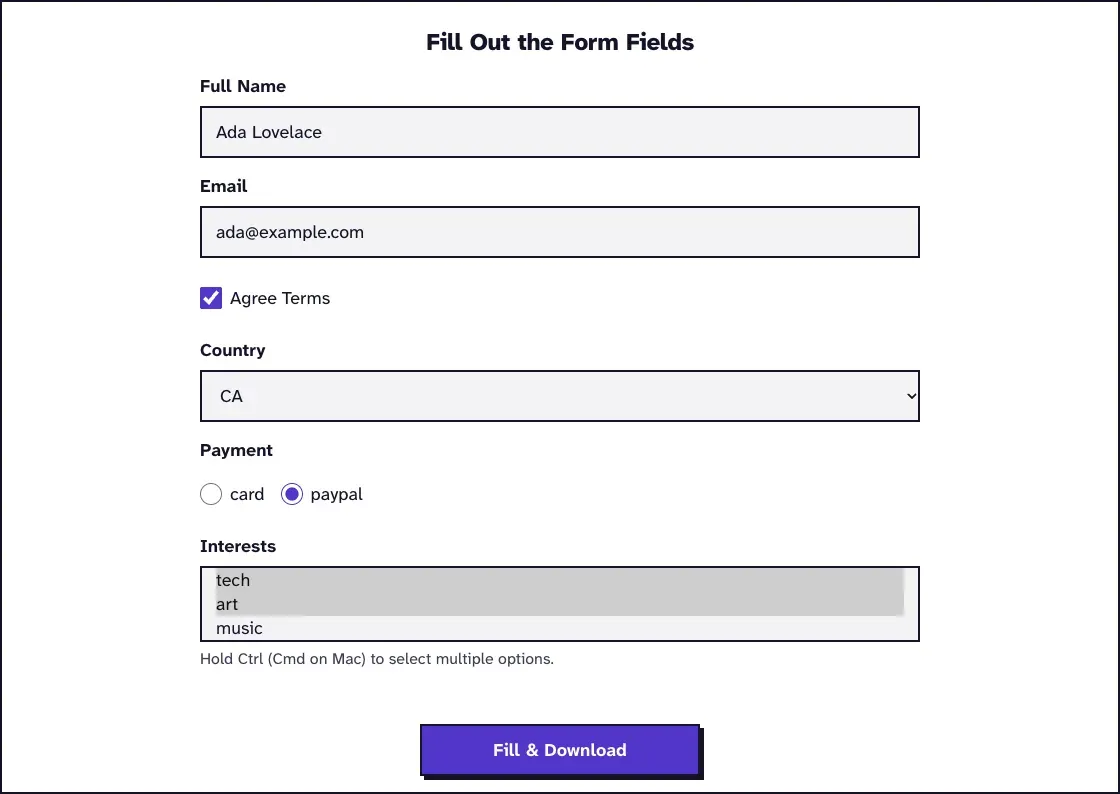
- Upload your form and click Fill Form.
- Check that every field you built is listed. A missing one didn't make it into the PDF.
- Enter test answers and click Fill & Download.
- Open the download in two different readers, like your browser and Acrobat Reader, and check the answers.
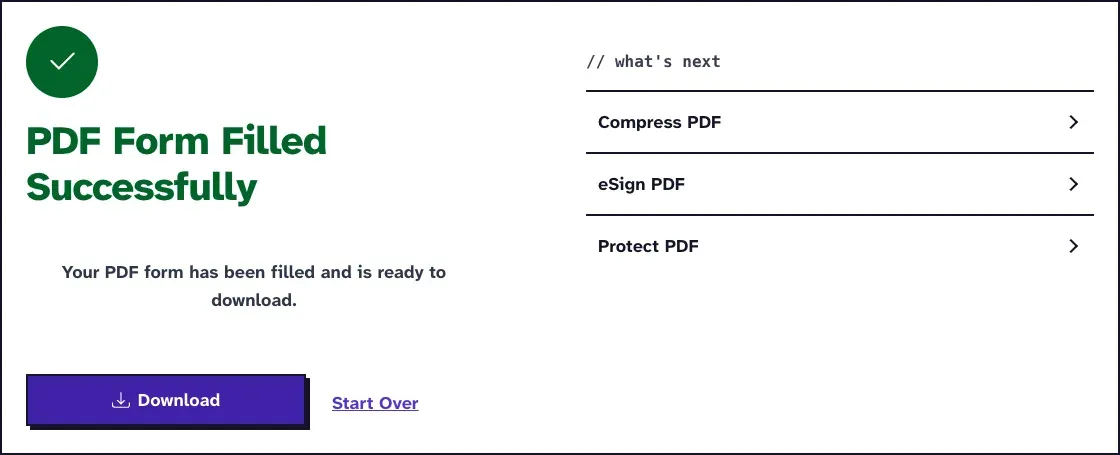
The filled copy was 14.6 KB and embeds a font for the answers, and its fields stay editable. If the tool says the file has no fillable fields, the export didn't create them, so go back and check the Create PDF form box.
Signature fields are skipped by this tool, and so are push buttons, so test those in a reader. Other trouble with a form that won't respond is covered in our guide to PDF forms you can't fill out.
What Happens After Someone Fills In Your Form
- Filling many copies. PDF Auto Fill fills a form from a JSON or CSV record.
- Signing. Signature fields aside, eSign PDF puts a visible signature on the page after the form's filled. All 7 fields stayed editable in our test.
- Locking the answers. Flatten PDF turns the fields into plain page content, right before you send or archive it. On our filled test form it removed all 7 fields, and Fill Out PDF Form then said "This PDF has no fillable form fields." Keep the blank fillable original.
More tools for working on PDF pages are on our Edit PDF page.
Frequently Asked Questions about How to Create a Fillable PDF
Can I create a fillable PDF for free?
Yes. LibreOffice is free and can export a PDF with text boxes, checkboxes, radio buttons and dropdowns, in Writer from a new document or in Draw on an existing PDF. Acrobat's detection is the paid shortcut.
Can pdf-file.com create a fillable PDF?
No. Our tools fill, auto-fill and flatten existing forms, but they don't add new fields. Build the form in LibreOffice or Acrobat, then test it with Fill Out PDF Form.
Can I make a Word document into a fillable PDF?
Yes, through LibreOffice. Open the Word file in Writer, add the form controls and export it with Create PDF form ticked. A text box and a radio group added to our test .docx that way came out as working fields.
Can people fill in the PDF on a phone?
Usually, in a reader that supports form fields, though mobile readers vary. Test yours on a phone if that's how people will fill it in, or point them to Fill Out PDF Form, which works in a browser.