
Add Margins to a PDF: 4 Ways on Windows, Mac and Online
How to give cramped pages more white space, or trim wide borders, without rebuilding the document.

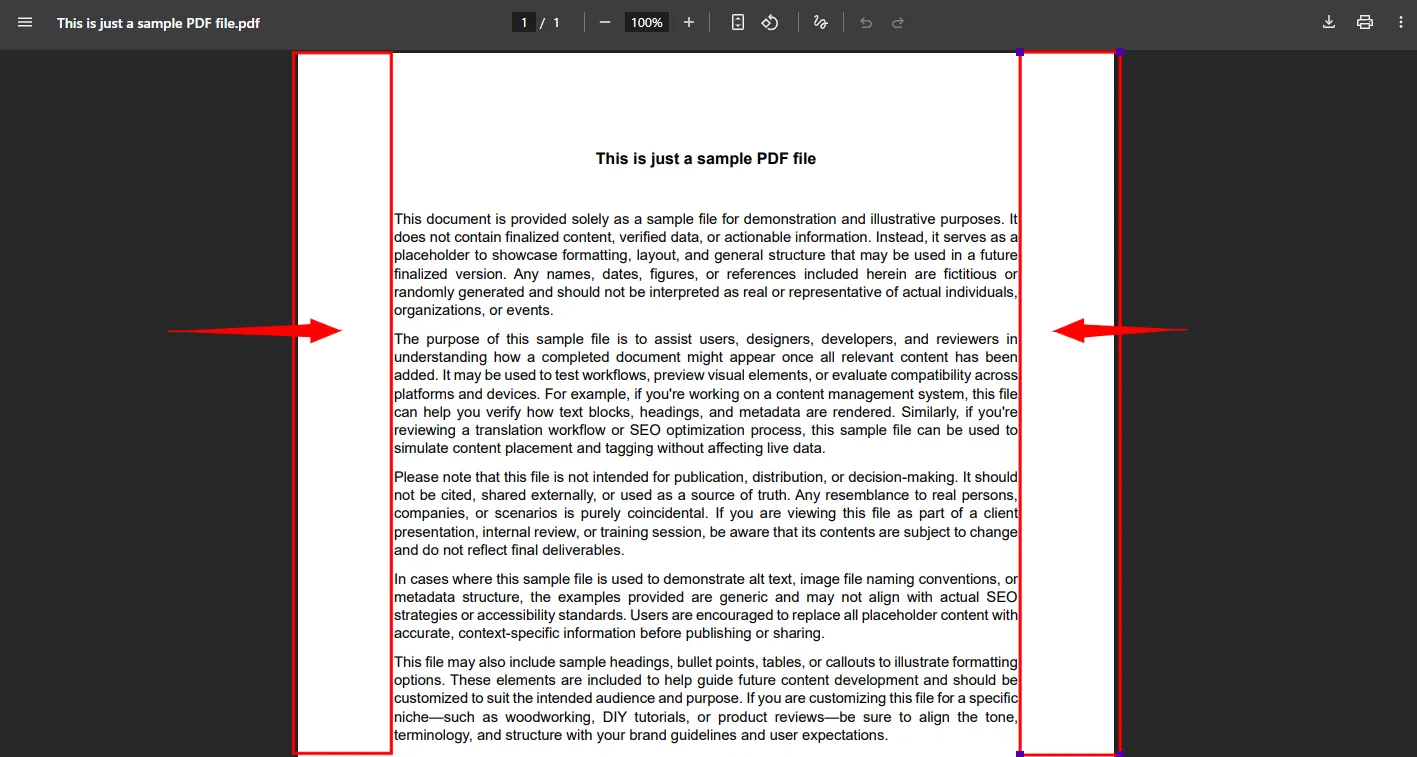
To add margins to a PDF, you either shrink the content on the page or make the page bigger around the content. A PDF has no margin setting you can simply change, because the text sits at fixed positions on a page of fixed size.
That's why every method below is a workaround, and each one has a catch. Pick the one that fits your file: a quick print scale for a single copy, Ghostscript for room on one side, or Word when you need to change the text anyway.
Why a PDF Has No Margin Setting
In a word processor, margins are a setting and the text reflows when you change them. A PDF is the finished printout: each line is placed at an exact spot on the page, so there's nothing to reflow.
So "more margin" means one of two things. Either everything on the page gets scaled down a little, which leaves white space around it, or the page grows while the content stays the same size.
PDF sizes are measured in points, and 72 points make an inch. A half-inch margin is 36 points, which is worth knowing when a tool asks for numbers.
Method 1: Shrink the Pages When You Print to PDF
This is the simplest route if you have a PDF printer. You print the PDF to a new PDF at a smaller scale, and the white space around the content grows.
- Open the PDF in your PDF reader.
- Press Ctrl+P, or Cmd+P on a Mac.
- Find the scale setting in the print dialog (the label differs from app to app) and set it to 90 percent.
- On Windows, pick a PDF printer such as Microsoft Print to PDF if the dialog lists one. On a Mac, open the PDF menu at the bottom and choose Save as PDF.
- Save the new file and check one page.
By the arithmetic, a full page at 90 percent on Letter paper gains about 0.4 inch at the left and right edges, and about 0.55 inch at the top and bottom. Go lower for more.
The catch: a printed copy may not keep clickable links or fillable fields, so check them in the new file, and keep the original of any form someone still has to fill in.
Method 2: Add Room on One Side With Ghostscript
To add a margin on one side only, widen the page with the free command line tool Ghostscript. Our own tools can't do this: Crop PDF only trims (it refused a negative margin when we tried), and Resize PDF centers the content.
Get it from the Ghostscript downloads page (Windows and Linux) or with brew install ghostscript on a Mac, if you have Homebrew. On Windows the command is gswin64c for the 64-bit build, or gswin32c for 32-bit. These add 1 inch (72 points) to a 612-point-wide Letter page, so the width is 612 plus 72:
1# Extra room on the right
2gs -q -o wider.pdf -sDEVICE=pdfwrite -dDEVICEWIDTHPOINTS=684 -dDEVICEHEIGHTPOINTS=792 -dFIXEDMEDIA -f input.pdf
3
4# Extra room on the left
5gs -q -o wider.pdf -sDEVICE=pdfwrite -dDEVICEWIDTHPOINTS=684 -dDEVICEHEIGHTPOINTS=792 -dFIXEDMEDIA -c "<</PageOffset [72 0]>> setpagedevice" -f input.pdf
We ran both in November 2026 on Linux, with one generated Letter page holding text, a link and a form field. The page came out 684 by 792 points and the text stayed the same size, starting 72 points from the left edge with the first command and 144 with the second. The link moved with it, but the form field was gone, so don't use this on a form.
Check a PDF with mixed page sizes first: Ghostscript's documentation says -dFIXEDMEDIA clips pages of other sizes. The new page also has a nonstandard size, and running it through Resize PDF scales it back onto standard paper, centered.
Method 3: Change the Margins in Word and Export Again
When the text needs editing anyway, converting to Word gives you real margin settings back.
- Convert the file with PDF to Word.
- Open the DOCX and go to Layout, then Margins. Pick a preset or Custom Margins, as Microsoft describes in its guide to changing margins in Word.
- Check where the page breaks fell, since wider margins push text onto later pages.
- Save as PDF in Word, or convert the DOCX with Word to PDF.
Microsoft says each Word page has a one-inch margin by default. This route suits letters, reports and other plain text. A PDF with columns, text boxes or lots of pictures can change on the trip to Word, so compare the result with the original.
Method 4: Resize PDF for Margins on Two Sides
Our free Resize PDF tool isn't a margin tool, but it adds white margins as a side effect when the new paper has a different shape. It scales each page to fit the paper you pick and centers it, without cutting anything off.
An A4 page is about 1.41 times as tall as it is wide and a Letter page about 1.29 times. So an A4 page resized to Letter fills the height and gets a white strip on the left and right.

Text stays text, and link areas and form fields move with the content, which is what we measured on a generated Letter page resized to A4 in November 2026: strips of about 36 points at the top and bottom, with the link and field still there. We delete the upload and the result within two hours.
Margins Too Wide? Trim Them with Crop PDF
Sometimes the problem runs the other way: scanner borders or wide white edges. Crop PDF trims the same margins, typed in points, from every page. Each field starts at 36, half an inch.
On a Mac, Preview can crop by eye too, and our guide to cropping a PDF on Mac has the steps.
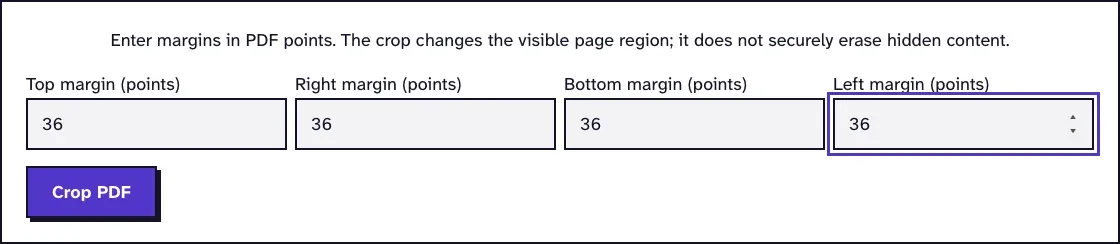
Cropping hides what's outside the new edge. It doesn't delete it, so anything confidential near the edge stays in the file, as our test of whether cropping a PDF erases content shows. A cropped page is also a smaller page, and Resize PDF puts it back onto full-size paper.
Before You Change Margins
- Locked file: a PDF that needs a password to open has to go through Unlock PDF first, with that password.
- Several files: to give them all the same margins, combine them with Merge PDF and treat them in one pass.
- Binding: for a printed, bound copy, the inner edge needs more space than the outer one. A print scale doesn't do that, while Microsoft says Word can set margins for facing pages and extra space for binding.
Frequently Asked Questions about Adding Margins to a PDF
Can I add margins to a PDF for free?
Yes. Printing the PDF to a new PDF at 90 percent scale adds white space on all sides. Ghostscript and the PDF to Word route are free as well, and Resize PDF adds margins on two sides when the paper shape changes.
Will adding margins make my text smaller?
With a print scale or Resize PDF, yes, because the content is scaled down to make room. The Ghostscript commands above kept the text the same size and made the page larger.
How do I add margins to only some pages?
Pull those pages out with Extract PDF Pages, change them and merge them back.
Does cropping a PDF remove the content in the margins?
No. Crop PDF changes the visible area of the page, and what's outside it stays in the file. Anyone who enlarges the page box again sees it.