
How to Edit a PDF on iPhone: Markup for Additions, Edit PDF for Changing Words
Apple's Markup draws, adds text and shapes, and signs without any download. Here's what it does, and where to go for changing existing words.

To edit a PDF on iPhone without installing anything, use Apple's Markup: you can draw, add text and shapes, and put in your signature. Apple's page lists no tool for changing words that are already in the PDF, and for that a browser editor in Safari does the job.
So the right method depends on whether you're adding something to the page or changing what's there.
What Markup and a Browser Editor Each Do
Apple's page on using Markup covers drawing, text, shapes and a signature on a PDF, and it walks through a PDF attached in Mail.
| Job | Markup | Edit PDF in a browser |
|---|---|---|
| Draw or write by hand | Yes | No |
| Add new text | Yes | Yes |
| Add a signature | Yes | Use our eSign PDF tool |
| Change existing words | Not on Apple's list | Yes |
How to Edit a PDF on iPhone With Markup
These are Apple's steps for a PDF in Mail, from the page above as we read it in November 2026.
- Open Mail and start a new email, or reply to one.
- Tap inside the body of the email to open the format bar, then tap the Attachment button.
- Choose the document option and pick your PDF.
- Tap the attachment, tap the gray arrow, then tap the Markup button.
- Draw with your finger, or tap the plus button to add a signature, text or a shape.
- Tap the More button, tap Done, then send the email.
That ends in an email, so address it to yourself if you just want the edited copy.
Fixing pages: rotate, delete or reorder
For page changes, Preview on iPhone can add, delete, rotate, move and crop pages, as Apple's pages chapter shows.
Filling in and signing
Signing goes through the plus button in Markup. Our guide on how to fill out a PDF on iPhone covers forms in detail, including the ones with no fields at all.
How to Change Existing Text in a PDF on iPhone
To fix a typo, a date or a name, open Edit PDF in Safari. We loaded it at phone width (390 pixels) in Chromium on a Mac, which isn't an iPhone, and got the screen shown below.
- Tap Choose Files and pick the file.
- Choose Edit text and tap the line you want to change.
- Type the new words and confirm.
- Tap Save PDF, then Download. Apple's guide to finding files points to the Files app for downloads.
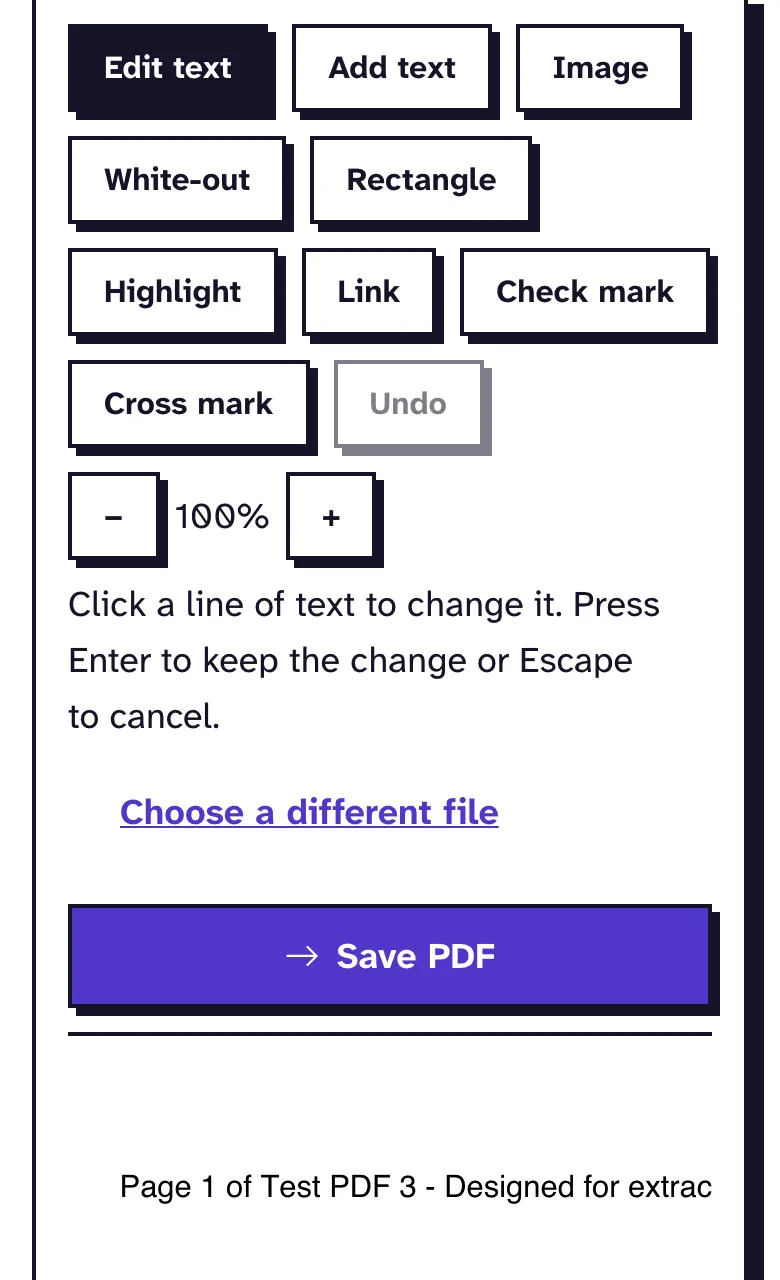
On a PDF with real text, the new text gets one of our bundled fonts in the same size and color. A replacement doesn't wrap onto the next line, so keep it about as long as the words it replaces. Our guide on how to edit PDF text explains why.
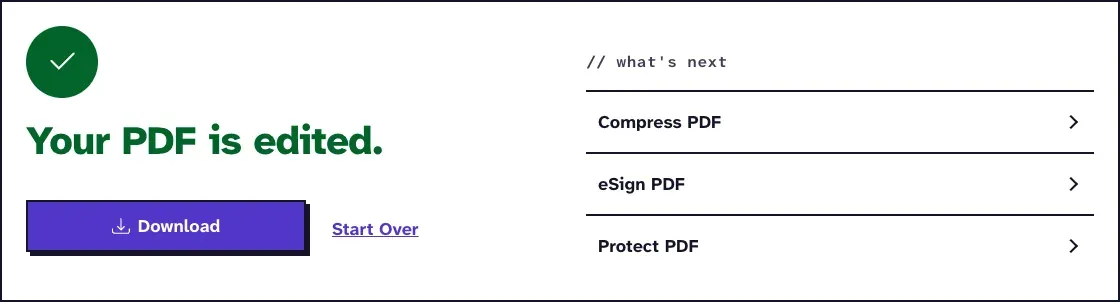
You need a connection for this, and the PDF is only uploaded when you tap Save PDF. It's deleted from our server within two hours.
When the iPhone Isn't Enough
A scanned PDF is a photo of a page, so neither Markup nor a text editor finds words to change. Cover the mistake with a white box and type the correction on top; our guide to white-out on PDF text shows how, and why the old text stays in the file underneath.
Long documents with many changes are easier on a bigger screen. On a Mac, our guide to editing a PDF in Preview walks through what's there.
Frequently Asked Questions about How to Edit a PDF on iPhone
Can I edit a PDF on iPhone for free?
Yes. Markup comes with the iPhone, and our Edit PDF tool in Safari is free too, with no account and no watermark.
Why can't I change the text in my PDF on iPhone?
Apple's list of Markup tools covers adding things to the page. Changing the existing words needs an editor that rewrites the text in the file, such as Edit PDF in Safari.
Can I edit a password-protected PDF on iPhone?
You need the password that opens it. Remove it with that password first, then edit the unlocked copy; our guide on how to edit a secured PDF explains the steps.