
How to Edit a PDF on Mac: Preview, Quick Look and Free Online Tools
What Preview can do on its own, where it stops, and which free browser tools pick up from there.

To edit a PDF on Mac, open it in Preview and show the Markup toolbar: you can add text, highlight, sign, and reorder or delete pages without installing anything. Preview can't change the text that's already in the PDF, so for that, use an online editor such as our free Edit PDF.
Below are the steps for each job, and a table that shows which tool does what.

How to Edit a PDF on Mac With Preview
Preview is the Mac's own app for PDFs and images, and it saves changes automatically, so make a copy first with File, then Duplicate. Its Markup toolbar holds the editing tools, and Apple's guide to annotating a PDF in Preview lists every one of them.
Add Text, Highlights and Notes
- Open the PDF in Preview (select it, then choose File, Open With, Preview).
- Click the Show Markup Toolbar button.
- Click the Text tool to place a text box, then type.
- Select words and click Highlight Selection, or use the Note tool for a comment.
Apple's guide says you can't edit a PDF's text in Preview, so the Text tool only adds new text on top of the page.
Reorder, Rotate and Delete Pages
- Choose View, then Thumbnails.
- Drag thumbnails to put the pages in a new order.
- Select a thumbnail and press Delete to remove that page.
- Use the Rotate Left tool to turn a page.
Sign a PDF in Preview
- Show the Markup toolbar, then click the Sign tool.
- Create a signature with your trackpad, your Mac's camera and a signature on paper, or your iPhone.
- Click the signature to place it, then drag and resize it.
If the PDF already carries someone's signature, our guide to editing a signed PDF explains what a change breaks.
Do Markup Edits Stay Editable in Preview?
Yes, if you save the normal way. Apple's guide to annotating a PDF says File, then Save or File, then Export keep annotations editable, and so does Preview's automatic save. A highlight stays a separate annotation too, and our guide to highlighting text without adding comments shows how to draw one into the page instead.
To flatten them so they can't be edited, Apple says to choose File, then Print, and select Save as PDF. Flatten a copy when the marks shouldn't change, and keep the editable one for yourself.
Fill In a PDF Form in Preview
Preview can fill in a form: Apple's guide to filling out PDF forms says to click a field and type. If the PDF won't let you type in the form, Apple's fix is a text box from the Form Filling toolbar.
Merge PDFs in Preview
- Open both PDFs in Preview and show the thumbnails in each (View, then Thumbnails).
- Drag thumbnails from one PDF's sidebar into the other's.
- Put the pages in order and save.
Apple's guide on how to combine PDFs in Preview also shows how to add a whole PDF by dragging its icon from the Finder.
Quick Look: Fast Markup Without Opening an App
For a quick mark, you don't even need to open Preview.
- Select the PDF in the Finder and press the Space bar.
- Click the Markup button in the Quick Look window.
- Add your marks.
Quick Look is fine for one or two marks. For page changes, use Preview.
Preview or an Online Tool: Which One to Use
Preview covers markup, signing and page order. Here's where it stops:
| Task | Preview (built into macOS) | PDF-File.com (online tools) |
|---|---|---|
| Edit Existing Text | ❌ | ✅ |
| Add a Signature | ✅ | ✅ |
| Reorder/Delete Pages | ✅ | ✅ |
| Compress File Size | ✅ | ✅ |
| Convert to Word/Excel | ❌ | ✅ |
| Password Protection | ✅ | ✅ |
| Works on Any Device? | ❌ | ✅ |
Use Preview for quick, offline jobs. Switch to a browser tool when you need to change the words themselves, pick a compression level or turn the file into another format. Our guide to editing a PDF on Mac for free adds LibreOffice Draw and Skim to the list.
How to Edit Existing Text in a PDF on Mac
This is the job Preview can't do. Our Edit PDF tool works in a browser.
- Upload the PDF to Edit PDF.
- With Edit text selected, click a line and type the new words.
- Press Enter, and the line shows the change straight away.
- Click Save PDF and download the edited file.
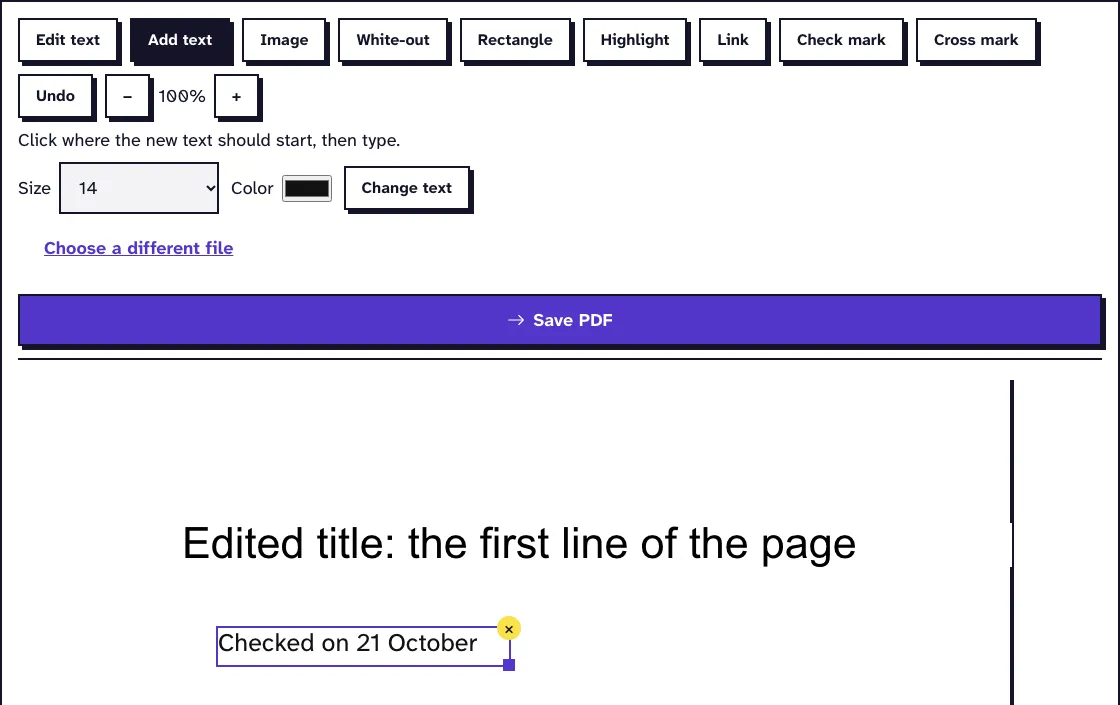
A replacement in another font is set in one of our fonts, so keep it about as long as the words it replaces.
A scan has no text lines to click: our image-only test PDF showed none in November 2026, so Edit text has nothing to work on there. For a scan, add new text on top with Preview's Text tool, or retype the page in Word or Pages.
To rewrite a whole document, convert the PDF to Word, edit it in Word or Pages and export it as a PDF again.
Organize Pages and Shrink the File Online
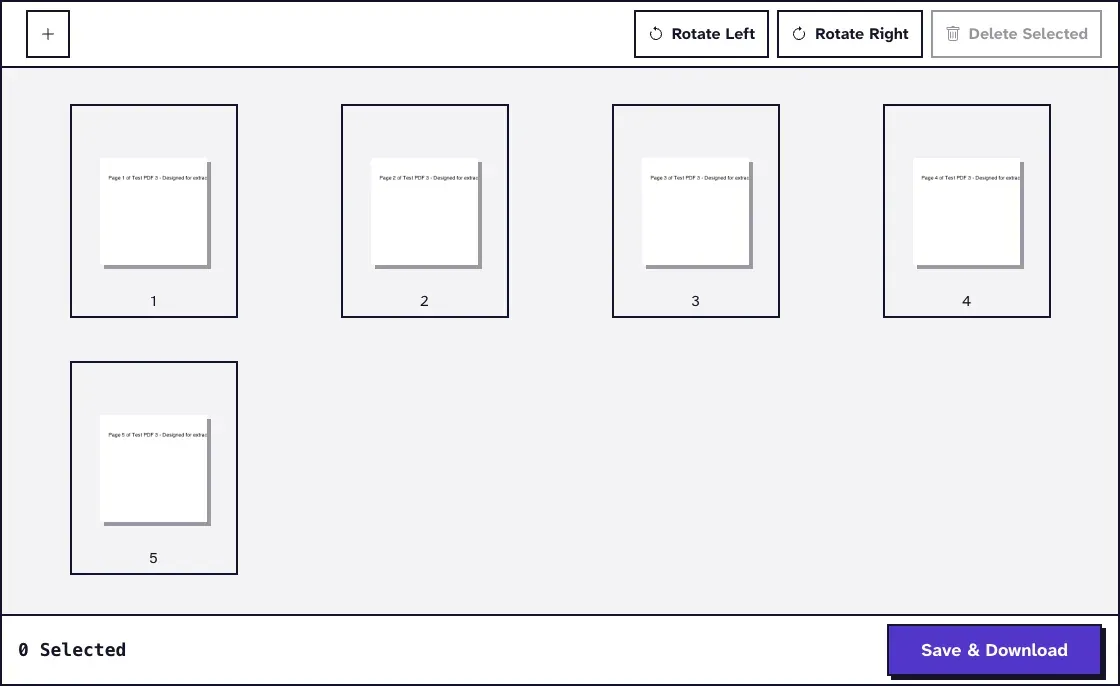
Preview's thumbnails work for a few pages. For a long PDF, Organize PDF Pages shows all pages at once, with buttons to rotate pages and delete the ones you select.
Preview can make a PDF smaller: Apple's guide to reducing a PDF's size says to choose File, then Export, and pick Reduce File Size in the Quartz Filter menu. Give the copy a new name to keep your original. We didn't measure what that filter does.
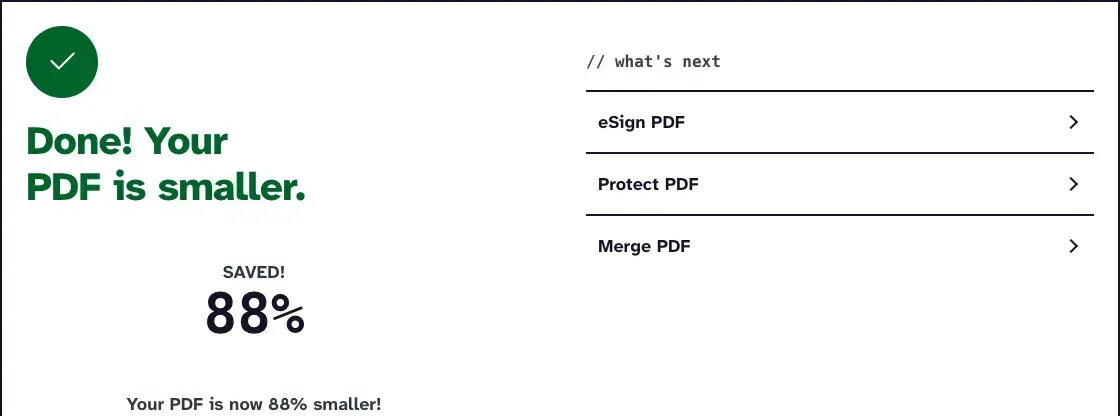
Compress PDF gives you three levels instead: we ran a 3.2 MB PDF of screenshots through it in November 2026 at the default Recommended level and got 388.3 KB back.
To combine files without dragging thumbnails around, use Merge PDF. For a password, use Protect PDF, or set a password in Preview under File, then Export.
Frequently Asked Questions about Editing a PDF on Mac
Can I edit a PDF on Mac for free?
Yes. Preview is free and built in, and it handles text boxes, highlights, signatures and page order. To change existing text, our Edit PDF tool is free too and needs no account.
Why can't I edit the existing text in Preview?
Apple's guide says you can't edit a PDF's text in Preview, which only adds things on top of the page. Changing the words already in a PDF needs an editor, such as Edit PDF online.
Can Preview convert a PDF to Word?
No. Preview exports to image formats such as JPEG, PNG and TIFF, and to PDF. Use PDF to Word for an editable Word file.
How do I merge PDFs on a Mac?
Open both files in Preview, show the thumbnails and drag pages from one sidebar into the other. Or upload them to Merge PDF and download one combined file.