
Remove Metadata From PDF Files: What It Reveals and How to Clear It
Check what your PDF says about you, clear it for free, and know what metadata removal leaves behind.

To remove metadata from a PDF, open it in a metadata editor, clear the title, author, subject, keywords, creator and producer fields, and save a new copy. Our free Edit PDF Metadata tool does that and also drops the hidden XMP copy of those fields.
Then check the result, because a few things that name you live outside those fields. This guide covers both.
What PDF Metadata Is and What It Gives Away
PDF metadata is a small set of document properties stored inside the file. A PDF can have six of them, plus a creation and a modification date:
- Title and subject, often an old working title.
- Author, which can be the account name of whoever made the file.
- Keywords, typed in by someone at some point.
- Creator and producer, the programs that made the PDF.
Many PDFs keep a second copy of the same details in an XMP metadata stream. Clearing only the visible fields can leave the old values there.
None of this is on the page. That's why it's easy to forget, and why a proposal can go out with a competitor's name in the title field or your full name as author.
How to Check What Metadata Your PDF Contains
Look before you clear, so you know what you're dealing with.
- Edit PDF Metadata: upload the file and click Review metadata. You'll see its title, author, subject, keywords, creator and producer without changing anything.
- Your PDF reader: look for the document properties.
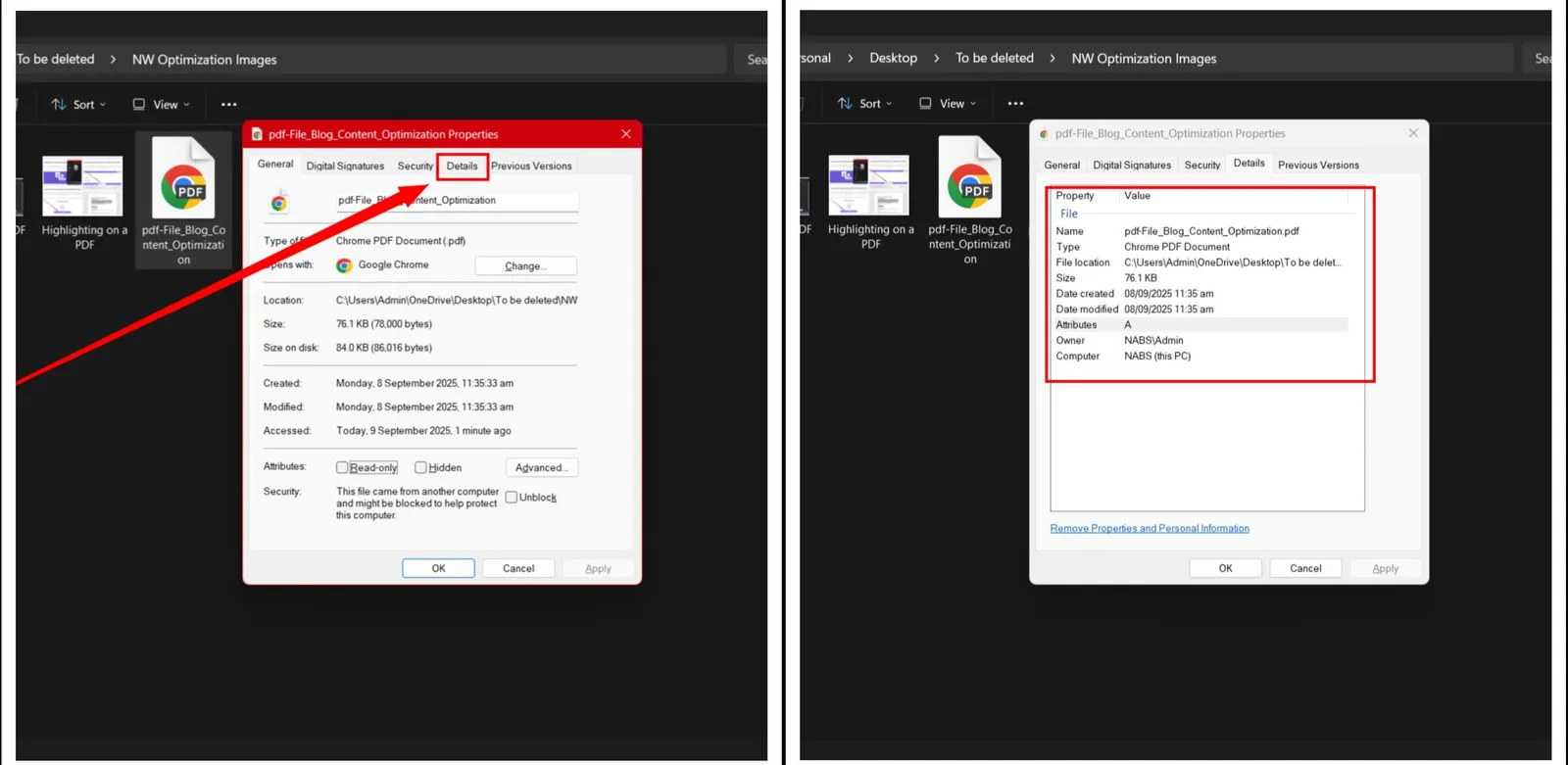
- Windows File Explorer: right-click the PDF, choose Properties, then the Details tab. It shows owner, computer and date fields, so use one of the other two for the fields inside the PDF.
Remove Metadata From PDF Files Online
Edit PDF Metadata shows the values a file already holds and lets you change or empty each one. Our guide to changing PDF metadata covers typing in new values instead.
- Upload one PDF.
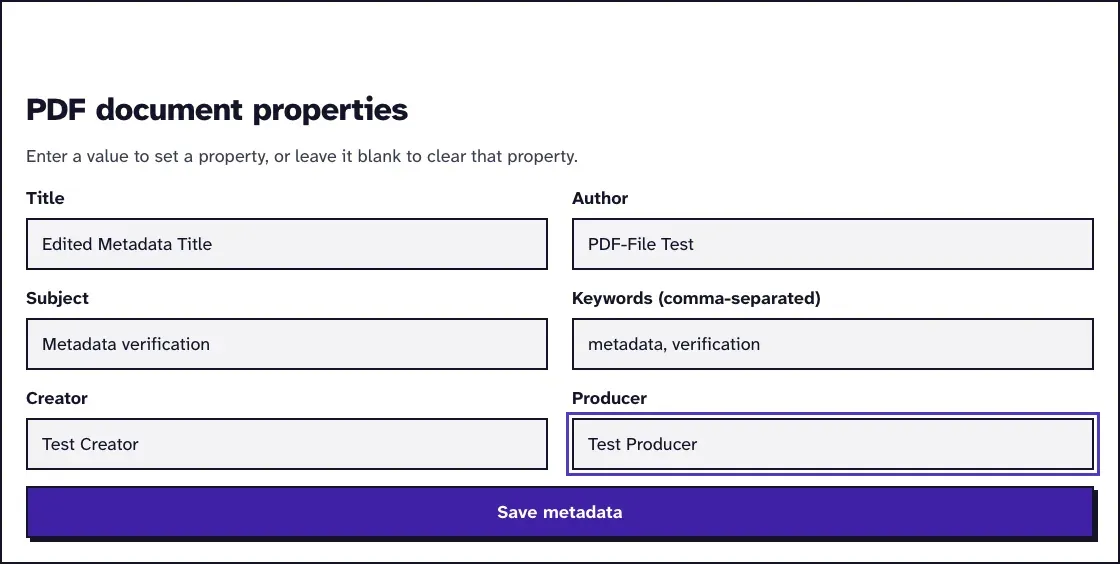
- Click Review metadata to see its title, author, subject, keywords, creator and producer.
- Empty every field you don't want to share. A blank field clears that property.
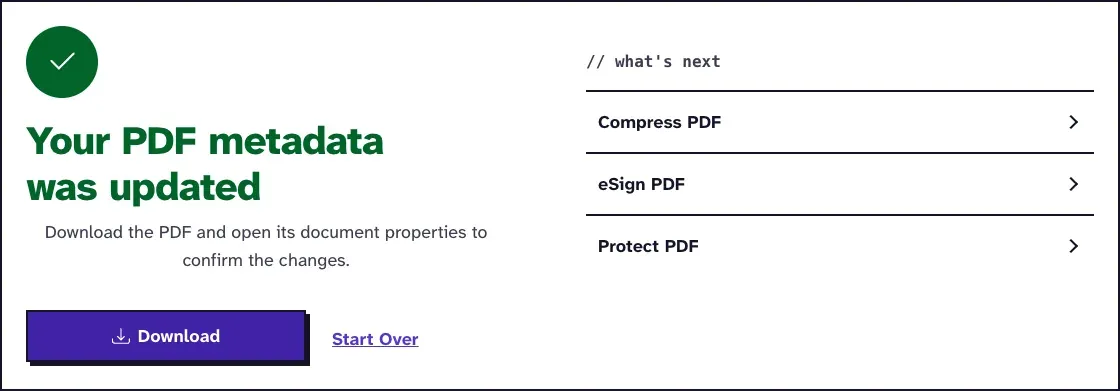
- Click Save metadata and download the new copy.
- Open the download in a PDF reader and check its document properties.
When it saves, the tool removes the XMP stream too, so a reader can't fall back on the old values. We tested that in October 2026 with a PDF that named its author in both places. After a save with all six fields empty, the name appeared nowhere in that file.
In November 2026 the same held for a generated PDF with an old author in an earlier save: that name left the file too.
Uploaded files are deleted automatically within two hours.
Remove Metadata on the Command Line
ExifTool deletes metadata with exiftool -all= file.pdf. Its PDF page warns that "All metadata edits are reversible": the old information stays in the file until you rewrite it, for example with qpdf --linearize file.pdf clean.pdf.
Do both steps, or the "removed" author is still recoverable. ExifTool also keeps the original as file.pdf_original, so delete that too. Both are free command line programs, from exiftool.org and the qpdf project, and we didn't run this pair.
What Metadata Removal Leaves in the File
Clearing the six fields doesn't touch everything that can name you. Our tool leaves the creation and modification dates as they were, and a few other places hold names too:
- Comments and sticky notes keep their author's name. Delete them in a PDF reader before you send, as our guide to removing annotations from a PDF shows.
- Names in the page text are content, not metadata. Clearing the author field does nothing about a name printed on page 3, so use Redact PDF for that. It can also clear the metadata in the same pass.
- Photos inside the PDF keep their own data. We put a JPEG with a camera model and a GPS position into a PDF in November 2026 and cleared all six fields: both were still in the JPEG we pulled back out. To remove them, strip the photo's data before you make the PDF.
- Form values and attachments stay as well. Flatten PDF turns a finished form into plain page content.
- The file name travels with every attachment. Rename it if it mentions a client or a project.
Our guide to removing PDF metadata before sending goes through that last check in detail.
Frequently Asked Questions about Remove Metadata From PDF
Does removing metadata change how my PDF looks?
No. Metadata isn't on the page, so text, images and layout stay as they were.
Can removed metadata be recovered?
Not from our tool's copy, on the files we tested in November 2026: the cleared values were gone from the saved file, including an old author from an earlier save. ExifTool's own edits can be undone until the file is rewritten.
Is removing metadata the same as password protection?
No. Removing metadata clears details inside the file, and a password controls who can open it. For a sensitive file, do both, then add the password with Protect PDF.
Will compressing a PDF remove its metadata?
Don't count on it. In our test, Compress PDF kept the author and the title, so clear the metadata on purpose and check the properties afterwards.
Can I remove the creation date from a PDF?
Not with our metadata editor, which leaves both dates unchanged. On our one test file in November 2026, Repair PDF and Flatten PDF replaced them with the time of the run.