
How to Highlight Text in PDF Files Without Adding Comments
Why a highlight shows up as a comment, how to draw one into the page instead, and what to do when the text won't select.

To highlight text in PDF files without adding a comment, draw the highlight into the page itself: our free Edit PDF tool has a Highlight button that paints a see-through yellow box onto the page, so it never appears in a comments list. If your highlights already exist as comments, flatten the PDF and they become part of the page too.
A normal highlight is different, because the PDF format stores it as a type of comment.
Why PDF Highlights Show Up as Comments
The PDF format stores highlights, sticky notes and stamps as annotations: separate objects that sit on top of the page, as the Wikipedia article on PDF describes. A reader's comments panel can list each one, with your name and the date.
That's useful when you review a document with others. It's annoying when you just want to mark a passage, or when you send the file and the other person sees a list of "comments" that say nothing.
How to Highlight Text in PDF Files Online Without a Comment
Edit PDF draws a highlight straight into the page content when you save. There's no annotation, so nothing turns up in a comments pane.
- Open Edit PDF and click Choose Files.
- Click Highlight in the toolbar.
- Drag across the text you want to mark.
- Move or resize the box if it's off, or use Undo.
- Click Save PDF and download the file.
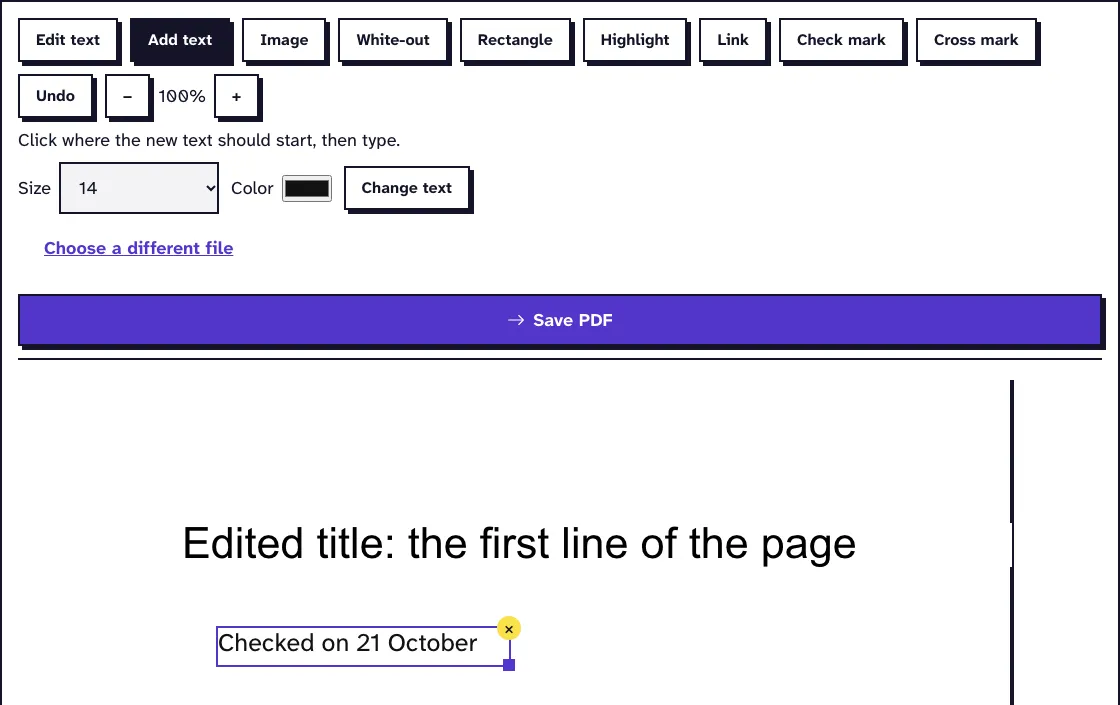
The highlight is a box you drag, so it doesn't snap to letters, and it doesn't need text in the file either. On our scan test file in November 2026 (Chrome 156 on a Mac), it saved over the picture as a see-through yellow mark with no comment attached. Uploads and saved files are deleted automatically within two hours.
How to Turn Existing Highlights Into Page Content
If you've already highlighted a document in Acrobat, Preview or another reader, you don't have to redo it. Flatten PDF draws what annotations show onto the page and removes the annotation objects.
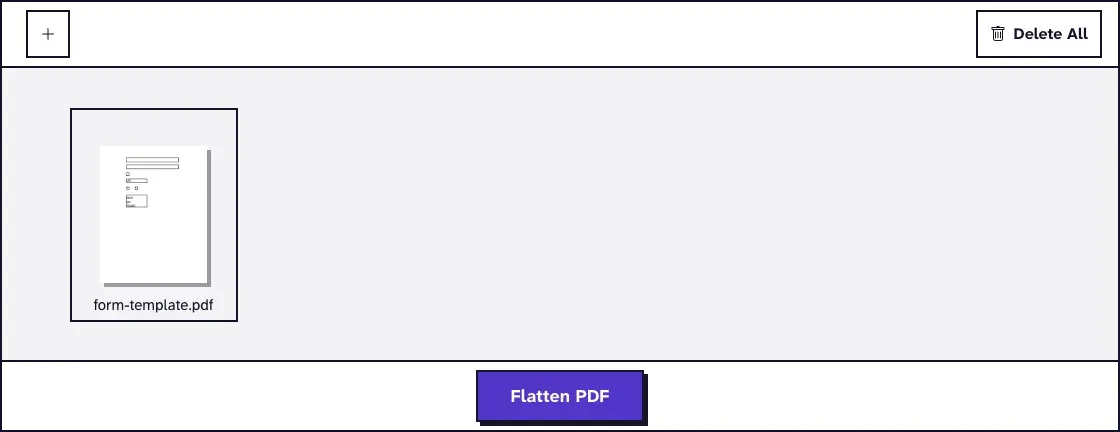
In our October 2026 test file with a highlight, a sticky note and a link, qpdf found no annotations left after flattening, and the page text could still be selected. The sticky note's text is gone, though, because it was never printed on the page, so copy any notes out first. The link went too, since it's an annotation as well, and our guide to adding a hyperlink to a PDF shows how to draw it again.
Want the highlights gone instead? Our post on how to remove annotations from a PDF covers that.
How to Highlight Text in Preview and Microsoft Edge
If comments don't bother you, the free apps you may already have do the job.
- Preview on a Mac: select the text, then click the Highlight button in the toolbar. Our guide to editing a PDF on Mac covers Preview's other markup tools.
- Microsoft Edge on Windows: open the PDF in Edge, select the text, right-click and choose Highlight.
Our post on how to highlight in PDF readers has steps for more of them, including Firefox and iPhone. For a review with colleagues, that's what you want: our guide to commenting on PDF documents goes into the review tools.
Why You Can't Select Text to Highlight It
A highlight tool that snaps to text needs real text in the file. If dragging selects the whole page as one block, or nothing at all, there are three causes to check.
Is the PDF a scan?
A scanned page is a picture of text. If a box is enough, Edit PDF's Highlight works on it as it is. To select text instead, run it through OCR PDF first, which adds a hidden text layer (our tool reads English).
The video below shows how the same thing works in Acrobat Pro.
Optical character recognition works best on straight pages. If the scan is tilted, use Straighten PDF first; if pages are sideways, turn them with Rotate PDF Pages.
Is copying restricted?
Some PDFs open without a password but block copying and commenting. With the owner password, and if you're allowed to change the file, Unlock PDF removes those restrictions. Without it, ask the sender for an unrestricted copy.
Does the copied text come out garbled?
Then the font in the PDF doesn't map its characters back to letters properly. Highlighting may still look right while copying gives nonsense. OCR PDF reads the letters from a picture of the page instead and rebuilds that page with new text: on one generated test page in November 2026, its copy had all 45 words back.
Frequently Asked Questions about How to Highlight Text in PDF
Can I highlight a PDF without it showing as a comment?
Yes. Draw the highlight into the page with Edit PDF, or flatten a PDF you've already highlighted. Either way, no annotation is left for a reader to list.
Can a flattened highlight be removed later?
Not as a comment, because it's part of the page now. Keep a copy of the original file if you might want to change the highlights.
Why is my highlight tool grayed out?
The PDF may restrict commenting, or it may be a scan without a text layer. If you have the owner password, unlock it. On a scan, run OCR first, or draw the box with Edit PDF.
Will a drawn highlight hide the text underneath?
No. Edit PDF's highlight is semi-transparent, so the text stays readable and selectable underneath.