
How to Comment on a PDF: Notes, Highlights and Markup in Free Apps
Add sticky notes, highlights and text boxes to a PDF with the apps you already have, and get the file ready before reviewers see it.

To comment on a PDF, open it in a free reader that has comment tools (Preview on a Mac, or the PDF viewer in Microsoft Edge), pick the note or highlight tool and click the spot you mean. Save the file, and the comments travel with it to whoever opens it next.
Comments in a PDF are annotations: they sit on top of the page instead of changing its text. That's why a reviewer can mark up a contract without touching the wording, and why you can remove or flatten the comments later.
What a PDF Comment Is and What Kinds There Are
The PDF format has a set of annotation types. You'll meet these ones:
- Sticky notes: a small icon on the page that opens a text box when clicked. Our guide to PDF sticky notes shows how to color and share them.
- Highlights, underlines and strikethroughs on selected text.
- Text boxes: words typed straight onto the page.
- Shapes and freehand drawing: arrows, rectangles, circles and pen marks.
- Stamps such as Approved or Draft.
Because they're stored in the file as annotations, they go with it when you send it. Apps can show them differently, so if it matters, ask the other person what they see.
How to Comment on a PDF on a Mac With Preview
Preview comes with every Mac, so there's nothing to install.
- Open the PDF in Preview.
- Click the Show Markup Toolbar button if the toolbar isn't showing.
- To highlight, select text and click the Highlight Selection button.
- To add a sticky note, choose the Note tool and type your text. Drag the note to move it.
- Close the file or press Cmd+S to save.
Apple's own page on how to annotate a PDF in Preview lists every tool in the Markup toolbar, including shapes, text boxes and signatures.
Commenting on a PDF in Your Browser (Edge and Chrome)
Microsoft Edge's PDF reader can highlight text and add text notes. Select the words, right-click and choose Add Comment, or choose a highlight color from the same menu.
Chrome's built-in viewer has annotation tools now. Google said in February 2026 that you can highlight text and add notes to a PDF in the browser, and Chrome's help lists highlighting, drawing, adding text and taking notes.
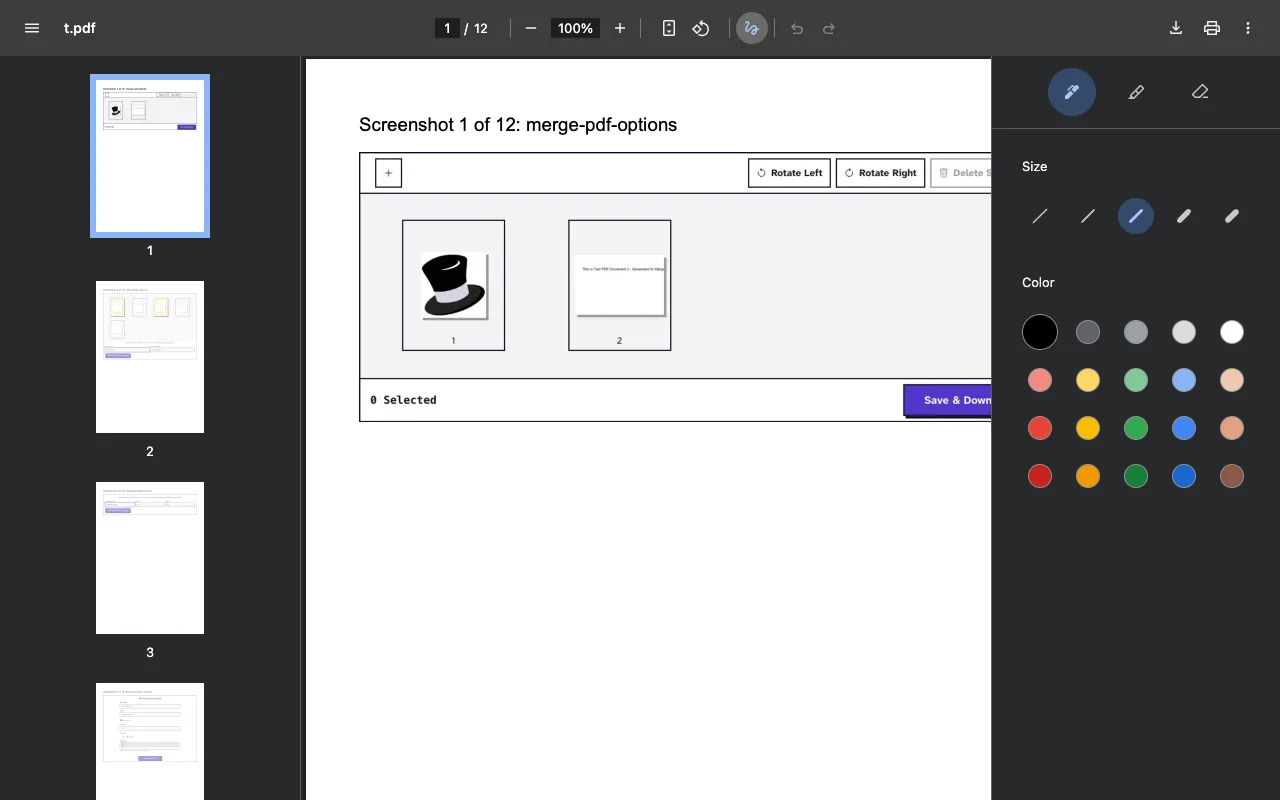
In Chrome 156 on our Mac in November 2026, the Draw button opened a Pen, a Highlighter and an Eraser, with no note tool in that panel, the toolbar or the More actions menu, so use Preview or Edge for notes. To keep your marks, choose Download, then With your changes.
Adding Notes With Our Edit PDF Tool
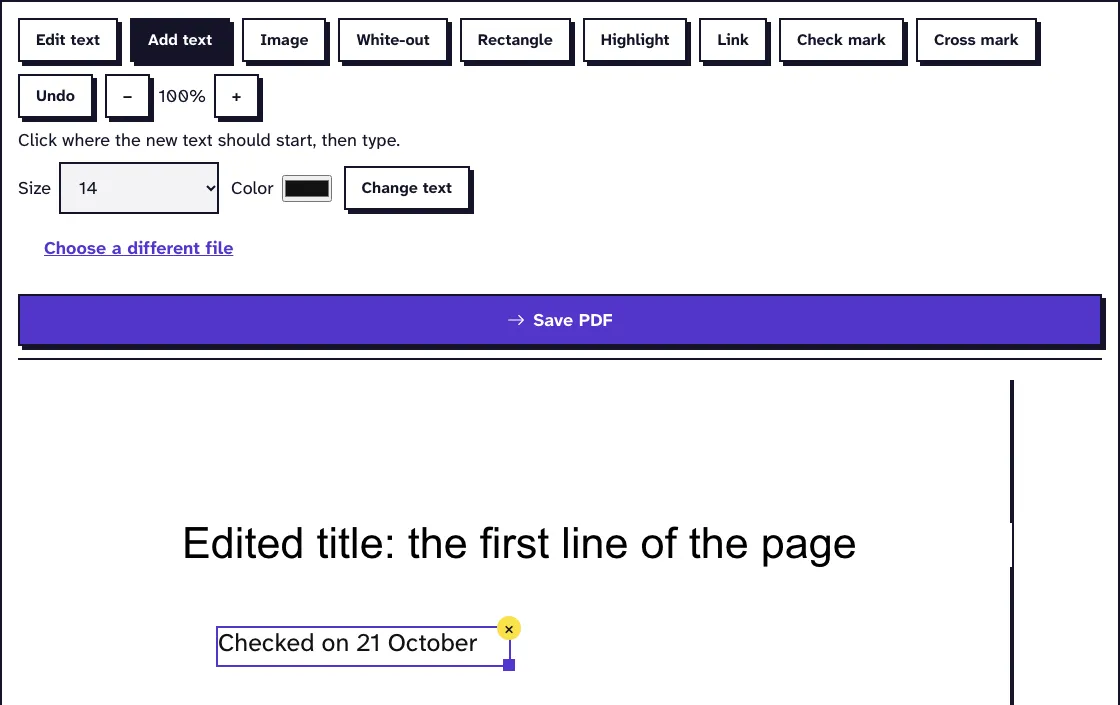
Our Edit PDF tool works in any browser, with no account and no watermark. It has Add text for a note in any size and color, plus Highlight, Rectangle, Check mark and Cross mark tools. You can drag, resize or remove what you added before you save.
There's one big difference from the apps above: Edit PDF draws your marks into the page when you save, so they don't show up as comments in a comments pane and nobody can reply to them. That suits a final "checked" note better than a back-and-forth review. We tried it in October 2026 on a 12-page PDF: we added the note "Checked on 21 October", changed one line, and got the edited PDF back.
If all you need is a highlight that shouldn't become a comment, our guide to a PDF highlight without a comment covers that case.
Get the PDF Ready Before Reviewers Comment
A few minutes of prep saves your reviewers time. A huge file opens slowly on a laptop and may bounce off an email attachment limit, so run it through Compress PDF first.
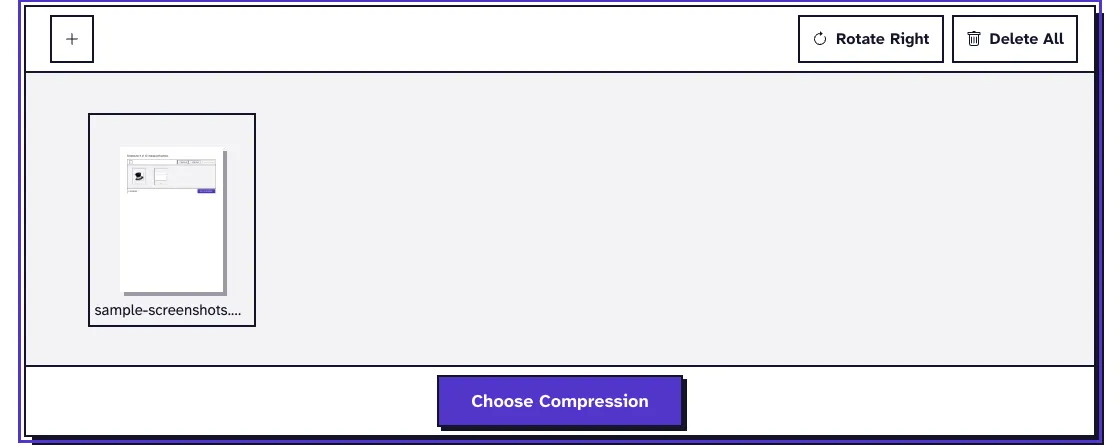
Leave out pages nobody needs to review before you send the file.
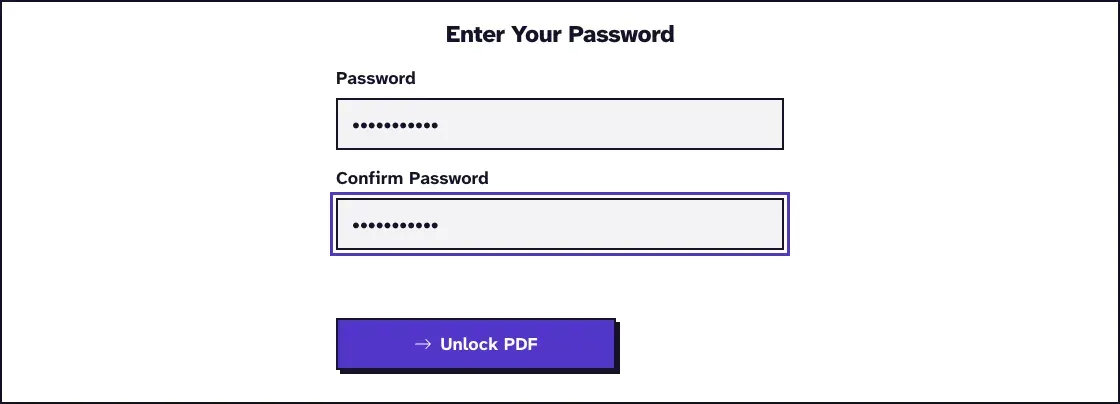
A PDF with a permissions password can block commenting in some readers. If you own the file and know its owner password, take the restriction off with Unlock PDF before you send it out.
Problems When You Comment on a PDF and How to Fix Them
The comment tools are grayed out
The file may be protected against changes. Check its security properties in your reader, and ask the sender for an unlocked copy if you don't have the owner password.
Edge's notes start from selected text, so a page with no selectable text gives you nothing to select. Run a scan through OCR PDF first, or draw on it with Edge's ink.
Comments vanished after sending
The viewer may not show annotations. Ask the recipient to open the file in Preview or Edge, or flatten the comments into the page with Flatten PDF. That keeps text boxes and highlights on the page, but not the text inside a sticky note: in our November 2026 test the note's words were gone, so type them onto the page first.
The PDF won't open or the reader crashes
A damaged file can cause both. Run it through our Repair PDF tool and try again.
When Word's Track Changes Works Better Than PDF Comments
If the review means rewriting whole paragraphs, PDF comments get messy fast. Convert the file with PDF to Word, let everyone edit with Track Changes, and turn the final version back into a PDF with Word to PDF.
Check the layout after the round trip, though. A designed PDF with columns or text boxes rarely converts to Word one to one.
Frequently Asked Questions about How to Comment on a PDF
What's the easiest free way to comment on a PDF?
On a Mac, Preview: it's already installed and has notes and highlights. On Windows, open the PDF in Microsoft Edge.
Can other people see my PDF comments?
Yes, once you save the file and send it. Comments are stored inside the PDF, so anyone who opens it in a reader with annotation support sees them.
How do I comment on a PDF on my phone?
Use a PDF app with markup tools. On Android 12 and up, Google's help says Chrome opens the PDF in Google Drive, where you tap Edit and pick the pen or highlighter. On an iPhone, Markup adds text, drawings and a signature, as our guide on how to edit a PDF on iPhone shows.
How do I remove comments from a PDF?
Delete them one by one in your reader's comments pane, or remove them all at once. Our post on how to remove annotations from a PDF walks through both ways.