
How to Crop a PDF on Mac With Preview, Acrobat or Your Browser
Preview comes with every Mac and crops one page at a time. Here's how, plus what to use when you need exact margins on every page.

To crop a PDF on Mac, open it in Preview, drag a rectangle over the part you want to keep with Rectangular Selection, and click Crop in the Markup toolbar. Then save the file, and the page shows only what was inside your rectangle.
Preview is free and already on every Mac, so it's the place to start. When you need the same exact margin on every page, an online cropper that takes margins in points does a cleaner job.
How to Crop a PDF on Mac With Preview
This video shows the steps in Preview:

- Open the PDF in Preview and show the Markup toolbar if it's hidden.
- Click Rectangular Selection and drag over the part of the page you want to keep.
- Need an exact size? Choose Tools, then Show Inspector, and pick a unit in the Crop Inspector to see the size of your selection.
- Click Crop in the Markup toolbar.
- Save with File, then Save, or make a new copy with File, then Export as PDF.
Apple's guide to cropping in Preview only covers one page at a time. For every page, use the online route below.
Preview can also rotate, reorder and delete pages, which is handy if the file needs more cleanup than a crop. Our guide to editing a PDF on Mac walks through those Preview steps.
Crop a PDF on Mac With Exact Margins Online
Dragging a rectangle by eye is fine for one page. For a long document, our Crop PDF tool trims the same margins from every page and works online.
- Open Crop PDF and upload one PDF.
- Type the top, right, bottom and left margins in points. Every field starts at 36, which is half an inch.
- Select Crop PDF.
- Download the cropped PDF and look at the edges of a few pages.
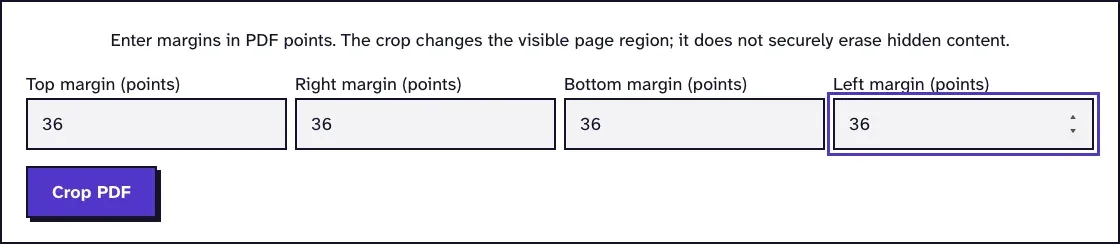
A point is 1/72 of an inch, so 72 points trims an inch, and 0 leaves that edge alone. Working in millimetres? Multiply by 72 and divide by 25.4: 5 mm is 14.17 points.
We ran it in November 2026, in Chromium on a Mac, on test1.pdf (5.0 KB, one page) with 36 points on every side. The cropped file came back at 4.6 KB.
It takes one file per run and one set of margins for all pages. To crop just one page differently, use Preview, since Apple's help describes cropping a page of a PDF.
Crop a PDF With Adobe's Online Tool on a Mac
Adobe's online Crop PDF tool works in a browser on a Mac, once you've signed in. It outlines the first page with a border you drag, and you can apply the crop to a page range or to All pages.
If you'd rather not sign in or upload to Adobe, Preview handles a single page and our Crop PDF handles the whole file.
Crop Part of a Page With a Screenshot
Sometimes you only want one chart or paragraph as its own small PDF. Press Shift+Cmd+4, drag over the area, and the screenshot lands on your desktop.
Open the screenshot in Preview and choose File, then Export as PDF. Keep in mind that a screenshot is a picture: the text in it can't be selected or searched, and it gets blurry when you zoom in.
Cropping Hides the Edges, It Doesn't Delete Them
Our Crop PDF tool sets a new visible area (the CropBox) on each page. The content outside it stays in the file and can come back if someone enlarges the box again in another app. Apple's guide also describes Preview's crop as hiding content, so don't count on Preview to erase anything either.
So if the edges held a name, an account number or any other private detail, cropping isn't enough. Black it out properly with Redact PDF before you share the file, and read our test of whether cropping a PDF removes content for the details.
A cropped page is also a smaller page. If you need A4 or Letter again, run the file through Resize PDF, which scales the visible area onto the paper size you pick. To add white space around the content instead, see our guide to adding margins to a PDF.
Frequently Asked Questions about How to Crop a PDF on Mac
Does cropping a PDF on Mac make the file smaller?
Barely. Crop PDF only sets a new visible area and the content stays in the file: our one-page test file went from 5.0 KB to 4.6 KB. To shrink a PDF, use Compress PDF.
Can I undo a crop in Preview?
Yes. Right away, choose Edit, then Undo Crop. Later on, Apple's guide says to go back to a version from before the crop: choose File, then Revert To, then Browse All Versions.
How do I crop all pages of a PDF at once on Mac?
Use our Crop PDF tool, where every page gets the same margins automatically. Apple's guide for Preview only covers cropping one page.
Why does my cropped PDF show the old edges in another app?
Some apps and print workflows ignore the crop and show the full page. Resize the cropped file with Resize PDF so every page box matches the new size.