
Add a Hyperlink to a PDF on Windows, Mac or Online: 4 Methods
Four ways to make text in a PDF clickable, from a free browser editor to Word, Google Docs and Acrobat.

To add a hyperlink to a PDF that already exists, open it in a PDF editor, draw a link box over the text and type the web address. If you still have the Word or Google Docs file the PDF came from, add the link there, export a fresh PDF and click the link to check it.
Which route is best depends on what you have: just the PDF, or the source document too. Below are four methods, the reasons a link stops working, and a few things to check before you send the file.
What a Hyperlink in a PDF Really Is
In a web page, a hyperlink is part of the text. In a PDF it isn't: it's a separate clickable rectangle (a link annotation) that sits on top of the page and points to a web address, an email address or another page in the same file.
That explains most of the confusion. Blue underlined text in a PDF is only formatting, and it won't do anything unless a link box sits over it. And a link box can sit over plain black text, so a link can be invisible.
There are two kinds you'll want:
- External links open a web page or a new email.
- Internal links jump to another page in the same PDF, the way a clickable table of contents does.
Method 1: Add a Link Online with Edit PDF
If all you have is the PDF, our free Edit PDF tool does it without an install or an account, and it doesn't add a watermark. Its Link tool turns an area of the page into a clickable web or email address. It only adds links: see below for one that's already in the file.
- Upload the PDF to Edit PDF.
- Pick the Link tool.
- Drag a box over the words that should be clickable.
- Type the full address, starting with https://, http:// or mailto: (for an email address, mailto:name@example.com).
- Drag or resize the box until it covers the words, then click Save PDF and download the file.
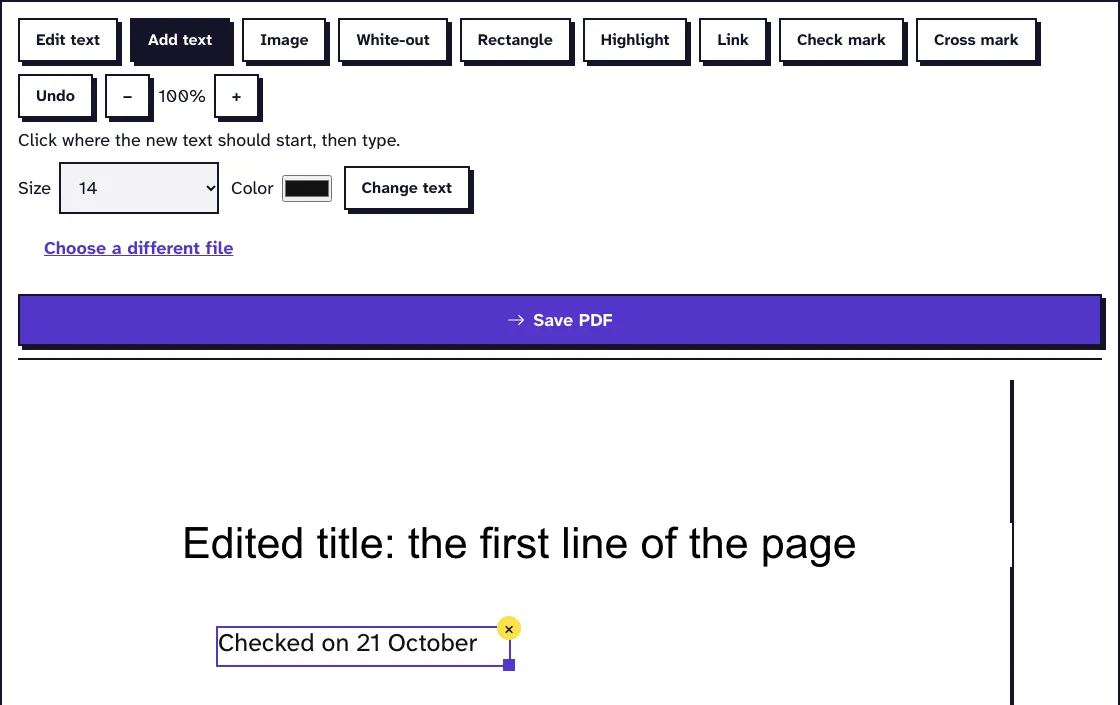
Anything you add can be moved, resized or removed before saving, and Undo steps back through your changes. We delete the uploaded file and the result from our server within two hours.
Anything else gets refused. When we tried example.com, a plain email address and a tel: number in November 2026 (Chromium on a Mac), the box went away and the page said "A link needs an address that starts with https://, http:// or mailto:."
Changing or Removing a Link That's Already There
Edit PDF can't do that. In the same run, a PDF's existing link wasn't shown in the editor at all, and the saved file held the old link next to the new one.
To change a link, go back to the source document if you have it, fix the link and export again. In Acrobat, Adobe gives these steps: for a new action, choose Edit, Link, Add or edit a link, right-click the link and select Properties. To delete one, select its rectangle in the same mode and press Delete.
Method 2: Add the Link in Microsoft Word, Then Convert
When you wrote the document in Word, add the links there, internal ones included.
- Select the text that should become a link.
- Use Insert, then Link.
- Type the address, or for an internal link choose Place in This Document and pick a heading or bookmark.
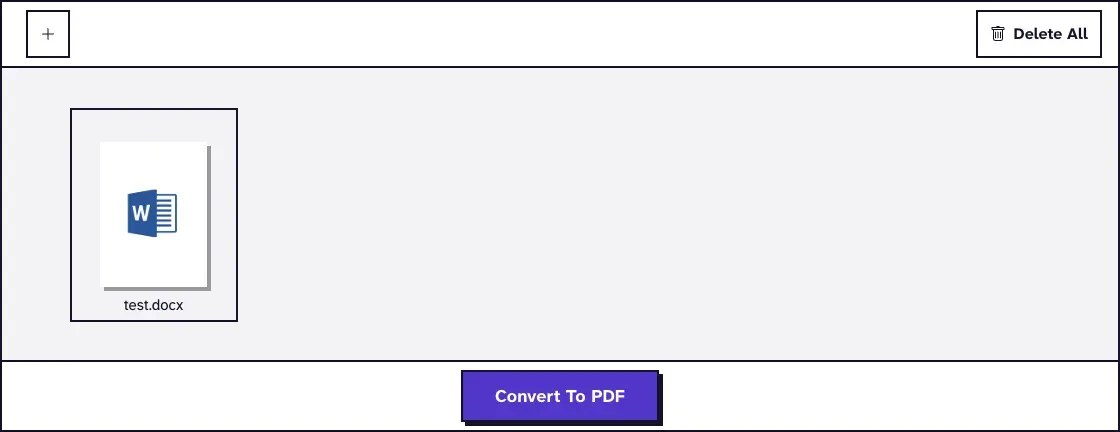
- Save the DOCX and convert it with Word to PDF, or use Save As, then PDF, in Word itself.
Microsoft's help page on how to create or edit a hyperlink covers the Word side in more detail.
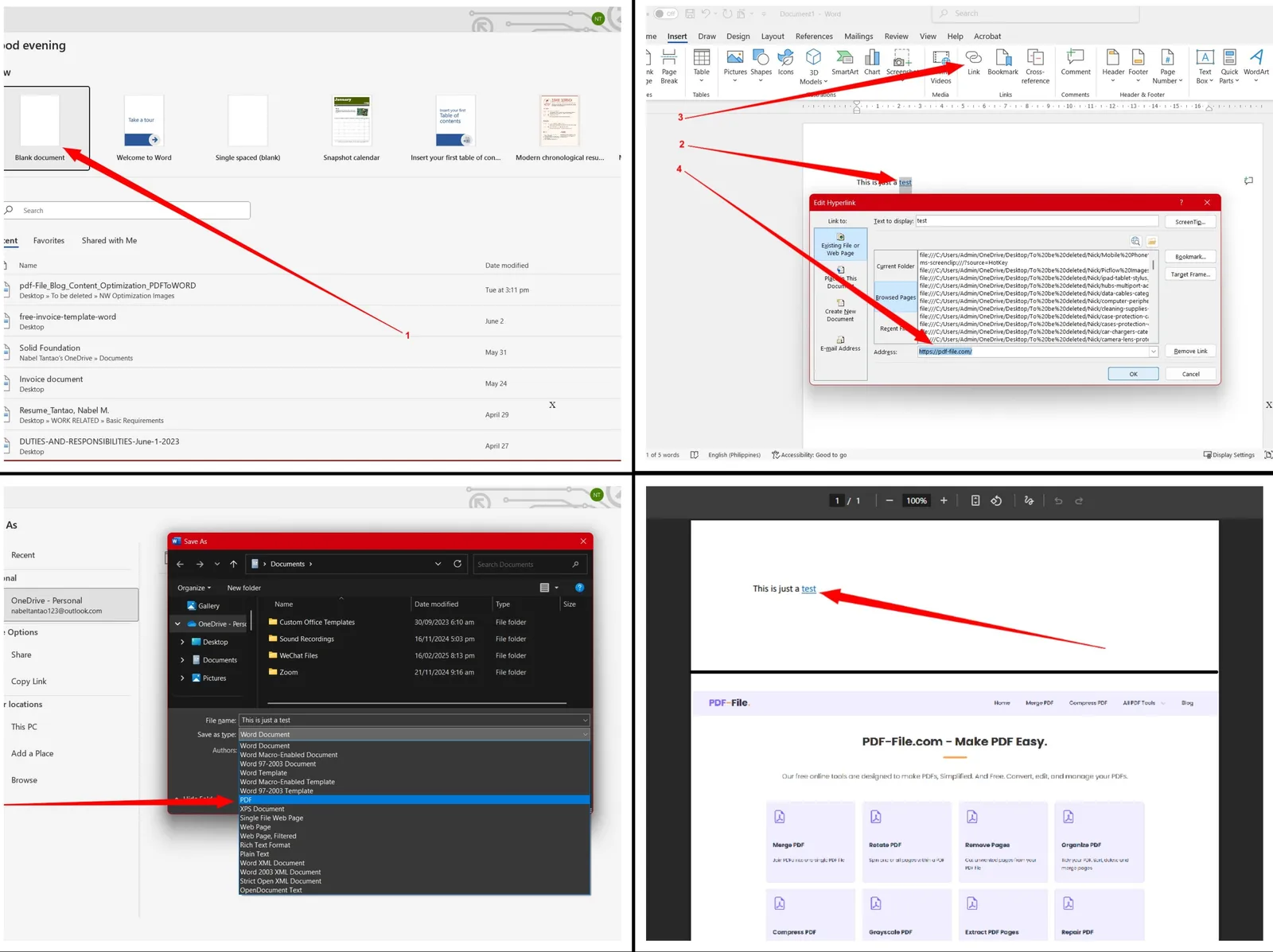
In our October 2026 test, a DOCX converted with Word to PDF came back with its web link still working. Internal links held up too: table of contents entries, a cross-reference and a link to a bookmark all jumped to the right page. Links to other files on your disk did worse, and our guide to Word to PDF hyperlinks and tracked changes shows what happened to them.
Method 3: Google Docs, Then Download as PDF
If the document lives in Google Docs, add the link there and download a PDF.
- Select the text in Google Docs.
- Press Ctrl+K (Cmd+K on a Mac) or choose Insert, then Link.
- Paste the address, or pick a heading or bookmark in the document.
- Choose File, then Download, then PDF Document (.pdf), and click the link in the PDF to check it.
Google explains the link options, bookmarks included, on its page about links and bookmarks in Google Docs.
Method 4: Adobe Acrobat Pro on Windows or Mac
These are Adobe's own steps, shown there on Acrobat Pro.
- Open the PDF and choose Tools, Edit PDF, Link, Add or Edit.
- Drag a rectangle where you want the link.
- In the Create Link dialog, choose how the link looks.
- Select the link's destination, then save.
Mac Preview and Phones
Apple's list of markup tools for Preview names no link tool, though Preview covers most other edits, as our guide to editing a PDF on Mac shows. On a Mac, use Edit PDF online (our runs were in Chromium on a Mac), or add the link in Word or Google Docs and export again.
On a phone, try the same browser route: at a 390-pixel phone width in Chromium, we drew a link in Edit PDF, saved it and found the address in the file.
Get the PDF Ready Before You Add Links
A few checks first save you from adding links twice.
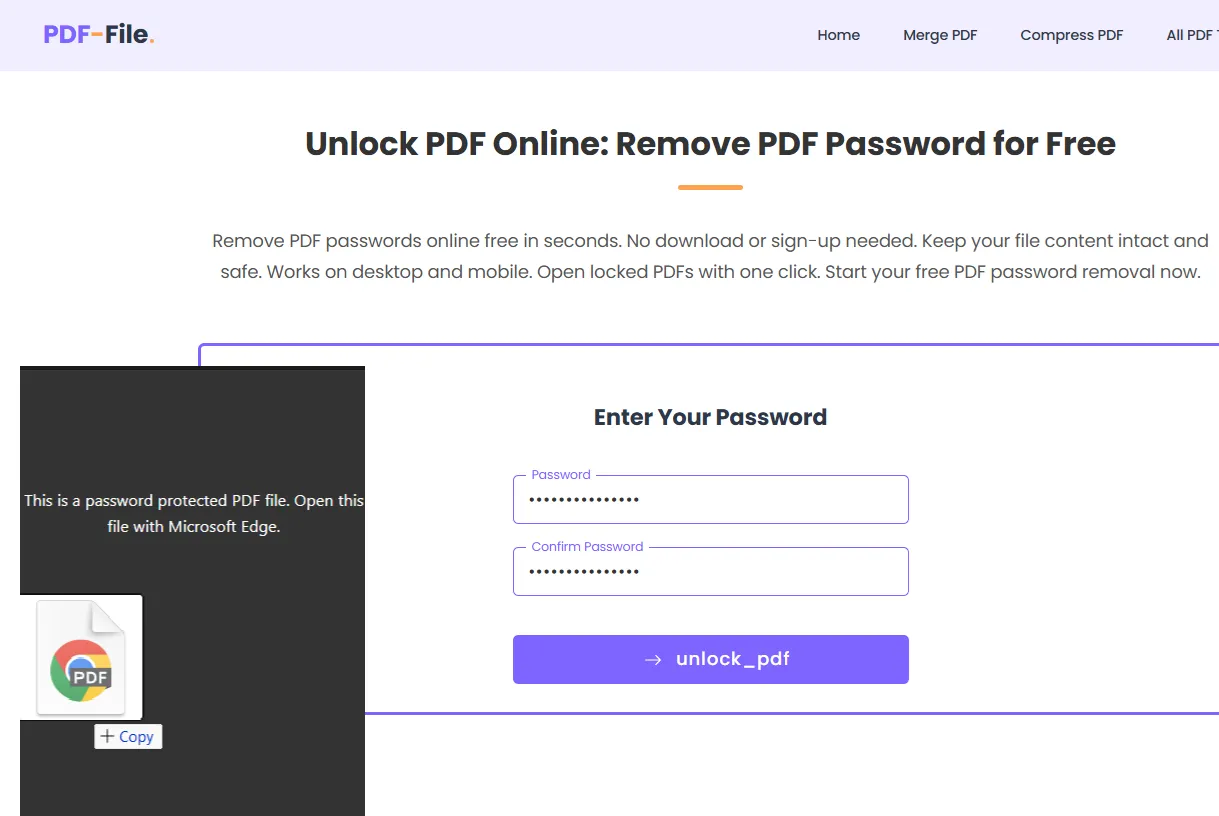
- Is the PDF locked? A file that needs a password to open has to go through Unlock PDF first, and you'll need that password.
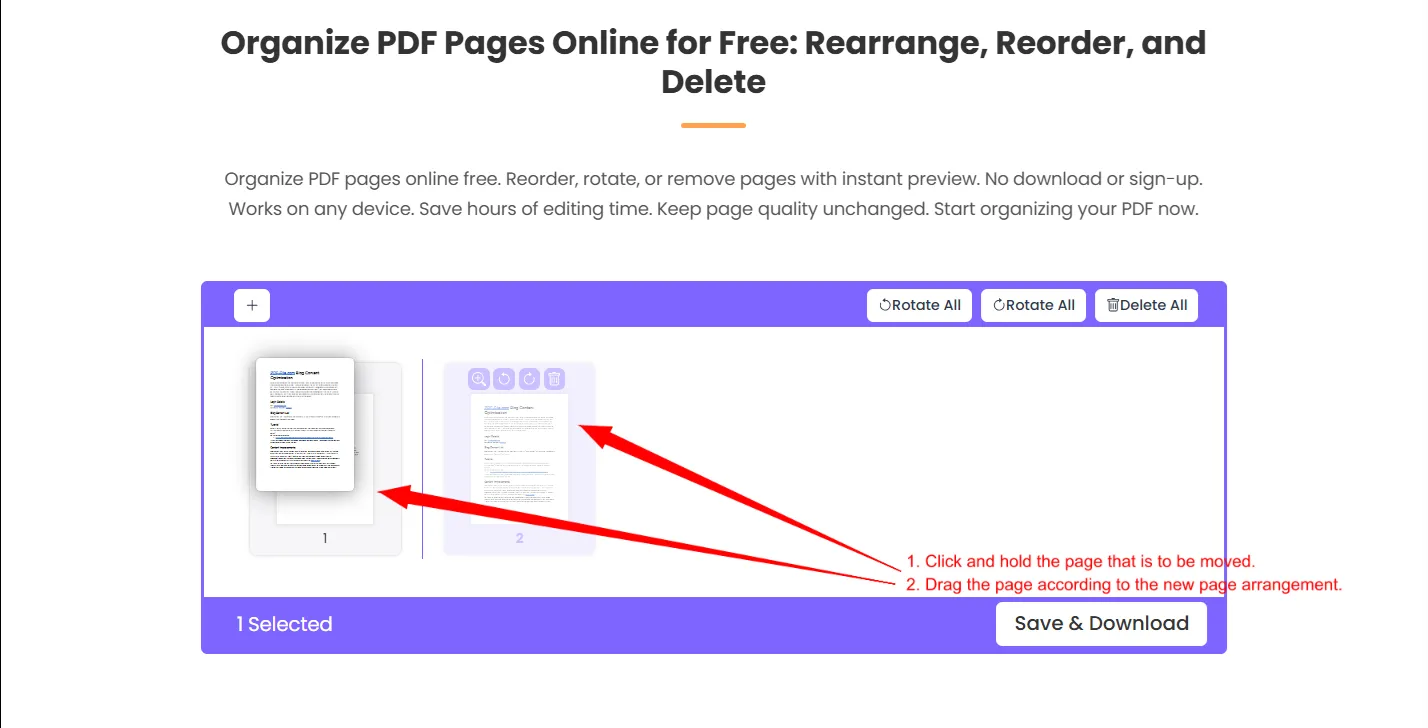
- Are the pages in order? Internal links point at a page, so put the pages in sequence with Organize PDF before you link a table of contents.
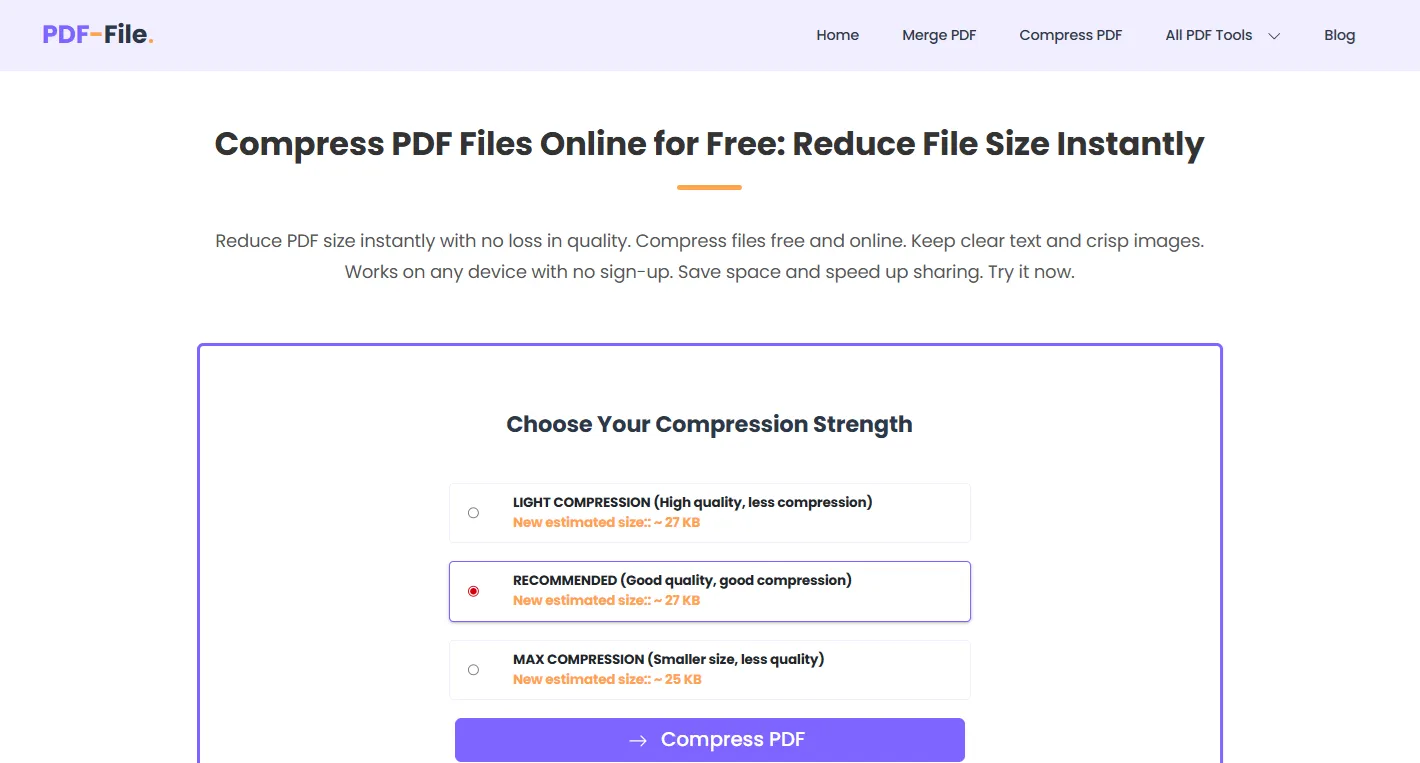
- Is the file too big to send? If the PDF is big, run it through Compress PDF once you're done.
Why a Link in a PDF Doesn't Work
These are the causes we know of.
- The PDF was printed to PDF. If the links are gone from a printed copy, export it again with Save As PDF or a converter, then click one to check.
- The address has no https://. Edit PDF refuses it, so write the full address.
- The file was saved as page images. A dark mode copy of a PDF is saved as page images, and the original links don't survive that. Make the copy first and add links afterwards.
- The viewer ignores links. If a preview shows nothing clickable, open the file in a PDF reader before you blame the link.
Changing the paper size kept the link in our run: Resize PDF moved and scaled the link area with the content. Our guide to adding margins to a PDF notes which margin methods keep links working.
Frequently Asked Questions about Adding a Hyperlink to a PDF
Can I add a hyperlink to a PDF for free?
Yes. Edit PDF adds a clickable web or email link online with no account and no watermark. Our Word to PDF kept links in our test.
How do I link to another page in the same PDF?
Set internal links in the source document (a heading or bookmark link in Word or Google Docs) before you export it. Adobe's page says Acrobat and its online editor can add a link to another part of a PDF too.
Why is the blue underlined text in my PDF not clickable?
The formatting came through but the link didn't. Export again with Save As PDF, or draw a new link over the text in a PDF editor.
Can I make a link invisible?
Yes. A link is just a clickable area, so it can sit over any text or picture without a border, and links from Edit PDF have none. In Acrobat, the Create Link dialog sets the appearance.
Will the links still work after I resize or OCR the PDF?
Yes in our runs. Resizing kept the link area in place, scaled with the page, and OCR PDF kept web, email and page links as they were. Converting to plain text does remove them.