How to Edit PDF Text: Why It's Tricky and Which Method Fits Your File
A PDF places every character at a fixed spot, so changing it isn't like typing in Word. Pick the method by the size of the change.

How to edit PDF text depends on the size of the change: a word or a line can be fixed in place, while whole paragraphs are easier to rewrite in Word and turn back into a PDF. A scanned page has no text to edit at all, so it needs a third approach.
All three come down to how a PDF stores its words, so that's where this guide starts.
Why PDF Text Is Hard to Edit
A PDF describes a fixed layout. Each piece of text is an instruction to draw certain characters at a certain position in a certain font. There are no paragraphs in the sense Word has them, only lines that happen to sit below each other.
That has three effects you'll run into:
- Lines. Nothing in the file says a line should wrap, so the editor has to work that out. In our Edit PDF, a longer line doesn't wrap onto the next one. Adobe says Acrobat's full-page editing adjusts paragraphs and formatting automatically, so desktop editors can differ.
- Fonts. A PDF often carries only the letters it used from a font, so an editor can't count on reusing it.
- Scans. A scanned page is a photo of text. There are no characters in it, just pixels.
Which Method Fits Your Change
| Your change | Best method | What to expect |
|---|---|---|
| A typo, date, name or price | Edit the line in place | Same position, size and color; one of our bundled fonts |
| A new note or label | Add a text box | Any size and color, anywhere on the page |
| Several paragraphs | Convert to Word, edit, save as PDF | Text reflows; check layout, pictures and tables |
| A word on a scan | White-out and type over it | Looks right; old pixels stay in the file underneath |
| Anything, if you have it | Edit the original DOCX or design file | Cleanest result |
If you still have the Word or InDesign file the PDF came from, that's always the best route. Everything below is for when you don't.
How to Edit PDF Text Line by Line
For small fixes, Edit PDF changes the words that are already on the page:
- Click Choose Files and pick the file.
- Choose Edit text. Every line on the page becomes clickable.
- Click the line, type the new words and press Enter.
- Click Save PDF and download the edited file.
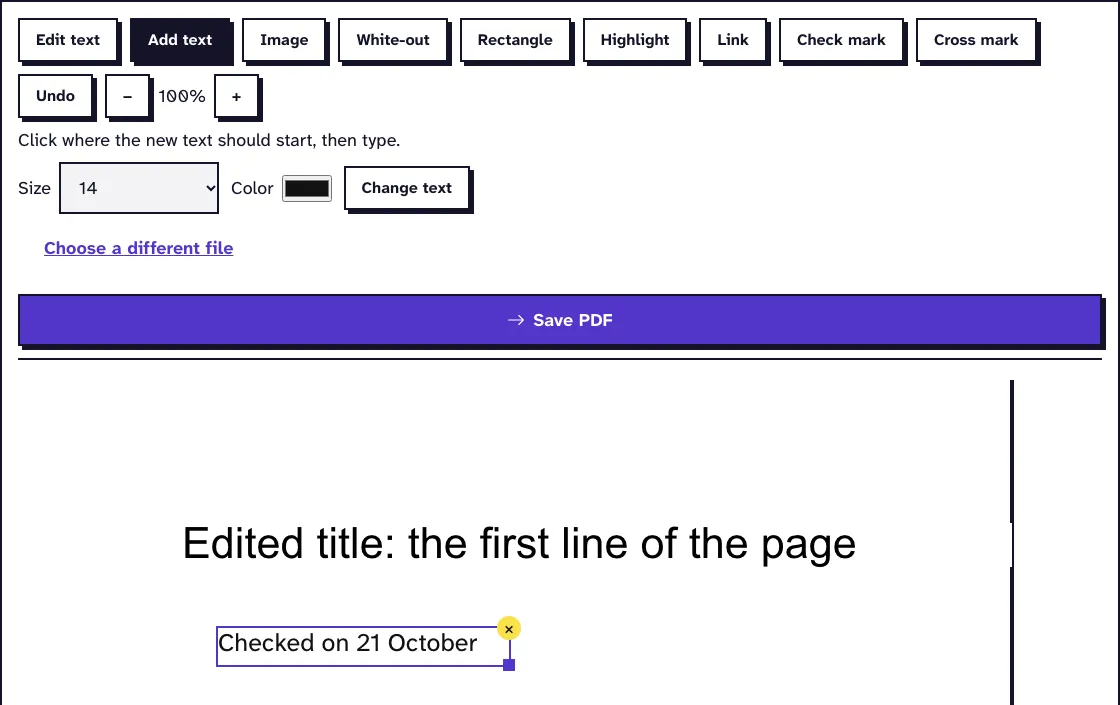
On a PDF with real text, the new text sits on the same baseline in the same size and color.
Which Font Will Your Edited Line Get?
One of ours, never the font that's in the file, and that's true even if you only retype letters the line already had. We tested it in November 2026, in Chrome on a Mac, on six one-page PDFs we generated with embedded fonts, changing a line once with the same letters and once with new ones like Q and Z.
| Font in the PDF | Changed line came out in |
|---|---|
| A sans serif font | One of our fonts |
| Carlito | One of our fonts |
| Bauhaus 93, Algerian | One of our fonts |
| Baskerville Old Face, Garamond | One of our serif fonts |
All 12 saved files had the new words, new letters included, and the untouched line kept its own font. Our code also matches Arial, Helvetica, Times, Georgia and Verdana by name, and gives serif faces such as Baskerville, Garamond and Palatino a serif font of ours. Any other font gets the closest kind of ours, so compare a changed line with the one above it before you send the file.
To read the font names, run pdffonts edited.pdf. It comes with Poppler: brew install poppler on a Mac, sudo apt install poppler-utils on Debian or Ubuntu.
What a longer replacement does
It stays on the same line, and the next line doesn't move.
So keep a replacement about as long as what it replaces, and change a paragraph one line at a time. A line that mixes fonts (one word in bold, say) splits into separate parts you edit one by one. To change the same word in many places, our guide to replacing text in a PDF covers Find and Replace in Word.
How to Rewrite Whole Paragraphs
When the change adds or removes sentences, line editing turns into a puzzle. Convert the file with PDF to Word, edit the DOCX in Word, LibreOffice Writer or Google Docs, then save it as a PDF again.
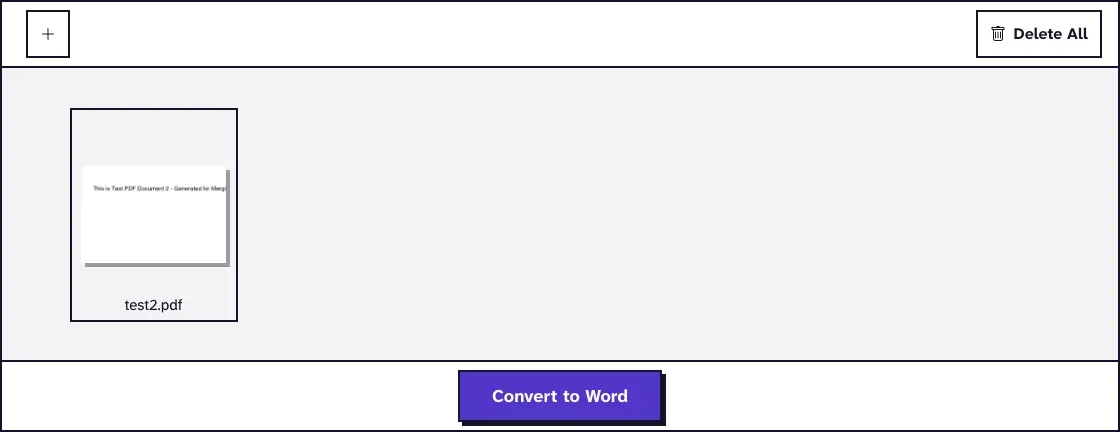
Know what you're giving up. Our converter keeps the text, but pictures don't come across at all, and tables turn into plain paragraphs. For a text-heavy contract that's fine; for a brochure, rebuild it from the original file if you can.
How to Edit Text on a Scanned PDF
Try selecting a word on the page. If nothing highlights, it's a scan, and there's no text to change.
Use White-out in Edit PDF to cover the wrong word, then Add text to type the correction on top. It looks right on screen and on paper, but the old word is still in the image underneath. Our guide to white-out on PDF text explains when that's acceptable and when it isn't.
To turn a whole scan into editable text, run it through OCR PDF first (it reads English only), then convert the result to Word. Expect to proofread: recognition makes mistakes on faint or skewed pages.
When the PDF Won't Let You Edit
A password, a signature or a locked form can block every method above. Our guide on how to edit a secured PDF covers passwords and permission locks, and editing a signed PDF explains why any change breaks a digital signature.
If you'd rather avoid Acrobat entirely, our guide on how to edit a PDF without Adobe compares the free options. Pictures follow different rules, covered in our guide to editing PDF images.
Frequently Asked Questions about How to Edit PDF Text
Can I edit the text of any PDF?
Any PDF with real text in it, yes. A scanned PDF has none, so you cover and retype.
Will the edited text match the original font?
Not exactly. In Edit PDF a changed line gets one of our bundled fonts, in the same size and color. Arial, Times and Calibri have close matches; other fonts get one of our fonts, so check the line.
Why doesn't my new text wrap?
Edit PDF doesn't wrap text onto the next line, so shorten the wording or split the change across two lines.