
How to Fill Out a PDF Form in Any Reader, Even One Without Fields
Click and type works in most readers, as long as the form has fields. Here's how each reader handles it, and what to do with a flat form.

To fill out a PDF form, open it in any PDF reader or browser, click into the first field and type, then save or download the file so the answers stay in it. That only works when the form has real fields; a flat form needs text boxes placed over its blank lines instead.
So the first thing to find out is which kind of form you've got.
Fillable or Flat: Check Your Form First
Open the PDF and click on a blank line. If a cursor appears in a box, or the fields light up blue, it's a fillable form. If nothing happens, it's flat: a scan, or a document printed to PDF without fields.
There's a third kind that catches people out.
Forms built with Adobe's XFA format often show only a "Please wait..." message outside Adobe's own apps. XFA is a separate format from standard PDF fields and was deprecated in PDF 2.0.
Microsoft Edge doesn't support it, while Firefox's release notes say its viewer has filled XFA forms since version 93, so try Firefox or Adobe Acrobat Reader, or ask the sender for another version.
How to Fill Out a PDF Form in Each Reader
| Reader | Fillable form | Flat form | Save |
|---|---|---|---|
| Adobe Acrobat Reader | Click and type | Fill & Sign tool adds text | Save |
| Preview on Mac | Click and type | Text box from the toolbar | Save |
| Chrome | Click and type | Add text | Download, With your changes |
| Edge, Firefox | Click and type | Edge has inking | Download |
| Fill Out PDF Form online | Fields listed to type into | Says there are no fields | Download |
Adobe Acrobat Reader
The free Reader fills standard fields: click, type and press Tab to jump to the next one. For a flat form, Adobe's Fill & Sign tool adds text, checkmarks and lines where the answers go.
Preview on Mac
Click a field and type. For a form without fields, Apple's guide to filling out and signing forms in Preview says to add a text box instead. Our guide to editing a PDF in Preview covers the rest of its tools.
Chrome, Edge or Firefox
All three say their built-in viewers fill forms, Edge's page calling it "Basic form filling" with JavaScript forms left out. Click into a field, type, then use the download button to save a copy with your answers (in Chrome, choose With your changes). If you only print, the answers go to paper but not into a file.
On a phone
Our guide on how to fill out a PDF on iPhone walks through fillable and flat forms step by step.
How to Fill Out a PDF Form Online
Fill Out PDF Form works the same in every browser, which helps when your reader shows the fields oddly:
- Upload the form (up to 25 MB) and click Fill Form.
- Type into the text fields, tick the checkboxes, and pick from the dropdowns, radio buttons and lists.
- Click Fill & Download, then Download.
- Open the filled PDF and check every answer before you send it.
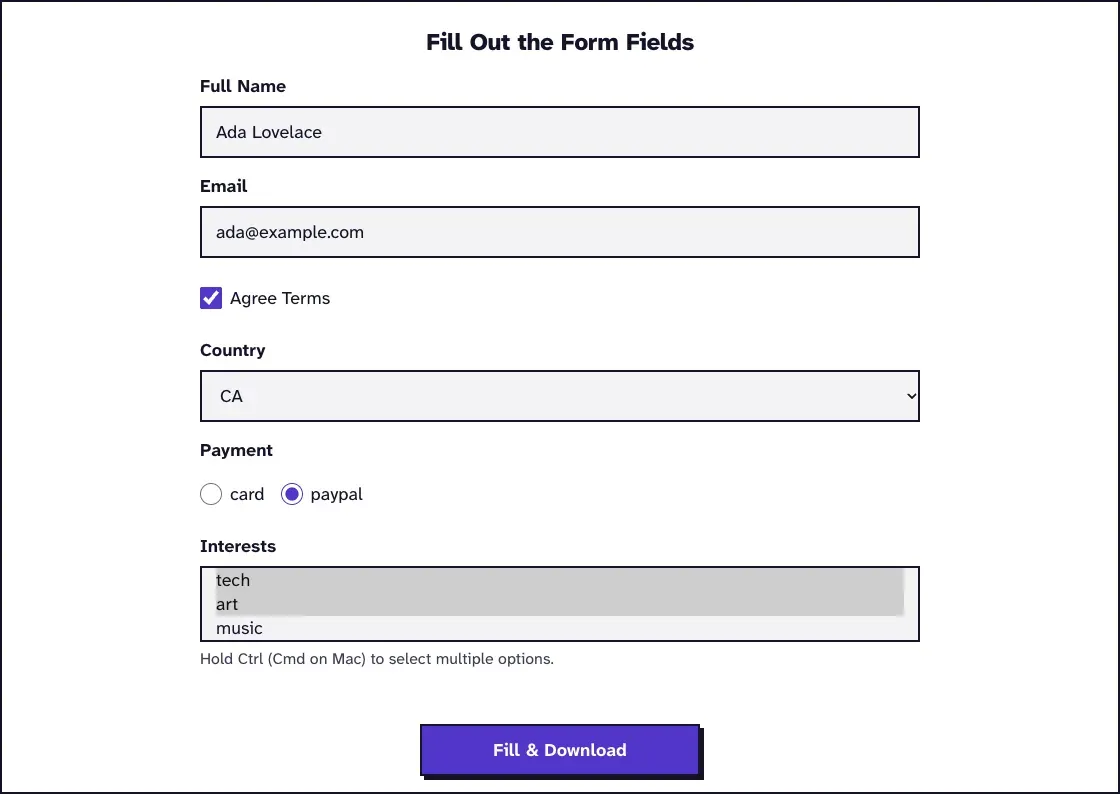
Each field gets its own stored appearance, so the recipient sees your answers even in a viewer that doesn't redraw fields. When we filled a test form in November 2026 (Chrome on a Mac), MuPDF, Ghostscript and Poppler all showed the answers, the umlauts in Zoë Müller included.
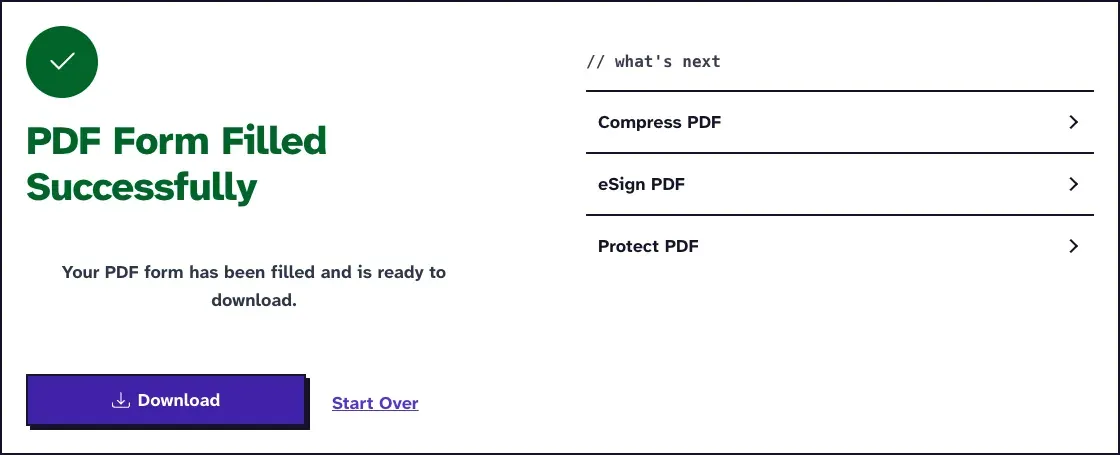
Signature fields are skipped. To put a visible signature on the page, add one with eSign PDF after filling: on our test form all 7 fields stayed, and we could reopen the answers and change them. If you fill the same form over and over from data, PDF Auto Fill takes the values from a JSON file.
Why a Recipient Can See Blank Fields
An answer can sit in the file with no stored picture of it, and then each reader decides whether to draw it. We can't say that's what happened to your form, but we could reproduce it.
We saved a value into a test form's text field with no stored appearance. MuPDF and Poppler drew the answer, and Ghostscript showed an empty box on the same file. After Flatten PDF, Poppler found the answer as ordinary page text.
So before you send a form, open the final copy in a second reader. If the recipient only needs to read it, flatten that final copy so the answers are part of the page.
How to Fill Out a PDF Form That Isn't Fillable
A flat form has nothing to click, so you place the text yourself. In Edit PDF, choose Add text, click at the start of each blank line and type. Pick a size that fits the line, then drag each box until it sits right.
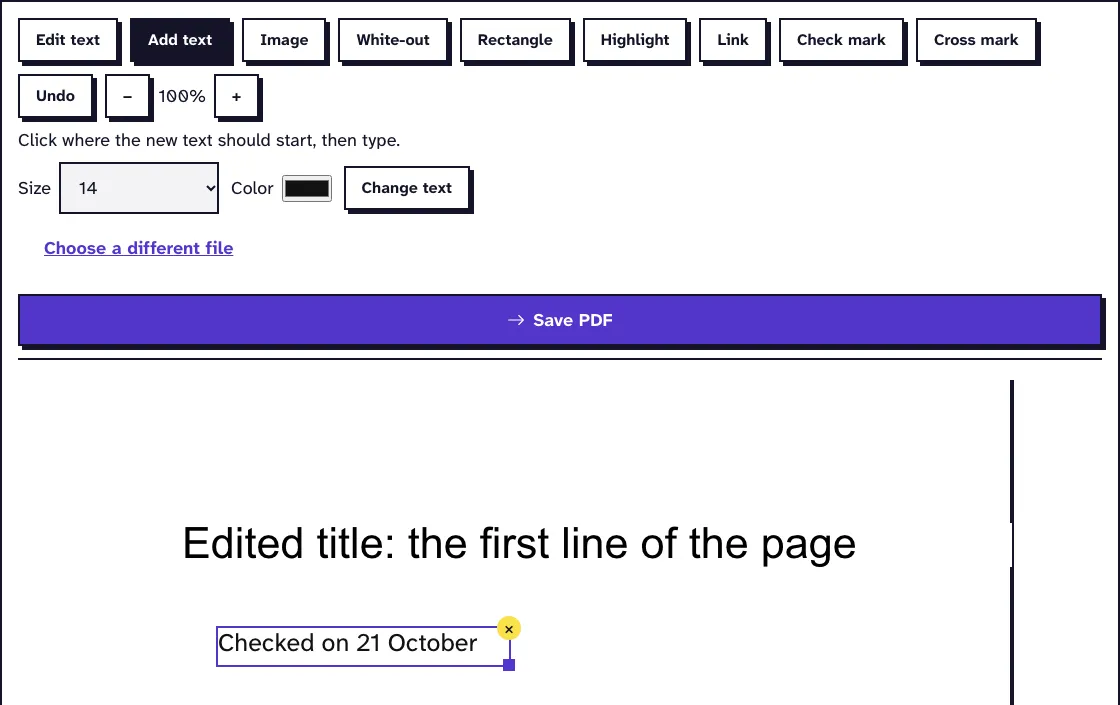
Check boxes take the Check mark or Cross mark tool. The answers become part of the page when you save, so they can't be tabbed through like real fields later.
Printing, filling by hand and scanning still works too. If you go that way, save the scan as a PDF and check every page is readable before you send it.
After Filling: Lock the Answers or Keep Them Editable
A filled form stays editable, which is what you want while you're still checking it. Before you send a final copy (a signed application, say), you might want the answers fixed in place. Flatten PDF draws the values into the page and removes the fields.
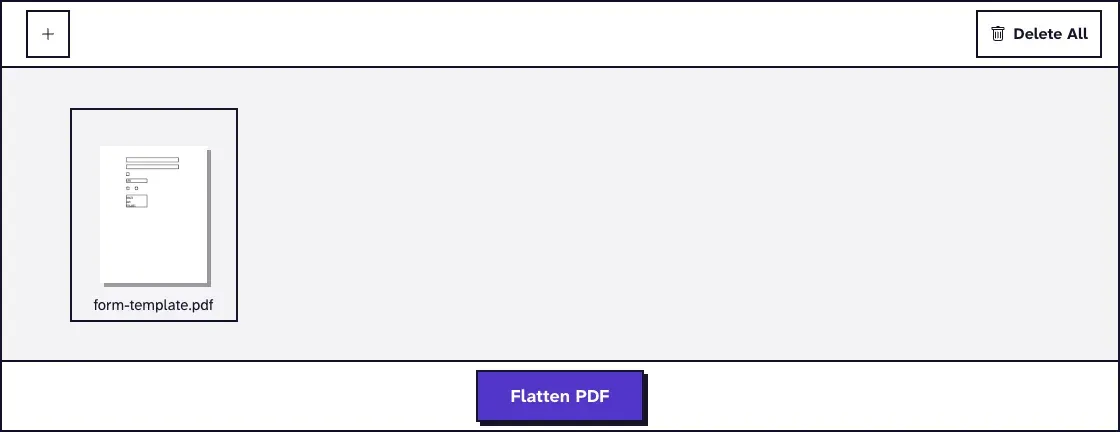
Keep the unflattened copy for yourself. Once a form is flattened, nobody can change the answers in a reader, and getting the fields back is hard, as our guide to unflattening a PDF explains.
Frequently Asked Questions about How to Fill Out a PDF Form
Why can't I type in my PDF form?
The form has no fields (it's a scan or a printed PDF) or it uses XFA, which some readers can't fill. Add text boxes on top, or open an XFA form in Firefox or Adobe Acrobat Reader.
Why did my answers disappear after saving?
You may have printed or closed the file without saving. In a browser, download the filled copy; printing to paper doesn't save the answers into the file. If someone else sees blanks, check it in a second reader, as above.
Can I fill out a PDF form without Adobe?
Yes. Preview, Chrome, Edge, Firefox and our Fill Out PDF Form tool all fill standard fields for free. XFA forms need a reader that handles them, such as Firefox or Adobe Acrobat Reader.
Are my answers private when I fill a form online?
Our tool sends the PDF over HTTPS and deletes the upload and the filled copy within two hours. For forms with health or tax details, a reader on your own device keeps the file off any server.
Weighing a paid service instead? Here's how to judge whether pdfFiller is safe.