
Turn a PDF Into a Link With Google Drive, Dropbox, WordPress or HTML
Share a PDF as a link that opens in the browser, instead of an attachment that bounces.

To turn a PDF into a link, upload it somewhere online and copy its address: a cloud drive like Google Drive or Dropbox, or your own website. Then set who can open it, and anyone with the link can view the PDF in their browser.
A link avoids attachment size limits, and on your own site, replacing the file at the same address gives everyone the new version without a second email.
Link or Attachment: Which Should You Send?
Send a link when the file is big, when you'll update it, or when many people need it. Send an attachment when the reader may be offline, or when they need a copy that can't change after you send it.
A link also depends on the place it points to. Delete or move the file, and the link stops working for everyone. Our post on creating a PDF link compares cloud storage, your own site and PDF hosts.
Why Doesn't a Path I Copied From My Computer Work as a Link?
A file:/// path points at a file on your computer. The standard for these addresses (RFC 8089) says a file URI identifies a file on a host.
In Chromium on a Mac in November 2026, a web page couldn't open one, even on that same Mac: the click did nothing and the browser logged "Not allowed to load local resource". So upload the PDF first, and copy the https address the service gives you.
Prepare the PDF Before You Share the Link
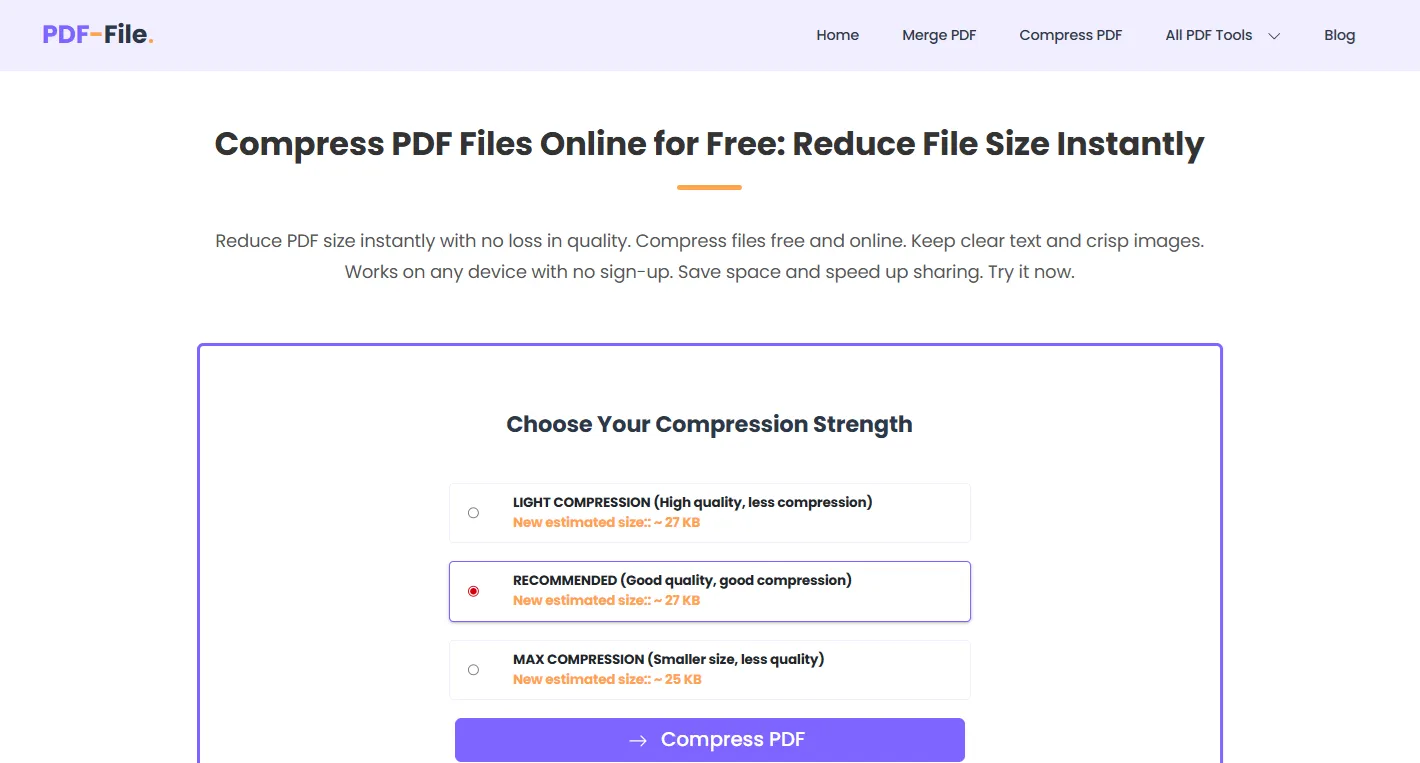
- A big file opens slowly even from a link. Shrink it with Compress PDF first.
- Take out drafts and internal notes with Remove PDF Pages.
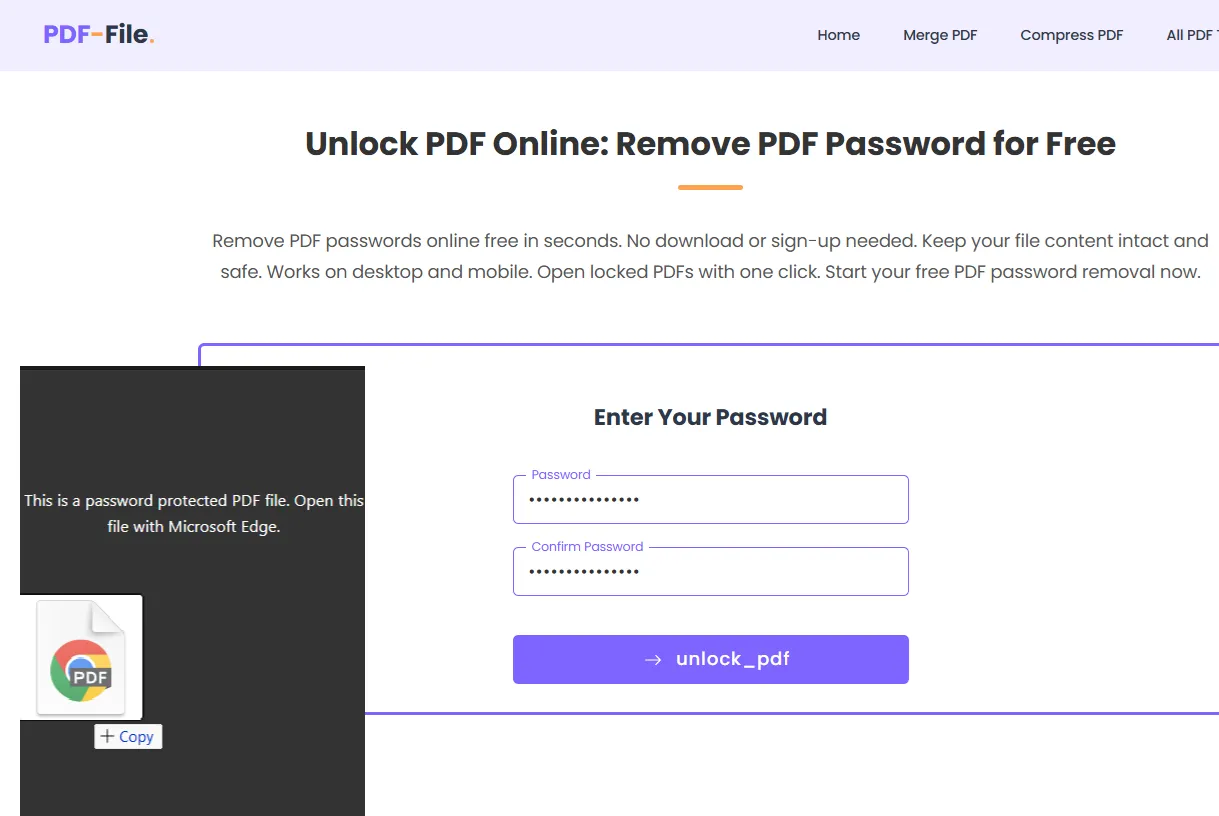
- A PDF with an open password asks every reader for it. If everyone should read it freely, remove the password with Unlock PDF (you need to know it).
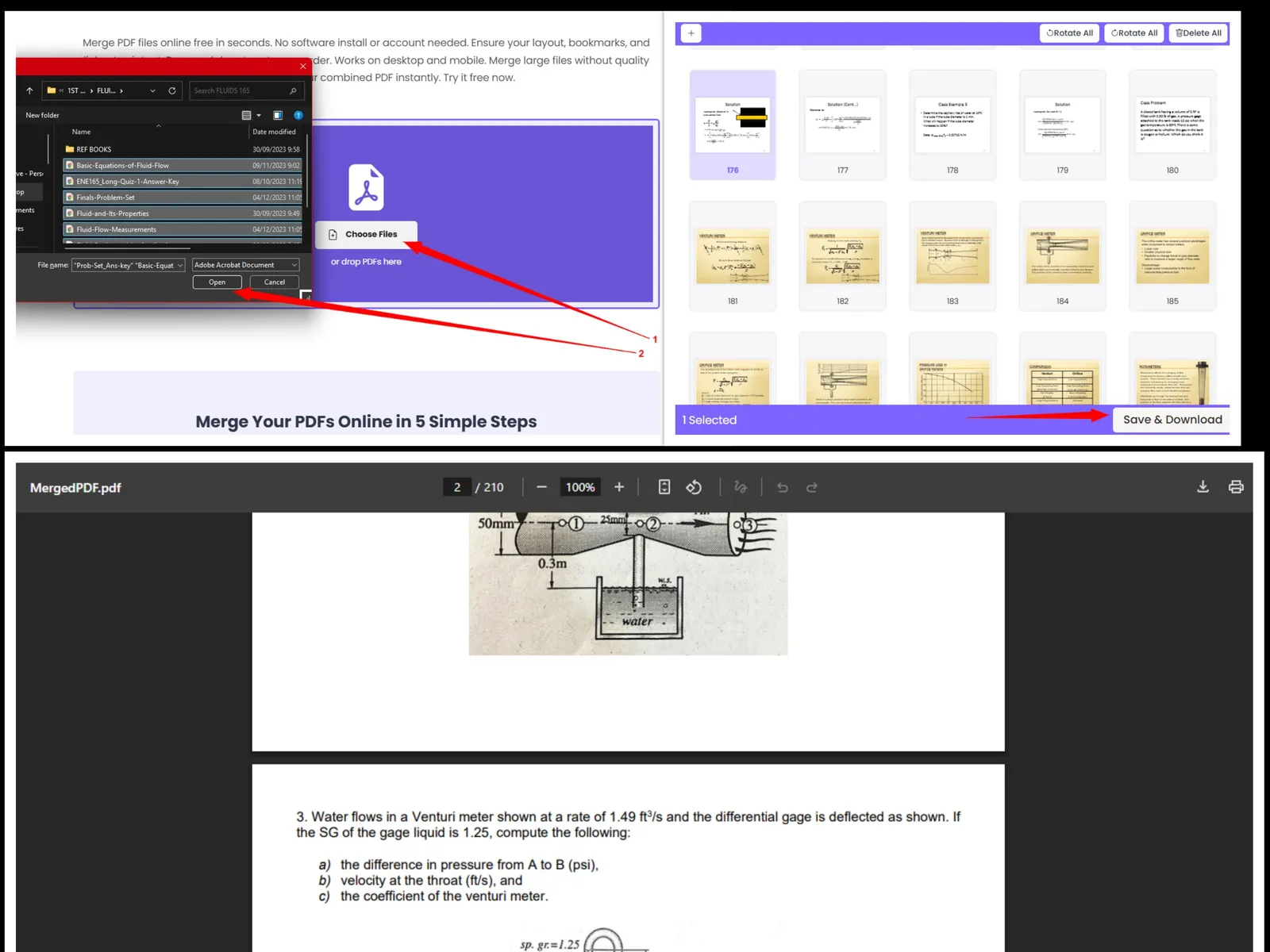
- Several related files? Combine them with Merge PDF and share one link instead of five.
Turn a PDF Into a Link With Google Drive
Google Drive's help page on sharing files describes the link settings. In short:
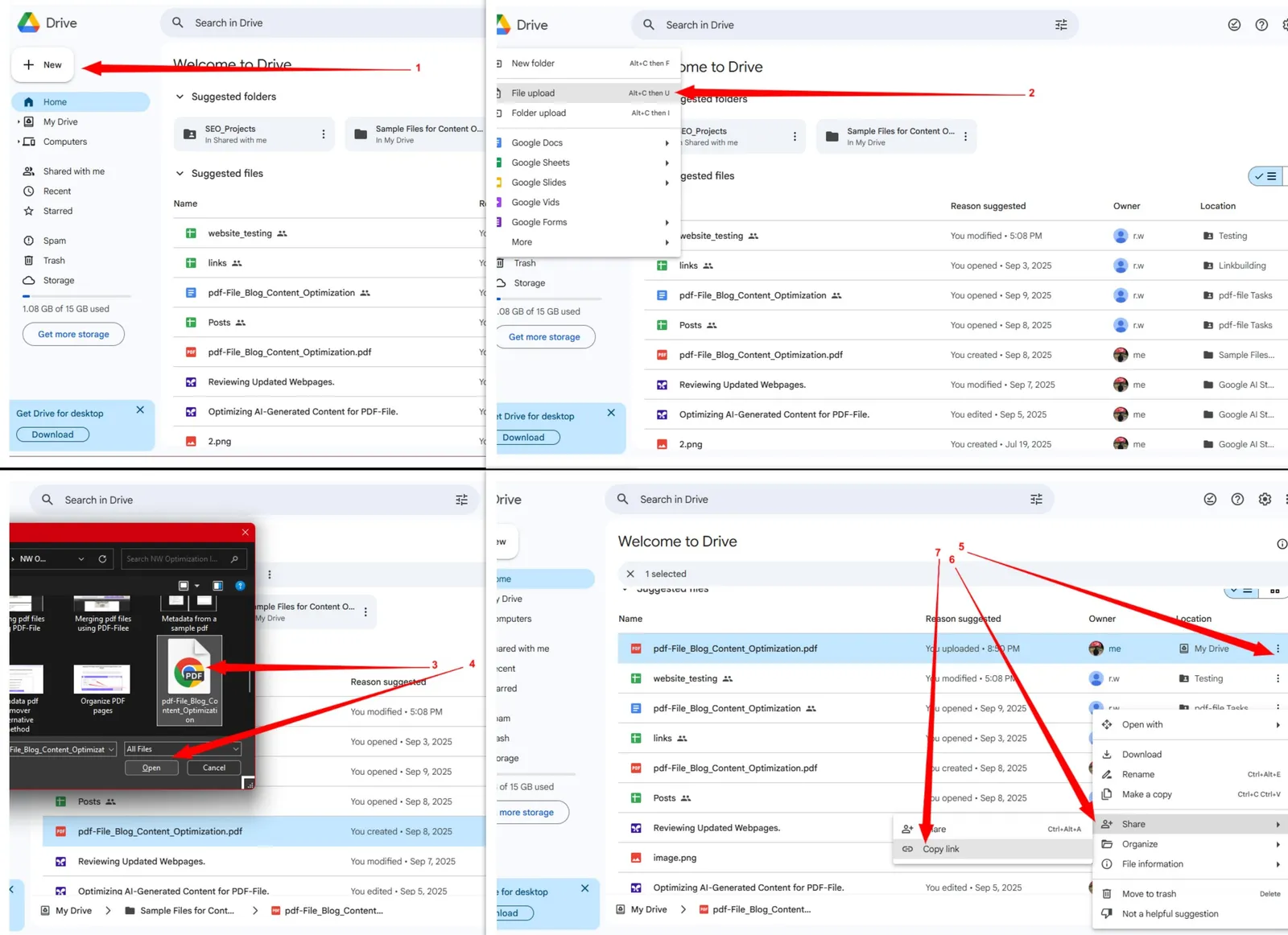
- Open Google Drive, click New, then File upload, and pick your PDF.
- Select the uploaded file and click Share.
- Under General access, change Restricted to Anyone with the link.
- Leave the role at Viewer, click Copy link, then Done.
Keep Restricted and add people by email instead if only some should see it.
Turn a PDF Into a Link With Dropbox or OneDrive
Dropbox and Microsoft OneDrive work much the same way: upload the PDF, share it and copy the link. Check the permission first, as the two differ.
- Dropbox: click Share, Copy link, then Manage, and select Link for viewing.
- OneDrive: click Share, open the link settings and choose Anyone. Microsoft says Allow editing is on by default, so turn it off.
Link to a PDF on Your Website or WordPress
On WordPress, upload the PDF under Media, open it in the Media Library and click Copy URL to clipboard. Then select some text in a post, click the link button and paste the address.
On a plain HTML site, upload the PDF next to your pages and link to it:
1<!-- Simple PDF link -->
2<a href="https://example.com/document.pdf">View PDF</a>
3
4<!-- PDF link that opens in a new tab -->
5<a href="https://example.com/document.pdf" target="_blank">View PDF in new tab</a>
6
7<!-- PDF link that forces download -->
8<a href="https://example.com/document.pdf" download>Download PDF</a>
The download attribute only works for files on your own site. MDN's page on the a element explains that browsers ignore it for links to other domains.
A styled button works the same way:
1<!-- Styled button for PDF download -->
2<a href="document.pdf" download class="pdf-button">
3  <span class="icon">📄</span>
4  <span class="text">Download PDF Guide</span>
5</a>
6<style> .pdf-button { display: inline-block; background-color: #007bff; color: white; padding: 10px 15px; border-radius: 4px; text-decoration: none; font-weight: bold; } .pdf-button:hover { background-color: #0056b3; } .icon { margin-right: 8px; } </style>
Thinking of a linearized PDF for a big file? Chrome ignored it in our test, so don't count on it for speed. To show the PDF inside the page instead of linking to it, see our guide to embedding a PDF in HTML.
Share the PDF Link by Email, Chat or Social Media
Paste the link into an email, a Slack or Teams message, or a post on LinkedIn or Facebook. Use a few words of link text that say what the file is ("2026 price list, PDF") rather than a bare address.
Keep a Shared PDF Link Private
"Anyone with the link" means exactly that: whoever gets the link, forwarded or not, can open the file. For anything confidential, share with named people only, or lock the PDF itself with Protect PDF and send the password through a different channel.
Looking for the opposite, a clickable link inside a PDF? That's covered in our guide to adding a hyperlink to a PDF.
Frequently Asked Questions about Turn PDF Into Link
How do I turn a PDF into a link for free?
Upload it to Google Drive, Dropbox or OneDrive, set the sharing to anyone with the link, and copy the link.
Can I turn a PDF into a link without a Google account?
Yes, if you have a website: upload the PDF there and use its address. Otherwise you'll need an account with another cloud drive.
Will the link still work if I update the PDF?
On your own site, yes, if the new PDF has the same name in the same folder. Google Drive has Upload new version under Manage versions, but its help page doesn't say the link stays the same, so open your link afterwards.