Batch Process Multiple PDFs — Merge, Compress, OCR All at Once (2026 Guide)
This guide explains ho to batch process multiple PDFs at once

You have 50 PDFs to compress. Or 100 pages to merge. Or 30 documents to OCR.
One at a time? That takes hours. Batch processing does it all at once.
Actual example: An office administrator was preparing end-of-year document archives — 80 PDFs from different departments needed compressing, organizing, and splitting. Processing them one at a time would have taken all day. Batch processing handled all 80 files in under 15 minutes, letting her finish the archive and leave on time.
Why Batch Processing Matters
One-at-a-Time Takes Hours
Single-file processing: upload, wait, download, repeat. For 10 files that is 10 separate operations. For 50 files it becomes tedious. For 100 files it is impractical.
Batch Does It All at Once
Batch processing: upload all files at once, select the operation, apply to all files in one go, and download all results together. All files are processed simultaneously and the entire job completes in a fraction of the time.
Better for Large Projects
Batch processing does well with large projects: archive preparation, document digitization, multi-file conversions, and ongoing workflow automation.
What You Can Batch Process
Batch Merge PDFs
Combine multiple PDFs at once: upload all files to merge, arrange the order, combine into one PDF, and download the merged result.
Batch Compress PDFs
Reduce all PDF file sizes simultaneously: upload multiple files, apply compression to all, and download all compressed files. Each file is compressed independently.
Batch OCR PDFs
Convert multiple scanned PDFs to searchable: upload all scanned PDFs, OCR runs on all files simultaneously, and all PDFs become searchable.
Batch Convert PDFs
Convert multiple files to another format: batch convert PDF to Word, convert multiple PDFs to JPG, batch convert to PNG, and convert all at once.
Batch Add Watermarks
Add watermarks to multiple PDFs: upload all files, set watermark text and position, apply to all files, and download all watermarked.
Batch Password Protect
Secure multiple PDFs: upload all files, set password, apply to all documents, and download all protected.
How to Batch Process PDFs
Step 1: Upload All Files
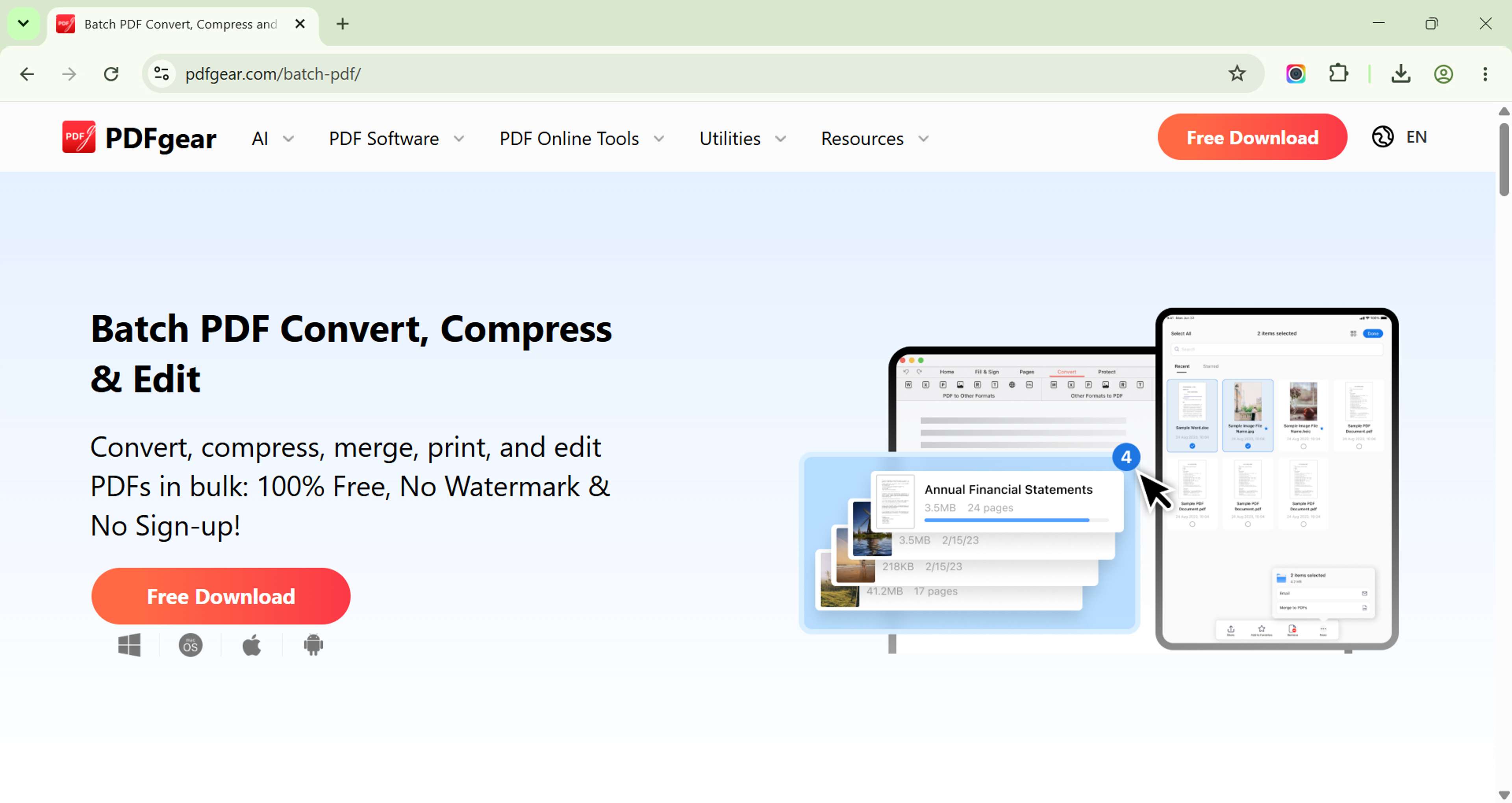
Go to the free PDFgear batch PDF processor. Upload files by dragging multiple files at once, selecting all files from a folder, or uploading the entire batch in one action. Supported formats: PDF, JPG, PNG, Word, Excel, and more depending on the operation.
Step 2: Select the Operation
Choose what to do: merge all into one document, compress all files, run OCR on all scanned documents, convert all files to a new format, add watermark to all files, or password protect all files.
Step 3: Configure Settings
For merge: arrange the order and set output file name. For compress: choose compression level (extreme, balanced, or low). For OCR: select language and output format. For convert: choose target format. For watermark: set text, position, and style. For protect: set password and permissions.
Step 4: Process All at Once
Click start: all files are processed simultaneously, each file gets the operation applied, progress shows for each file, and the entire batch completes in one pass.
Step 5: Download All Results
Download results: download as a ZIP containing all processed files, download individual files, or download selected files. All files are ready.
Common Use Cases
Archive Preparation
Large-scale archive work: upload all documents to archive, batch compress all files for storage efficiency, batch add watermarks for branding, and download organized archive ready for storage.
Document Digitization Project
Digitizing physical documents: upload all scanned files, batch OCR all documents, convert all to searchable PDF, and download a fully digitized document collection.
Bulk Contract Processing
Multiple contracts to prepare: upload all contract PDFs, batch compress for email delivery, batch password protect for security, and batch send or store.
Report Consolidation
Reports from multiple sources: upload all report files, batch merge by category, batch compress final output, and create organized final reports.
Multi-Language Document Processing
International document handling: upload all multilingual PDFs, batch run multi-language OCR, batch translate all files, and download all processed documents.
Batch Settings and Options
Merge Settings
Set the order: drag to rearrange, use alphabetical order, or use the order uploaded. Output options: single combined file, separate files for each group, and named output files.
Compression Settings
Extreme: maximum reduction for email. Balanced: recommended for business. Low: minimum loss for print quality.
OCR Settings
Language: select for accuracy (auto-detect available). Output: searchable PDF, plain text, or Word document.
Watermark Settings
Text: custom text, page numbers, or date. Position: corner, center, or tiled. Style: font, size, color, and opacity.
Password Settings
Password: set encryption password. Permissions: printing, copying, editing restrictions. Output: individual protected files or combined.
Tips & Best Practices
- Pro tip 1: Name your files descriptively before uploading — the output files inherit those names, so "ContractPart1.pdf" and "ContractPart2.pdf" become "ContractPart1compressed.pdf" and "ContractPart2compressed.pdf."
- Pro tip 2: For very large batches (100+ files), consider processing in batches of 50 to keep the browser responsive and avoid timeouts.
- Common mistake to avoid: Don't close the browser window during processing — the tool needs to remain open to complete all files.
Related Tools / Free Tool CTA
- Batch process multiple PDFs — merge, compress, OCR, and convert all files at once.
- Compress PDF — single file compression.
- Merge PDFs — combine two or more files.