
HTML File to PDF: Convert Saved Pages and HTML Code, With Print CSS That Works
A local .html file or a snippet of HTML code, turned into clean PDF pages. Here's the browser route, our converter, and the CSS rules that decide how the pages come out.

To convert an HTML file to PDF, open it in your browser and print it with Save as PDF, or upload it to our free HTML to PDF converter, which renders it in a real browser engine. Either way, how the pages look depends on the file's print CSS more than on the tool.
This guide is about files on your computer and HTML code you wrote or generated. For pages that are already online, see the last section.
Browser Print or Converter: Which to Use for a Local HTML File
Your browser's print loads the stylesheets and images saved next to the file, because relative paths like css/style.css still point somewhere on your disk. That makes it the right choice for a page you saved with its folder of assets.
Our converter takes one or many files at once and gives you the same result on any computer. Only the HTML file gets uploaded, though, so it suits self-contained files: CSS in a style element, images embedded or linked by a full public https:// address.
Convert an HTML File to PDF in Your Browser
- Open the .html file in Chrome (drag it into a window).
- Press Ctrl+P on Windows or Linux, or Cmd+P on a Mac.
- Choose Save as PDF as the destination.
- Click Save.
On a Mac, any app can do it through Apple's route: File, then Print, then the PDF pop-up menu, then Save as PDF.
If colored boxes print white, the file can ask for them itself. With Chrome's background printing off, our blue test band came out white, and adding print-color-adjust: exact to its CSS kept it blue (November 2026, Chrome on a Mac).
Convert HTML Files With Our HTML to PDF Converter
HTML to PDF opens your file in headless Chromium on our server, runs its scripts and waits until the page stops loading, then prints it with background colors and images switched on.
- Click Choose Files and pick one or more .html or .htm files of up to 25 MB each.
- Check the list and remove any file you don't want.
- Click Convert.
- Download the PDF, or a ZIP with one PDF per file.
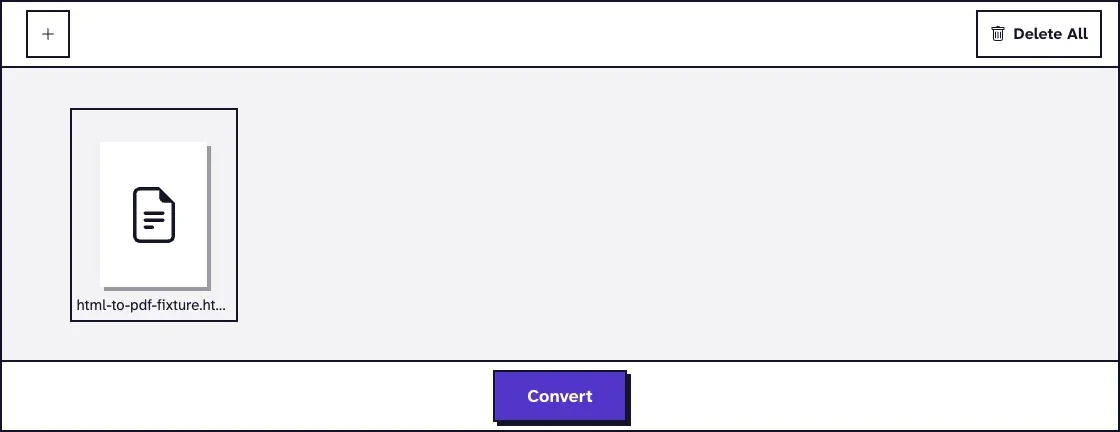
We uploaded a 572 B test file in October 2026 and got a one-page PDF of 39.0 KB after 2.4 seconds. Text stays selectable and links stay clickable; form fields print the way they look and don't become fillable.
We ran more test files through the page in November 2026, in Chrome on a Mac. Colored bands and a background image printed with no setting, a Google Font was embedded, and Chinese, Arabic, Hindi and emoji all rendered with no web font.
Scripts have a time limit in practice: text drawn by a timer after 0.2 and 0.8 seconds reached the PDF, and text drawn after 3 seconds didn't. Uploads and PDFs get deleted from our server within two hours.
Turn HTML Code Into a PDF
The converter doesn't have a paste box, so save the code as a file first:
- Paste the code into a plain text editor such as Notepad or TextEdit (in TextEdit, choose Format, then Make Plain Text).
- Save it as page.html with UTF-8 encoding.
- Print it from your browser or upload it to HTML to PDF.
Put the CSS inside a style element in the same file, and embed small images as data URIs. Then nothing goes missing, whichever route you take.
Print CSS Rules That Shape the PDF
Both routes follow your print styles, so a few lines of CSS decide page size, margins and breaks. Without them, our converter uses A4 pages with a 20 pixel margin.
1@page { size: A4; margin: 15mm; }
2@media print { nav, .no-print { display: none; } }
3h2 { break-after: avoid; }
4tr { break-inside: avoid; }
The @page rule sets the paper size, orientation and margins, and our converter uses the size you set there. An @media print block hides menus and buttons that make no sense on paper.
Long tables print well when the header row sits in a thead element: it repeats on every page. Our 300 row test table came out as 8 A4 pages of 361.5 KB with the header on each one, and no row got cut in half.
Page numbers need no setting on our side. A rule such as @page { @bottom-center { content: "Page " counter(page) " of " counter(pages) } } put "Page 1 of 4" to "Page 4 of 4" at the foot of our test file.
Why the PDF Shows the Phone Layout
Responsive pages often print their narrow layout, which caught us out. Our test page with breakpoints at 768 and 1024 pixels printed its phone version on A4 portrait and landscape alike.
An @media print block that shows the desktop elements fixed it. If your PDF looks like a phone screen, that's the place to look.
Web Pages and Other Saved Formats
A page that's online is easier to convert by address: Webpage to PDF loads it like a new visitor and saves the PDF. Pages behind a login need your own browser's print instead.
Other saved formats take their own route. A downloaded .aspx file is often a PDF or an HTML page in disguise, as our guide to converting ASPX to PDF explains, and Safari's archives are covered in webarchive to PDF. Single-file pages saved by Chrome or Edge go through MHTML to PDF.
An EPUB ebook is HTML inside too, but it's built to reflow, which is why our comparison of EPUB and PDF by device comes out the way it does.
Frequently Asked Questions about HTML File to PDF
Why are images or styles missing from my PDF?
They're linked by a relative path that the converter can't reach, because only the HTML file gets uploaded. Embed them in the file, link them by a full public URL, or print the file from your own browser.
Can I convert several HTML files at once?
Yes. Upload them together and you get one PDF per file in a ZIP. To make one document of them, combine the PDFs with Merge PDF.
Does JavaScript run before the PDF is made?
Yes. Chromium runs the page's scripts and waits until it stops loading resources, then prints what's on the page. In our November 2026 test, text from a 0.8 second timer made it and text from a 3 second timer didn't.
Can I add page numbers to an HTML file's PDF?
Yes, with a CSS page margin box such as @bottom-center inside an @page rule.