
How to Print Multiple PDF Files at Once on Windows and Mac
Four ways to send a stack of PDFs to the printer in one go, and the one that keeps them in the order you set.

To print multiple PDF files at once on Windows, select them in File Explorer, right-click and choose Print; on a Mac, an older UCLA guide says to drag them onto your printer's queue. If the order matters, merge the PDFs into one file first and print that.
A merged file is one document, so its pages print in the order you set. With separate files, none of the pages we read promises an order.
Before You Print: Check the Files
- Sideways pages? Scans often are. Turn them with Rotate PDF Pages before you print. A scan tilted by just a few degrees needs a deskew instead, covered in our guide to straightening a skewed scan.
- Pages you don't need? Blank pages and appendices waste paper. Take them out with Remove PDF Pages.
- Print button grayed out? The PDF restricts printing. Our guide on how to print a secured PDF covers what to do.
How to Print Multiple PDF Files at Once on Windows
- Open File Explorer and go to the folder with your PDFs.
- Select the files: Ctrl+A for all, or Ctrl+click for some.
- Right-click the selection and choose Print.
You don't get a settings dialog. An older UCLA IT guide says the job goes to the last printer you used, so run a test print first.
How to Get Past the 15-File Limit in File Explorer
Microsoft documents a registry value for this. The Print entry disappears above 15 selected items by design, to stop you from acting on many files by accident, and its troubleshooting page (written for Windows 10) gives the change. We didn't run it, as we have no Windows machine here.
- Open Registry Editor (regedit) and go to HKCU\Software\Microsoft\Windows\CurrentVersion\Explorer.
- Set a DWORD named MultipleInvokePromptMinimum (create it if it isn't there), in decimal, to more than the number of files you'll select. The default is 15.
- Sign out and back in, or restart Explorer.
Don't use 16. Microsoft says that value shows the menu entries for any number of files, but won't open more than 16 of them. It also recommends raising the value only to a reasonable number, in a controlled environment, where someone really needs it.
If you'd rather leave the registry alone, print in batches of 15, or merge the files as described below.
How to Print Multiple PDF Files at Once on a Mac
This route comes from that older UCLA guide, written when the setting was called System Preferences. Open the printer's queue (now in System Settings, Printers & Scanners, select the printer and open its queue). Drag the PDFs from Finder onto the queue window, and the guide says they start straight away.
Apple's guide to printing documents on your Mac covers the print dialog itself.
Merge First, Then Print: The Method That Keeps the Order
Combining the PDFs into one file turns a batch job into a single print. You set the print options once, and the pages come out in exactly the order you arranged them. A score and parts from our Dorico export PDF guide are a typical case, and so is a tax packet, put in order in our guide to merging PDF documents for a tax return.
- Open Merge PDF and click Choose Files, then pick all your PDFs.
- Drag the page thumbnails into the order you want, or use each page's move buttons.
- Click Save & Download to get one merged PDF.
- Open it and print with Ctrl+P (Cmd+P on a Mac).
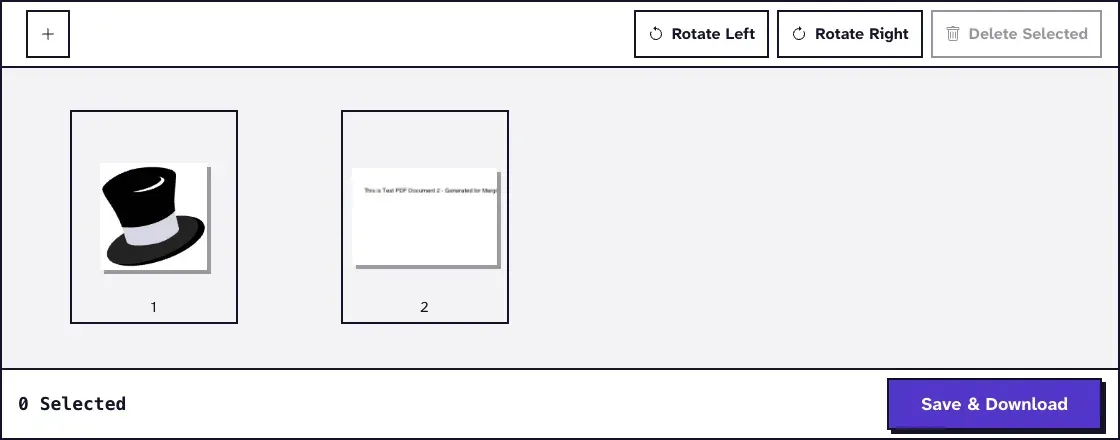
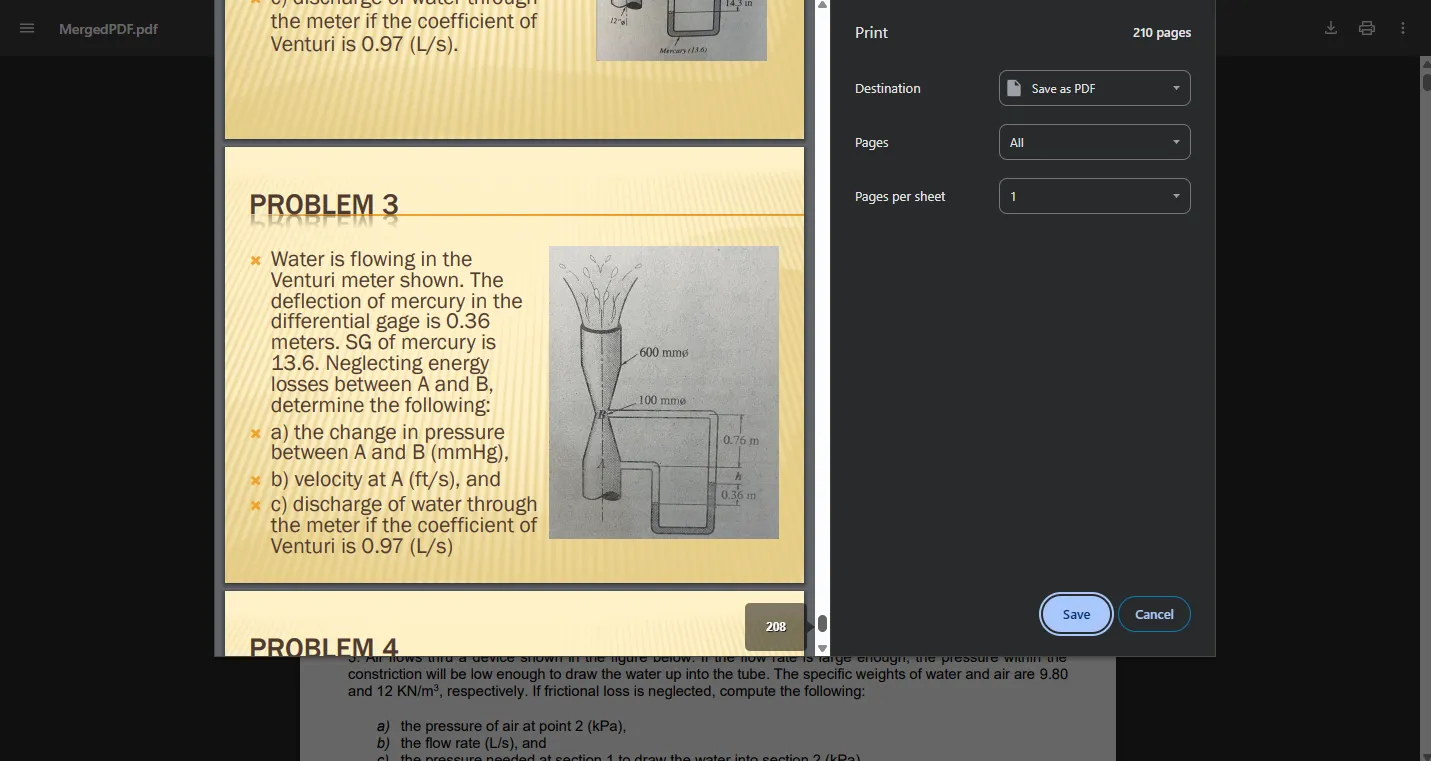
The merge runs in your browser, so the files never get uploaded. It handled a big stack too: in November 2026, in Chromium on a Mac, we passed it 200 small generated one-page PDFs in name order and got 200 pages in that order, in about a second.
One catch: the merger doesn't sort by file name. When we added 10.pdf, 1.pdf and 2.pdf in that order, 10.pdf stayed first, so check the first thumbnail of each file.
Plotting a drawing set from CAD first? Our guide to batch converting DWG to PDF gets the sheets out as PDFs, ready to merge here.
Save Paper: Print Several Pages per Sheet
Slides and proofs don't need a full sheet each. Multiple Pages per Sheet puts 2, 4 or more PDF pages on one sheet, so a 12-page file fits on three sheets at four per sheet.

Merge the files first, then run the merged PDF through it, and you'll print the whole stack in one short job. To fill a sheet with copies of one page, make the copies first as our guide to duplicating a page in a PDF shows.
Printing Many PDFs From the Command Line on a Mac
On a Mac, lpr comes with the system (open Terminal to use it). Its manual says files named on the command line go to the printer you name, or to the default one:
1lpr report.pdf invoice.pdf letter.pdfAdd -P printername to pick another printer. To print them in a fixed order, make one file with Merge PDF and run lpr combined.pdf.
PowerShell's Start-Process has a Print verb, but Microsoft shows it only on a text file and says the verbs depend on the file's extension. On Windows, use File Explorer or the merged file.
Frequently Asked Questions about Print Multiple PDF Files at Once
Can I print multiple PDFs without opening each one?
Yes. Right-click a selection in File Explorer and choose Print, or drag the files onto the printer queue on a Mac.
Why don't my PDFs print in the order I selected them?
None of the pages we read promises an order for separate files. Merge the PDFs into one file first if the order matters.
Why is Print missing when I right-click my PDFs on Windows?
Above 15 selected files, Microsoft says it's by design. Select fewer at a time, or merge them into one PDF, which also works if Print is missing with only a few files selected.
Can I use different print settings for each PDF?
Not from the right-click menu, which shows no settings dialog. Print the odd ones out separately from your PDF reader.
How do I print only some pages from each PDF?
Take out the pages you need first, for example with Extract PDF Pages, then merge and print the result.