Combine Photos Into One PDF: Free Ways on Windows, Mac and Online
Put a stack of photos, scans or screenshots into one PDF, in the right order, on whatever device you're holding.
To combine photos into one PDF, upload them all to a JPG to PDF converter, drag them into order and download a single PDF with one photo per page. Without uploading, Windows does it with Microsoft Print to PDF and a Mac with Preview.
The online route gives you the most control over order, page size and margins. The built-in ones keep everything on your device.
Combine Photos Into One PDF Online
JPG to PDF puts each JPG on its own page and lets you set the order, page size and margin first.
- Click Choose Files and select all your photos, or drag them onto the page.
- Drag the previews into the order you want. Use Rotate Right on any photo that's sideways.
- Pick the page size (A4, Letter or Fit to Content), the orientation and the margin.
- Keep Merge all images in one PDF file ticked.
- Click Convert To PDF and download the file.
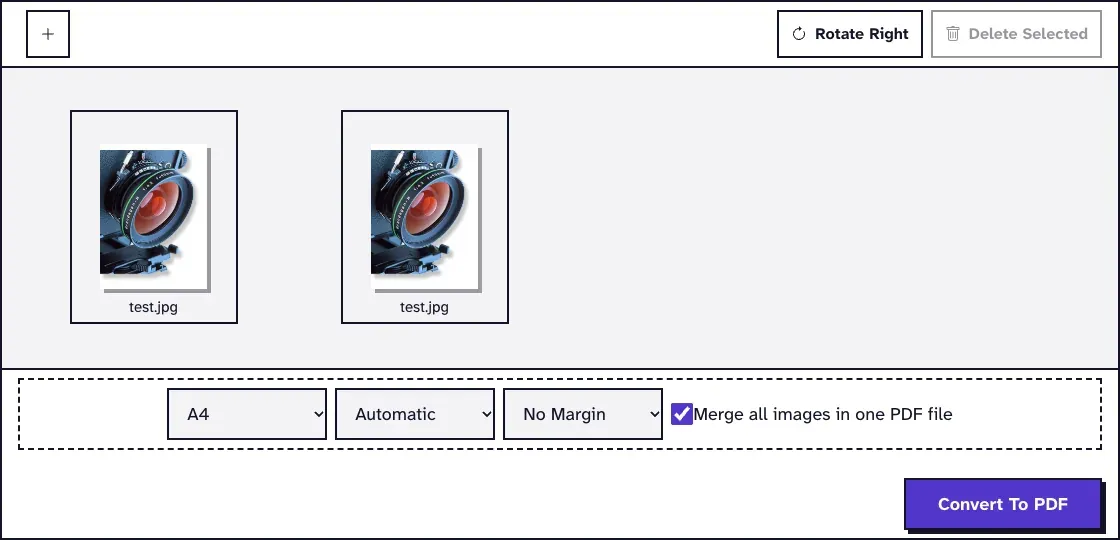
Orientation set to Automatic turns each page to suit its photo, landscape for wide ones and portrait for tall ones. In November 2026, the same 36.5 KB JPG uploaded twice gave a two-page PDF of 62.3 KB with the default settings.
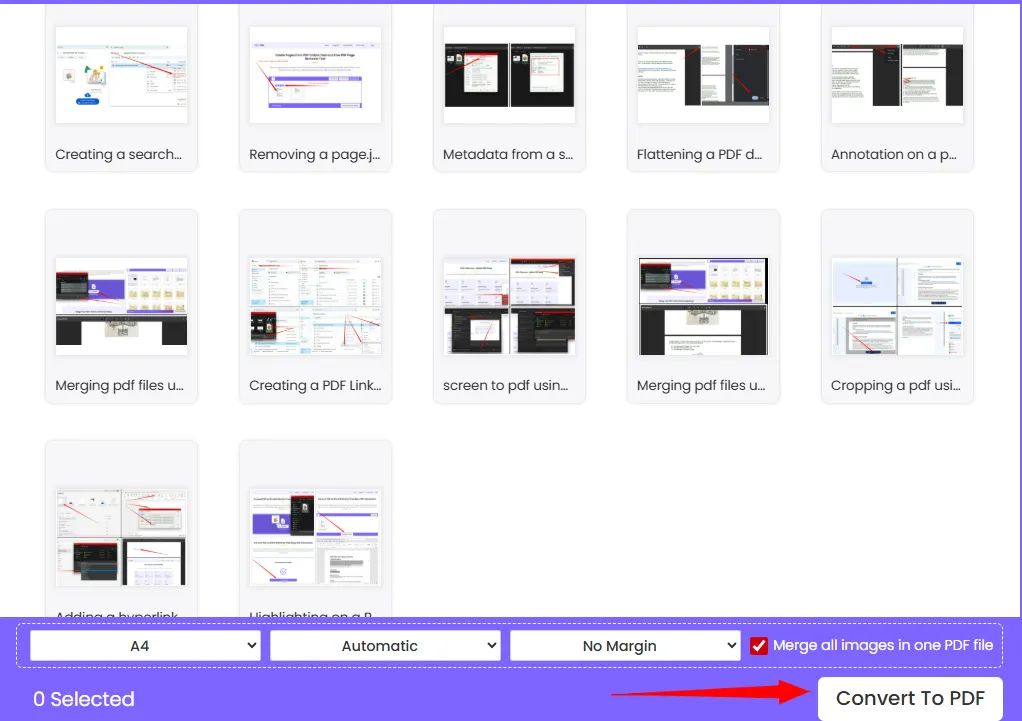
Here's the same screen with a bigger batch, a dozen screenshots ready to become one PDF:
Does Combining Photos Into a PDF Lose Quality?
Not for a photo stored upright, in the runs we did in November 2026 with JPG to PDF and Merge Images to PDF (Chrome on a Mac, a generated 12-megapixel JPEG and a small test JPG). The 3,489,696 B file came back out of the PDF byte for byte. The test JPG lost only its metadata, and every pixel matched.
Page size doesn't change that. A4 and Fit to Content held the same 218 x 271 image, and only the size it's drawn at differed.
The exception is a JPEG stored sideways with an EXIF orientation tag. Both tools turned our test photo upright on their own, with no Rotate Right, but they had to re-encode it to do that (JPEG quality 92 in our code). Pixels on our noisy test image moved by up to 23 levels out of 255, and the pixel size stayed the same.
Mixing JPG, PNG and BMP Photos
JPG to PDF takes JPGs only, and PNG to PDF works the same way for PNGs (screenshots usually are, and our screenshot to PDF guide covers them on every device). When your folder holds a mix, use Merge Images to PDF: it takes JPG, PNG and BMP together, up to 25 MB per image and 500 MB in all. Our bitmap to PDF guide explains why BMP files are so large and how much a PDF saves.
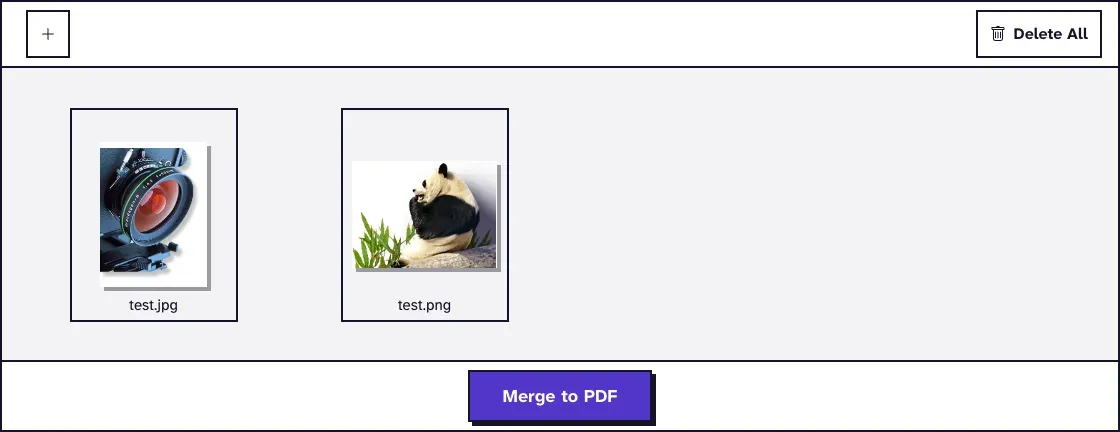
Each page there takes the size of its image, so a wide screenshot makes a wide page. For one paper size throughout, convert with JPG to PDF instead. Our guide to combining screenshots into one PDF covers a long series of captures.
iPhone photos in HEIC format need converting first. Our guide to turning HEIC photos into a PDF on iPhone covers that, and AVIF pictures have their own AVIF to PDF guide.
Comic pages packed in a .cbz file are images too, and our guide to converting CBZ to PDF shows how to unpack them first.
Combine Photos Into One PDF on Windows
Windows has a built-in PDF printer.
- Open File Explorer and select all the photos (hold Ctrl to pick them one by one).
- Right-click one of them and choose Print.
- Choose Microsoft Print to PDF as the printer.
- Pick a layout on the right, such as Full page photo for one photo per page.
- Click Print, then name and save the PDF.
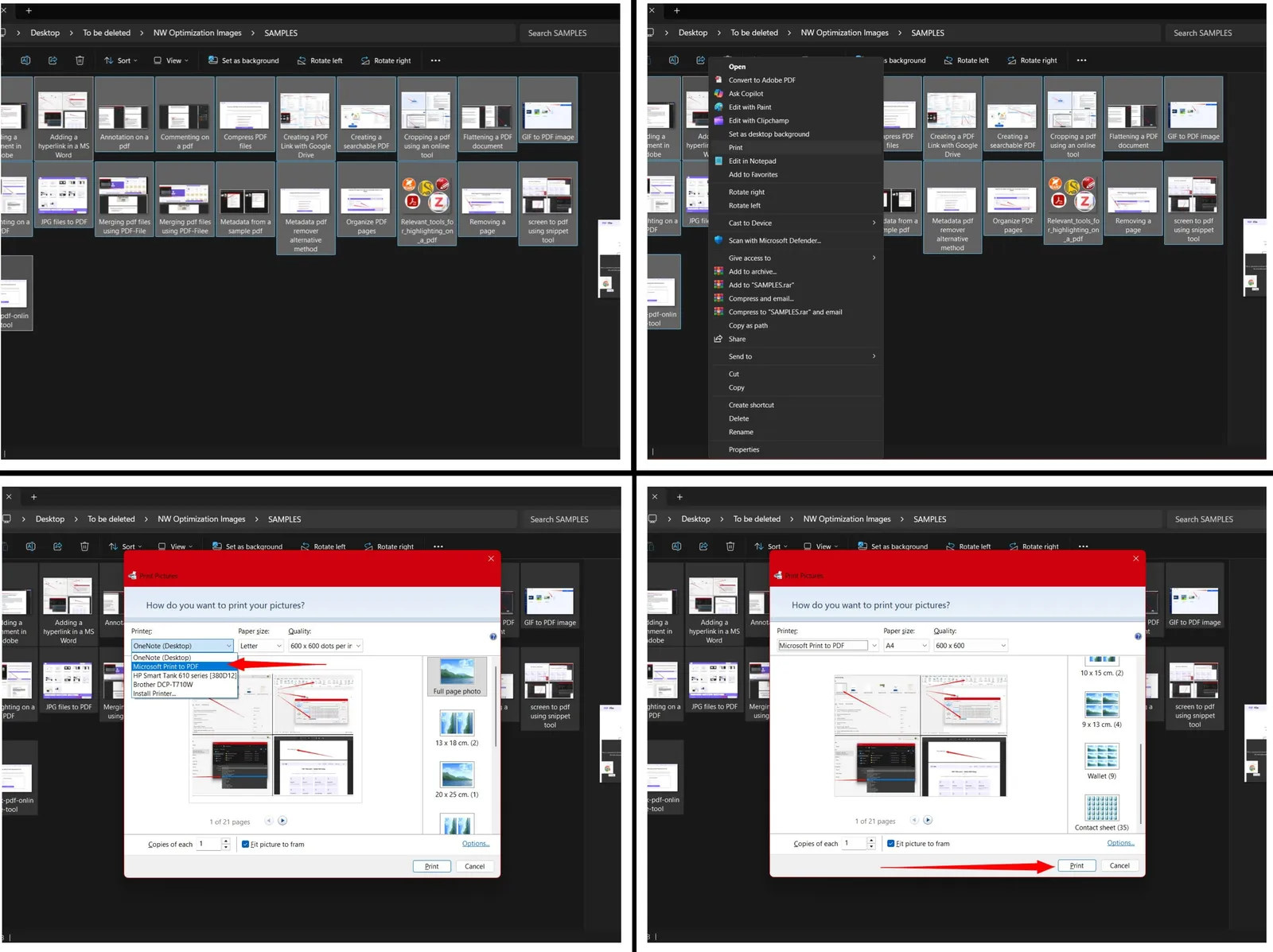
Check the order in the print preview.
Combine Photos Into One PDF on a Mac
In Finder, select the photos, Control-click, choose Quick Actions, then Create PDF (under More, if you don't see it).
For more control, use Preview:
- Select the photos in Finder, right-click and choose Open With, then Preview.
- In the sidebar, drag the thumbnails into the order you want.
- Select all thumbnails with Cmd+A.
- Choose File, then Print, click the PDF button or the arrow beside it, and choose Save as PDF.

Combine Photos Into One PDF on a Phone
Use the online route above in your phone's browser. We ran JPG to PDF in Chrome at 390 pixels wide with touch emulation on a Mac, not on a real phone, and got a two-page PDF from two photos.
How Big a 20-Photo PDF Gets, and How to Shrink It
Expect a PDF about as big as the photos added together, since upright JPEGs go in untouched. Our 20 generated 12-megapixel JPEGs (3.5 MB each, 69.8 MB in all) made a 69.8 MB PDF. Real photos will vary.
That's too big for Compress PDF, which refuses files over 25 MB. So we built the PDF in batches small enough to upload (7 photos, 24.4 MB) and compressed each one. Here's the first batch at each level:
| Level | Batch size | Pixels per photo |
|---|---|---|
| None | 24.4 MB | 4000 x 3000 |
| Light | 16.5 MB | 2204 x 1653 |
| Recommended | 2.3 MB | 1653 x 1240 |
| Max | 0.7 MB | 793 x 595 |
Use Recommended for something people will read on a screen, and keep the originals if anyone might print large. Our three batches at Recommended (7, 7 and 6 photos) went through Merge PDF to a 20-page PDF of 6.7 MB.
Need to change the order or drop a page after combining? Organize PDF Pages moves and deletes pages without starting over.
Frequently Asked Questions about Combine Photos Into One PDF
How do I combine photos into one PDF without losing quality?
Upload them to JPG to PDF or Merge Images to PDF and don't compress unless you have to. In our test, upright JPEGs kept every pixel at both A4 and Fit to Content, so page size isn't the thing to worry about.
Can I combine photos of different sizes into one PDF?
Yes. With A4 or Letter, each photo is scaled to fit its page without stretching or cropping, so pages look the same size while the photos keep their shape.
How do I set the order of the photos?
Drag the previews into order before you convert. On a Mac, drag the thumbnails in Preview. On Windows, check the order in the print preview.
Is there a limit to how many photos I can combine?
We didn't hit one. JPG to PDF takes up to 25 MB per photo, and our 20 photos at 69.8 MB went through. Merge Images to PDF takes up to 25 MB per image and 500 MB in total.