
Screenshot to PDF: How to Save One or Many Screenshots as a PDF on Windows, Mac or Online
The built-in way on Windows and Mac, and the browser route that puts a whole folder of captures into one file.

To turn a screenshot to PDF, open it and print it with Microsoft Print to PDF on Windows, or use File, then Export in Preview on a Mac and pick PDF. For several screenshots in one PDF, upload them all to an image-to-PDF tool like our Merge Images to PDF and download a single file.
Screenshots are image files, usually PNG, so this is really an image-to-PDF job. Only the route changes from one computer to another.
Convert Screenshots to PDF Online
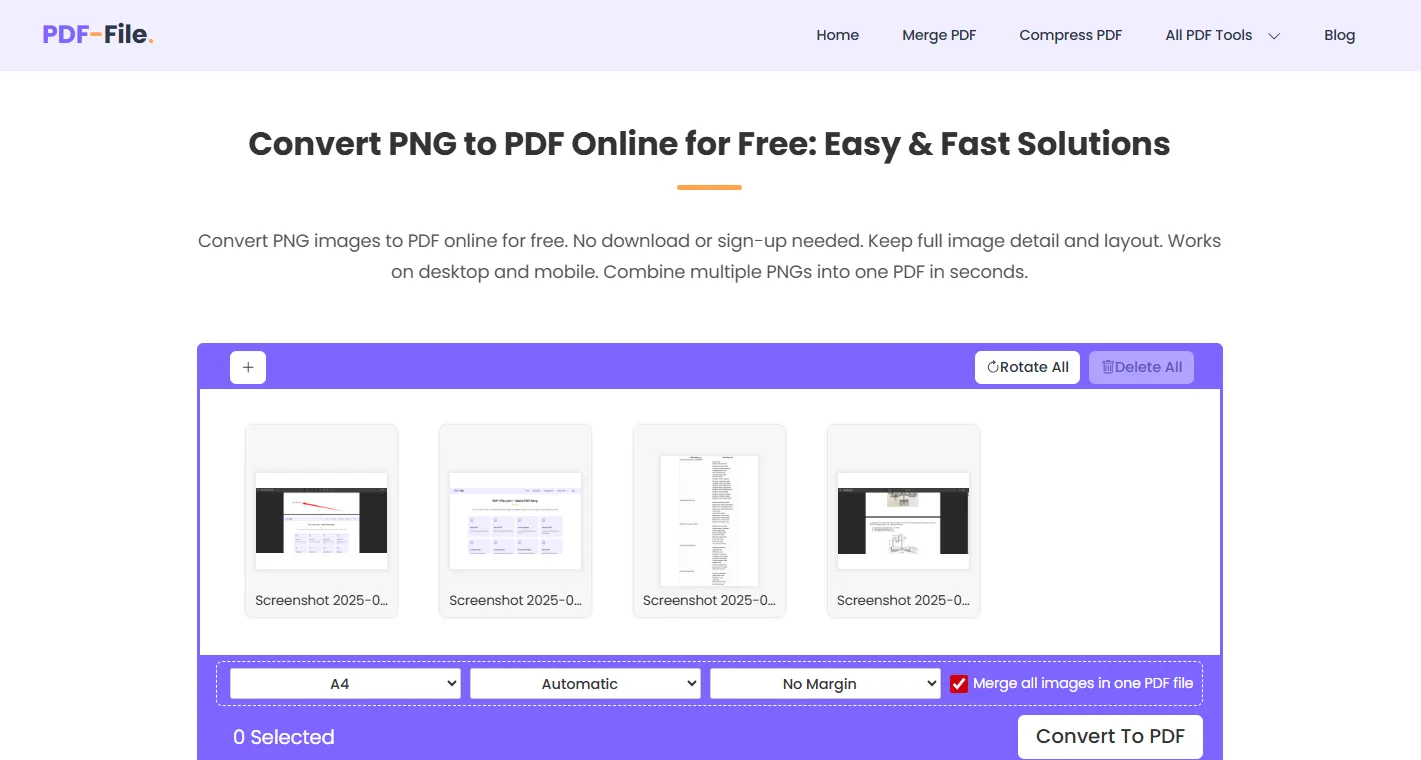
This runs in your browser, with nothing to install.
- Open PNG to PDF (or JPG to PDF if your screenshots are JPGs).
- Choose your screenshots or drag them into the upload area.
- Drag the previews into reading order and pick a page size and margin.
- Leave "Merge all images in one PDF file" ticked to get one PDF.
- Click Convert To PDF and download it.
PNG goes into the PDF without loss, so screenshot text stays sharp. The flip side is size. When we converted a 1920 by 1080 screenshot of 157,936 bytes, the PDF was 159,047 bytes, within about 1%.
If the file has to be small, run it through Compress PDF afterwards, then check that small text is still readable.
How to Save a Screenshot as PDF on Windows
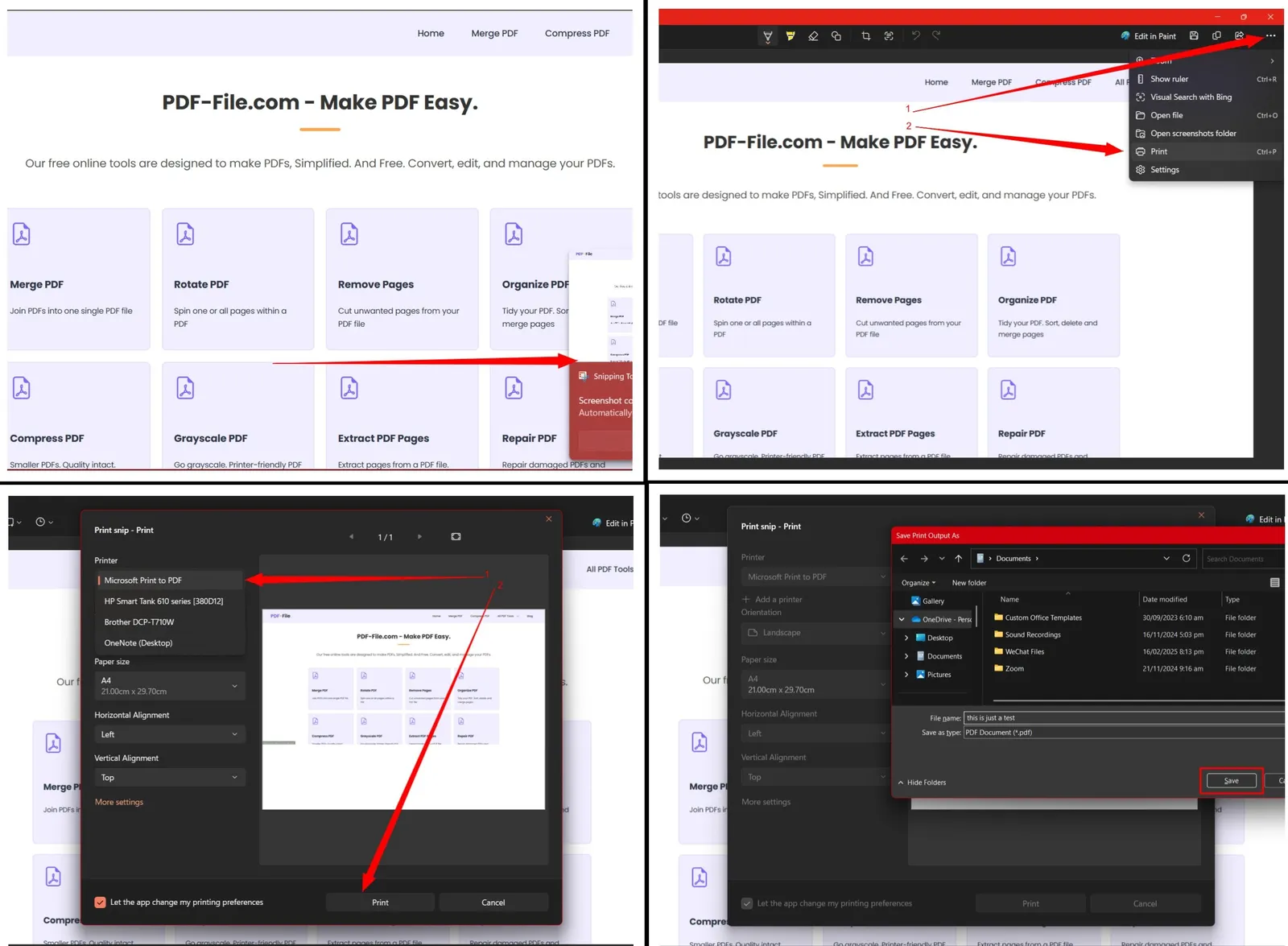
- Take the screenshot with Windows logo key + Shift + S (Microsoft's Snipping Tool guide lists the other capture modes).
- Open the capture in Snipping Tool, click the three dots and choose Print. Microsoft's guide also gives right-clicking the saved snip on Windows 11, and File, then Print on Windows 10.
- Choose Microsoft Print to PDF as the printer and click Print.
- Name the file and save it.
For several saved screenshots, use Merge Images to PDF, covered below.
How to Save a Screenshot as PDF on a Mac
Press Shift-Command-5 to open the Screenshot app, or Shift-Command-3 for the whole screen. Apple's guide to taking a screenshot on Mac covers where captures are saved.
- One screenshot: open it in Preview, choose File, then Export, and pick PDF in the Format menu.
- Several screenshots: select them in Finder, Control-click and choose Quick Actions, then Create PDF. Apple says the files appear in the order you selected them.
How to Save a Screenshot as PDF on a Phone
Use the browser route on this page. We ran Merge Images to PDF at a 390-pixel phone width in Chromium in November 2026 with two test images and got a two-page PDF, so try it in your phone's browser. If you're taking screenshots of a note in Samsung Notes, save the note itself as a PDF instead, as our SDOCX to PDF guide shows.
Combine Many Screenshots Into One PDF
For a bug report, a chat history or a set of steps, the order matters more than the conversion. Name the files with numbers (01-login.png, 02-settings.png) so they line up, then use Merge Images to PDF: it takes JPG, PNG and BMP files and makes one page per image. Our guide to combining images into one PDF compares it with JPG to PDF.
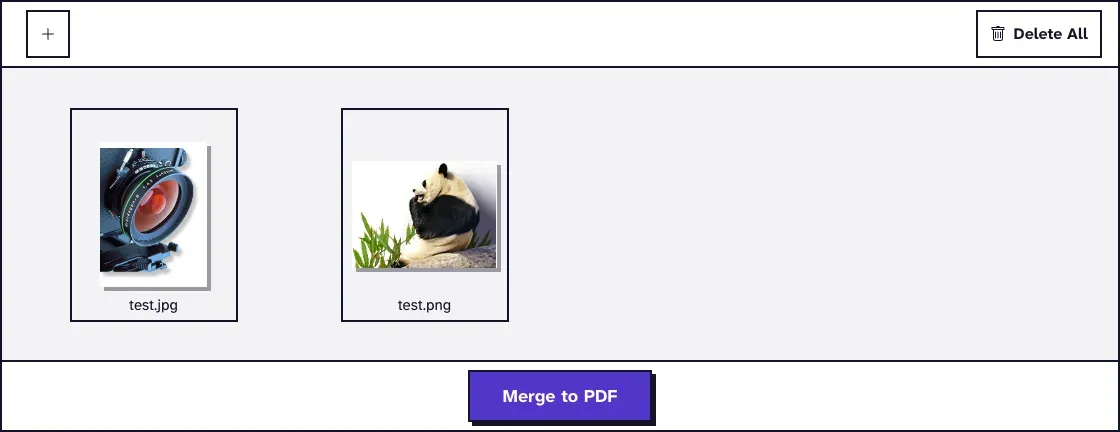
We tested it in November 2026 with a 36.5 KB JPG and a 16.2 KB PNG and got a two-page PDF of 53.2 KB, in upload order. Our guide to combining screenshots into one PDF has more on scrolled captures and cropping private details.
Mac screenshots saved as HEIF won't go into Merge Images to PDF. Convert those with HEIC to PDF and join the results with Merge PDF. AVIF pictures won't go in either, and our AVIF to PDF guide shows the browser route for them.
Make Screenshot Text Searchable
A screenshot PDF holds pictures, so you can't search or copy its text yet. Run it through OCR PDF to add a text layer. Our OCR reads English text, and it works best on sharp, high-contrast captures.
Frequently Asked Questions about Screenshot to PDF
Does converting a screenshot to PDF make it smaller?
Not by much. In our test the PDF from PNG to PDF was within about 1% of the PNG. Compress the PDF afterwards if size matters.
Will my screenshot get blurry in the PDF?
Not with PNG to PDF, which stores the image losslessly at its full size. Blur can come from compressing too hard or from a small capture stretched onto a big page.
Can I combine screenshots into one PDF on my phone?
We've only run Merge Images to PDF at a phone-sized window in desktop Chromium, and it gave a two-page PDF. Try it in your phone's browser.
Do I need an internet connection?
Not for the built-in methods on Windows and Mac. The online tools need one.