
CSV to PDF Converter: Turn a CSV File Into a Clean, Printable Table
Upload a .csv and get a PDF table back with every value as written, or format it in a spreadsheet first when a wide table needs landscape pages.

A CSV to PDF converter turns the rows and columns of a .csv file into a fixed table that opens the same way on any phone or computer. Upload the file to our free CSV to PDF converter and you get a PDF back, with no spreadsheet program and no account.
Every value prints exactly as written, so ZIP codes keep their leading zeros. Only a very wide table is worth formatting in a spreadsheet first, because the converter has no orientation setting.
What a CSV File Is and Why It Prints Badly
CSV stands for comma-separated values: plain text with one record per line and commas between the fields. There's no formatting, no column widths and no page layout in it, so printing the raw file gives you a wall of commas.
This video explains how a CSV file differs from an Excel workbook:

The usual rules are written down in RFC 4180: fields separated by commas, and double quotes around any field that holds a comma, a quote or a line break. A converter that follows them keeps a value like "North, East" in one cell.
How to Use Our CSV to PDF Converter
- Open CSV to PDF and choose one file ending in .csv, up to 25 MB.
- Check that the file shown is the table you want.
- Select Convert To PDF and wait while the table gets laid out.
- Download the PDF.
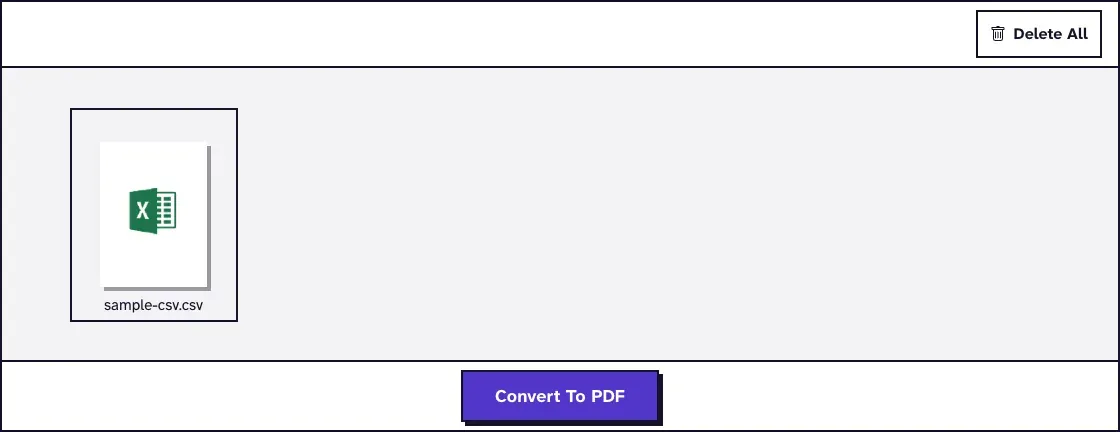
On our server, each value goes into a LibreOffice Calc sheet as text, and Calc exports the sheet as a PDF. We tested it in October 2026 with sample-csv.csv, a 94 B file with a header row and three data rows: the result was a 20.0 KB, one-page A4 PDF, ready 0.8 seconds after we pressed Convert To PDF.

The quoted "North, East" stayed in one cell. Calc's default page style also adds a header line with the file name and a page number footer to each page.
What the Converter Does With Your Data
Nothing in your data changes: every cell goes into the sheet as text. We checked a test CSV value by value in November 2026, and this is what printed:
| Value in the CSV | Printed in the PDF |
|---|---|
| 00123 and 08001 (ZIP codes) | 00123 and 08001 |
| 0042 and 000 (article numbers) | 0042 and 000 |
| 1234567890123456 (16 digits) | unchanged |
| 03/04/2026 and 2026-04-03 | unchanged |
| 1.50 and 1234.5 | unchanged |
| "1,50" and 5% | unchanged |
| 1E5 | 1E5 |
| 12345678901234567890 (20 digits) | unchanged |
| =1+1 | =1+1, not calculated |
The file format is handled for you too. The converter picks the separator from the header row (comma, semicolon, tab or pipe) and reads UTF-8, UTF-16 with a byte order mark and Windows-1252.
In our November 2026 tests a semicolon CSV printed as three columns with amounts like 3,50 in one cell, and a Windows-1252 file printed Zürich, naïve, café and the € sign correctly.
Convert CSV to PDF Through Excel or Google Sheets
When you want totals, number formats or a landscape page, format the table yourself and convert the workbook instead.
- Open the CSV in Microsoft Excel, Google Sheets or LibreOffice Calc.
- Format columns with codes (ZIP codes, article numbers) as text, and set number formats for prices.
- Set the orientation to landscape if the table is wide, and adjust column widths.
- Save the file as an Excel workbook (.xlsx).
- Upload the .xlsx to our Excel to PDF converter.
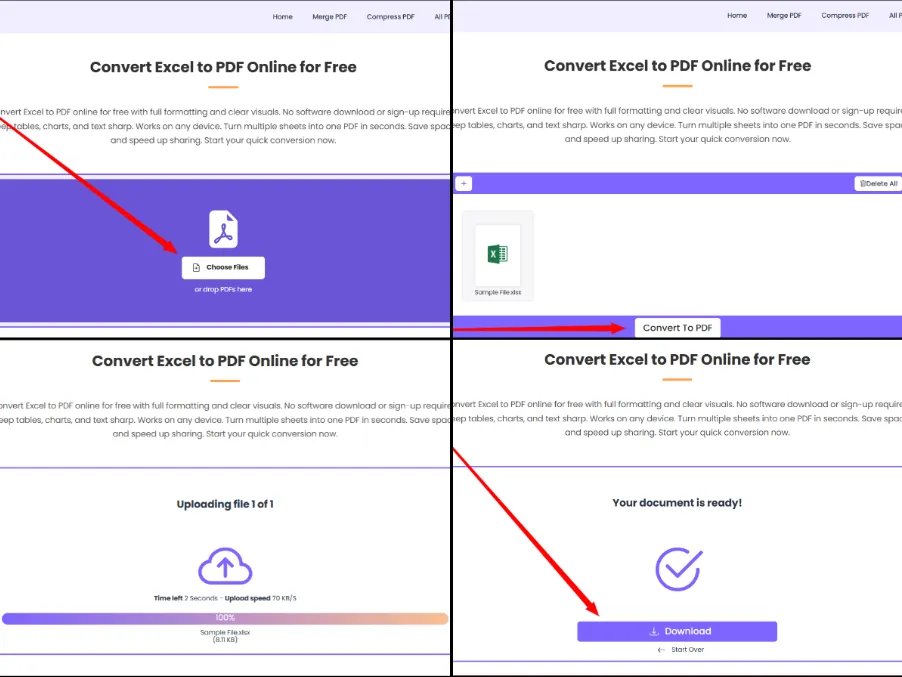
A workbook converts with the orientation it sets, so the landscape page you chose carries over to the PDF.
Wide and Long CSV Tables in the PDF
Our CSV to PDF converter has no settings for paper size, orientation or scaling. Each column is as wide as its longest entry, up to a limit, and a longer value wraps inside its cell. Many rows run onto more pages, and many columns carry on over extra pages.
Our 20-column, 200-row test CSV, with short values like "value 1-2" in every cell, came out as 16 A4 portrait pages in November 2026. The PDF went down the rows first, then across: pages 1 to 4 held columns 1 to 7, pages 5 to 8 columns 8 to 13, pages 9 to 12 columns 14 to 19, and pages 13 to 16 column 20 alone. The header row only printed on pages 1, 5, 9 and 13.
For a table like that, drop the columns nobody needs before you upload, or go through Excel with landscape set. If the reader only needs part of a long result, pull the pages out with Extract PDF Pages. Query results saved as text .rpt files wrap differently, as our guide to converting RPT to PDF explains.
After the Conversion: Combine, Shrink or Protect
Several CSV files, or a CSV plus a Word cover letter, go into one PDF with Merge Office to PDF. A big report that's too large to email shrinks with Compress PDF, and a password from Protect PDF keeps customer data private.
Need the opposite direction? Our PDF to CSV converter pulls table text out of a PDF.
Frequently Asked Questions about CSV to PDF Converter
Is the CSV to PDF converter free?
Yes. There's no account, no watermark and no software to install. Your CSV and the PDF are deleted from our server within two hours.
Does the PDF keep leading zeros?
Yes. Every value prints as written, so 00123 stays 00123 and a price of 1.50 keeps its trailing zero.
Can I convert a CSV that uses semicolons?
Yes. The converter picks comma, semicolon, tab or pipe from the header row, and it reads UTF-8, UTF-16 with a byte order mark and Windows-1252 files.
Can I convert several CSV files into one PDF?
Yes, with Merge Office to PDF. It takes CSV files along with Word and PowerPoint documents and puts them into one PDF.