Animated GIF to PDF: How to Convert a GIF and Keep the Frames You Need
Our converter gives you a still page. Here's how to get the first frame, any one frame or every frame onto PDF pages on Windows, Mac or online.

When you convert an animated GIF to PDF with our tool, you get one still page showing the first frame. If you need another frame or every frame, export the frames as pictures first and put them on PDF pages. The methods below cover each case.
What Happens to an Animated GIF in a PDF?
A GIF file can hold many images, and an animated GIF plays them one after another with a delay in between. With our GIF to PDF tool, the later frames and their timing don't come along.
We ran a seven-frame file through it in November 2026: one page, one image, and its pixels matched frame 1 exactly and none of the other six. Other converters do their own thing (one we read puts each frame on its own page), so check the page count, as the guide on why GIF to PDF keeps only the first frame shows.
If you want the motion itself, keep the GIF and send it next to the PDF, or link to it. PDFs can carry video, but a GIF through our tool stays still. A multi-page TIFF works differently: every page comes through, as our TIFF to PDF guide shows.
How to Convert an Animated GIF to PDF Online
There's nothing to install.
- Open GIF to PDF and click Choose Files, or drag the GIF into the upload area.
- Check the preview to make sure it's the right image.
- Click Convert GIF to PDF.
- Click Download to save the PDF.

The page comes out exactly as many points wide and high as the frame has pixels, so nothing gets stretched or cropped. Inside the PDF the frame is a lossless PNG image.
We ran our 7.9 KB test file sample.gif through it in November 2026 and got a one-page PDF of 11.5 KB. Each GIF can be up to 25 MB, and you convert one GIF at a time.
How to Convert a GIF to PDF on Windows
Print it to a PDF printer such as Microsoft Print to PDF, if your print dialog lists one.
- Open the GIF in the Photos app or another image viewer.
- Press Ctrl+P.
- Pick Microsoft Print to PDF as the printer.
- Set the paper size and orientation, then click Print.
- Choose a folder and a file name, and click Save.
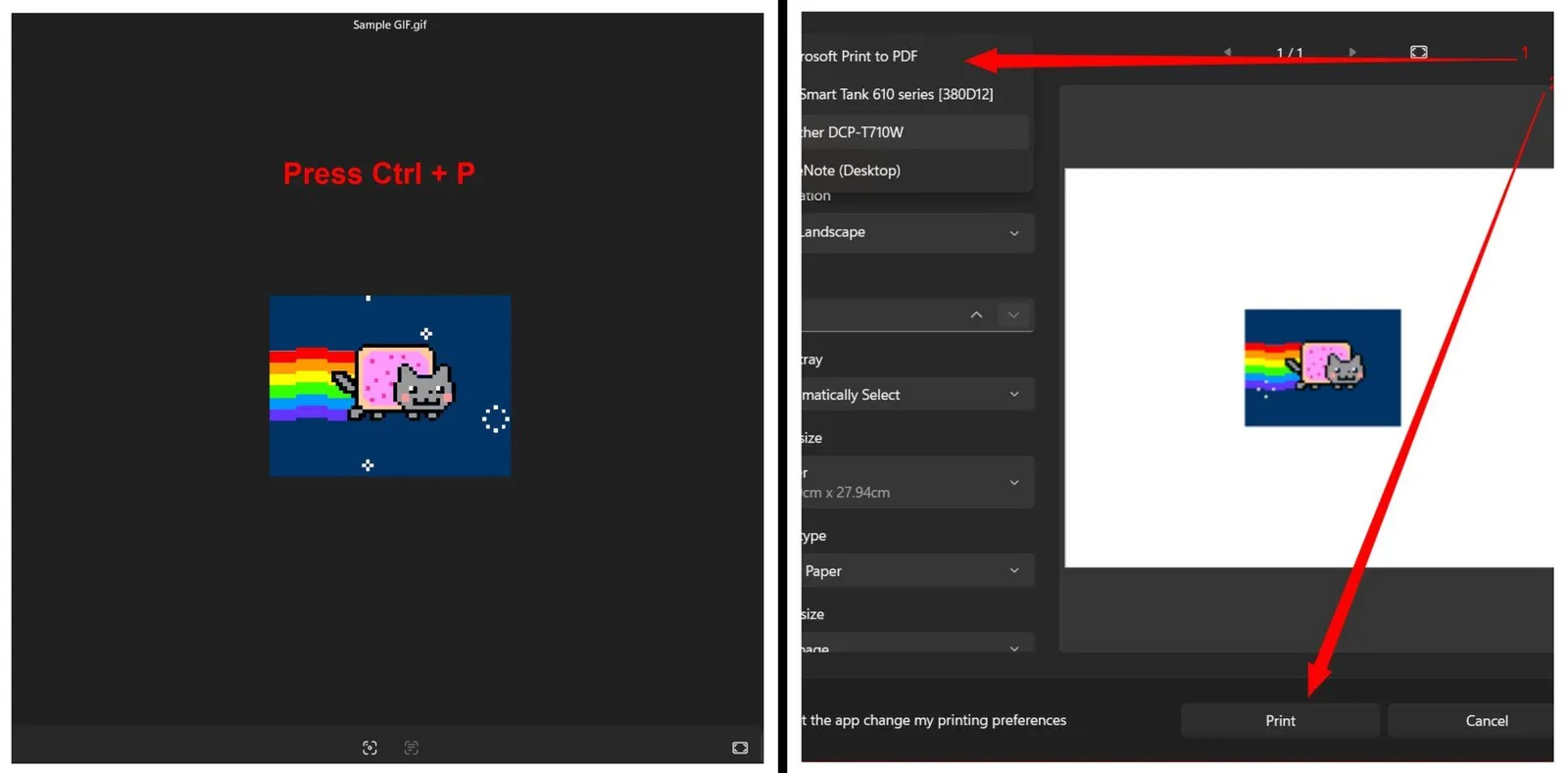
The catch is the page, as the screenshot shows: a small GIF ends up as a small picture on a big white page. Check that it's the frame you want.
How to Convert a GIF to PDF on a Mac
Apple documents two routes for images, so look at which frame you get.
- Open the GIF in Preview.
- Choose File, then Export, and pick PDF in the Format menu.
- Name the file and click Save.
You can also press Cmd+P and choose Save as PDF from the PDF menu in the print dialog.
How to Put Every Frame of an Animated GIF in a PDF
Export the frames as separate PNG pictures, then upload them in order to Merge Images to PDF, which gives each picture its own page.
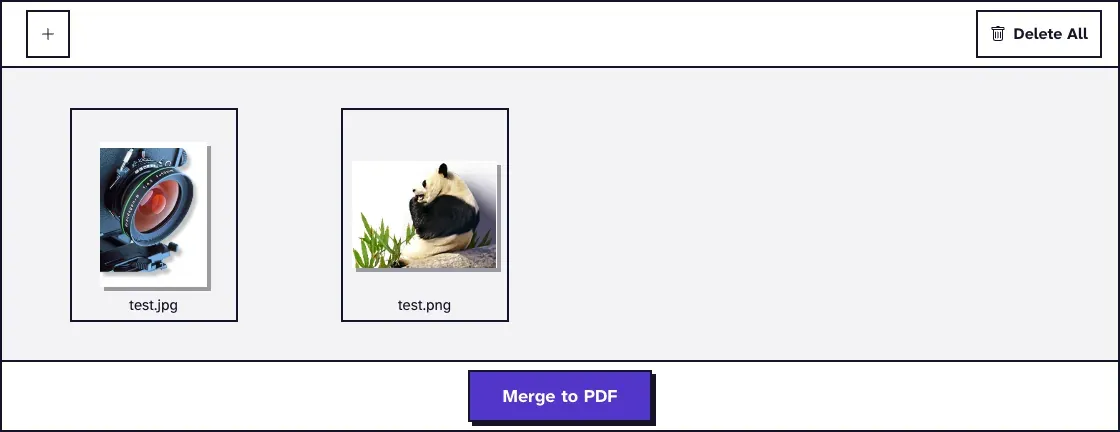
Export complete frames, though. Lots of animated GIFs store a later frame as just the patch that changed, and a plain export saves only that patch. In October 2026 we exported a seven-frame test GIF of 79 by 80 pixels both ways: as stored, page 5 of the PDF measured 77 by 79 points, while full frames gave seven pages of 79 by 80 points.
Image editors call this coalescing. In the free command line tool ImageMagick, the -coalesce option fully defines each frame:
1magick animation.gif -coalesce frame-%d.pngGet it from ImageMagick's download page for Windows, Mac and Linux (it recommends brew install imagemagick on a Mac). Our guide to splitting a GIF into frames has more ways to get them out.
How to Get a Frame Other Than the First
Export the frames as above, keep the one you want, and put it through PNG to PDF with the page size set to Fit to Content, since GIF to PDF has no frame choice. At the default A4, the frame gets scaled up to fill the page.
We didn't run that command; our frame came from another library. We ran frame 4 of our seven-frame file through PNG to PDF at Fit to Content in November 2026, and it came out as one page of 79 by 80 points, the same size as the GIF.
Combining Several GIFs Into One PDF
The GIF to PDF tool takes one GIF per conversion. Convert each one, then join the PDFs in the order you want with Merge PDF.
If the merged file gets too big for an email, shrink it with Compress PDF. For anything private, add a password with Protect PDF.
Fixing Blurry or Oversized GIF to PDF Results
A GIF holds at most 256 colors per frame, and a PDF can't add detail that wasn't there. If the page looks rough, start from a bigger or better source image instead of converting twice.
A tiny GIF printed on an A4 page looks blurry because it's scaled up. GIF to PDF avoids that by making the page the same size as the frame, so the image stays sharp at 100 percent zoom.
Going the other way? PDF to GIF turns PDF pages into GIF images.
Frequently Asked Questions about Animated GIF to PDF
Will my animated GIF still move inside the PDF?
Not with our tool. The PDF shows one still frame, so keep the original GIF if the motion matters.
Can an animated GIF become a multi-page PDF?
With our tools, yes, in two steps. Export the frames as complete PNG pictures, then upload them in order to Merge Images to PDF, which puts each one on its own page.
Does converting a GIF to PDF lower the quality?
Not with our GIF to PDF tool. The frame is stored losslessly at its original pixel size, so the PDF shows exactly what the first frame shows.
Can I convert several GIFs at once?
Not in one go, since the tool takes one GIF per conversion. Convert them one by one, then combine the PDFs with Merge PDF.
What happens to my uploaded GIF?
It's processed on our server and deleted within two hours, together with the PDF.