
Save an Email as a PDF in Outlook: New, Classic, Web and Mac Steps
Outlook gets to a PDF through its Print dialog. Here's the print route for each version, and the .eml route when you can't print.

To save an email as a PDF in Outlook, open the message, choose Print, and pick a PDF printer instead of a real one. Every version works this way, though the menus differ. Microsoft's own guide to saving a message gives this route for new Outlook, classic Outlook and the web, and says new Outlook doesn't include PDF among its default Save as types.
Printing saves the message only. To keep the attachments with it, see our guide to saving an Outlook email as PDF with attachments. For mail in Gmail, our guide to saving a Gmail thread as PDF covers its Print all button.
Which Outlook Version Do You Have?
| Outlook version | Route to a PDF |
|---|---|
| New Outlook for Windows | More actions, Print, Print |
| Classic Outlook for Windows | File, Print |
| Outlook on the web | More actions, Print, Print |
| Outlook for Mac | File, Print, then the PDF menu |
How to Save an Email as PDF in New Outlook for Windows
- Open the message and select More actions.
- Click Print, then Print again in the preview.
- Choose Microsoft Print to PDF as the printer and click Print.
- Pick a folder, name the file and click Save.
How to Save an Email as PDF in Classic Outlook
- Open the message.
- Click File, then Print.
- Set the printer to Microsoft Print to PDF and click Print.
- Pick a folder, name the file and click Save.
If you've already got the message as an .msg file, our guide to converting MSG to PDF picks it up.
How to Save an Email as PDF in Outlook on the Web
- Open the message, select More actions and select Print.
- Select Print again in the preview.
- Choose Microsoft Print to PDF as the printer and select Print. In Chrome's print dialog, you can set Destination to Save as PDF instead.
- Pick a folder and save the file.
How to Save an Email as PDF in Outlook for Mac
- Open the message.
- Choose File, then Print.
- Open the PDF menu in the print dialog and choose Save as PDF.
- Name the file and choose a location.
Microsoft's guide doesn't cover Mac, so these are Apple's steps for any Mac document.
Without a Print Button: Convert the .eml File
Sometimes printing isn't an option, say on a locked-down computer. In Outlook on the web, More actions, Download gets you the message as an .eml or .msg file. Pick .eml and upload it to Email to PDF, which is free and doesn't need an account.
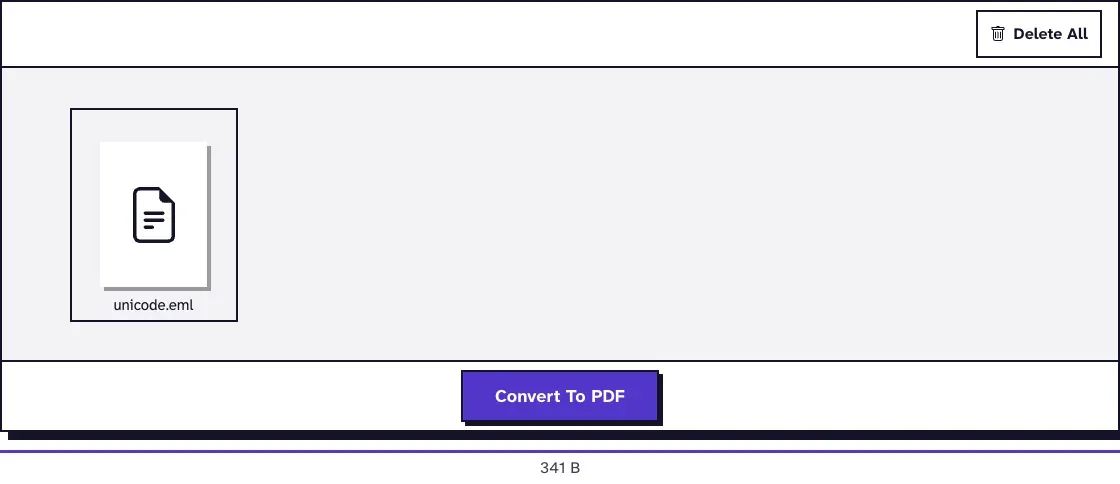
The two routes give you different files. Printing keeps the look of the email; our converter prints the headers and plain text, lists attachments by name and size, and drops pictures and table layouts. We'd print whenever we could, and use the converter for files you've already got.
Dates can catch you out too. A message sent at 09:30 +0200 printed as 07:30 GMT in our test, so add the offset back if the hour matters. The tool takes one .eml at a time, and our guide to opening an EML file helps when you just need to read one.
After You've Saved the Email as a PDF
Check that the sender, date and full text came through, then file it. For a whole thread, print each message and join the PDFs, or put several .eml files into one PDF with Merge Emails to PDF. Three test emails went through it in November 2026, in Chrome on a Mac, and came out as 4 pages: a contents page, then one page per message in upload order.
An attached spreadsheet won't come along by itself. Convert it separately, and if it's wide, read our guide to fitting Excel to a PDF page first. A zipped attachment needs unpacking before it converts, as our ZIP to PDF guide shows.
Frequently Asked Questions about How to Save an Email as a PDF in Outlook
Why isn't there a Save as PDF option in Outlook?
Microsoft says new Outlook doesn't include PDF among its default Save as types, and its guide sends every version it covers through Print.
What if I don't see Microsoft Print to PDF?
Microsoft says it's included in Windows 10 and Windows 11. If it isn't in your printer list, download the message from Outlook on the web as an .eml file and use our converter.
Are attachments included in the PDF?
No. Print to PDF saves the message text, and our converter lists the attachments by name and size. Save them separately, or add them as pages following our attachments guide.
Can I convert an .msg file with your tool?
Not directly: Email to PDF only takes .eml. Save the message as .eml from Outlook on the web, or print the .msg from Outlook.