
To save Outlook email as PDF with attachments, save the message as an .eml file, download each attachment, and add the converted attachments to the message PDF as their own pages. Our email converters print the message and list its attachments by name and size, but they do not turn the attachments' contents into pages.
If the recipient wants one continuous document, convert each attachment to PDF and join everything with Merge PDF, the message first. Keep the original message and attachment files next to that PDF whenever exact content or later checking matters.
Merge Outlook Emails to PDFOutlook Print to PDF or an EML Conversion
Outlook has no PDF choice among its Save as types. Microsoft's instructions for saving an Outlook message use the message's Print command with Microsoft Print to PDF, which comes with Windows 10 and Windows 11.
A printout shows the message as displayed, and the attached files do not become pages of that PDF. Check the preview for clipped tables or missing quoted text before you save.
The other route starts from the message file itself. In new Outlook, More actions and Save as stores the message as a file; in Outlook on the web, More actions and Download saves it as an .eml or .msg file, according to Microsoft.
How to Save Outlook Email as PDF With Attachments
- Open the message and check its sender, subject and date.
- Save the message as an .eml file with Save as in new Outlook or Download in Outlook on the web.
- Download each attachment in its own format. A OneDrive or SharePoint link is not an attachment, so fetch that file separately and only with permission.
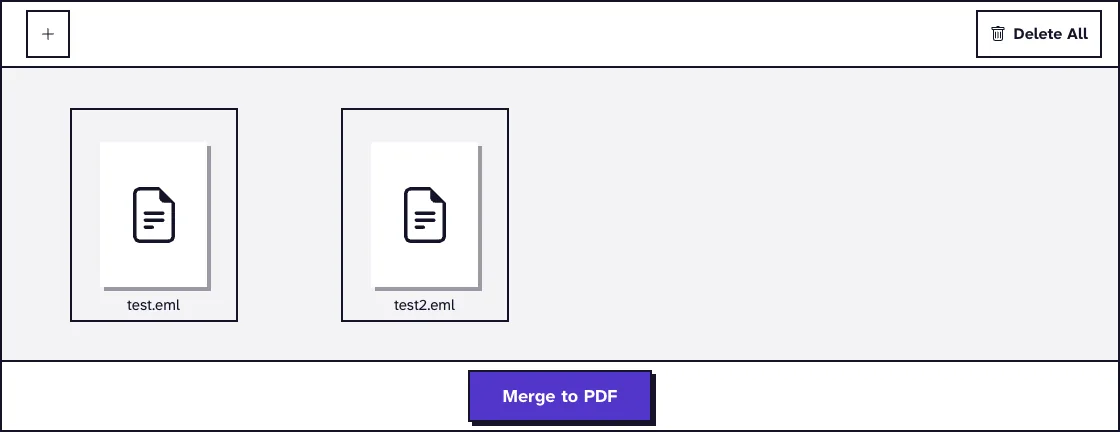
- Convert one message with Email to PDF, or several with Merge Emails to PDF in the order you arrange.
- Convert each attachment the recipient needs to read into a PDF with the tool for its format.
- Join the email PDF and the attachment PDFs with Merge PDF, the message first.
- Compare the attachment list in the PDF with the files you saved.
Our email tools accept .eml files of up to 25 MB each, and Merge Emails to PDF also takes .mbox mailboxes. An Outlook .msg file is not accepted, so save the message as .eml first.
What the Email PDF Contains
Each message starts on its own page with a heading such as Email 1 of 2, the subject, and the From, To, CC and Date lines. Dates are printed in GMT, whatever time zone the sender used.
The body is plain text, so Outlook's HTML layout, colours, tables, inline images and signature graphics are not reproduced. With Merge Emails to PDF, a contents page listing every subject comes first.
In our test run, two small test messages became a three-page PDF of 18.1 KB: the contents page plus one page per message.
Add the Attachments as Pages
The PDF lists each attachment by file name and size under an Attachments heading, for example contract.docx (84.0 KB). The file's contents are not inside the PDF, so a reader cannot open the contract from it.
Build One Review Packet With Merge PDF
Convert each attachment with the tool for its format, then open Merge PDF and put the email first with its attachments right after it. For several emails, decide whether attachments follow each message or go into a labelled appendix.
If a free converter stamped its logo on an attachment PDF, see how to remove a watermark added by a free PDF converter before you build the packet.
Keep every original attachment even when a PDF copy goes into the packet. Spreadsheets lose formulas and hidden sheets when rendered, and a signed PDF may need checking in its original form.
Cloud Links Are Not Attachments
A OneDrive or SharePoint link in the message points to a live file whose contents or access can change. It does not appear in the attachment list, so record the link and save a copy only where you have permission.
Combine the Right Messages in the Right Order
A conversation can hold quoted copies of earlier messages as well as the messages themselves. Decide whether the PDF should show the latest reply with its quoted history or each message on its own page.
Merge Emails to PDF keeps the order you arrange in its file list. Name the files with dates or IDs before uploading, because subjects repeat, and remember that the printed GMT times can differ from what Outlook shows in your time zone.
Check Headers, Body and the Attachment List
Open the PDF and compare From, To, CC, subject, date and body with Outlook. Search for a distinctive sentence or a non-English name to catch encoding problems.
Compare the attachment list with your saved files by name, count and size. An encrypted message converts without its readable text, because the tools do not decrypt it, so keep such messages in Outlook.
Meeting requests, voting buttons, flags and sensitivity labels work inside Outlook and are not part of the printed header and body. If one of them matters, note it from Outlook itself.
Keep the Original Files for Records
For audits, disputes or regulated retention, keep the .eml or .msg file, every original attachment and any mailbox export alongside the PDF. The message file keeps its structure and header fields that a PDF page does not show.
A short manifest helps when the package grows: for each message, its file name, its pages in the PDF and its attachment file names. For legal holds and productions, follow the guide to export emails to PDF for legal discovery.
For Gmail, see how to save a Gmail thread as PDF. For a whole mailbox export, see how to open an MBOX file without an email client.
Frequently Asked Questions about Saving Outlook Email as PDF With Attachments
Does Outlook include attachment contents when printing an email to PDF?
No, the PDF shows the displayed message. Save the attachments separately and add converted copies when the recipient needs their contents.
Does Merge Emails to PDF embed the attachments?
No. It lists each attachment's name and size, so keep the original files and convert them separately if they need to be read.
Can I upload an Outlook .msg file?
No. Our email tools accept .eml files, and Merge Emails to PDF also takes .mbox, so save the message as .eml from new Outlook or Outlook on the web.
Is the conversion done in my browser?
No. The email files are uploaded to our server for parsing and PDF creation, so confirm that online processing is allowed for the messages.
Is the PDF enough for legal preservation?
Not by itself. Keep the message files, attachments and export records, and follow the preservation protocol set by counsel or your organisation.