
How to Convert PDF to Google Doc: Drive's Open With Route and Where It Falls Short
Google Drive does it in three clicks, and it reads scans too. But it has a 2 MB guideline and doesn't promise tables or columns. Here's when to take another route.

To convert PDF to Google Doc, upload the PDF to Google Drive, right-click it and choose Open with, then Google Docs. That creates an editable copy in a minute, but it works best on simple files of 2 MB or less; for bigger ones, go through our free PDF to Word converter and open the Word file in Docs instead.
Neither route keeps a complex layout. So the choice comes down to what's in your PDF, and what you're planning to do with the text.
How to Convert a PDF With Google Drive's Open With Menu
- Go to drive.google.com on a computer and upload the PDF with New, then File upload.
- Right-click the PDF in Drive.
- Choose Open with, then Google Docs.
- Wait while Docs reads the file and opens it as a document.
Docs uses text recognition here, so it reads scans and photos of text as well as digital PDFs, and it works out the language by itself. That's one thing it does better than our own OCR, which reads English only.
What Google Docs Keeps and What It Loses
Google's help page on how to convert PDF and photo files to text spells out the limits:
| Item | What Google says |
|---|---|
| File size | 2 MB or smaller |
| Text height | At least 10 pixels |
| Orientation | Right side up; rotate a sideways file first |
| Fonts | Common ones like Arial or Times New Roman work best |
| Likely kept | Bold, italics, font size, font type, line breaks |
| Unlikely to be detected | Lists, tables, columns, footnotes, endnotes |
Pictures aren't mentioned, so don't count on them. Check any logo, chart or signature against the PDF.
To put a photo back, run the PDF through Extract Images and use Insert, then Image, then Upload from computer in Docs. On our test report it gave us the one photo as a 400 by 300 pixel JPG, the same size as in the PDF (November 2026, Chrome on a Mac).
For a letter or a plain report, this route is hard to beat. For a brochure, a statement or anything built on tables, expect to rebuild those parts by hand.
The Other Route: PDF to Word, Then Google Docs
If your PDF is over the 2 MB guideline, or Drive gives you poor text from a digital PDF, convert it to Word first. Our converter takes files of up to 25 MB and reads the text the PDF already holds, so there's no recognition step to get letters wrong.
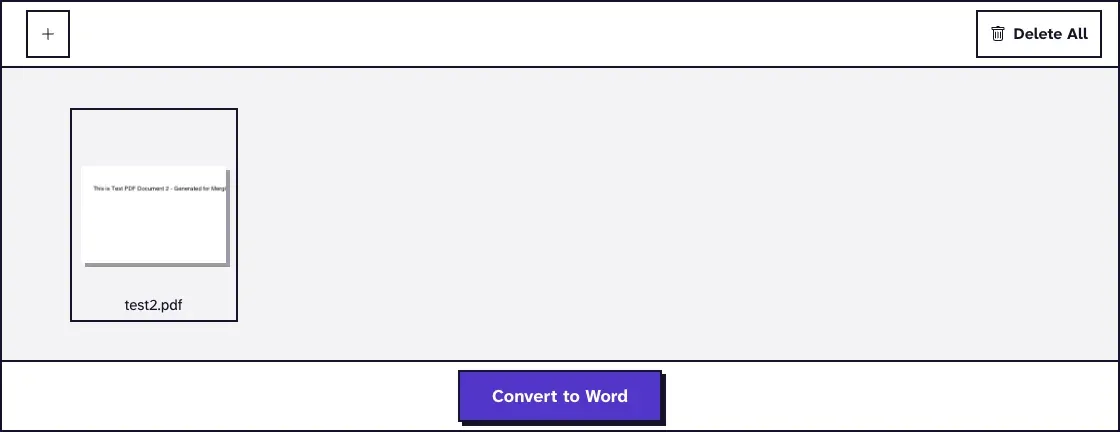
- Upload the PDF to PDF to Word and click Convert to Word.
- Download the DOCX.
- Upload it to Drive with New, then File upload, and double-click it.
- If you see Office Compatibility Mode in the menu, Google's help says you can save the file to Google Docs from there.
Know what you get, though. We converted a two-page A4 report in November 2026, in Chrome on a Mac: all the words came through, the photo was gone, the table came through as paragraphs ("Quarter Q1 Q2 Q3 Q4"), and two columns turned into two paragraphs. You get the words, ready to rewrite, without the design.
Each line also ends in a manual line break, so text won't reflow until those are out. Word makes that a quick search and replace, covered in our post on fixing PDF to Word formatting, so it's worth doing before the upload if you have Word.

Which Route Fits Your PDF
| Your PDF | Best route | Why |
|---|---|---|
| Short and simple, 2 MB or less | Drive's Open with | Fewest steps, keeps bold and italics |
| Scan in English, over 2 MB | OCR PDF, then PDF to Word | Word conversion needs a text layer |
| Scan in another language | Drive's Open with | Our OCR reads English only; trim the file first |
| Long digital PDF | PDF to Word, then Docs | No recognition step, up to 25 MB |
| Just a few paragraphs | Copy and paste | Quickest |
To get a big file under 2 MB for Drive, you could split off the pages you need with Split PDF, or shrink a scan with Compress PDF. Zoom in before you trust it, though, since blurry text recognizes badly.
Copy and Paste for a Few Paragraphs
For a short piece of plain text, select it in your PDF reader, copy it, and paste into a new document.
It won't work on a scan, because there's no text to select.
When You Need Slides or Word Instead
If the goal is a presentation, a Doc is the wrong stop: see how to convert a PDF to editable PPT. On a Mac, our post on converting PDF to Word on a Mac compares the routes there, including Pages and Preview.
When the team's finished, Google's route back to a PDF in Chrome is File, then Print, then Save as PDF as the destination.
Frequently Asked Questions about How to Convert PDF to Google Doc
Why does my PDF open in a preview and not in Docs?
Google's steps start with a right-click, so skip the double-click. Right-click the file and choose Open with, then Google Docs.
Why is my converted Google Doc blank or full of errors?
The text may be too small or the scan too faint or sideways. Rotate it, use a sharper scan with even lighting, and see Google's size limit above. A digital PDF with odd fonts can go wrong too, so try the PDF to Word route.
Does this work with a password-protected PDF?
Take the password off first. Our PDF to Word tool refuses a PDF that needs a password to open.
Is converting a PDF to Google Docs free?
Yes. Drive's route only needs a Google account, and our PDF to Word tool needs no account. We delete uploaded files within two hours.