
How to Save a Webpage as PDF in Chrome, Safari on a Mac and Android
The steps for Chrome, Safari on a Mac and Android, the settings worth changing, and when pasting the address into an online tool works better.

How to save a webpage as PDF in Chrome takes one shortcut: press Ctrl+P (Cmd+P on a Mac) and choose Save as PDF as the destination. For a public page, in any browser or on any device, you can also paste the address into Webpage to PDF and download the file.
Here's the short version.
| Browser | Open with | Choose |
|---|---|---|
| Chrome | Ctrl+P or Cmd+P | Destination: Save as PDF |
| Safari on a Mac | File menu | Export as PDF |
| Chrome on Android | More, Share, Print | Printer: Save as PDF |
| Any other | Webpage to PDF | Paste the address |
How to Save a Webpage as PDF in Google Chrome
- Open the page and wait until it's fully loaded.
- Press Ctrl+P on Windows or Cmd+P on a Mac.
- Set Destination to Save as PDF.
- Click Save and choose a folder.
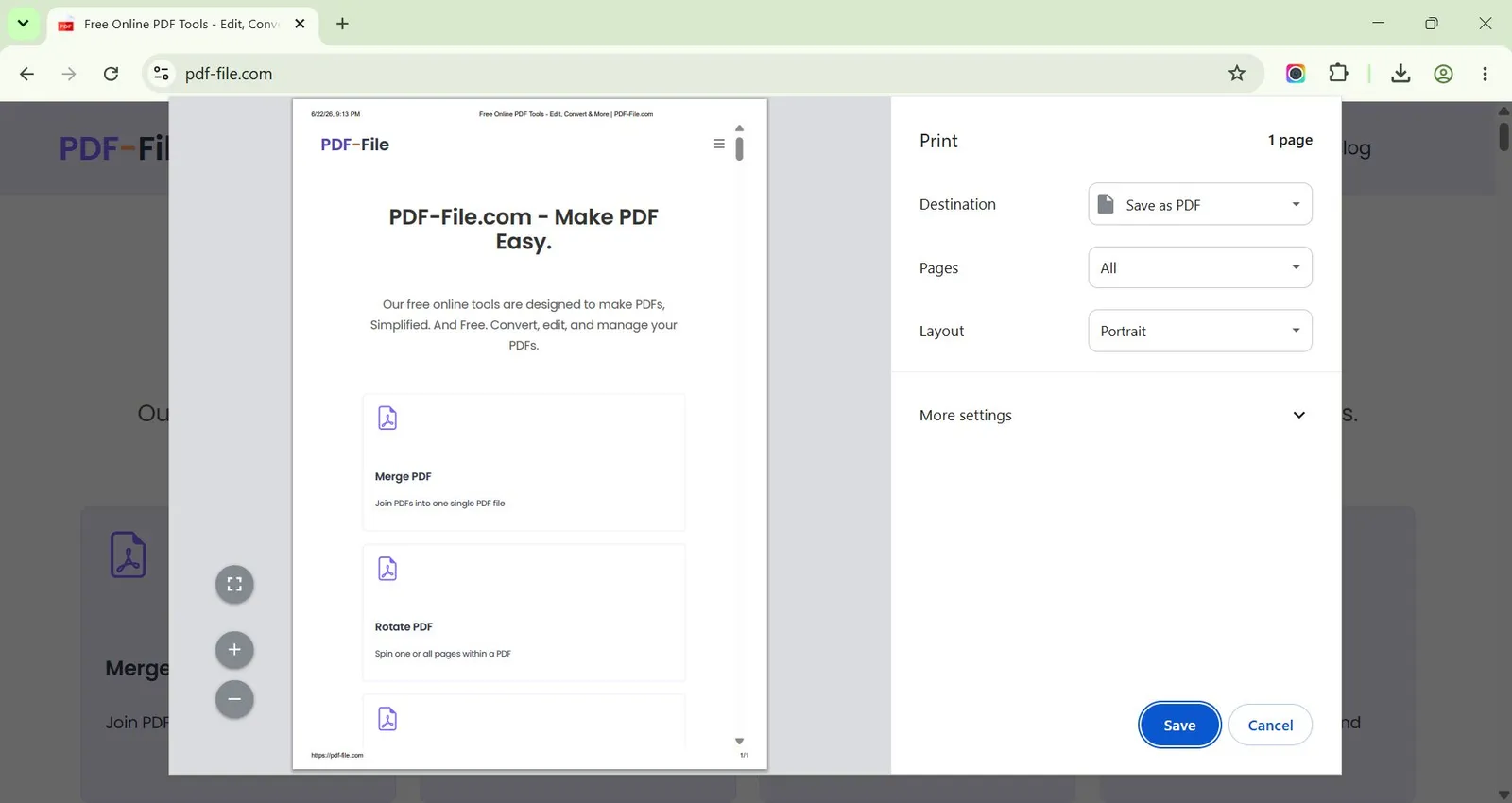
Under More settings you'll find the paper size, the margins, Background graphics and the headers and footers (those labels are in Chrome 156's own files on a Mac). Turn on Background graphics if colored panels or logos go missing. Google's help page on printing from Chrome has more.
Save a Webpage as PDF in Safari on a Mac
Choose File, then Export as PDF, name the file and click Save. You can also use Apple's steps for any Mac document: choose File, then Print, open the PDF menu and choose Save as PDF.
Save a Webpage as PDF in Chrome on Android
Tap More at the top right, then Share, then Print. Select Save as PDF as the printer, tap Print and choose where to save it, as Google's Android steps show.
Save a Webpage as PDF Online With Our Converter
This helps on a locked-down computer, in a browser not covered above, or when you want a tidy A4 file with no dialog to fiddle with.
- Copy the full address, https:// included.
- Paste it into Webpage to PDF.
- Click Convert or press Enter.
- Download the PDF and check the pages.

We converted the address example.com this way in November 2026 and got a one-page PDF of 66.4 KB. Wikipedia's long article on the PDF format came out as 23 A4 pages, with about 10,000 words of searchable text and 875 links in the file.
It opens the page as a brand new visitor, with no cookies or account. So use your own browser for a bank statement, a portal or anything behind a login, or the PDF shows the login screen.
Saving a Webpage as PDF: Common Problems and Fixes
Pictures Are Missing From the PDF
Many sites load pictures as you scroll, so scroll to the bottom before you print. In our converter test, pictures marked to load lazily came out, but one a script adds on scrolling didn't.
The PDF Shows the Phone Layout
A printed A4 page is narrower than many sites' desktop breakpoint, so they print their narrow layout. Try the site's print or reader version.
Ads or a Cookie Banner Are in the Way
Our guide to printing a webpage without ads covers reader mode and print styles.
The Converter Says the Page Could Not Be Converted
It waits up to 30 seconds, then gives up on a page that won't finish loading. Retry when the site has recovered, or print it from your browser.
Tabs and Accordions Come Out Closed
Open the sections you need before printing in your browser. The converter captures them in their default state.
Saved Page Files and HTML
Got the page as a file already? Our guide to converting an HTML file to PDF covers saved pages and code, and webarchive to PDF handles Safari's .webarchive format.
Frequently Asked Questions about How to Save a Webpage as PDF
Can I save a webpage as PDF without installing anything?
Yes. Chrome and Safari on a Mac do it from their own menus, and our converter only needs a browser. It's free, with no account and no watermark.
Can I save a page that needs a login?
Yes, from your own browser, since you're logged in there. An online converter only sees what a logged-out visitor sees.
Will the PDF look exactly like the webpage?
Close, but not always. The page prints with its print styles on paper-sized pages, so menus may disappear and wide layouts may wrap.
Can I choose a page size other than A4?
In your browser's print dialog, yes. Webpage to PDF always prints A4.