PDF to Text Converter: How to Pick One for Tables, Scans and Odd Fonts
Every converter gets the words out of a clean PDF. The differences show up with tables, scans and fonts that don't map to letters, so here's what to check first.
A good PDF to text converter is the one that matches your file: for a normal digital PDF almost any converter works, while tables and scans each need something specific. Check those first, and the choice mostly makes itself.
If you only want a few lines, copying is quicker than converting. Our guide to extracting text from a PDF covers the copy and save shortcuts, and this one is about picking a converter for whole files.
First Check: Is There Text in the PDF at All?
Open the PDF, select a sentence and paste it somewhere. If it pastes as the same words, the file has a usable text layer and a converter can read it.
If nothing highlights, it's a scanned or photographed page: a picture of text. A converter without OCR has nothing to read there (ours stops and says the PDF has no text layer), so it needs optical character recognition first. If it pastes as nonsense, skip to the gibberish section below.
What Separates One Converter From Another
| Your file | What to look for | Good fit |
|---|---|---|
| Plain digital PDF | Anything that writes UTF-8 text | Our PDF to TXT, pdftotext |
| Two text columns | Reads one column, then the next | Our PDF to TXT |
| Tables you'll sort or add up | Cells, not lines | PDF to CSV or PDF to Excel |
| Scanned pages | OCR built in, or OCR first | OCR PDF, then a converter |
| Text that converts to nonsense | OCR first, then a converter | OCR PDF, then a converter |
pdftotext is the free command-line converter that comes with Poppler.
Our Converter: PDF to TXT
Our PDF to TXT converter reads each page with pdf.js, a column at a time, and keeps wide gaps between words as spaces. It takes several PDFs of up to 25 MB each in one go. On test pages we made, German accents, Cyrillic and Chinese all came through intact as UTF-8 with no byte order mark.
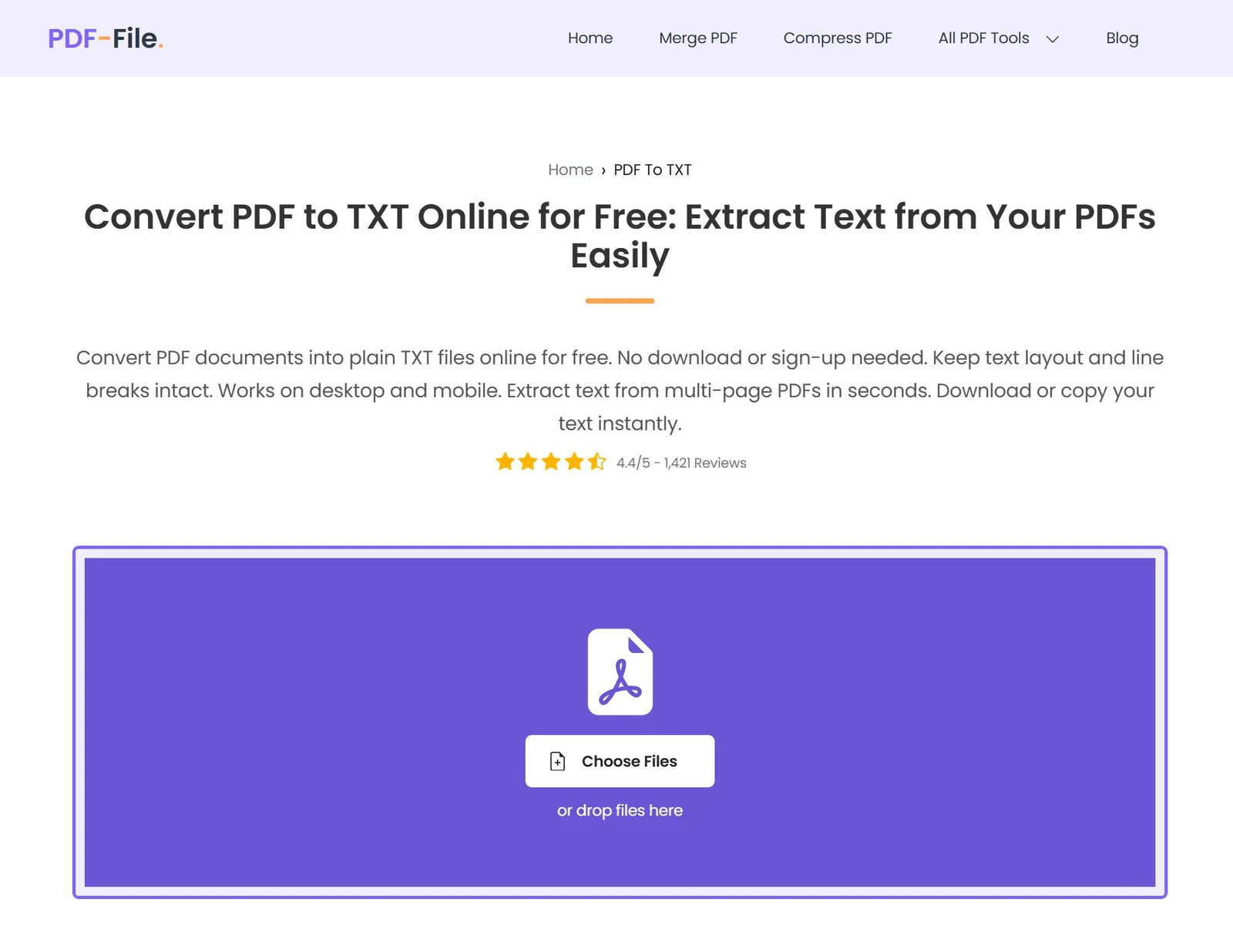
- Open PDF to TXT and drop in one or more PDFs.
- Remove any file you added by mistake.
- Click Convert to Text.
- Download the TXT, or a ZIP when you converted several files.
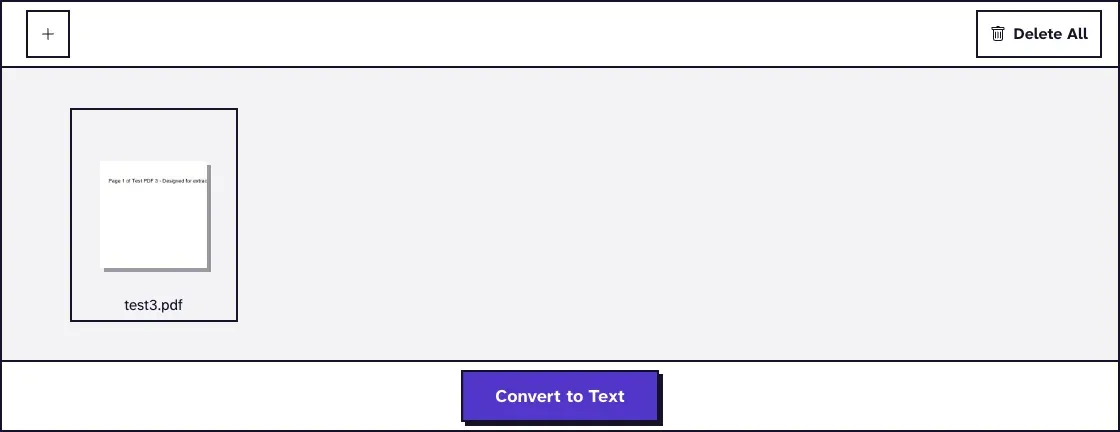
We converted test3.pdf (2.0 KB, five pages) in November 2026 and got a 219 B text file. It held five lines with a blank line between pages and no form feed.
Where a Plain Text Converter Struggles
Tables lose their cells: each row becomes a line with spaces between the values. Our small test table came out as "Ada 36 London", which reads fine and won't sort. If you need the numbers in columns, PDF to CSV keeps them apart.
Why Converted Text Comes Out as Gibberish
A page can look perfect and still convert to nonsense when its font has no map from the stored codes back to letters. We tested this in November 2026 with two one-page PDFs we made, in Arial Narrow and Times New Roman, with that map taken out (pdffonts shows "no" under "uni").
pdftotext returned 0 of the 34 words, with lines starting 4XDUWHUO. Our PDF to TXT now stops on a file like that and says its text could not be read, instead of handing you the nonsense (we checked with another PDF whose font has no map). Run the file through OCR PDF first, which rebuilds a page like that from a picture with new text.
On a 45-word test page whose font has no map, PDF to TXT then gave all 45 words on 10 November 2026.
Scanned PDFs Need OCR First
No plain converter reads a picture. Run the scan through OCR PDF first, which adds an invisible text layer, then convert the result to text.
Our OCR reads English only. For other languages, use desktop OCR such as Tesseract, or open the PDF in Google Docs, which runs its own text recognition when it converts a PDF.
When Plain Text Is the Wrong Format
TXT keeps the words and drops everything else: bold, fonts, images and links. When you need an editable document rather than the bare words, try PDF to Word or PDF to ODT.
And if you're trying to grab text that sits inside a logo or a drawing, the text may be outlines, not characters. Our guide to PDF to SVG in Inkscape explains how text turns into paths, and why no text converter can read them.
Frequently Asked Questions about a PDF to Text Converter
Why is my text file empty?
The PDF has no text layer, so it's most likely a scan. Our PDF to TXT tells you so instead of giving you an empty file. Run OCR first, then convert again.
Does a PDF to text converter keep formatting?
No. TXT has no bold or fonts. Spacing can be padded to keep lines roughly in place, but that's all.
Can I convert only some pages?
Our converter always takes every page. Delete the pages you don't need first, or copy the text of those pages by hand.
Are my files kept after converting?
No. Uploads and results are deleted from our server automatically within two hours.