
How to Insert a PDF Into Word: As an Object, as Page Pictures or as Editable Text
Word gives you three ways to bring a PDF into a document, and each one suits a different job. Here's how to pick and how to do each.

How to insert a PDF into Word depends on what you want to see in the document: the file as an attachment, its pages as they look, or its text to edit. Use Insert, then Object for the first, pictures of the pages for the second, and Word's own PDF conversion for the third.
Copying and pasting suits a short passage, and Microsoft says you'll usually get plain text without the formatting. For more than that, use one of the three methods below.
Which Method Fits Your Document?
| You want | Method | Editable? |
|---|---|---|
| The PDF attached, opened with a double-click | Insert, Object, Create from File | No |
| Every page to look exactly like the PDF | Pages as PNG or JPG pictures | No |
| The text to edit and restyle | Word's PDF conversion | Yes |
Insert a PDF as an Object
This places the PDF inside the Word file as an attachment. By default readers see the first page, and with Display as icon they see a clickable icon instead.
- Click where the PDF should go.
- On the Insert tab, in the Text group, click Object.
- Choose the Create from File tab and click Browse to pick the PDF.
- Tick Display as icon if you want a small icon, or leave it off to show the first page.
- Click OK.
These are the steps in Microsoft's guide to inserting an object. You can resize the object, but you can't edit it, and the PDF's size gets added to the Word file.
Why Word Shows an Icon, and What You Need Installed
You get an icon when Display as icon is ticked, and Microsoft names one requirement for the rest: "You'll need to have Adobe Acrobat or Abode Reader installed to see or read PDF files" (its typo, on its PDF page as we read it in November 2026).
If you or the person reading your document doesn't have either, use the pictures below, which need no PDF program. Word in a browser needs them too, since Microsoft says "Word for the web doesn't let you insert objects, such as PDFs, into a document."
Insert PDF Pages as Pictures
For a report or an appendix where the PDF should look exactly as it does, turn its pages into images and insert those. Our guide to converting a PDF to an image helps you pick the format and resolution.
- Upload the PDF to PDF to PNG.
- Choose Convert All Pages, or Convert Selected Pages to pick only some, and click Next.
- Download the ZIP and unpack it. The pages are named Page-1.png, Page-2.png and so on.
- In Word, choose Insert, then Pictures, then This Device, and select the PNGs. Word for the web calls it Insert, Picture, This device.
- Set each picture's width to the text width, so the pages line up.
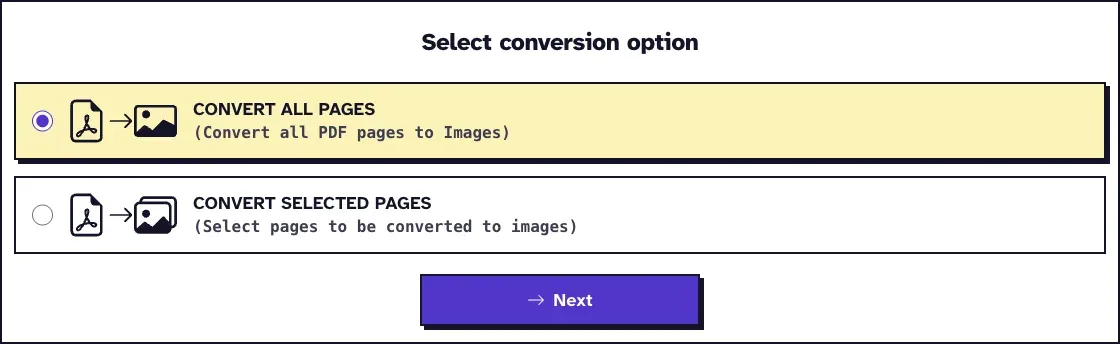
Each page gets rendered at 300 DPI, so an A4 page comes out about 2480 by 3508 pixels and small print stays readable. In November 2026 we converted a 12-page PDF of screenshots and got a 2.7 MB ZIP. If the pictures make the Word file too big, our guide to why PDF to PNG files are so large explains how to keep them small.
PNG keeps text and lines sharp. For pages full of photos, PDF to JPG makes smaller files. Either way the text is part of the picture, so it can't be searched or edited in Word.
Insert a PDF as Editable Text
Word can convert a PDF itself. Choose File, then Open, pick the PDF, and confirm the message that Word will convert it. Copy what you need into your own document from there.
Microsoft says the result may not look exactly like the original and that this works best with PDFs that are mostly text, so expect to tidy the layout.
Our PDF to Word converter is the other free route, and it works on any computer with a browser. It writes a DOCX with the PDF's text but drops pictures, and tables arrive as plain paragraphs.
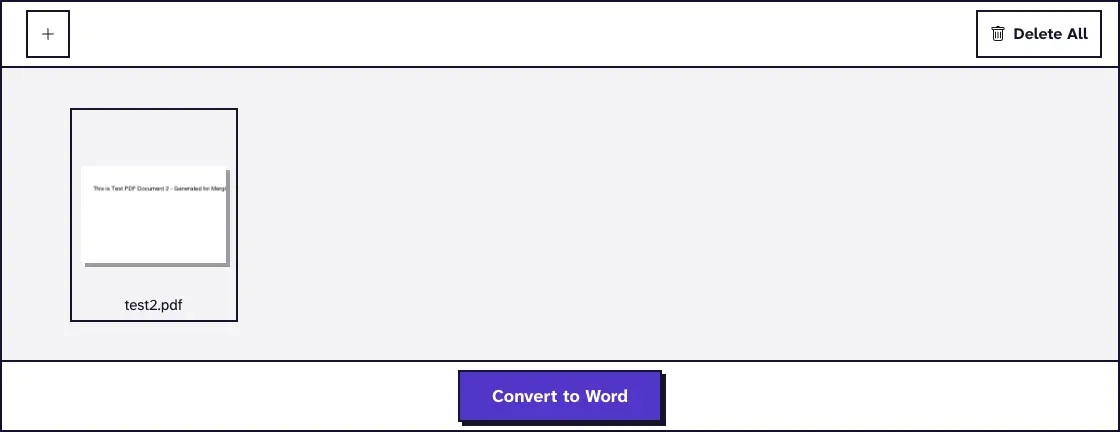
A scanned PDF has no text to convert. Run it through OCR PDF first, which reads English text, then convert the result.
Inserting a PDF Into Other Office Programs
Publisher has reached its end of support. Microsoft said subscribers would lose it on or shortly after October 1, 2026, and set October 13, 2026 as the end of support for the perpetual version. If you still have a perpetual copy, our guide to importing a PDF into Publisher covers it.
When your Word document is done and needs to go out as one PDF again, save it with File, Save As, PDF, or upload it to Word to PDF.
Frequently Asked Questions about How to Insert a PDF Into Word
Why does Word show only the first page of my inserted PDF?
An object shows a single preview, which is the first page. To show every page, insert the pages as pictures, one per page.
Can I insert just one page of a PDF into Word?
Yes. In PDF to PNG, choose Convert Selected Pages, pick the page and insert its PNG.
Will the inserted PDF stay linked to the original file?
Only if you tick Link to file in the Object dialog. Microsoft says linked objects can be updated if the source file changes. The PDF then stays outside the Word file, so send it along with the document.
Does inserting a PDF make the Word file bigger?
An embedded object adds the whole PDF, and page pictures add their image size. In our November 2026 test, a 3.2 MB, 12-page PDF of screenshots as one picture per page made a 2.7 MB DOCX with PNGs and 2.4 MB with JPGs. We built those with pandoc, not Word, which may store pictures differently.