OCR PDF to Searchable Text — Step by Step (2026 Guide)
We show you the OCR process step-by-step.

The PDF has no searchable text. Scanned. Images only. Ctrl+F finds nothing. The content is there—you just can't access it.
OCR (Optical Character Recognition) fixes this. Scanned pages become searchable. Text selectable. Content accessible. Every search term finds its match.
This guide covers converting scanned PDFs to searchable text: what searchable means, why scanned PDFs lack it, the OCR process step-by-step, and maximizing accuracy.
Actual example: A lawyer inherited a box of 200 handwritten case notes from a retired partner. Every page was a scanned image — completely unsearchable. Running OCR on the collection let him search "Smith v. Jones" across all notes in seconds, finding relevant references he'd have spent days manually flipping pages to find.
What Does "Searchable Text" Mean?
Text You Can Select, Copy, and Search (Ctrl+F)
Searchable text has several key characteristics: you can click and drag to select characters, use Ctrl+C (Cmd+C) to copy selected text, press Ctrl+F (Cmd+F) to open search and find matches, right-click and copy to paste elsewhere, and selected text can be formatted and edited.
In a non-searchable PDF, only images display, there is no text to select, Ctrl+C is impossible, Ctrl+F returns no results, and content is visual rather than data.
Not an Image of Text — Actual Text Characters
An image of text has text rendered as pixels, looks like letters but has no character data, and the computer sees colored dots rather than "A", "B", "C" characters. actual text characters are individually stored with each letter having a character code, the computer knows it is an "A" and not just a shape, and the text can be read, copied, searched, and indexed.
Indexed by Search Engines and Document Systems
Search engines can index text but not images, so a PDF with a text layer is searchable by Google as an image-only PDF is not indexed — a text layer is required for web discovery. Document management systems (DMS) rely on text to catalog, search functions need text, filters require text comparison, and a text layer creates a searchable archive.
The Goal of OCR: Turn Images of Text into actual Text
The OCR process works like this: an image of the page is uploaded, OCR analyzes pixel patterns, patterns are matched to character shapes, text characters are extracted, and a text layer is added to the PDF.
Why Your Scanned PDF Has No Searchable Text
Scanners Capture a Photo of the Page
A scanner works by moving a camera across the page, taking photographs of each area, combining photographs into a single image, and saving as PDF pages. What gets captured is the visual appearance (pixels), no underlying text data, something that looks like a document but acts like a photo, and images rather than text.
No Text Layer Exists — Just Pixel Data
A normal PDF structure contains text objects like "Hello" and "World" plus an image object for a signature graphic and layout information. A scanned PDF structure contains only an image object with a pixel grid representing text. Text objects contain character codes as image objects contain pixel colors — OCR converts image objects to text objects, creating searchable content.
Ctrl+F Finds Nothing Since There's No Text to Find
The search process runs as follows: the user presses Ctrl+F, the PDF reader searches text objects, finds nothing since no text objects exist, and the result is "No matches found." Your eyes see "Contract Agreement" but the PDF sees pixels forming shapes. Without OCR, there is no "Contract Agreement" to find — OCR adds a text layer so Ctrl+F works.
Step-by-Step: OCR PDF to Searchable Text
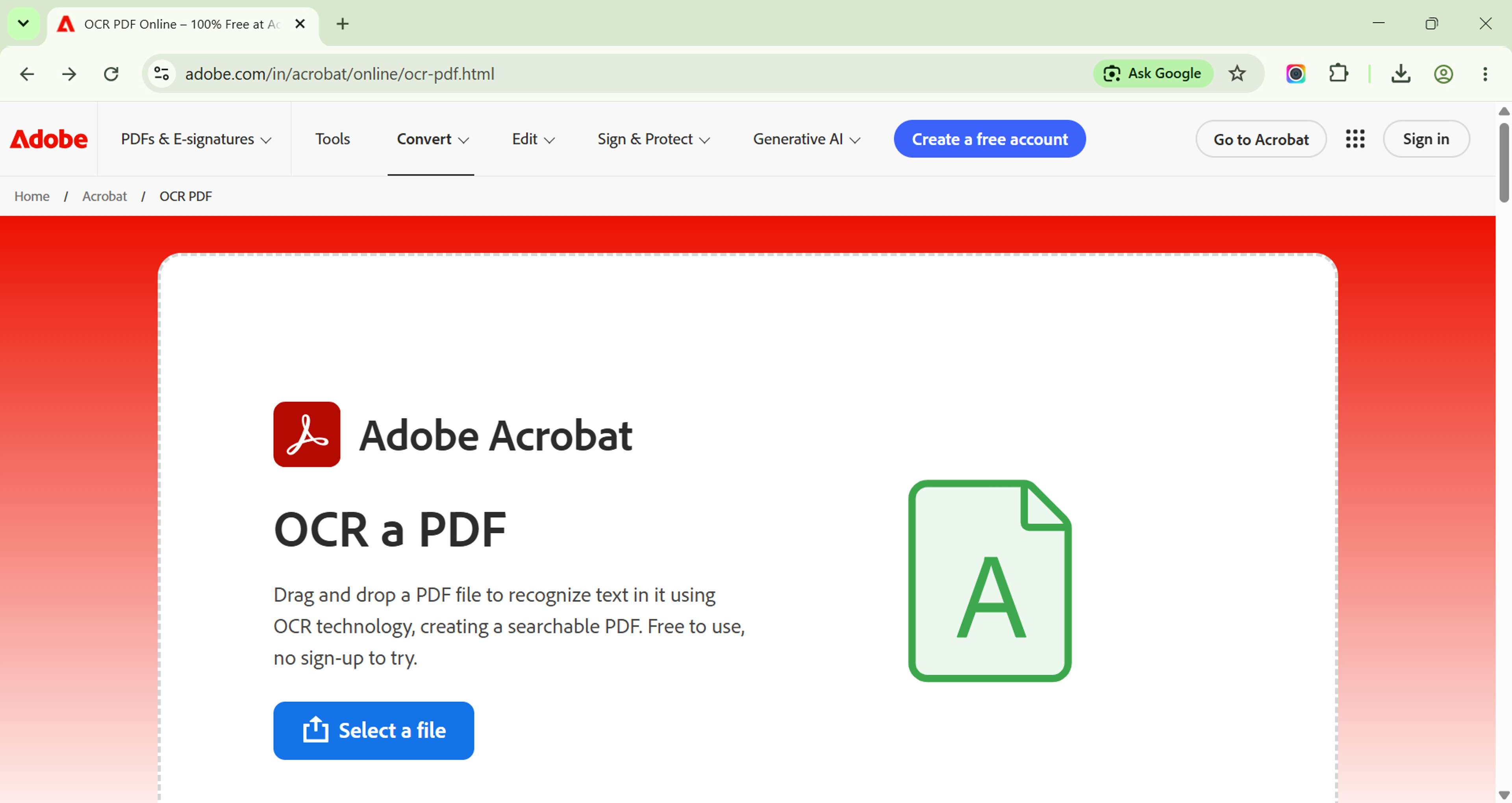
Step 1: Upload Your Scanned PDF
Upload options include dragging and dropping the file into the browser, clicking "Select PDF" to browse, and uploading from cloud storage. Best practices: make sure the PDF is complete (not partial), check the file opens correctly before upload, don't upload password-protected files, and use standard PDF format. File format tips: scanned PDFs work perfectly, multi-page scanned PDFs have all pages processed, mixed content (text plus scanned) has OCR adding text to scanned pages, and password-protected PDFs need to be unlocked first.
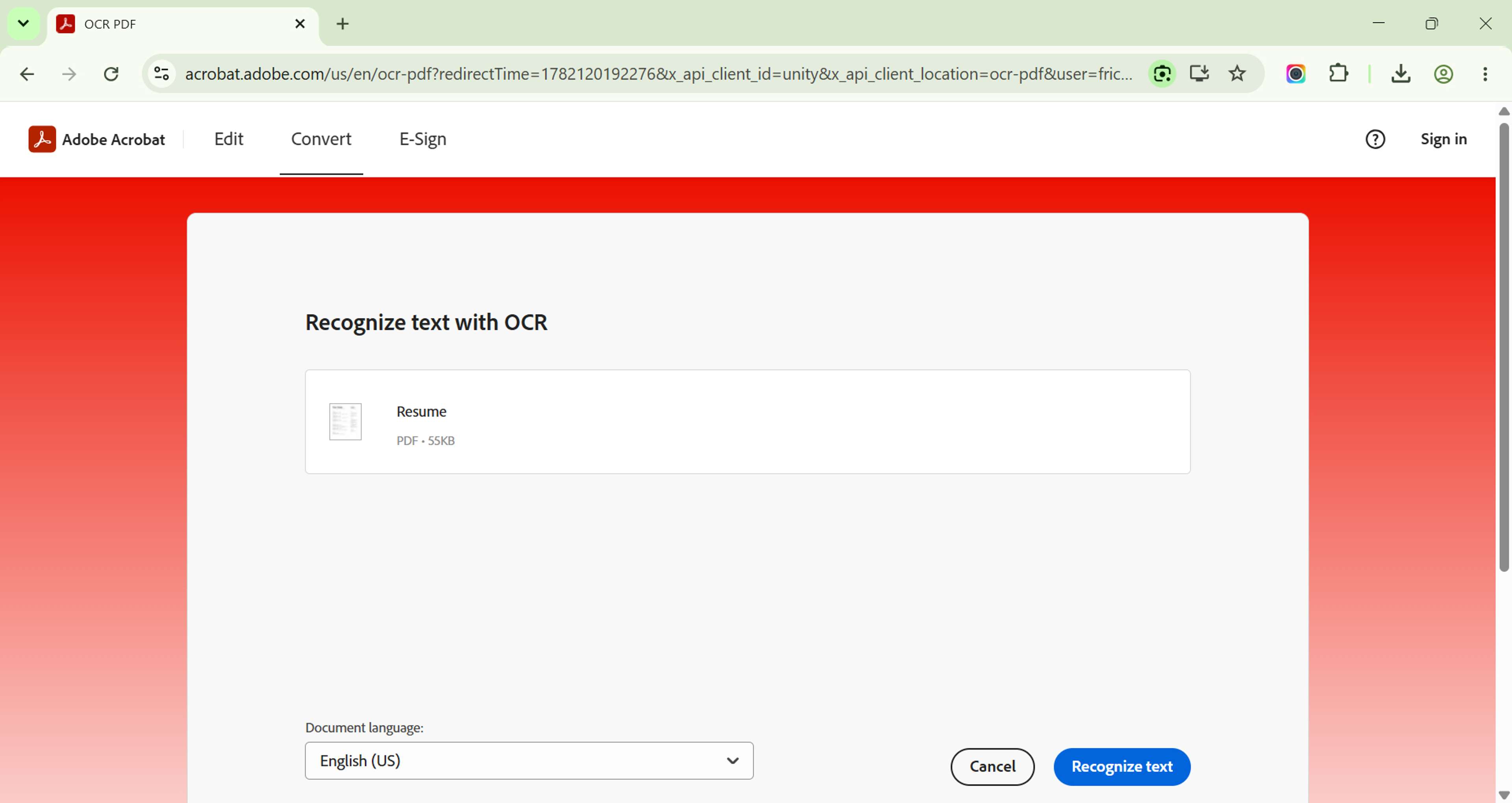
Step 2: Tool Detects It's an Image-Based PDF
The detection process analyzes the PDF structure, looks for text objects, detects image-only pages, identifies the document as scanned, and prepares for OCR processing. What detection reveals is that the PDF is scanned (image-based), OCR is required for text extraction, processing will add a text layer, and the document needs conversion. Auto-detection benefits are no manual format selection, automatic OCR initiation, correct processing mode, and consistent results.
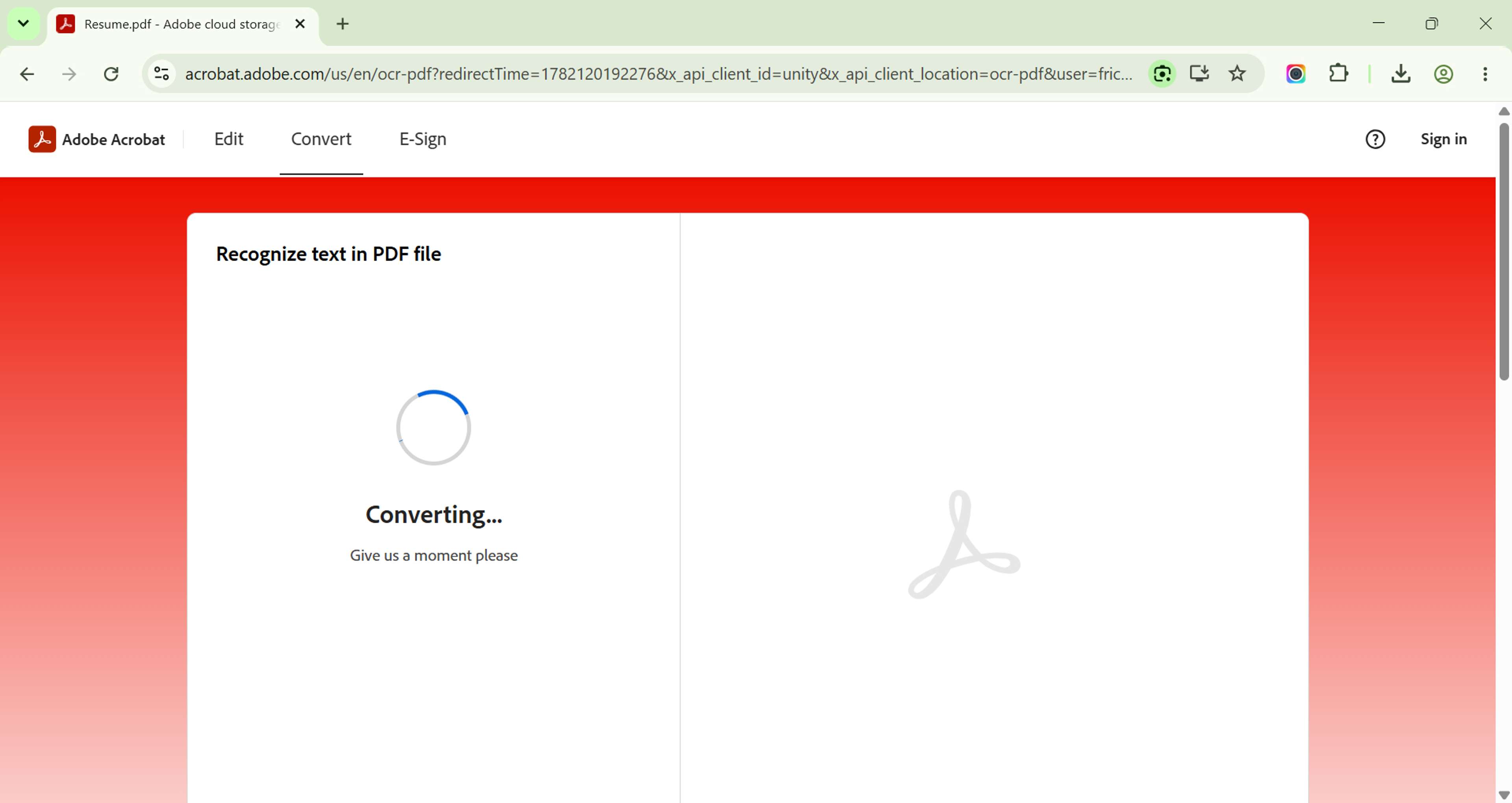
Step 3: OCR Runs Automatically
OCR processing analyzes each page, extracts the image from the page, identifies characters through pattern matching, assembles characters into words and sentences, preserves layout structure, and creates a text layer. Processing time by page count: 1–5 pages take 10–30 seconds, 5–20 pages take 30–90 seconds, 20–50 pages take 1–3 minutes, and 50–100 pages take 3–10 minutes. What OCR extracts includes all readable text, paragraph structure, basic formatting (bold, italic), table content (variable accuracy), and headers and footers.
Step 4: Review Extracted Text for Accuracy
The review process involves scrolling through the document, checking key sections, identifying OCR errors, making corrections, and verifying accuracy. Common OCR errors are 1 and l confused (lowercase L), 0 and O confused (zero and letter O), m and rn confused in low-res, fi ligature not recognized, special characters lost, and numbers misread (5 vs 8). Accuracy by document type: clean modern print is 95–99%, standard business is 90–95%, old or faded is 75–85%, and handwritten is 50–80%. Review tips: check names and numbers carefully, verify dates and addresses, look for missing letters, check table data, and review headers and footers.
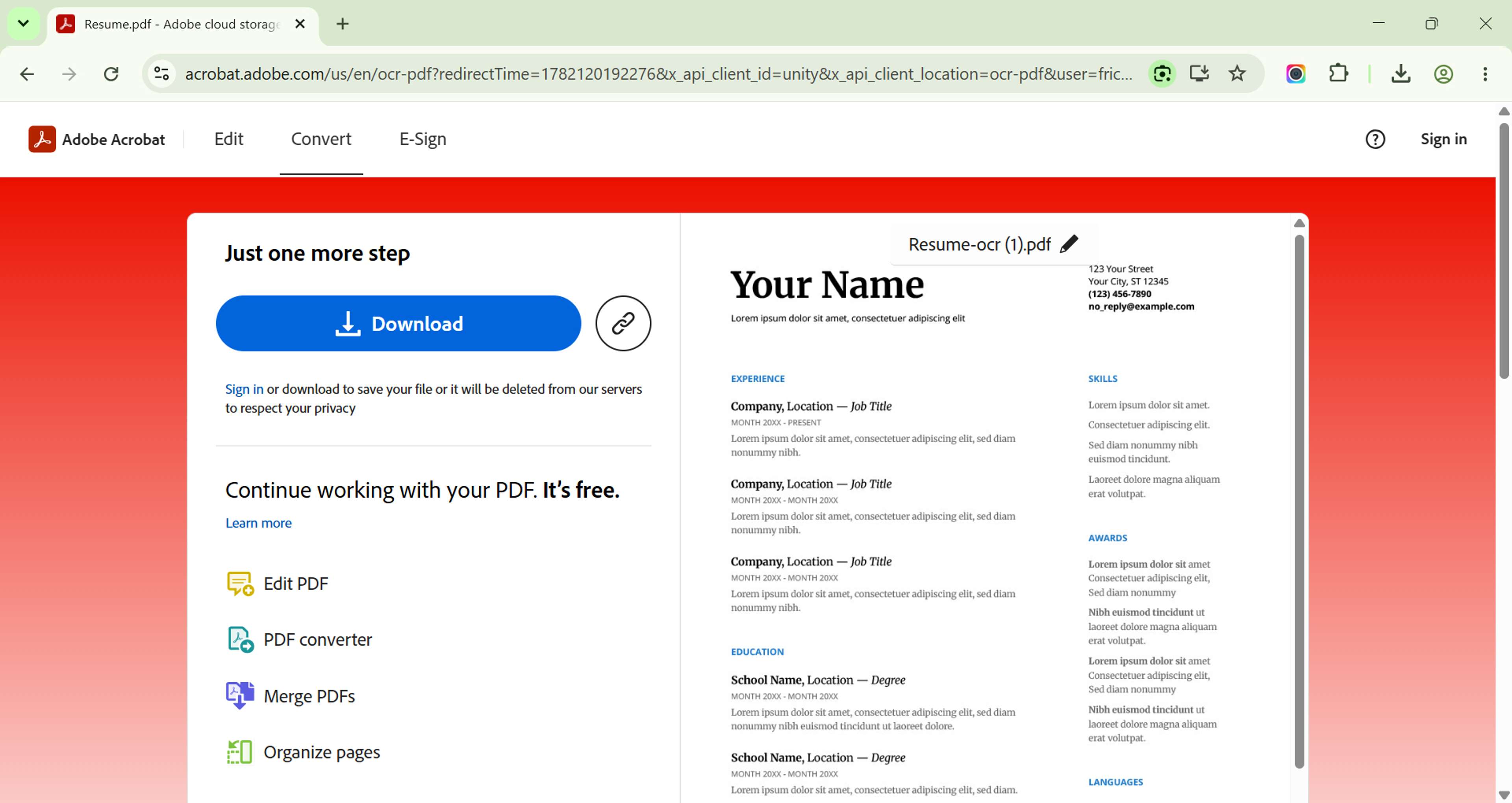
Step 5: Download as Searchable PDF
Download options are searchable PDF (image plus text layer), plain text (TXT file), Word document (DOCX), and searchable and exportable. A searchable PDF preserves the original image, adds an invisible text layer, looks exactly like the original, has selectable and searchable text, and is the best option for most uses. Plain text contains text only with no formatting, good for data extraction, easy to import to other applications, and no visual preservation.
What Makes OCR Searchable Text Accurate
- Document Quality: Clean, High-Contrast Scans Work Best: High-quality scan characteristics are 300+ DPI resolution, black text on white background, clear, crisp letters, no shadows or glare, and straight page alignment. Low-quality scan problems are blurry text, faded ink, shadows, skewed pages, and low resolution. DPI comparison: 150 DPI is acceptable at 70–80% accuracy, 200 DPI is good at 80–90% accuracy, 300 DPI is recommended at 95–99% accuracy, and 400+ DPI is excellent at 98–99% accuracy. Improvement tips are re-scan at higher resolution, make sure good lighting, use a flatbed scanner rather than a phone camera, clean the scanner glass, and straighten pages before scanning.
- Language Selection: Correct Language Helps Accuracy: Language matters since OCR uses language models, character sets differ by language, dictionary-based corrections depend on language, and wrong language means wrong suggestions. Setting language: most tools auto-detect, manual selection improves accuracy, select the primary language, and for mixed languages, process separately. Supported languages include English (best accuracy), Spanish, French, German, Italian, Portuguese, Russian, Chinese, Japanese, Korean, Arabic, Hebrew, and many more. Multi-language tips: identify the dominant language, process document sections separately, some tools support multiple languages, and accuracy may decrease for minor languages.
- Font Clarity: Standard Fonts Are Easier to Recognize: OCR-friendly fonts are Times New Roman, Arial, Helvetica, Calibri, and standard sans-serif and serif. OCR-challenging fonts are script fonts, decorative fonts, handwriting-style fonts, very thin or thick fonts, and unusual or custom fonts. Font size matters: too small (under 8pt) is harder to recognize, standard (10–14pt) gives best accuracy, large (16pt+) is easy to recognize, and results vary by resolution.
- Page Straightness: Deskewing Helps OCR: Skew problems arise since OCR expects horizontal text, tilted text reduces accuracy, words may be misread, and layout analysis fails. Acceptable skew: 0–2° has no significant impact, 2–5° has minor accuracy reduction, 5–10° has significant accuracy loss, and 10°+ causes major recognition errors. Deskewing methods are straighten before scanning, use scanner auto-deskew, pre-process the image before OCR, and most tools auto-deskew.
Searchable PDF vs Plain Text Extraction
Searchable PDF: PDF with Visible Page + Invisible Text Layer
A searchable PDF preserves the original image as visible content with an invisible text layer behind it. The document looks exactly like the original scanned version and text is selectable without changing the appearance. How it works: the original image remains visible, OCR extracts text, text is placed in an invisible layer, text aligns with corresponding image positions, searching selects from the text layer, and the document appears unchanged. Benefits are preserving original appearance, text is searchable, you can copy text, visual quality is maintained, and presentation is professional.
Plain Text: Just the Extracted Text Content (No PDF)
Plain text is text content only with no images or formatting and a simple TXT file output with no visual preservation. Use this for importing text to a database, creating a new document, data extraction, and content repurposing. Limitations are no visual content, no formatting preserved, no layout structure, and plain text only.
Searchable PDF: Keeps Original Page Appearance
Advantages are original appearance maintained, professional polished result, visual quality preserved, ability to print and view as original, and legal documentation preserved. Best for archival documents, legal documents, business records, academic papers, and any time appearance matters.
Plain Text: For Use in Other Applications
Advantages are easy to import, edit in Word, repurpose content, database entry, and simple data use. Best for data extraction, content migration, text analysis, import to systems, and repurposing content.
Common OCR Searchable Text Use Cases
- Legal Documents: Search by Name, Date, Clause: Legal applications are contract search by party name, finding specific dates and deadlines, locating clause references, searching case law documents, and indexing court filings. The workflow is scan legal documents, run OCR to create searchable PDFs, index in document management, search by name, date, and concept, and find relevant documents instantly. Example searches are "Find all contracts with Acme Corp," "Locate agreements expiring in 2026," "Search for liability clause," and "Find all mentions of NDA."
- Academic Papers: Search Within Scanned Book Chapters: Academic applications are searching within scanned textbooks, finding quotes or references, indexing research papers, searching archived materials, and locating specific information. The workflow is scan book chapters or papers, create searchable PDFs, build a searchable library, search across all documents, and locate specific passages. Benefits are faster research, finding relevant content, building a searchable archive, preserving original documents, and no more flipping through pages.
- Business Records: Find Content in Archived Scans: Business applications are archive search for contracts, finding specific invoices, locating reports, searching memos and letters, and indexing historical documents. The workflow is scan archived records, create a searchable archive, search by company, date, and topic, find specific documents, and extract relevant data. Benefits are instant document retrieval, reduced physical storage, faster research, better compliance, and organized archives.
- Medical Records: Search Patient Document Archives: Medical applications are searching patient history, finding specific diagnoses, locating medication references, indexing treatment records, and searching by date or condition. The workflow is scan medical records, create searchable documents, search by patient, date, and condition, find relevant records, and maintain privacy compliance. Benefits are faster record retrieval, better patient care, organized archives, research capabilities, and compliance maintained.
Troubleshooting OCR Accuracy
Low Accuracy on Clean Documents
The problem is high-quality scans but poor OCR results. Causes are wrong language selected, PDF contains scanned image but also text, encrypted or protected file, and non-standard encoding. Solutions are select the correct language, try a different OCR tool, check the file isn't already searchable, and make sure the PDF is valid format.
High Accuracy on Some Pages, Low on Others
The problem is inconsistent accuracy within a document. Causes are mixed quality scans, different fonts per page, varying background colors, and folded or damaged pages. Solutions are process pages separately, pre-process problematic pages, adjust scan quality, and accept limitations for damaged pages.
Numbers and Names Frequently Wrong
The problem is dates, phone numbers, and names often incorrect. Causes are OCR struggles with isolated numbers, names use unusual formatting, tabular data is challenging, and low contrast on numbers. Solutions are review critical sections manually, use find-replace for common errors, consider manual correction, and accept some errors and fix manually.
Related Tools and Resources
- OCR PDF — Full searchable guide
- Extract Text from Scanned PDF — Text extraction
- Deskew PDF — Straighten scans